In this article
Obsidian Sync costs $5/month ($4/month if you pay annually). You can replace it with a CouchDB container, the Self-hosted LiveSync community plugin, and a tunnel to reach the database from outside your home network. I run mine in Docker with Pinggy as the tunnel; total monthly cost is zero. This post walks through the setup, end to end, using Self-hosted LiveSync 1.0.35 (released October 5, 2026) and CouchDB 3.5.
LiveSync does most of the heavy lifting. It speaks CouchDB’s replication protocol directly, so edits propagate in a second or two and conflicts get resolved on the client without manual merges. I’ve used it through large vault reorganizations and concurrent edits across desktop and mobile and haven’t lost a note. The Docker side keeps the install identical on Windows, macOS, and Linux. Plan on 30 to 60 minutes start to finish. Back up your vault first, and turn off Obsidian Sync, iCloud or any other service that writes to the same vault before you connect LiveSync.
Summary
What You’ll Build:
- Self-hosted CouchDB database for storing your notes securely
- Docker containers for easy deployment and management across any OS
- Pinggy tunnel for secure remote access without port forwarding hassles
- Real-time sync across all your devices using the LiveSync plugin
- Complete data ownership with zero monthly fees (save $48/year!)
Prerequisites:
- Docker installed on your system (Windows, macOS, or Linux)
- Basic command line knowledge (copy/paste level)
- Obsidian installed on your devices
- Deno 2 (only to run LiveSync’s CouchDB setup script once)
Why I Built My Own Sync Server
My vault is a few thousand notes - project docs, code snippets, research, journal entries, the usual mix. Putting all of that on someone else’s servers started to feel like a single point of failure I hadn’t thought hard enough about. The $5/month wasn’t really the issue; control was. Two annoying sync conflicts (and one lost edit) later, I went looking for an alternative.
What pushed me to self-host:
- Privacy: my vault has client work and personal notes I’d rather not park on someone else’s servers.
- Cost: $48/year isn’t a lot, but the self-hosted option turned out to be better, not just cheaper.
- Understanding: setting it up taught me how CouchDB’s replication actually works, which I’d been hand-waving past for years.
- Reliability: I own the uptime, the backups, and the recovery plan. No third party can change the terms on me.
- Flexibility: I can tweak any layer of the stack without waiting for someone to ship a feature.
I tried a couple of other approaches before settling on this one. Git-based sync (commit notes, push, pull) gets noisy fast and produces merge conflicts on mobile. Syncthing handles arbitrary files well but doesn’t know what a note is, so partial syncs leave Obsidian in odd intermediate states. CouchDB plus LiveSync was the first combination that just behaved.
What we’re building
Four pieces, all open source except Pinggy:
- CouchDB is the database. Its replication protocol is what makes the whole thing work; nodes and CouchDB-compatible clients (like LiveSync) reconcile by trading document revisions, not by diffing files.
- Docker keeps the install reproducible across Windows, macOS, and Linux. The CouchDB side is one
docker-compose.yml. - Self-hosted LiveSync is the Obsidian community plugin that talks to CouchDB. It watches the vault for changes and pushes them upstream within a second or two.
- Pinggy is an SSH-based tunnel that gives the CouchDB container a public HTTPS URL. Saves you from router port-forwarding and dynamic-DNS plumbing.
Prerequisites and system requirements
System requirements are whatever Docker needs to run. CouchDB itself is light on resources, so a modest box - old laptop, cheap VPS, home server, Raspberry Pi - is plenty.
You’ll need Docker on whichever machine will host CouchDB. Docker Desktop is the easiest install on Windows and macOS; on Linux, Docker Engine from the official repository is the cleanest path. If you already have Docker running for other projects, you’re set.
You’ll also need Obsidian on every device you want to sync. LiveSync works wherever Obsidian works: Windows, macOS, Linux, iOS, and Android.
Step 1: Installing Docker
Docker is the foundation of our setup, providing containerization that makes deployment consistent across different operating systems. The installation process varies by platform, so I’ll cover all three major operating systems.
Windows Installation
Download Docker Desktop from docker.com and run the installer. You’ll need Windows 10 64-bit Pro, Enterprise, or Education (Build 19041 or higher), or Windows 11. The installer will enable WSL 2 if it’s not already active.
# Verify Docker installation
docker --version
docker compose version
After installation, Docker Desktop should show a green status indicator in your system tray. If you encounter issues, make sure virtualization is enabled in your BIOS settings.
Note: the legacy docker-compose (V1, with the hyphen) binary was retired in 2023. Compose V2 ships as a Docker CLI plugin and is invoked as docker compose (with a space). Docker Desktop installs it by default.
macOS Installation
Download Docker Desktop for Mac from the official website. The installer works on both Intel and Apple Silicon Macs running macOS 10.15 or newer.
# Verify Docker installation
docker --version
docker compose version
Linux Installation
For Ubuntu and Debian, use Docker’s official apt repository for the most up-to-date version:
# Add Docker's official GPG key
sudo apt update
sudo apt install ca-certificates curl
sudo install -m 0755 -d /etc/apt/keyrings
sudo curl -fsSL https://download.docker.com/linux/ubuntu/gpg -o /etc/apt/keyrings/docker.asc
sudo chmod a+r /etc/apt/keyrings/docker.asc

# Add the repository
sudo tee /etc/apt/sources.list.d/docker.sources <<EOF
Types: deb
URIs: https://download.docker.com/linux/ubuntu
Suites: $(. /etc/os-release && echo "${UBUNTU_CODENAME:-$VERSION_CODENAME}")
Components: stable
Architectures: $(dpkg --print-architecture)
Signed-By: /etc/apt/keyrings/docker.asc
EOF

# Install Docker
sudo apt update
sudo apt install docker-ce docker-ce-cli containerd.io docker-buildx-plugin docker-compose-plugin

# Add your user to docker group (requires logout/login)
sudo usermod -aG docker $USER

# Verify installation
docker --version
docker compose version
These are the commands from Docker’s Ubuntu install page (22.04, 24.04 and 26.04 are supported). On Debian, swap ubuntu for debian in the URLs.
Step 2: Setting Up CouchDB with Docker
Now we’ll create our CouchDB instance using Docker. CouchDB is perfect for this use case because it’s designed for replication and handles the complex synchronization logic that makes LiveSync work so well.
Creating the Docker Compose Configuration
Create a new directory for your Obsidian sync server and set up the Docker Compose configuration:
Windows (PowerShell):
# Create project directory
mkdir obsidian-sync
cd obsidian-sync
mkdir couchdb-data, couchdb-etc

# Create docker-compose.yml
New-Item -ItemType File -Name "docker-compose.yml"
macOS/Linux:
# Create project directory
mkdir -p obsidian-sync/couchdb-data obsidian-sync/couchdb-etc
cd obsidian-sync

# Create docker-compose.yml
touch docker-compose.yml
Now edit the docker-compose.yml file with your preferred text editor and add the following configuration:
services:
  couchdb:
    image: couchdb:3.5
    container_name: couchdb-for-ols
    user: 5984:5984
    environment:
      - COUCHDB_USER=obsidian_admin #Please change as you like.
      - COUCHDB_PASSWORD=change-me-to-a-long-random-password #Please change as you like.
    volumes:
      - ./couchdb-data:/opt/couchdb/data
      - ./couchdb-etc:/opt/couchdb/etc/local.d
    ports:
      - 5984:5984
    restart: unless-stopped
The top-level version: field that older guides put at the top of the file is no longer required and Compose V2 prints a deprecation warning if you include it. The Compose schema is inferred from the CLI version now.
Replace the placeholder password with a long random one (a password manager’s generator is fine). This is your CouchDB admin password, and once the tunnel is up this database is reachable from the internet, so a short or guessable password is the main way this setup gets hurt.
I pin the image to couchdb:3.5 so a future major release doesn’t change under you on a restart. LiveSync’s own docs use couchdb:latest; either works today (Docker Hub’s latest is 3.5.2.1 as of October 2026). If the container exits straight away, check the ownership of couchdb-data and couchdb-etc first. LiveSync’s docs say CouchDB runs as uid 5984 and recommend this on a Linux host:
sudo chown -R 5984:5984 ./couchdb-data ./couchdb-etc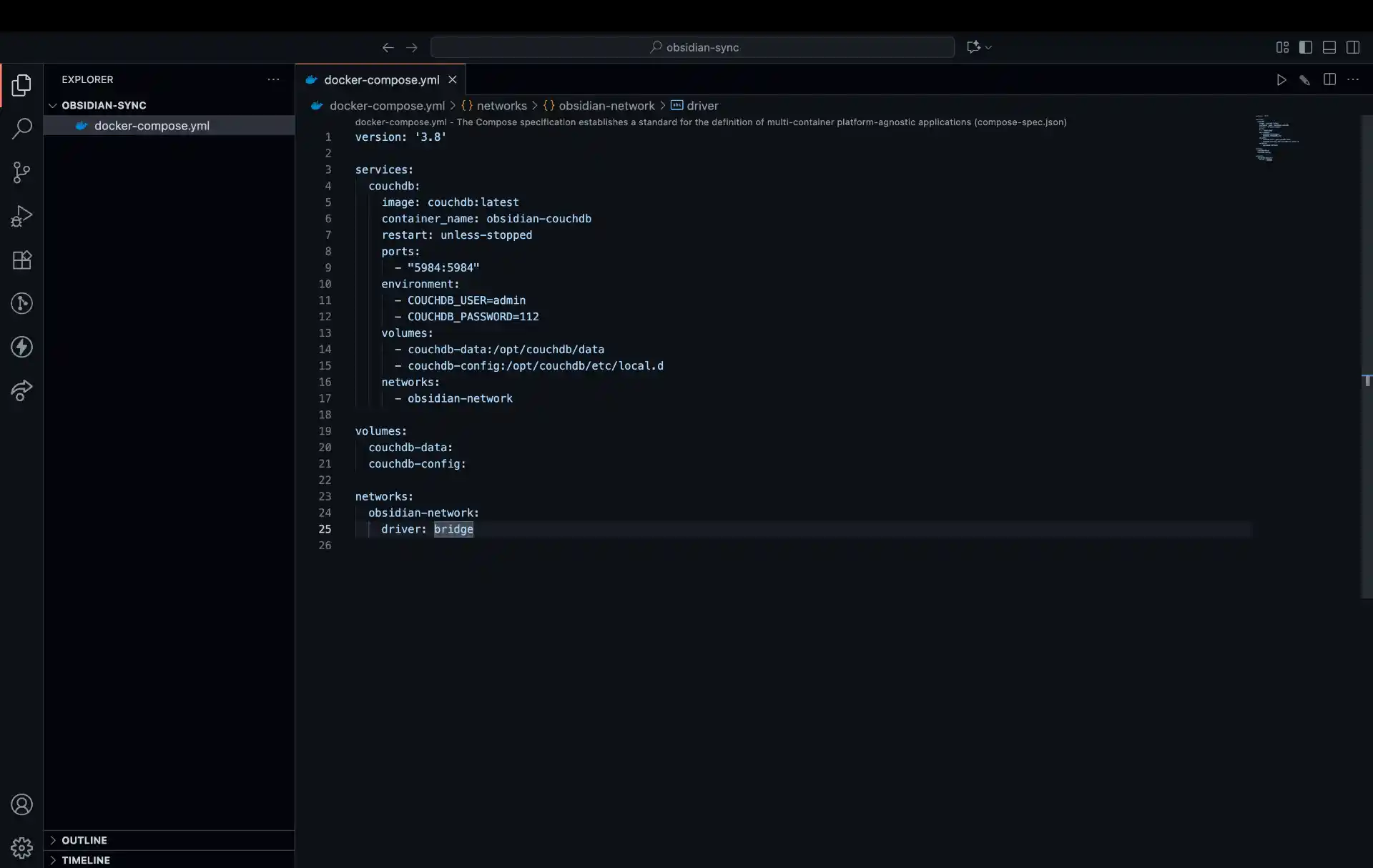
Starting CouchDB
Launch your CouchDB container using Docker Compose:
All Platforms:
# Start CouchDB in detached mode
docker compose up -d

# Check if container is running
docker compose ps

# View logs if needed
docker compose logs couchdb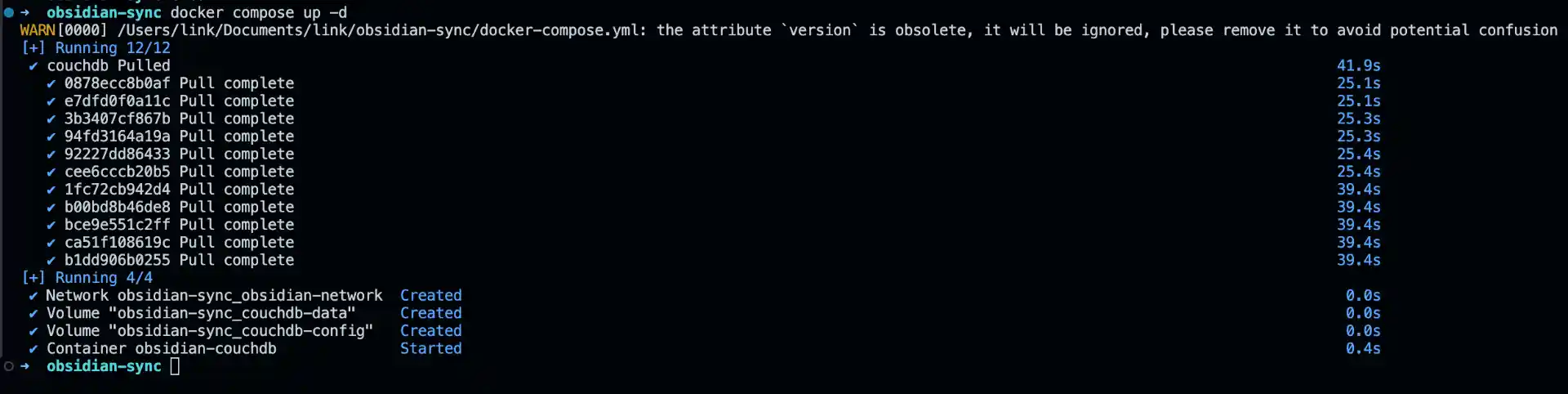
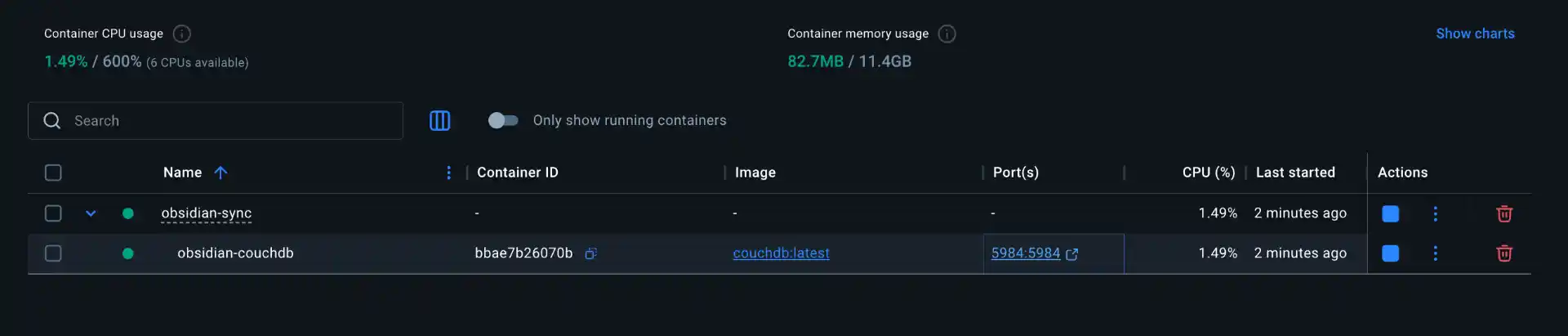
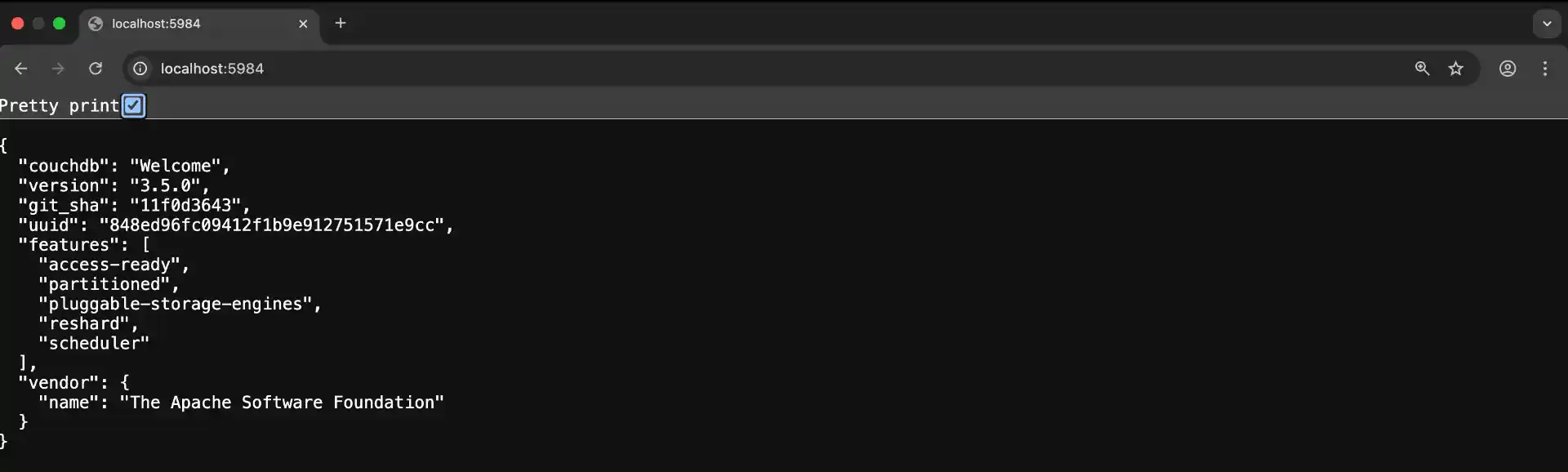
After a few moments, CouchDB should be running and accessible at http://localhost:5984. Open the URL in your browser to verify - you should see a JSON response welcoming you to CouchDB.
Step 3: Initializing CouchDB for LiveSync
A fresh CouchDB container is not ready for LiveSync. The plugin needs the server configured for it (single-node setup, authentication, CORS for Obsidian’s requests) and a database created. Older versions of this guide did that by hand in the Fauxton admin page, but LiveSync now ships a provisioning script that does it in one go, so use that instead.
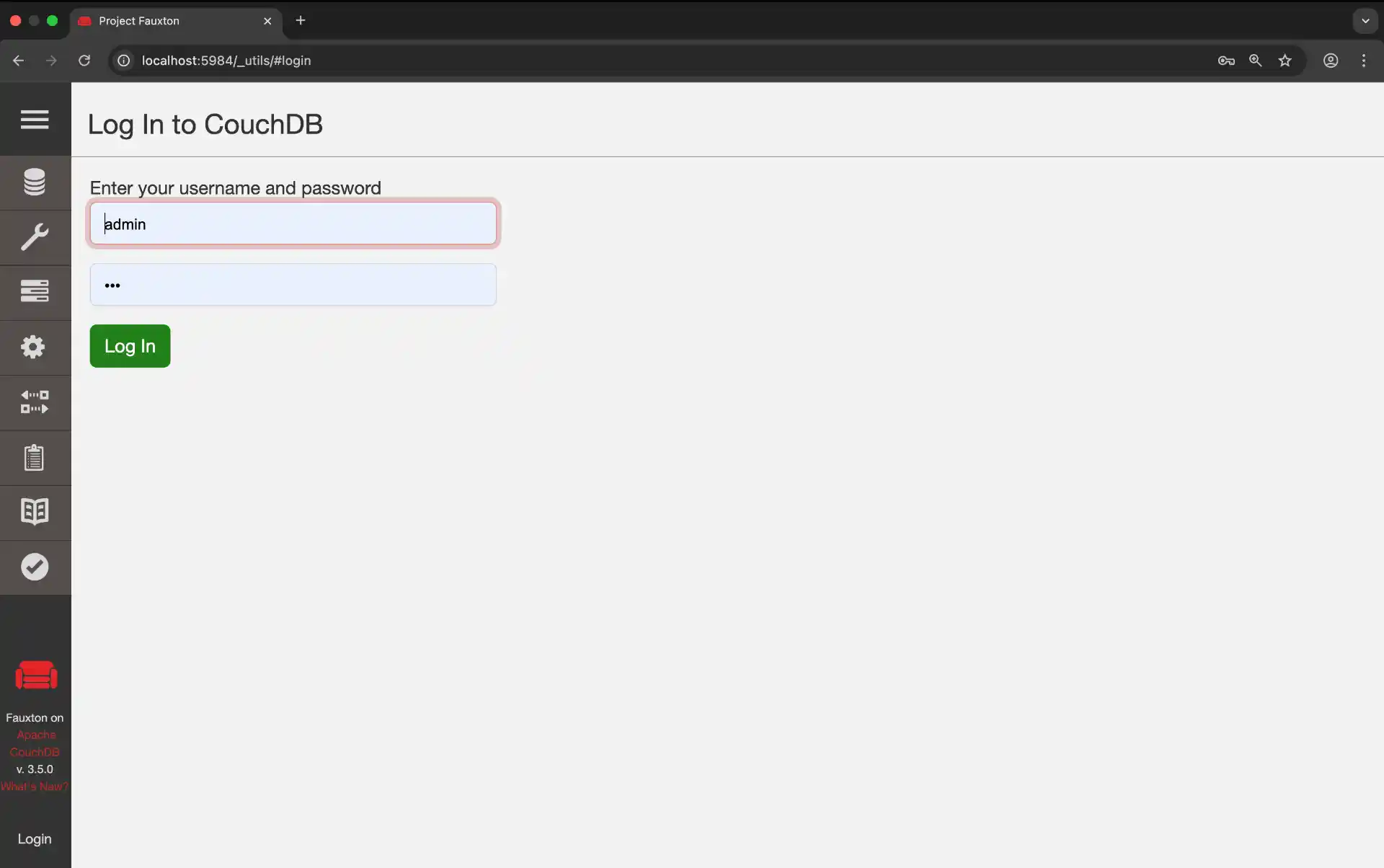
First check that CouchDB answers. Open http://localhost:5984/_utils and log in with the admin username and password from your compose file.
The script runs on Deno 2. Install it if you don’t have it:
# macOS / Linux
curl -fsSL https://deno.land/install.sh | sh
# Windows PowerShell:  irm https://deno.land/install.ps1 | iex
# or: brew install deno / winget install DenoLand.Deno

# confirm it works (open a new terminal first if the installer asks you to)
deno --version
Then run the script with your CouchDB admin credentials. obsidiannotes is the database name LiveSync’s docs use, and you can pick another:
export hostname=http://localhost:5984
export username=obsidian_admin
export password='your-couchdb-admin-password'
export database=obsidiannotes
curl -s https://raw.githubusercontent.com/vrtmrz/obsidian-livesync/main/utils/couchdb/couchdb-init.sh | bash
It should end with CouchDB provisioning completed. If it prints ERROR: Hostname missing, pass the three variables inline in front of bash instead, as shown in the LiveSync server setup guide.
The script does not create a separate non-admin account, so LiveSync will connect with the admin credentials. That’s fine for a personal server, but it is one more reason to keep the password long.
Step 4: Setting Up Pinggy Tunnel for Remote Access
Now that CouchDB is running locally, we need a way to access it from outside your home network. Traditional approaches like port forwarding or dynamic DNS are tedious to configure and come with security risks. Instead, we’ll use Pinggy to create an encrypted tunnel that securely exposes your CouchDB instance to the internet.
What makes Pinggy ideal for this use case is that there’s nothing to install it works entirely over SSH, which comes pre-installed on every modern operating system. You run a single command, and Pinggy gives you a public HTTPS URL that routes traffic directly to your local CouchDB server.
Note: The command below works without an account on the free tier, which is fine for testing. Free tunnels last 60 minutes and get a new random URL each time you reconnect, so for a sync server you’ll want Pinggy Pro (a persistent subdomain and no timeout).
Creating the Tunnel
Start a Pinggy tunnel to expose your CouchDB instance securely with just one command:
That’s it! Pinggy will provide you with a public HTTPS URL (on the free tier, something like https://abc123.run.pinggy-free.link) that securely tunnels to your local CouchDB instance. This URL will work from anywhere on the internet, allowing you to sync your Obsidian notes from any device.
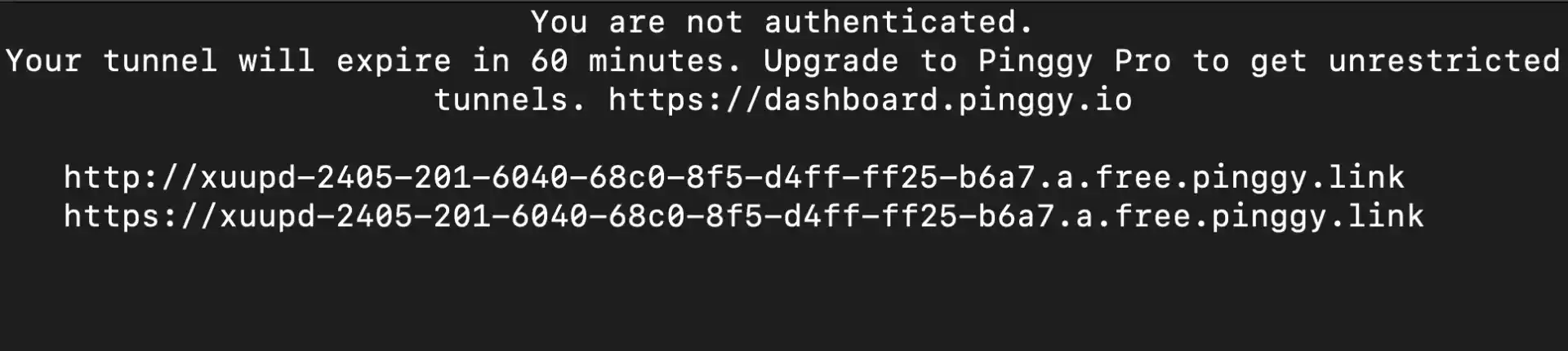
The tunnel will display something like this:
You can access local server via following URL(s):
https://abc123.run.pinggy-free.link
Copy this URL - you’ll need it for configuring Obsidian LiveSync. Obsidian on iOS and Android only talks to HTTPS servers with a valid certificate, which is the other reason to use a tunnel (or a reverse proxy with a real domain) instead of plain http:// on your LAN.
If you’d rather start the tunnel from a script or a long-running service (instead of leaving an SSH session open), Pinggy now ships official Node.js and Python SDKs. Both wrap the same protocol the SSH command above uses, so you can spin the tunnel up and tear it down programmatically from inside your own automation. Useful if you want the tunnel to come up alongside the CouchDB container on boot rather than as a separate manual step.
Step 5: Installing Obsidian and Configuring LiveSync
With the database and tunnel running, the rest is on the Obsidian side: install the app, enable the LiveSync plugin, and point it at the tunnel URL.
Downloading and Installing Obsidian
First, let’s get Obsidian installed on your system. Obsidian is available for all major platforms and is completely free to use.
Windows:
- Visit obsidian.md
- Click “Download for Windows”
- Run the downloaded installer (
Obsidian.Setup.exe) - Follow the installation wizard
- Launch Obsidian from your Start menu or desktop shortcut
macOS:
- Visit obsidian.md
- Click “Download for Mac”
- Open the downloaded DMG file
- Drag Obsidian to your Applications folder
- Launch Obsidian from Applications or Spotlight
Linux:
- Visit obsidian.md
- Choose your preferred format:
- AppImage (universal): Download and make executable
- Snap:
sudo snap install obsidian --classic - Flatpak:
flatpak install flathub md.obsidian.Obsidian - DEB/RPM: Download the appropriate package for your distribution
Initial Obsidian Setup
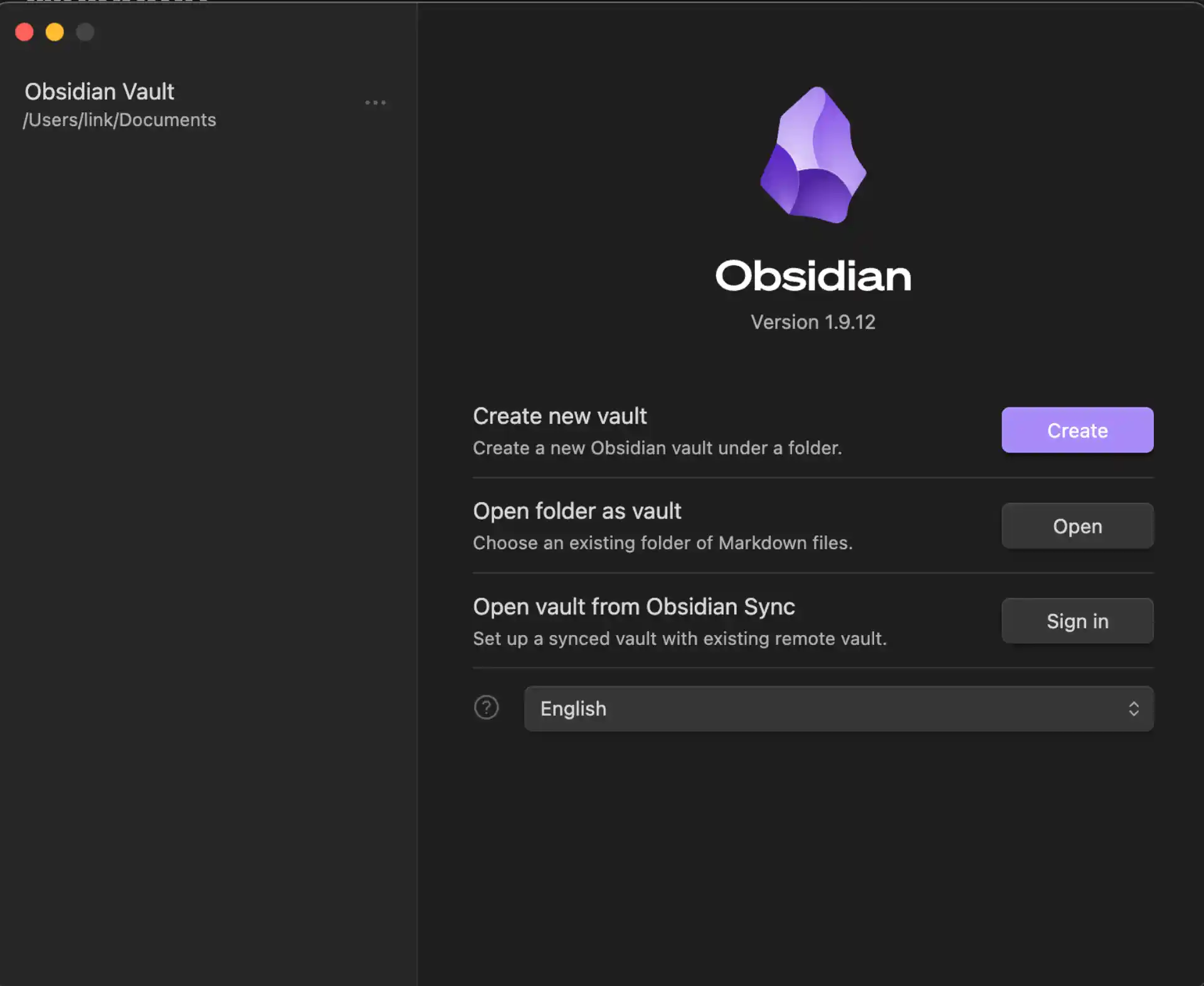
When you first launch Obsidian:
- Create or Open a Vault: Choose “Create new vault” if this is your first time
- Name your vault: Give it a meaningful name like “My Notes” or “Knowledge Base”
- Choose location: Select where you want to store your notes locally
- Skip the tutorial for now (we’ll set up sync first)
Installing the LiveSync Plugin
Now let’s install the plugin that will connect to your CouchDB server:
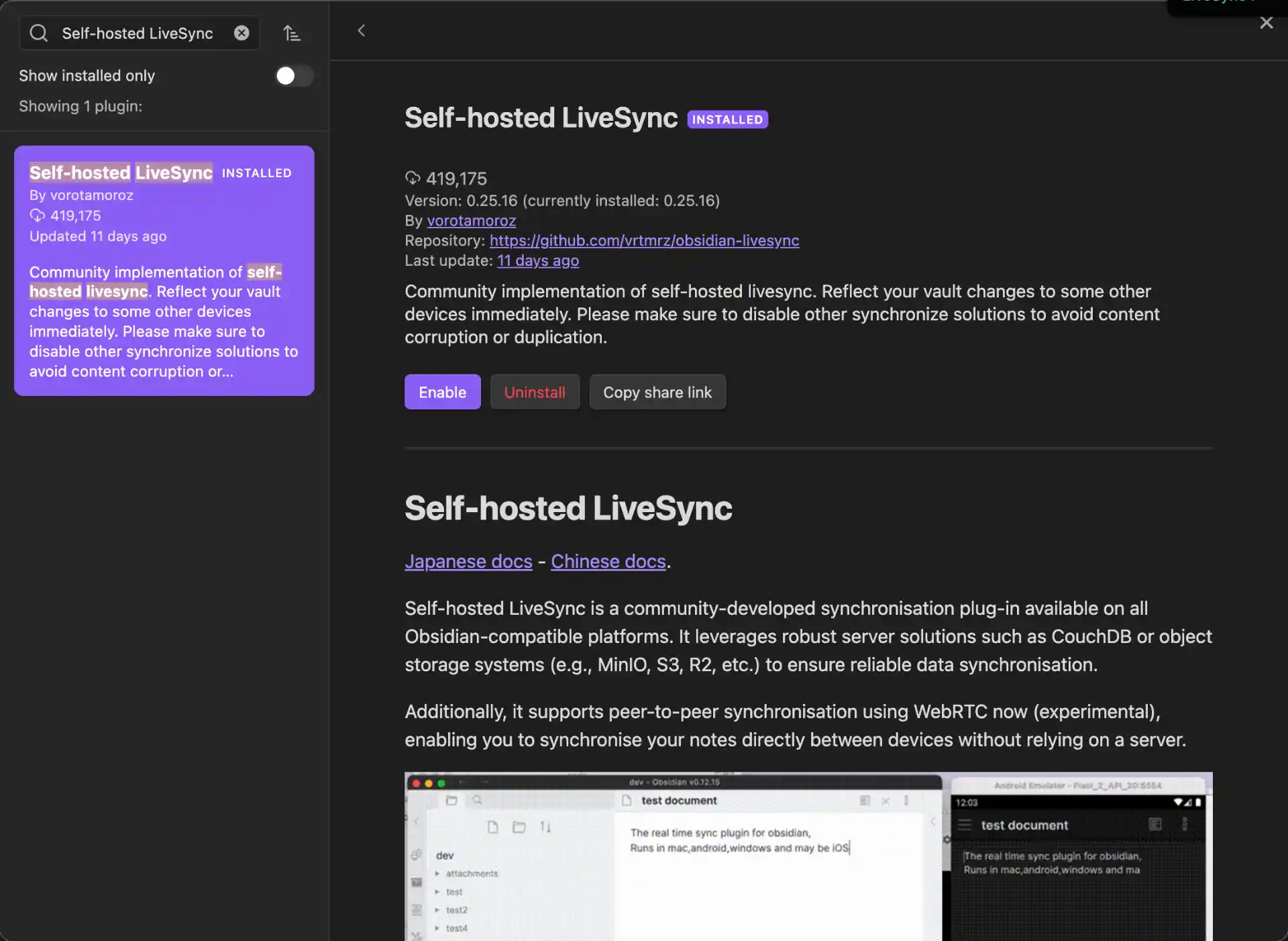
- Open Obsidian and click the Settings icon (gear icon) in the bottom-left
- In the left sidebar, navigate to “Community plugins”
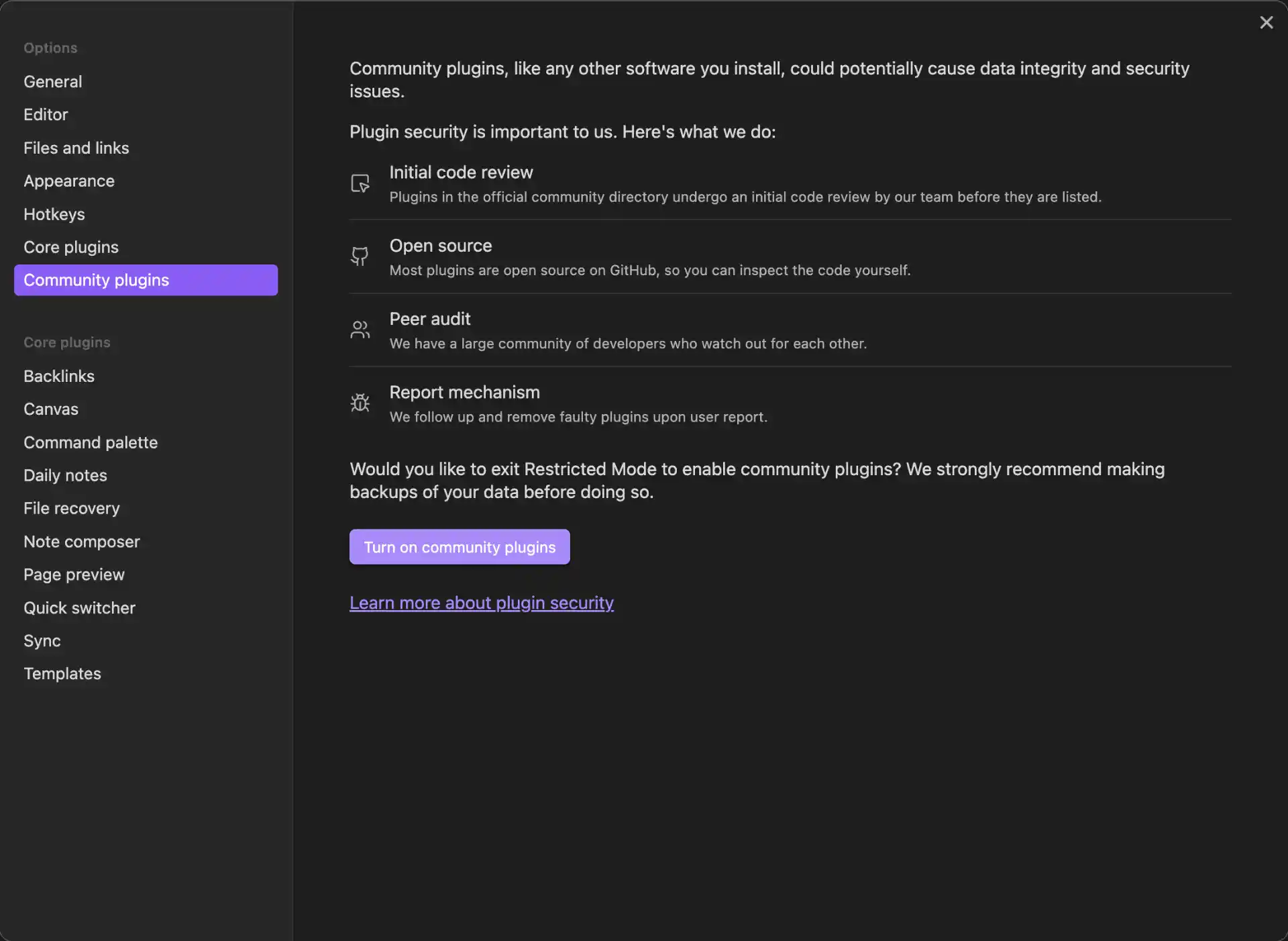
- If this is your first community plugin, click “Turn on community plugins”
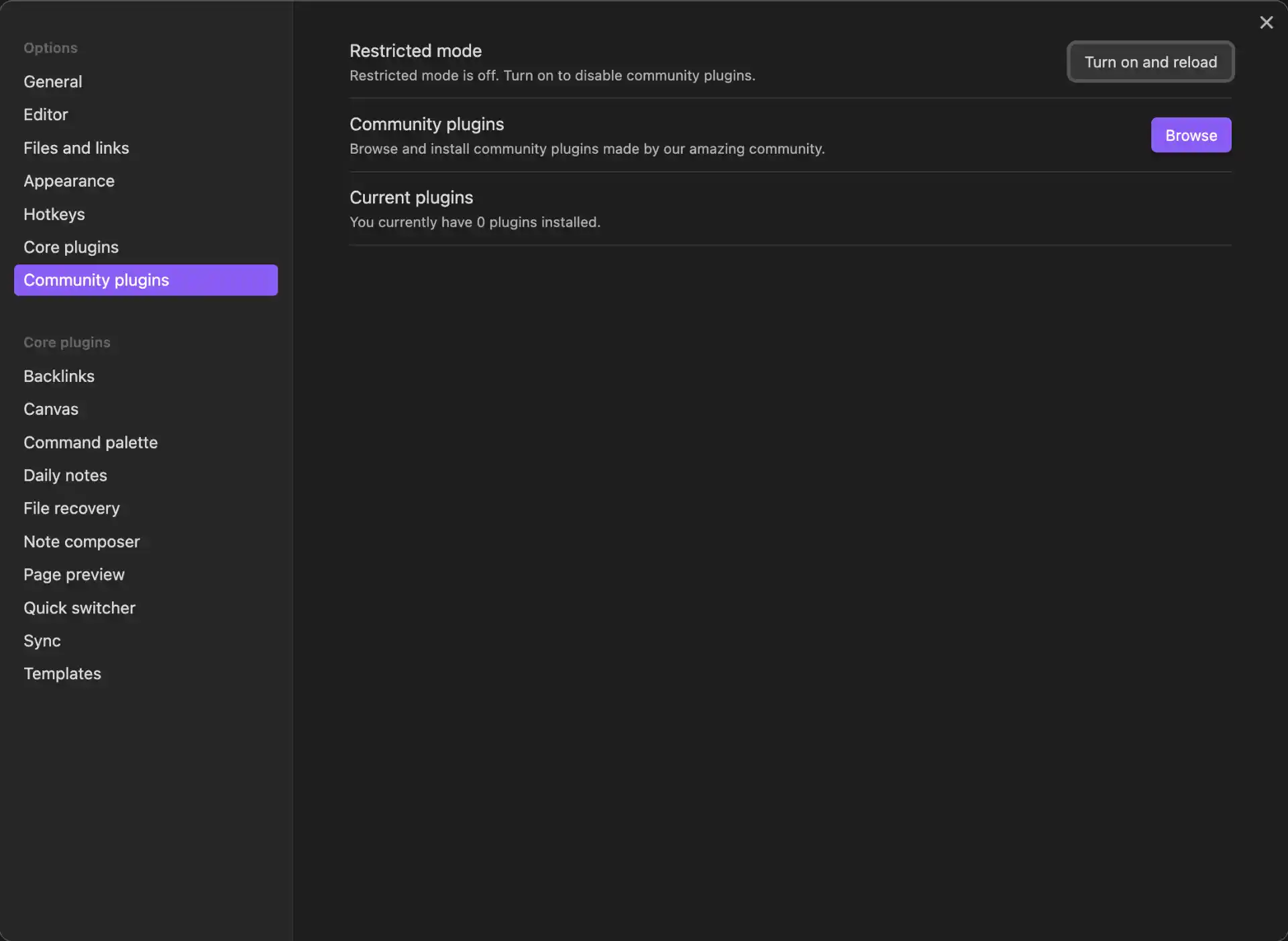
Click “Browse” to open the plugin marketplace
In the search bar, type “Self-hosted LiveSync”
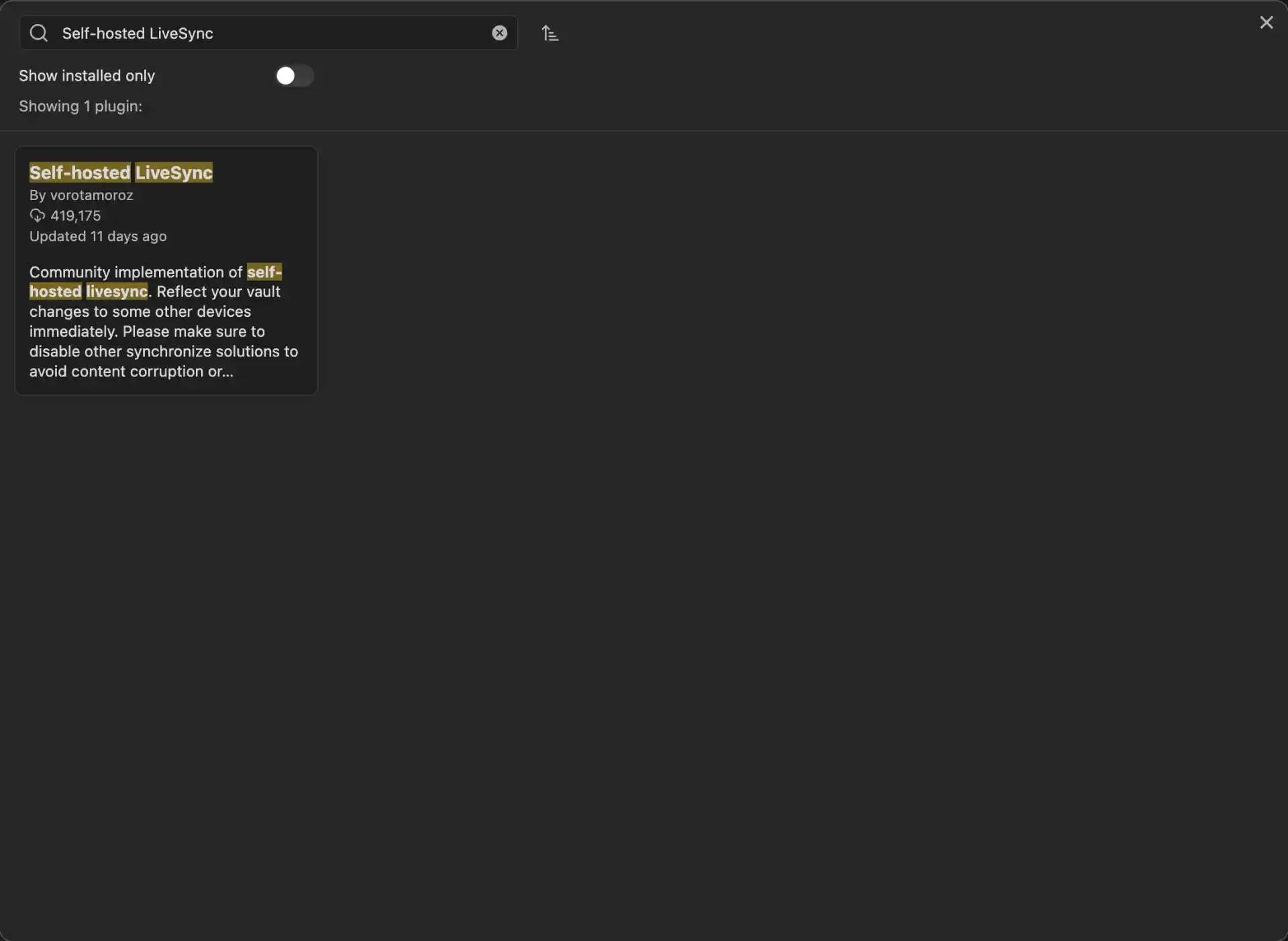
- Find the plugin by vorotamoroz (make sure it’s the official one)
- Click “Install”
- After installation, click “Enable” to activate the plugin
Configuring LiveSync on the first device
LiveSync 1.0.x walks you through setup with an onboarding dialog rather than the old Settings > Setup tab. The flow below follows the plugin's quick setup guide; the screenshots further down are from an earlier version of the plugin, so button labels may differ slightly.
- After enabling the plugin, select the
Welcome to Self-hosted LiveSyncnotice to open onboarding. - Choose
I am setting this up for the first timeand confirm. - On
Connection Method, chooseConfigure a remote manually, thenProceed with manual configuration. - On
End-to-End Encryption, turn it on and enter a strong vault passphrase. Store it somewhere safe: without it the data on the server can’t be read, and every other device needs the same passphrase. - On
Choose a synchronisation remote, selectCouchDB, then fill in the connection details:- URL: your full Pinggy URL, including
https://and with no extra path (e.g.https://abc123.run.pinggy-free.link) - Username and Password: your CouchDB admin credentials from
docker-compose.yml - Database name:
obsidiannotes(or whatever you used in Step 3)
- URL: your full Pinggy URL, including
- Select
Create or connect to database and continue. This test has to pass before onboarding goes on. - Review
Setup Complete: Preparing to Initialise Serverand selectRestart and Initialise Server. Read the overwrite warning, and only continue withI Understand, Overwrite Serverif this device is meant to be the source of truth and you have a backup. - If you see
No Synchronisation Settings Foundon a new database, chooseUse this device's settings. - Acknowledge that optional features are disabled, and keep Obsidian open until the progress indicators clear.
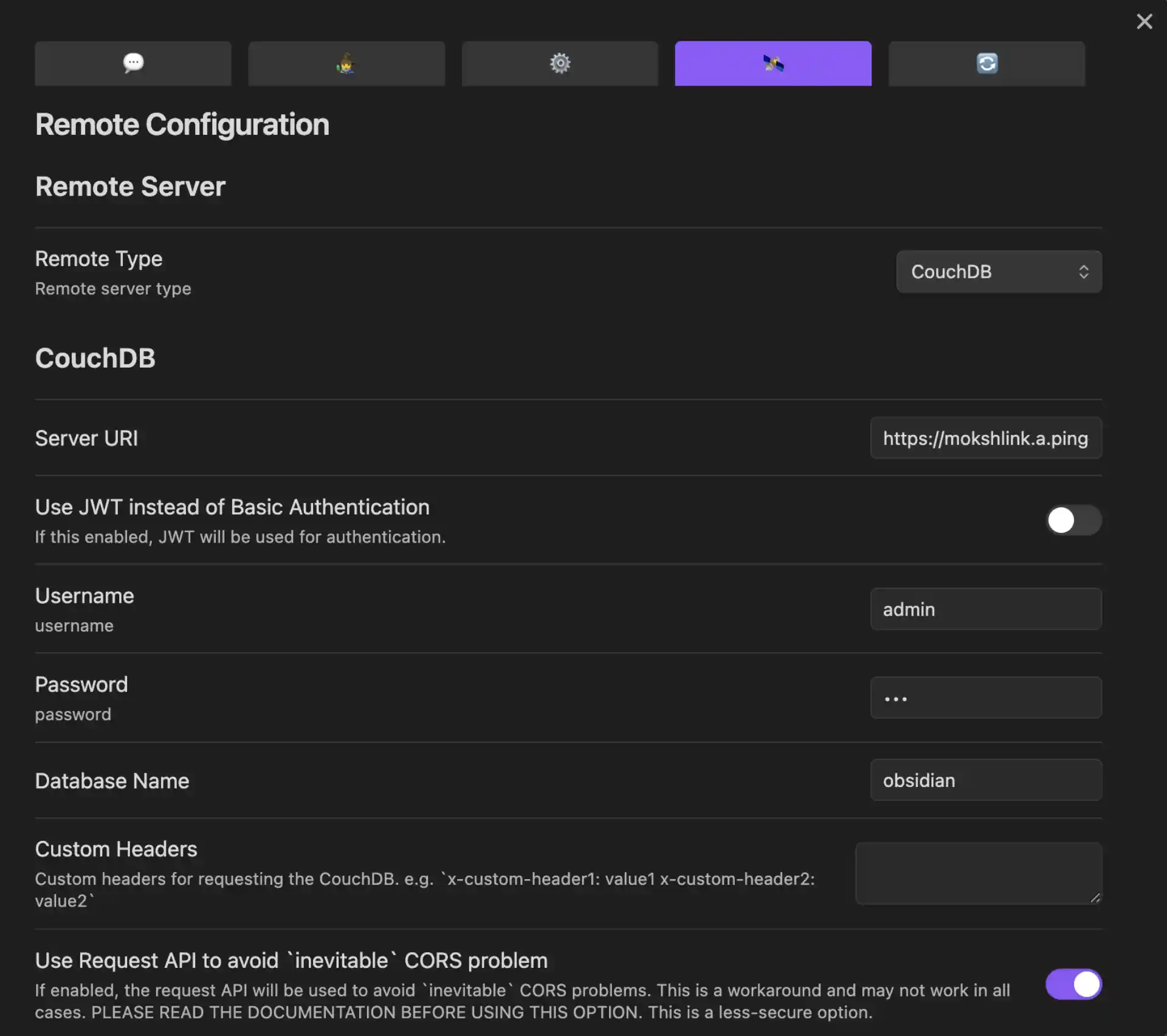
Create a test note and let it upload before you add a second device.
Configuration notes:
- Use the full Pinggy URL including
https:// - Don’t add
/obsidiannotesor any other path to the URL - Make sure the Pinggy tunnel is running before you run the connection test
Step 6: Adding Additional Devices
One of the best features of this setup is how easy it is to add new devices to your sync network.
Generating a Setup URI on the first device
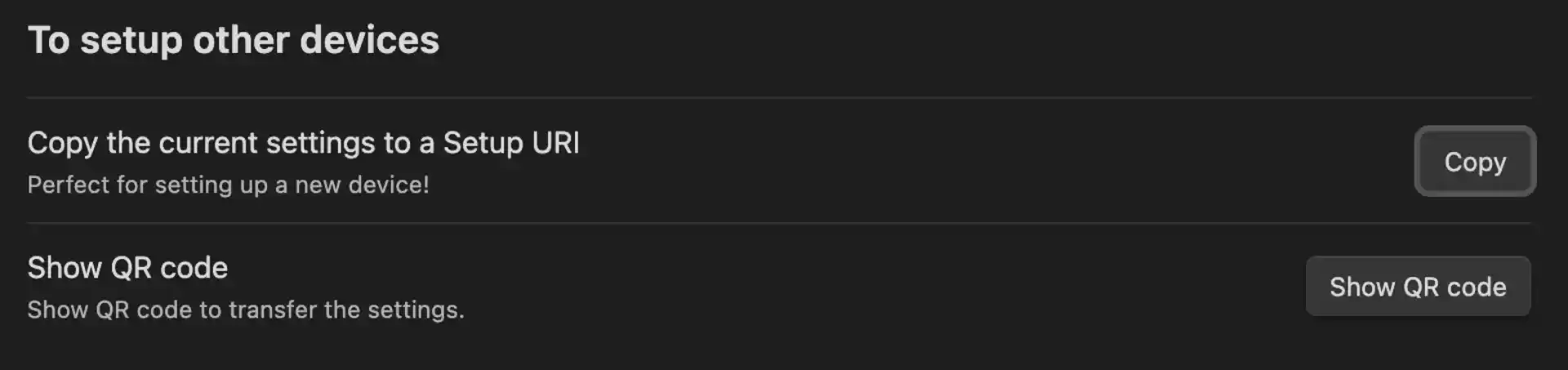
Once the test note has synced, generate a Setup URI from this working device. It captures the settings this device is actually using, including the encryption setup.
- Open the Obsidian command palette
- Run
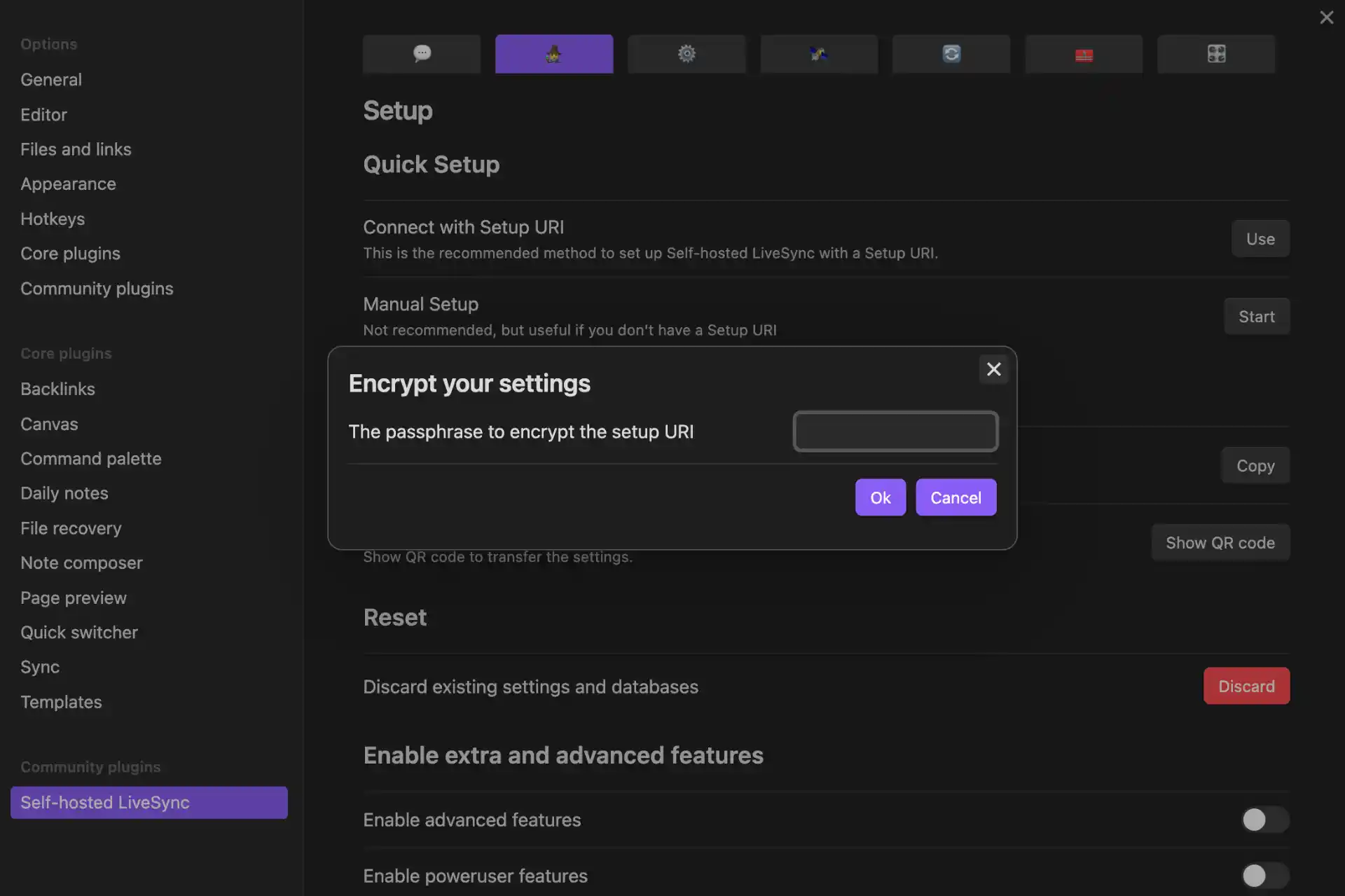
Self-hosted LiveSync: Copy settings as a new Setup URI - Enter a passphrase to protect the URI and select
OK - Copy the result. It looks like
obsidian://setuplivesync?settings=...
Security note: the URI contains your credentials and vault settings. It is encrypted, but store it and its passphrase in a password manager, in separate places, and don’t send both over the same channel.
Adding another device
On each new device, start with a new or backed-up vault:
- Install Obsidian and the Self-hosted LiveSync plugin
- Open onboarding from the
Welcome to Self-hosted LiveSyncnotice - Choose
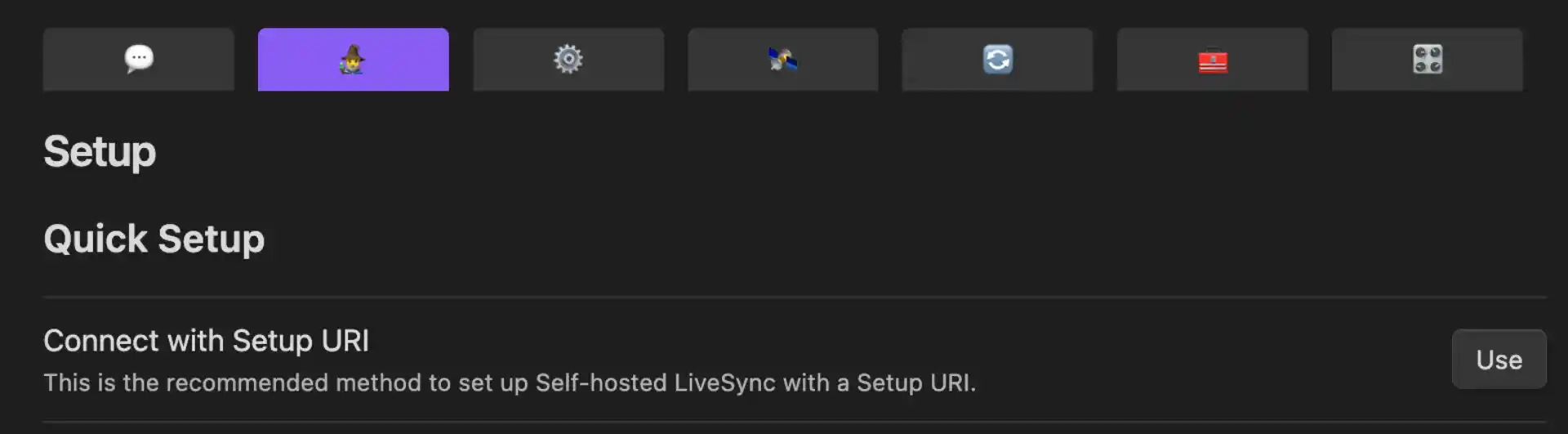
I am adding a device to an existing synchronisation setup - On
Device Setup Method, chooseUse a Setup URI (Recommended) - Paste the Setup URI, enter its passphrase, and select
Test Settings and Continue - Select
Restart and Fetch Data. For an empty vault chooseOverwrite all with remote files. If the vault already has notes, stop and read the plugin’s Fast Setup guide first, because the wrong choice can overwrite local work.
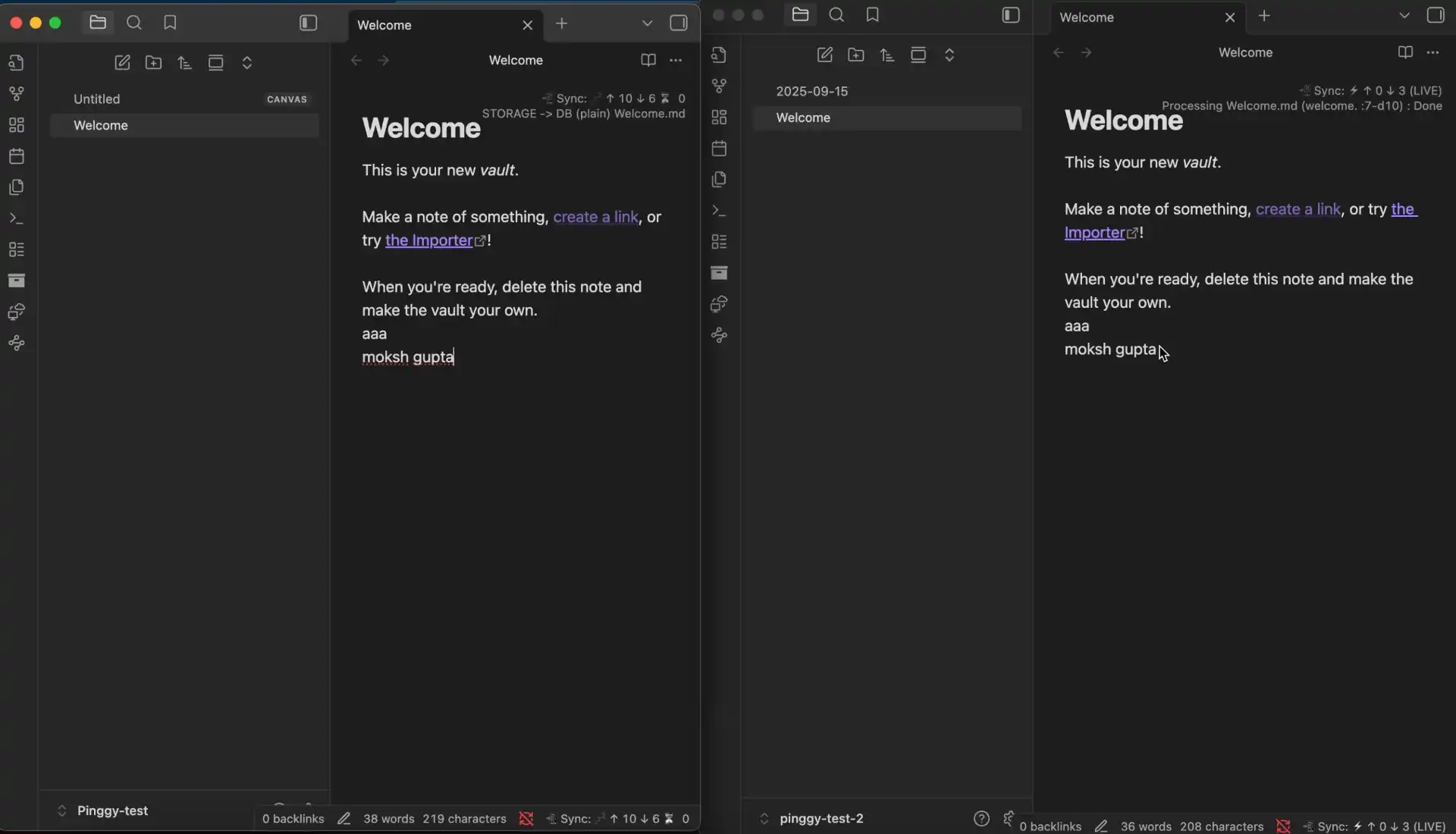
When retrieval finishes, the test note from the first device should appear unchanged. Edit a note on the new device to confirm sync works in both directions.
Wrapping up
What you end up with: a CouchDB container, a Pinggy tunnel, and the LiveSync plugin keeping your vault in sync across whatever devices you’ve got. Day-to-day maintenance is mostly leaving it alone; the container’s restart policy handles reboots.
A few things worth flagging for anyone setting this up:
- The tunnel URL needs to stay reachable. The free Pinggy tier disconnects after 60 minutes and gives you a new URL when you reconnect, so for a permanent setup, run it on a Pro plan with a persistent URL or a custom domain. Otherwise you’ll be updating LiveSync’s settings every time the tunnel restarts.
- Back up the CouchDB data directory. The whole point of self-hosting is owning the failure mode too. Snapshot
./couchdb-datato whatever you already trust for backups. - LiveSync’s end-to-end encryption is worth enabling even though the tunnel is already HTTPS. It means the CouchDB instance never sees plaintext notes, which is the right default once the data leaves your machine at all.
Conclusion
You now have a CouchDB container behind a Pinggy tunnel, with LiveSync keeping your vault in step across devices and your notes encrypted before they leave the machine. Before you trust it with the only copy of your notes, run three quick checks. Reboot the host, run docker compose ps in the obsidian-sync folder to confirm CouchDB came back up, and if you’re on the free tunnel, restart it and update the URL in LiveSync, since it will have changed. Then edit a note on each device and confirm the change shows up on the other one. Finally, copy ./couchdb-data somewhere else and write down your vault encryption passphrase and the Setup URI passphrase, because without the vault passphrase the synced data can’t be read and no database backup will fix that. Once those pass, add your phone using a Setup URI generated from the first device, and consider a Pinggy Pro persistent subdomain so the sync address stops changing.