In this article
The AI tools for technical writing that earn a place in a developer’s workflow are the ones matched to a specific doc. A code assistant handles doc comments and pull request summaries. A long-context model handles READMEs and reference pages, a docs platform builds API references from your spec, and an editor cleans up the prose that goes out in public. None of them can tell you whether your code samples actually run.
This guide is for developers, open-source maintainers, DevOps engineers and developer advocates. We compared ten tools across drafting, docs-as-code, code-aware docs, editing and quality checks: which docs each one helps with, how it fits a Git workflow, its main limitation and its starting price. Every feature and price comes from the vendor’s own pages, checked in October 2026. After the list there’s a five-step docs workflow and four rules for keeping secrets out of public AI tools.
Summary
Drafting: GitHub Copilot for doc comments and PR summaries, ChatGPT for READMEs from rough notes, Claude for reference docs that need a whole spec or repo in context.
Hosting docs: Mintlify and ReadMe build API references from your OpenAPI file. Notion AI covers internal runbooks and onboarding pages.
Editing and research: GPTinf and Grammarly for public prose, Scribe for click-through guides, Perplexity for sourced research, and Vale as a free linter in CI.
The step no tool does for you: run every code sample and command before you merge.
Quick comparison table of 10 AI documentation tools
Shortlist two or three AI documentation tools by the doc you write most, then check their limitations below.
| Tool | Best for | Starting price | Key strength |
|---|---|---|---|
| GitHub Copilot | Doc comments and PR summaries | Free; Pro is $10 a month | Sees the code it documents |
| ChatGPT | READMEs and tutorials from notes | Free; Go is $8 a month in the US | Fast, structured first drafts |
| Claude | Reference docs from a repo or spec | Free; Pro is $20 a month | Up to 1M tokens of context, by model |
| Mintlify | Docs-as-code sites | Free; Pro is $450 a month, billed annually | Git sync, API playground, MCP server |
| ReadMe | Interactive API references | Free; Pro is $250 a month, billed annually | Reference built from your OpenAPI spec |
| Notion AI | Internal wikis and runbooks | Business is $20 per seat a month, billed yearly | Answers from pages and connected apps |
| GPTinf | Prose around code: tutorials, posts, release notes | Free for 300 words per request, 500 with a free account; Lite is $9.99 a month | Sentence-level rewrites of flat drafts |
| Grammarly | Clarity for non-native English writers | Free; Pro is $12 a month, billed annually | Works in browsers, Confluence and Jira |
| Scribe | Step-by-step guides with screenshots | Free; Pro Personal is $25 a month, billed yearly | Turns clicks into documented steps |
| Perplexity | Research for comparisons and explainers | Free; Pro is $17 a month, billed annually | Inline citations in every answer |
6 developer docs AI can draft and the tool that fits each
A developer’s week has more writing in it than the job title suggests, and each kind of doc wants a diffrent type of tool. Using AI for developer docs saves the most time on first drafts built from material you already have. Match the doc to the tool type:
- READMEs: a chat model such as Claude or ChatGPT, then a manual check of every install step.
- Pull request descriptions and doc comments: AI code documentation works best from an assistant that sees the diff, such as GitHub Copilot.
- API references: a docs platform that generates pages from your OpenAPI spec, such as ReadMe or Mintlify.
- Changelogs and release notes: a chat model to group merged PRs, then an editing pass on the public announcement.
- Runbooks and incident reports: an internal wiki with AI search, such as Notion AI, since incident details don’t belong in public tools.
- Tutorials and blog posts: a research tool with citations, such as Perplexity, then drafting and editing. For marketing-style posts, see Pinggy’s roundup of AI tools for blog and content writing.
4 ways AI-written docs fail and how to catch each one
AI for technical documentation speeds up drafting, but on its own it doesn’t make docs more accurate or easier to read. These are the four failures we run into most often, each with its own check.
Commands and code that look right but fail. A model fills gaps with plausible names, so a flag or an endpoint may not exist. Run every sample before you merge.
Examples written for an older version. Training data lags behind your latest release, so drafts often use deprecated syntax. Give the model the current code or spec, and pin versions in install commands.
Generic text with no project context. “This tool helps developers work more efficiently” could describe any project. Replace it with the real command output or the error users actually hit.
Docs that read like marketing copy. Words like “powerful” and “effortless” make a README sound like a landing page, and developers skim right past them. A prose linter or an editing pass catches most of them.
The 10 best AI tools for technical writing and developer docs
Tools 1 to 3 draft, 4 to 6 host and organize docs, and 7 to 10 edit, capture and research.
1. GitHub Copilot: doc comments and PR summaries from your code
GitHub Copilot works in your editor and on GitHub.com, right next to the code it documents. On a pull request it drafts a summary: a prose overview plus a bulleted list of key changes. In Visual Studio and Xcode, the /doc command adds a documentation comment to the selected symbol.
It’s less useful when a doc needs context that isn’t in the diff. For its coding features, see Pinggy’s guide to the best AI tools for coding.
Key features: Pull request summaries on GitHub.com, chat and agent mode in VS Code, Visual Studio, JetBrains IDEs and Xcode, and, on Pro and up, a cloud agent that turns tasks into pull requests.
Pros and cons: It works where you already write code, and the free plan is enough to try it on a real repo. The catch is that PR summaries are English only and don’t refresh when the PR changes, and paid usage is metered in AI credits.
Pricing: The Free plan includes 2,000 inline suggestions a month and limited chat. Pro costs $10 a month, and Pro+ costs $39.
2. ChatGPT: first drafts of READMEs and tutorials from notes
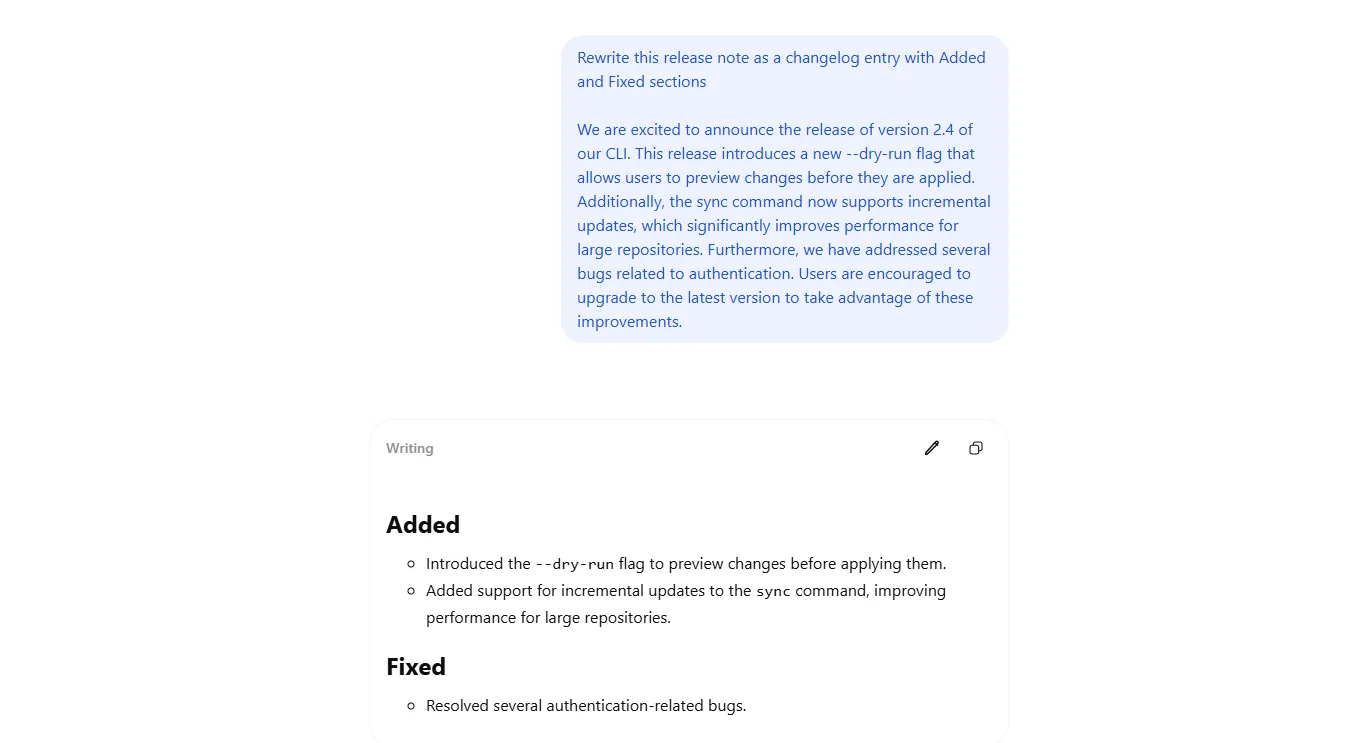
ChatGPT is the quickest way to turn rough notes into a first draft. To write a README with AI, paste your install steps, a few usage examples and one line on what the project does, then ask for installation, usage and troubleshooting sections. Projects let one style note guide every draft. The GitHub plugin can read repositories you allow, depending on your plan, but it’s read-only and doesn’t index them.
Key features: Projects with shared files and instructions, a GitHub plugin for reading permitted repositories, and deep research for longer explainers.
Pros and cons: First drafts come back fast and well structured, and the free plan covers everyday drafting. But it can present invented commands and flags with full confidence, and the GitHub plugin can’t sync or index a repository.
Pricing: A free plan is available. Go costs $8 a month in the US, with local pricing in some markets, and Plus costs $20 a month.
3. Claude: reference docs from a whole repo or spec
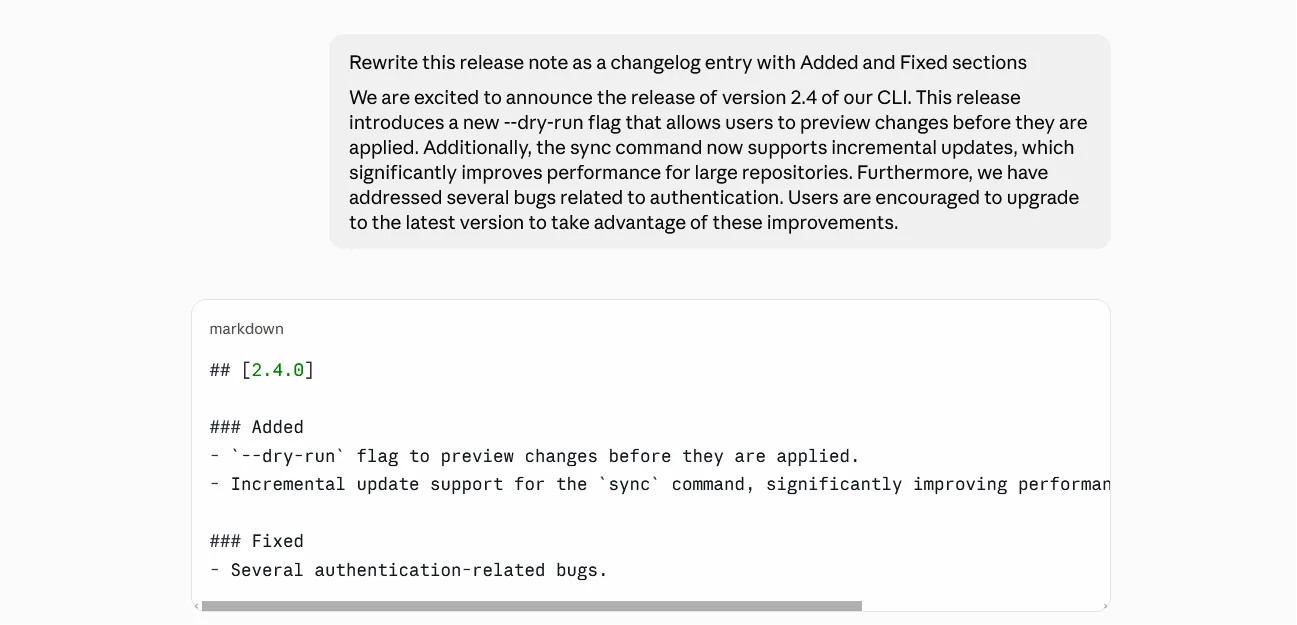
Claude suits docs that depend on a lot of source material at once. Its context window goes up to 1M tokens, depending on the model, which is enough for a full OpenAPI spec and much of a codebase. The GitHub integration adds a branch’s files to a chat or project, so a reference page can follow the actual code. It reads files, not commit history or pull requests, so a changelog still needs the PR list pasted in.
Key features: A context window of up to 1M tokens (depending on the model), a GitHub integration for chats and projects, and Projects for shared files and instructions.
Pros and cons: It handles long specs and many files in one conversation, and the Free plan includes up to five Projects. On the other side, a synced repo has to fit in the context window, and session limits reset every five hours, with weekly limits on top.
Pricing: A free plan is available. Pro costs $20 a month, or $17 a month billed annually, and Max starts at $100 a month.
4. Mintlify: docs-as-code sites with an AI writing agent
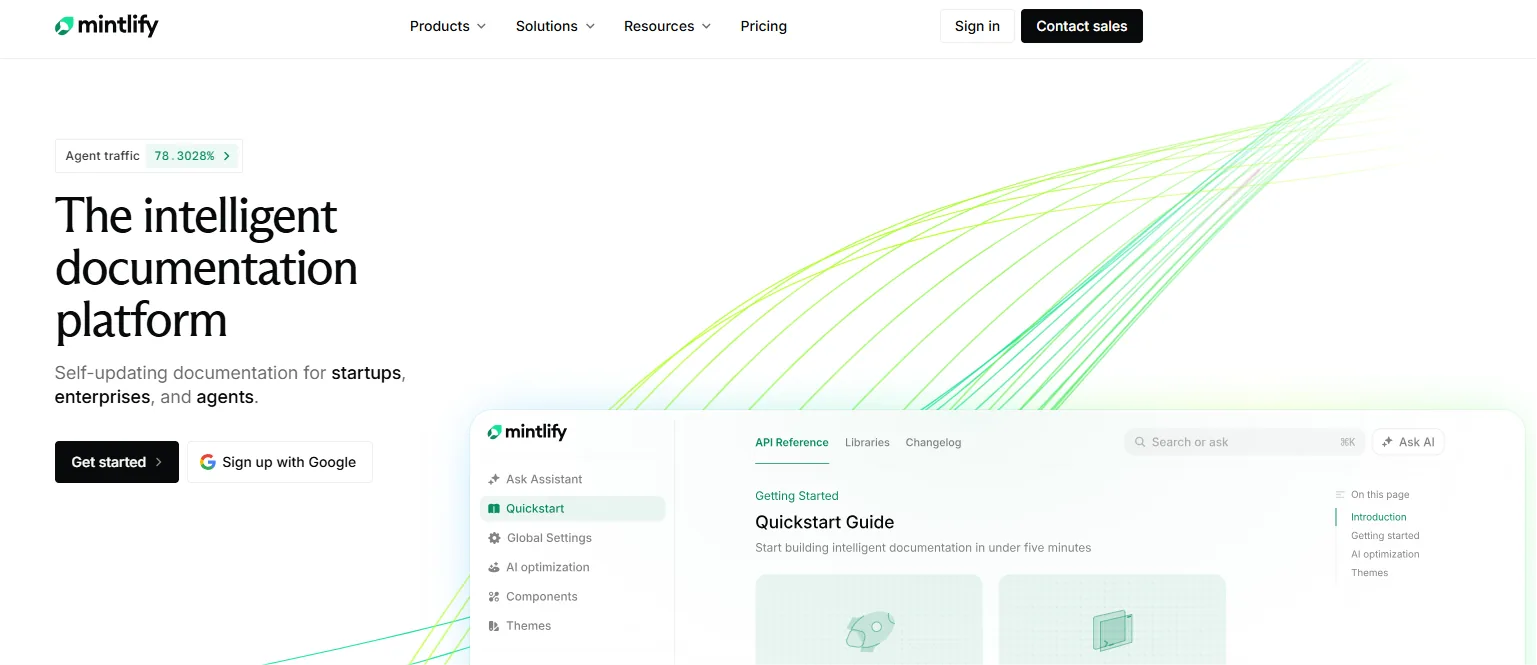
Mintlify is a docs-as-code platform: pages live as MDX files in your Git repo, and a push deploys the site. It builds an interactive API playground from an OpenAPI file and publishes llms.txt and an MCP server, so coding assistants can read your docs directly. On Pro, its agent drafts doc changes as pull requests, and the Assistant answers readers’ questions from your docs, using monthly AI credits.
Key features: Git sync with GitHub, GitLab and Bitbucket Cloud, an API playground generated from OpenAPI, and CI checks for broken links and Vale linting on Pro.
Pros and cons: Docs go through normal code review, and approved non-commercial open-source projects get Pro for free. The free plan has no AI assistant or writing agent, though, and the price jump from Starter to Pro is steep.
Pricing: Starter is free with five editor seats. Pro costs $450 a month billed annually, or $540 billed monthly.
5. ReadMe: interactive API references from your OpenAPI spec
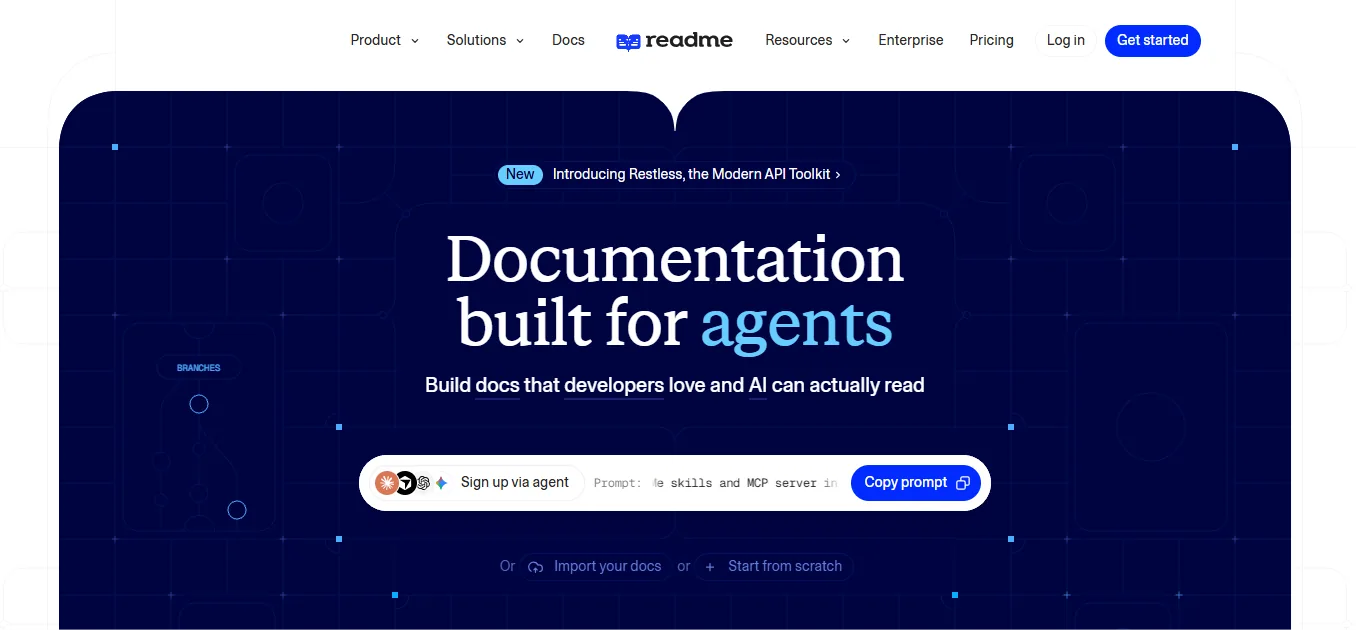
ReadMe takes a different route from a generic AI API documentation generator. It builds an interactive API reference from your OpenAPI spec and syncs both ways with GitHub, so the reference follows the spec rather than a model’s description of it. Every plan publishes llms.txt and an MCP server. Pro adds an AI Linter that checks pages against style rules written in plain language, and an AI Writer that proposes doc updates from pull requests.
Key features: An interactive API reference generated from OpenAPI, bi-directional GitHub sync, and the AI Linter and AI Writer on Pro.
Pros and cons: Reference pages come from the spec, not from generated prose, and the free Starter plan includes a custom domain. Starter is limited to one project, one version and one admin, and the AI Linter skips API reference endpoints.
Pricing: Starter is free. Pro costs $250 a month billed annually, and the Ask AI assistant for readers is a $150 monthly add-on.
6. Notion AI: internal wikis, runbooks and onboarding docs
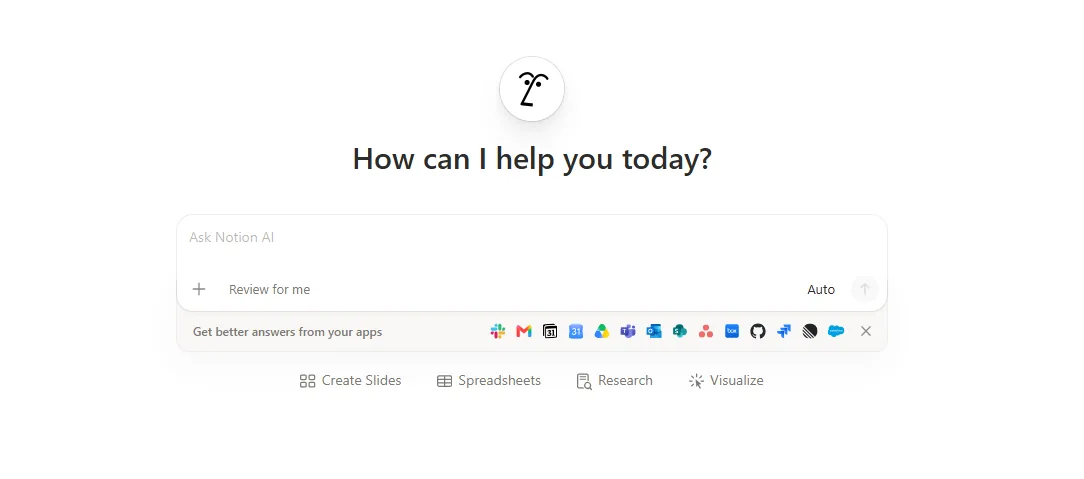
Notion AI fits internal docs: runbooks, onboarding pages and architecture notes. On Business and Enterprise it answers questions from your workspace and connected apps, and its GitHub connector indexes code, pull requests, issues and READMEs, so “how do we rotate the staging certificate?” can draw on the runbook and the repo together. It’s a wiki, not a docs-as-code tool, so pages live in Notion rather than in your repo.
Key features: Enterprise Search (in beta) across pages and apps such as GitHub and Slack, Notion Agent for drafting and editing pages, and AI Meeting Notes for decisions that belong in a runbook.
Pros and cons: It suits runbooks and onboarding docs that change often, and members only see the GitHub repos they can access. Free and Plus plans get just a trial of Notion AI, and the GitHub connector doesn’t support wikis or forked repos.
Pricing: Full Notion AI starts with Business at $20 per seat a month billed yearly, or $24 billed monthly.
7. GPTinf: natural prose for tutorials, posts and release notes
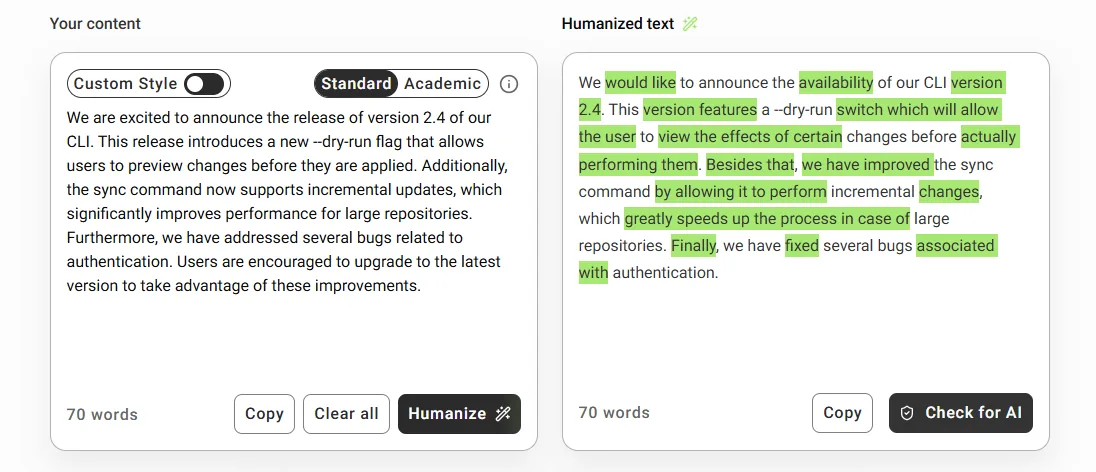
GPTinf is an AI humanizer for the prose around your code: tutorials, blog posts and release announcements that read flat after an AI draft. It rebuilds sentences instead of swapping synonyms, so a paragraph that leans on “Additionally” and “Furthermore” comes back with varied structure. Paste the paragraphs without code blocks, then compare the result with your original: a rewrite can loosen a precise term, turning a “flag” into a “switch”.
Key features: Sentence-level rewriting in Standard or Academic mode, pasted text or uploaded PDF, Word and plain-text files, and a built-in check that scores the rewrite.
Pros and cons: Free use needs no account, and the same site has grammar and readability checkers. It’s built for prose, so it won’t help with code or check technical accuracy, and since a rewrite can change a technical term, every result needs a reread.
Pricing: Free use covers 300 words per request without an account and 500 with a free account. Lite costs $9.99 a month for 5,000 words of rewriting, and yearly billing halves the monthly rate.
8. Grammarly: clarity and tone for non-native English writers
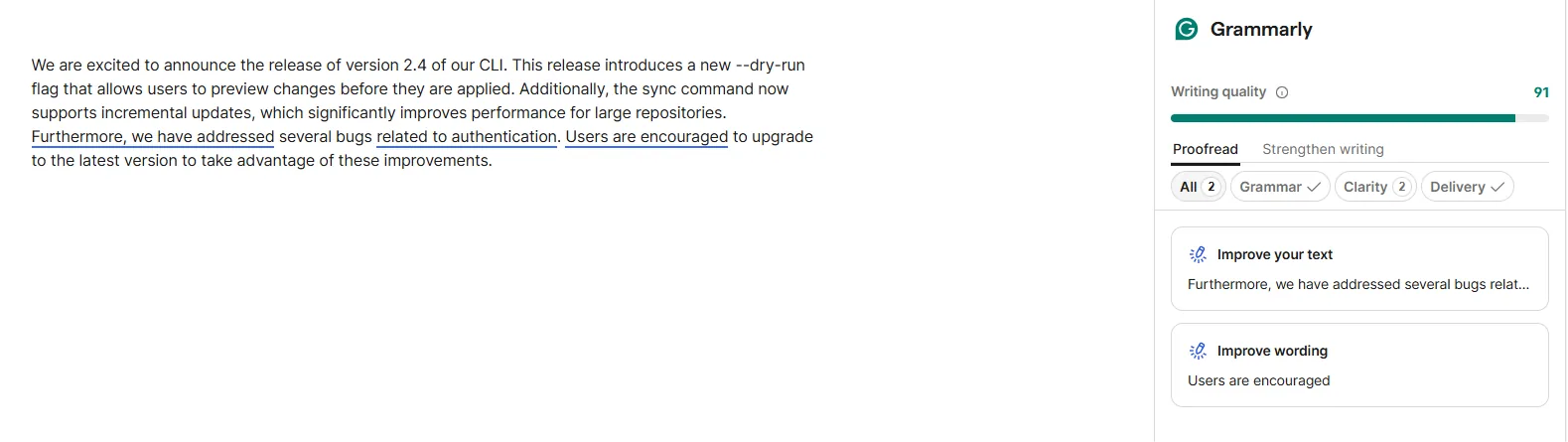
Grammarly helps with clarity and tone, which matters most for maintainers who write in English as a second language. Pro adds full-sentence rewrites, tone adjustment and a fluency feature for non-native writers. It runs in browsers, desktop apps, Confluence, Jira and Slack, but it isn’t built for code: its editor won’t take Markdown uploads, and VS Code on Mac isn’t supported.
Key features: Full-sentence rewrites, tone adjustment and one custom style guide for terminology on Pro, plus browser extensions for Chrome, Safari, Firefox and Edge.
Pros and cons: It’s useful help for non-native English writers, and it works where docs get reviewed. But Markdown files can’t be uploaded to its editor, and most rewriting features need Pro.
Pricing: The free plan includes 100 AI prompts a month. Pro costs $12 per member a month billed annually, or $30 billed monthly.
9. Scribe: step-by-step process guides with screenshots
Scribe records a process while you click through it and turns each click into a step with a screenshot. That makes quick work of console walkthroughs, like registering an OAuth app, adding a webhook or creating a DNS record in a provider’s dashboard. It’s built around clicks, so terminal-heavy procedures still need a written guide with code blocks.
Key features: Automatic step capture with the Chrome or Edge extension, plus screenshot editing, manual redaction and export to PDF, HTML and Markdown on Pro.
Pros and cons: The free plan allows unlimited guides, and you stop writing UI steps by hand. Desktop capture and exports need a paid plan, and exports are snapshots, so a changed guide has to be exported again.
Pricing: Basic is free. Pro Personal costs $25 per seat a month billed yearly, or $35 billed monthly.
10. Perplexity: research with visible sources for explainers
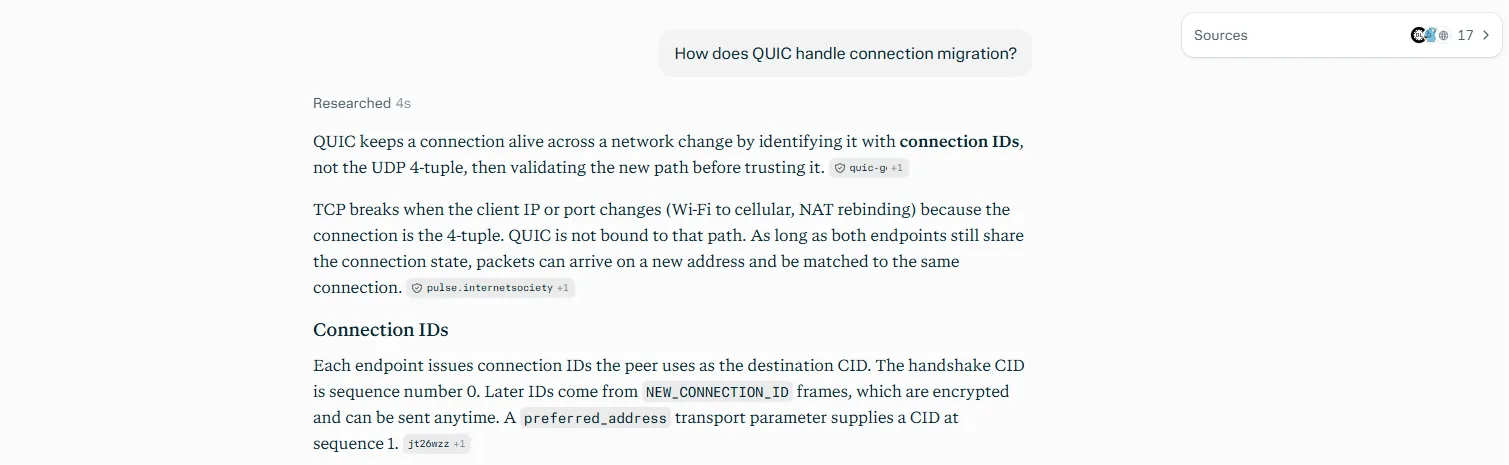
Perplexity answers research questions with inline citations, which is what comparison posts and explainers need. Ask how QUIC handles connection migration, and each claim in the answer links to its source, so you can check it before it goes into a draft. Citations make checking faster, not optional: a source can be out of date or say less than the summary suggests.
Key features: Inline citations in every answer on every plan, a choice of AI models on Pro, and file uploads, with higher limits on paid plans.
Pros and cons: Every claim comes with a visible source, and the free plan is enough for occasional research. It isn’t built for drafting long docs, and Pro’s limits are described only as weekly limits, with no actual numbers.
Pricing: A free plan is available. Pro costs $17 a month billed annually.
Honorable mentions: 3 more tools for docs sites and style checks
These three solve narrower problems.
Docusaurus, Meta’s MIT-licensed static site generator, has no built-in AI, but its Algolia DocSearch integration can add Ask AI. That runs on your own LLM provider, so you pay only for that usage.
Vale is an MIT-licensed command-line prose linter that skips code blocks and has packages for the Microsoft style guide and the Google developer documentation style guide. It’s rule-based, so the same text gets the same result in every CI run.
Swimm is known for code-coupled docs that flag outdated pages. It now sells enterprise legacy modernization through sales, with no public pricing, so it suits large legacy codebases more than small teams.
A 5-step workflow for publishing AI-assisted docs
This workflow keeps AI on drafting duty and leaves accuracy with the people who know the code:
Generate from real material. Give the model the function, the OpenAPI spec or the merged PR list, not a one-line prompt.
Run every code sample and command. Use a clean environment or a container, and paste the real output into teh doc.
Edit for your project’s voice and terms. Replace generic sentences with project details, and keep terms consistent: an “endpoint” on one page shouldn’t turn into a “route” on the next.
Check readability and generic passages. Add a
.vale.inito the repo and lint the docs locally or in CI:StylesPath = styles MinAlertLevel = suggestion Packages = Google [*.md] BasedOnStyles = Vale, Googlevale sync vale README.md vale docs/Before a public tutorial or release announcement goes out, an AI detector can show which sentences carry the uniform rhythm and stock transitions of generated text. Its score is a probability, not proof of who wrote the page, so use it to find passages to rewrite with real examples, such as the actual error message or the issue behind the fix.
Review docs like code. Docs changes go through pull requests with the code they describe, with Vale and link checks in CI. To show reviewers a local preview before you merge, you can share a Hugo site from localhost through a Pinggy tunnel.
4 security rules for using AI tools on private code
Docs work pulls real configs and logs into prompts, and that’s where secrets leak:
- Never paste secrets. API keys, tokens, passwords and private keys stay out of public AI tools, even inside a log or an
.envfile. If one slips through, rotate it. - Swap internal details for placeholders. Replace internal hostnames, IP addresses and URLs with reserved names such as
example.comor a.testdomain, which RFC 2606 sets aside for documentation and testing. - Keep customer data and incident details out. Summarize incidents in your own words, and check whether your plan uses your inputs for model training.
- Use a local model for sensitive repos. Pinggy’s guide to self-hosting an LLM walks through running Ollama and Open WebUI in Docker.
Pick two or three tools that fit your stack
Using AI for technical writing gets you a first draft of almost any doc, but the maintainer still owns accuracy and voice. Pick by the doc you write most. GitHub Copilot covers doc comments and PR summaries, and ChatGPT or Claude handle READMEs and tutorials from notes or a repo. For a public docs site or API reference, go with Mintlify or ReadMe, and for internal runbooks and onboarding, Notion AI. Scribe and Perplexity take care of console walkthroughs and sourced research. When public prose reads flat or unclear, use GPTinf or Grammarly, with Vale in CI.
This week, pick one drafting tool and one checking step, run every code sample before you merge, and add a third tool only when a doc type keeps slowing you down.