In this article
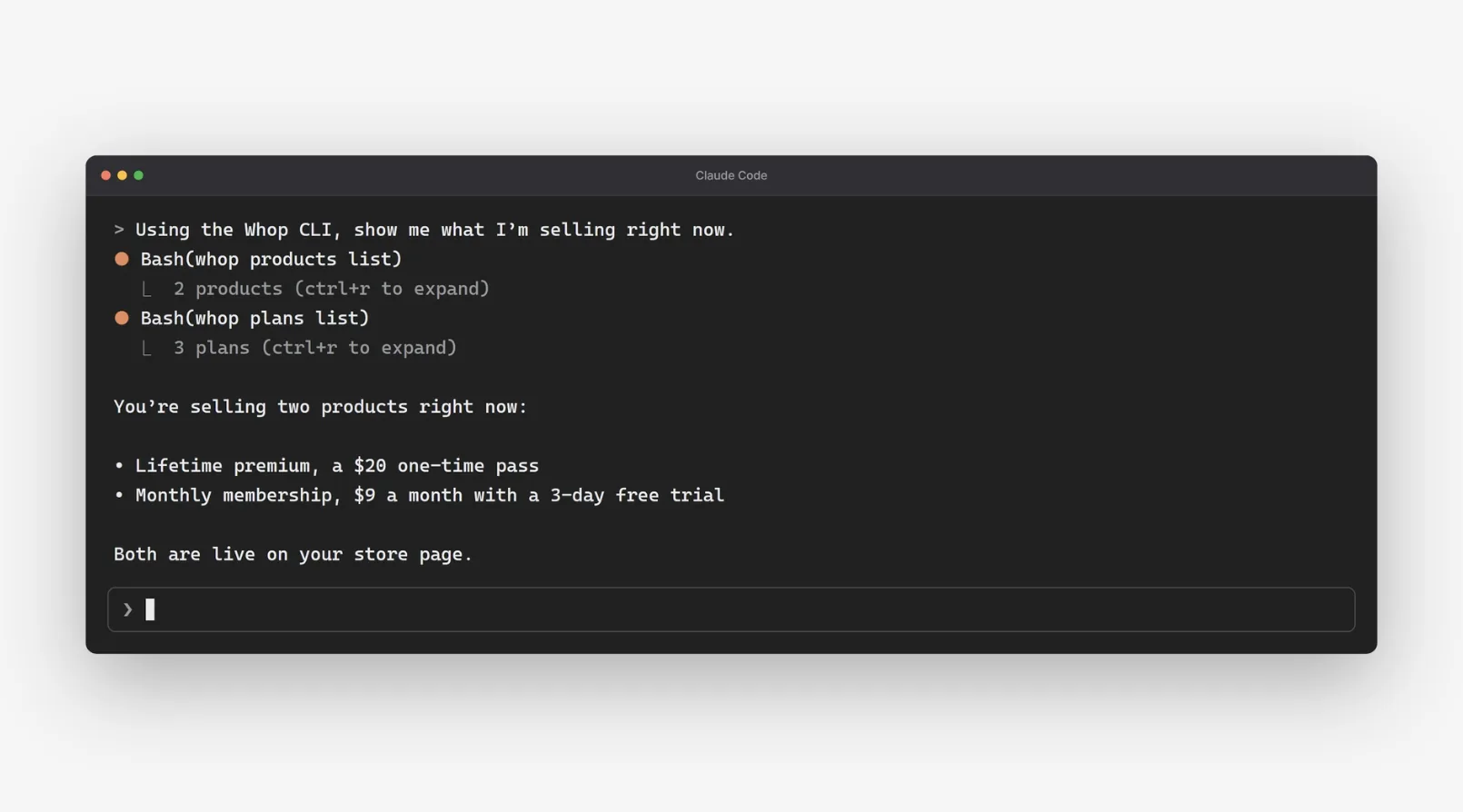
Whop is a platform for starting and running an online business, with your storefront, checkout and wallet in one place. This guide scaffolds a Whop app from the terminal, runs it on localhost, and gets signature-verified payment webhooks into it through a Pinggy tunnel. Nothing gets deployed until the last step.
Whop is a payment platform: businesses run their checkout, subscription billing and payouts from one dashboard, and developers ship apps that those businesses install and run inside that dashboard or in front of their customers. Since July it also has a CLI, so the whole loop of registering an app, running it locally and deploying it happens in your shell.
The part the CLI can’t do for you is get a webhook from Whop’s servers onto your laptop. Whop’s docs point you at ngrok or Cloudflare Tunnel for that. Pinggy does the same job with one SSH command and nothing to install, so that’s what this guide uses.
By the end you’ll have a Next.js app registered on Whop, running locally behind Whop’s dev proxy, receiving payment.succeeded events through a public Pinggy URL, and verifying every payload before it touches your code.
Summary
- Install and sign in:
curl -fsSL https://whop.com/install.sh | sh, thenwhop quickstart. - Scaffold and run:
whop apps init --name "Webhook Demo" --app_type b2c_app, thenwhop apps dev. Whop’s dev proxy serves the app on port 3000. - Verify on the raw body: read
request.text(), pass it tounwrapWebhookfrom@whop/sdk/helpers, and return 200 in under five seconds. - Tunnel it:
ssh -p 443 -R0:localhost:3000 -L4300:localhost:4300 free.pinggy.iogives you a public HTTPS URL, plus Pinggy’s Web Debugger athttp://localhost:4300. - Register and test: point a Whop webhook at
<tunnel-url>/api/webhooks, save thewebhook_secretasWHOP_WEBHOOK_SECRET, then fire Whop’s test endpoint. - Watch out: the Whop CLI has no sandbox or dry-run mode, and a webhook that keeps failing for 72 hours gets disabled.
Prerequisites
- Node.js 18 or later, and pnpm
- A Whop account with a business set up (free)
- An SSH client, which macOS, Linux and Windows 10+ all ship with
- About 20 minutes
One thing to know before you start, straight from Whop’s CLI docs: “The CLI has no sandbox, test, or dry-run mode. Every command runs in production, and many can create real resources or move real money.” Registering an app and creating a webhook are safe. Creating plans or checkout links makes real, sellable things, so read what a command does before you run it.
Step 1: Install the Whop CLI and sign in
curl -fsSL https://whop.com/install.sh | sh
whop quickstart
Homebrew (brew install whopio/tap/whop) and npm (npm install -g @whop/cli) work too. whop quickstart opens an OAuth login in the browser and pins the CLI to one of your businesses. Whop’s own write-up of what the tool covers is in the post announcing that you can now install the Whop CLI and drive the account from a terminal or an AI agent.
If you use Claude Code or Cursor, run whop mcp add and whop skills add now. The first connects the CLI to your assistant. The second drops Whop’s conventions into its context, so it stops guessing at endpoint names.
Step 2: Scaffold the app and run it locally
whop apps init --name "Webhook Demo" --app_type b2c_app
cd webhook-demo
whop apps dev
apps init registers the app on Whop, generates a Next.js template, configures hosting and installs dependencies. apps dev starts it locally.
The template runs behind Whop’s dev proxy. In production, your app lives inside a Whop iframe behind a reverse proxy that adds an x-whop-user-token header to every request. The dev proxy reproduces that on localhost: it listens on port 3000, forwards to your app, and injects the token, so you’re testing with real signed-in users from the first run. If you’d rather wire it up yourself:
pnpm add -D @whop-apps/dev-proxy
# package.json: "dev": "whop-proxy --command 'next dev'"
pnpm dev
For a non-Node app, run it on port 5000 and start the proxy standalone:
pnpm dlx @whop-apps/dev-proxy --standalone --upstreamPort=5000 --proxyPort=3000Either way, port 3000 is the one you’ll expose in Step 4.
Step 3: Add a webhook route
Whop signs each delivery and sends the signature in a webhook-signature header as v1,<base64>. The SDK ships a helper that checks it. Create app/api/webhooks/route.ts:
import { waitUntil } from "@vercel/functions";
import { unwrapWebhook } from "@whop/sdk/helpers";
import type { NextRequest } from "next/server";

export async function POST(request: NextRequest): Promise<Response> {
  // Read the raw body. Parsing it first changes the bytes and the signature check fails.
  const payload = await request.text();
  const headers = Object.fromEntries(request.headers);

  const event = unwrapWebhook(payload, {
    headers,
    key: process.env.WHOP_WEBHOOK_SECRET!,
  });

  if (event.type === "payment.succeeded") {
    waitUntil(handlePaymentSucceeded(event.data));
  }

  // Respond in under 5 seconds, or Whop retries.
  return new Response("OK", { status: 200 });
}

async function handlePaymentSucceeded(payment: Record<string, unknown>) {
  console.log("[PAYMENT SUCCEEDED]", payment);
}
Two details matter here, and they’re the same two that bite people testing any provider’s webhooks. Read the body with request.text(), because a parsed-then-reserialized body won’t match the signature. And return 200 quickly, then do the work: Whop counts anything slower than five seconds as a failure.
Every payload has the same top-level shape: id, type, timestamp, account_id, data, plus previous_attributes on update events.
Step 4: Open a Pinggy tunnel to port 3000
ssh -p 443 -R0:localhost:3000 -L4300:localhost:4300 free.pinggy.ioPinggy prints an HTTP and an HTTPS URL on a random subdomain. Use the HTTPS one. The -L4300 part is optional: it forwards the Web Debugger to http://localhost:4300, where you can watch each request arrive with its headers and body, and replay it. That’s worth having when a signature check fails and you want to see exactly which bytes came in.
Free tunnels last 60 minutes and get a new subdomain each time. That’s fine for a session, but every new URL means editing the webhook on Whop’s side, so if you’ll be at this for days, a Pinggy Pro persistent subdomain saves the churn. The trade-offs between provider CLIs, tunnels and relay services are covered in our post on webhook testing for local development.
Step 5: Register the webhook on Whop
Open the Developer tab of your Whop dashboard and select Create webhook. Enter your tunnel URL plus the route path, for example https://abc123.a.pinggy.link/api/webhooks, and pick the events. For this demo, payment.succeeded, payment.failed and membership.activated cover the cases an app usually cares about.
The same thing over the API:
curl -X POST https://api.whop.com/api/v1/webhooks \
  -H "Authorization: Bearer $WHOP_API_KEY" \
  -H "Api-Version-Date: 2026-07-01" \
  -H "Content-Type: application/json" \
  -d '{"url":"https://abc123.a.pinggy.link/api/webhooks","events":["payment.succeeded","payment.failed","membership.activated"]}'
The response includes webhook_secret. Whop’s docs are explicit that “The API shows this value only one time,” so put it in .env as WHOP_WEBHOOK_SECRET now. If you do lose it, the dashboard keeps a copy in the Secret column.
Step 6: Fire a test event and watch it land
Whop has a test endpoint, so you don’t need a real purchase to see the route work:
curl -X POST https://api.whop.com/api/v1/webhooks/$WEBHOOK_ID/test \
  -H "Authorization: Bearer $WHOP_API_KEY" \
  -H "Api-Version-Date: 2026-07-01" \
  -H "Content-Type: application/json" \
  -d '{"event":"payment.succeeded"}'
Whop sends a payment.succeeded payload to your tunnel and returns the status, body and a success boolean for the delivery. In the terminal running whop apps dev you’ll see the [PAYMENT SUCCEEDED] log line, and in the Web Debugger at localhost:4300 you’ll see the raw request. If unwrapWebhook throws instead, the two usual culprits are a stale secret in .env or a body that got parsed before it reached the helper.
For a real end-to-end payment, use Whop’s sandbox. It’s a separate environment at sandbox.whop.com with its own API keys and webhooks, which Whop says work the same as production. Create a webhook there pointing at the same tunnel URL, initialize the SDK with environment: WhopEnvironment.Sandbox, and pay with test card 4242 4242 4242 4242. 4000 0000 0000 0002 declines and still fires payment.failed, and 5385 3083 6013 5181 triggers a 3D Secure challenge. Whop’s guide to testing payments in the Whop sandbox walks through the full set. Note that the CLI itself has no sandbox target, so app scaffolding and deploys stay in production while payments are rehearsed in the sandbox.
Step 7: Test the retry path
The happy path proves the plumbing. The retry path proves the handler. Whop retries a failed delivery 12 times over roughly three days, with the gaps growing between attempts, and disables the webhook after 72 hours of failures.
Stop whop apps dev, send another test event, and note the failed status in the response. Start the app again and send one more. Then make your handler idempotent: key on the event id so a redelivered payload doesn’t grant access or send an email twice. That 72-hour rule also means a webhook left pointing at an expired free tunnel will switch itself off within three days, so delete tunnel webhooks once you’re done with them.
Step 8: Deploy and point the webhook at production
whop apps deploy --preview
whop apps deploy
The first command stages a preview and the second promotes it. Once the app has a production URL, update the webhook’s url in the dashboard or through the API, and the tunnel’s job is done. whop apps logs tails the deployed app.
Conclusion
The Whop CLI covers registering, running and deploying an app from the terminal, and the dev proxy makes localhost behave like the production iframe. The one piece it leaves to you is a public URL for webhooks, and a single Pinggy command fills it. Register the webhook against the tunnel, fire the test endpoint, verify the signature on the raw body, and rehearse the retry before you deploy. When the URL changes or the 60 minutes run out, re-run the SSH command and update the webhook, or take a persistent subdomain and stop thinking about it.