In this article
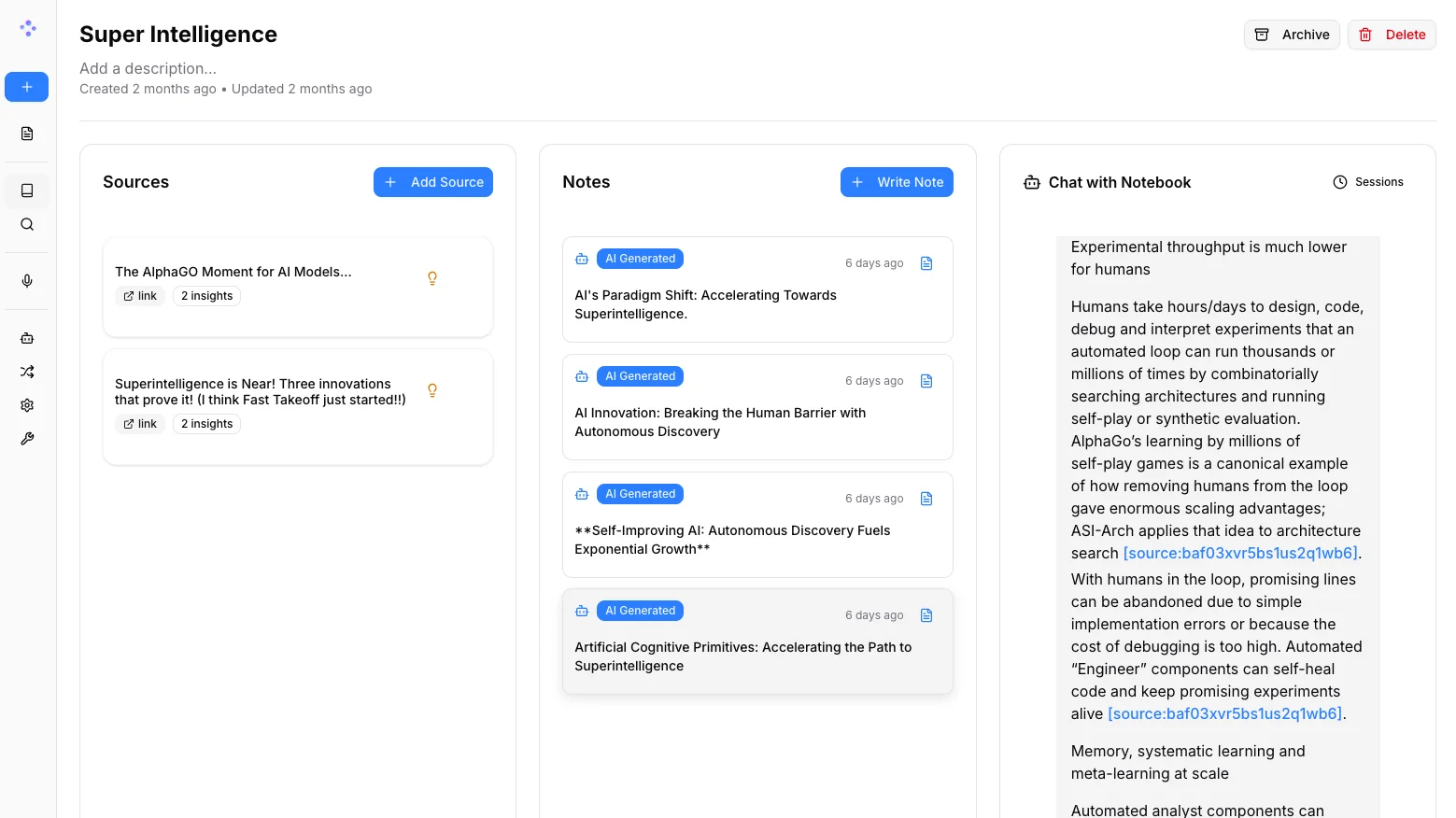
Google’s NotebookLM is genuinely useful. Feed it a pile of PDFs, research papers, or meeting transcripts and it produces surprisingly good summaries, answers questions with citations, and - its most viral feature - generates a podcast-style audio discussion of your material. A lot of researchers and indie hackers I know use it daily.
The friction is the obvious one: your documents go to Google. That’s fine for public papers, but uncomfortable for anything proprietary - client work, unpublished research, internal strategy docs, personal notes. And if you want to use a model other than Gemini, you’re out of luck.
Open Notebook is a direct open-source answer to that problem. It hit GitHub's trending page today - second overall with 783 new stars - after the team shipped v1.9.0 on June 2. It does everything NotebookLM does, then goes further: 18+ AI providers (including local models), podcasts with up to four speakers, full vector search, and a REST API. Everything runs on your machine.
The one annoying part of self-hosting anything is the localhost wall. Open Notebook running on your laptop is only reachable from that laptop. If you want to access it from your phone, share a research workspace with a teammate, or build something on top of the REST API from a remote machine, you need a public URL. That’s where Pinggy comes in - one SSH command and your local instance gets a working HTTPS URL, no firewall changes, no deployment.
Summary
Start Open Notebook with Docker
# Download docker-compose.yml from GitHub
curl -O https://raw.githubusercontent.com/lfnovo/open-notebook/main/docker-compose.yml

# Set your encryption key
export OPEN_NOTEBOOK_ENCRYPTION_KEY=$(openssl rand -hex 32)

# Start it
docker compose up -d
Open Notebook UI is at
http://localhost:8502. The REST API runs athttp://localhost:5055.Expose it with Pinggy
ssh -p 443 -R0:localhost:8502 free.pinggy.ioYou get a public HTTPS URL like
https://abc123.a.pinggy.link- open it from any device.Add password protection (optional)
ssh -p 443 -R0:localhost:8502 -t free.pinggy.io b:youruser:yourpassword
Links:
- Open Notebook on GitHub
- Pinggy for instant public HTTPS tunnels
What Open Notebook Actually Does
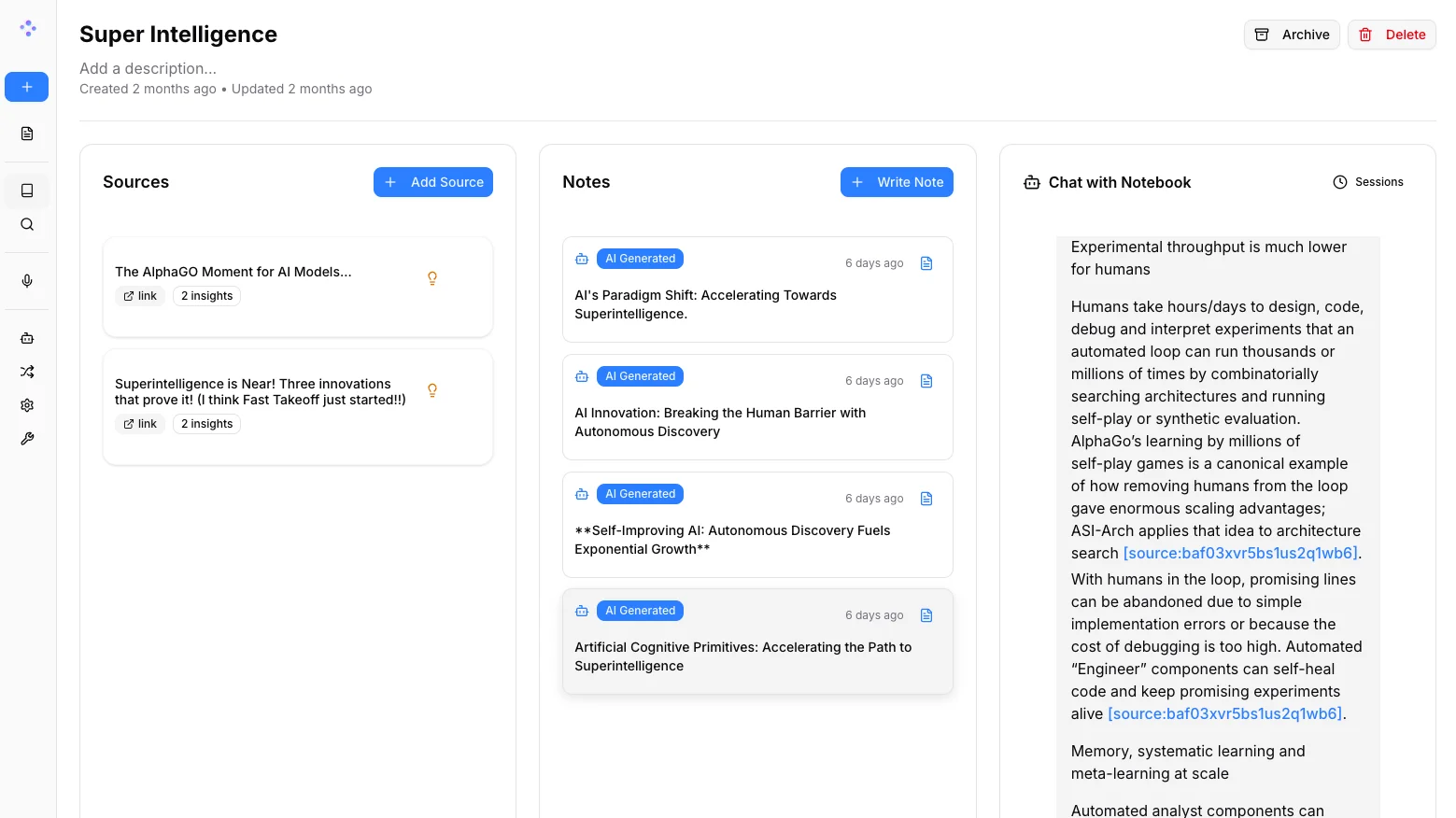
The core workflow is the same as NotebookLM: you create a notebook, add sources - PDFs, web pages, YouTube videos, audio files, Office documents - and then chat with the AI against that specific body of material. Answers cite sources so you can trace claims back to the original text.
Where it diverges from Google’s version:
AI provider flexibility. NotebookLM is Gemini-only. Open Notebook supports OpenAI, Anthropic, Mistral, Google, Cohere, Groq, and local models through Ollama or LM Studio. You can mix providers per task - use Claude for analysis, a local model for drafting, Whisper-compatible transcription for audio. v1.9.0 added Deepgram’s Aura voices, Mistral Voxtral for speech-to-text, and xAI text-to-speech.
Podcast generation. This is NotebookLM’s signature feature - you can generate an audio discussion of your research material. Open Notebook supports 1-4 speakers with configurable profiles and voices, versus NotebookLM’s fixed two-host format. The actual output quality depends on your chosen TTS provider, but the control is meaningful if you have a specific format in mind.
REST API. Full programmatic access to your notebooks, sources, and AI queries. If you want to pipe research into a workflow, trigger summaries from a CI job, or build a custom frontend, the API is there.
Vector + full-text search. SurrealDB (the embedded database) handles both indexed full-text search and vector similarity search across all your ingested content.
Data sovereignty. Your documents never leave your machine. The AI API calls go to whichever provider you configure, but the storage and indexing are local.
Installing Open Notebook
The quickstart requires Docker Desktop (Docker + Docker Compose). There’s no binary distribution yet - the Docker route is the documented path.
Prerequisites
- Docker Desktop installed and running
- An API key from at least one AI provider (OpenAI, Anthropic, Google, or Ollama running locally)
Step 1: Download the compose file
curl -O https://raw.githubusercontent.com/lfnovo/open-notebook/main/docker-compose.ymlThe compose file defines two services: surrealdb (the database, on port 8000) and open_notebook (the app, on ports 8502 and 5055).
Step 2: Set the encryption key
Open Notebook requires an OPEN_NOTEBOOK_ENCRYPTION_KEY to encrypt stored credentials. Generate one and set it as an environment variable before starting:
export OPEN_NOTEBOOK_ENCRYPTION_KEY=$(openssl rand -hex 32)Or add it directly to a .env file in the same directory: OPEN_NOTEBOOK_ENCRYPTION_KEY=your-32-char-or-longer-random-string.
Step 3: Start the stack
docker compose up -dDocker pulls two images (surrealdb/surrealdb:v2 and lfnovo/open_notebook:v1-latest) and starts both containers. The first run pulls about 1-2 GB depending on your cache state.
Check that both containers are running:
docker compose psStep 4: Open the UI and add an AI provider
Visit http://localhost:8502. The first thing you need to do is go to Settings and add credentials for at least one AI provider. For a fully local setup with no API costs, install Ollama and add it as a provider - Open Notebook connects to it at http://host.docker.internal:11434.
Once you have a provider configured, create your first notebook, add some sources, and start asking questions.
Accessing Open Notebook from Anywhere with Pinggy
Open Notebook running locally is useful, but there are several situations where you want it reachable from outside your machine:
- Access your research workspace from a different device (phone, tablet, another computer)
- Share a notebook with a collaborator without sending files back and forth
- Use the REST API (
localhost:5055) from a remote script or service - Demo a research workflow to someone not on your local network
Pinggy creates an instant HTTPS tunnel to your local port using a single SSH command - no install, no config files, no cloud account required to try it.
Creating the tunnel
In a new terminal window, run:
ssh -p 443 -R0:localhost:8502 free.pinggy.ioPinggy prints a public URL, something like https://rAnDoMsTrInG.a.pinggy.link.
That URL is live immediately. Open it on your phone or share it with a teammate - they can access your Open Notebook instance exactly as if they were on your local network.
Adding password protection
If you are sharing the URL with others, add HTTP Basic Auth at the Pinggy layer:
ssh -p 443 -R0:localhost:8502 -t free.pinggy.io b:youruser:yourpasswordAnyone visiting the public URL will get a browser password prompt before they can reach the Open Notebook interface.
Tunneling the REST API too
If you need remote access to the API (port 5055) as well, open a second terminal and run a separate tunnel:
ssh -p 443 -R0:localhost:5055 free.pinggy.ioYou now have two public URLs - one for the UI and one for the API. Useful if you want to build automation on top of Open Notebook’s programmatic interface while keeping the UI accessible separately.
Getting a stable URL
The free Pinggy tier generates a random subdomain on each connection. For a persistent URL you can bookmark or share permanently, Pinggy's paid tier gives you a fixed custom subdomain that stays the same every time you start the tunnel.
A Few Honest Tradeoffs
Open Notebook is genuinely good, but it is not a drop-in replacement if you live in Google Workspace. A few things to know before switching:
Setup friction is real. The Docker path takes 10-15 minutes the first time. NotebookLM is zero-install. If you just need to summarize a PDF once, use Google’s version.
AI quality depends on your provider. NotebookLM’s quality bar comes from Gemini. If you configure Open Notebook with a local model, output quality will vary. For research-grade work, use a capable API model like GPT-4o or Claude 3.7.
The v1.9.0 breaking change to watch: Ollama’s default context window dropped from 128K to 8,192 tokens. If you were relying on long-context analysis with Ollama, set num_ctx in the settings or explicitly configure a higher value per credential.
No mobile app. The UI is a web app. It works fine in a mobile browser, especially if you expose it with Pinggy, but it is not optimized for small screens.
Why This Is Trending
Open Notebook went from around 25K total stars in early 2026 to over 26K today, with 783 new stars in a single day. A few things are driving the attention:
NotebookLM has gotten popular enough that people are actively looking for alternatives. The privacy conversation has shifted - more developers are uncomfortable with research material going to a cloud service even when terms say it is not used for training. Open Notebook lands at exactly the right moment: polished enough to actually use, flexible enough to work with whatever AI stack you already have.
The Pinggy angle is practical: for anyone running Open Notebook at home, the tunnel step takes one command and immediately makes the tool genuinely portable. Research you started on your workstation is accessible from a coffee shop without syncing files or running a deployment.
Open Notebook is at github.com/lfnovo/open-notebook. The latest release is v1.9.0. Pinggy’s free tier is at pinggy.io - no signup needed to try the tunnel command.