In this article
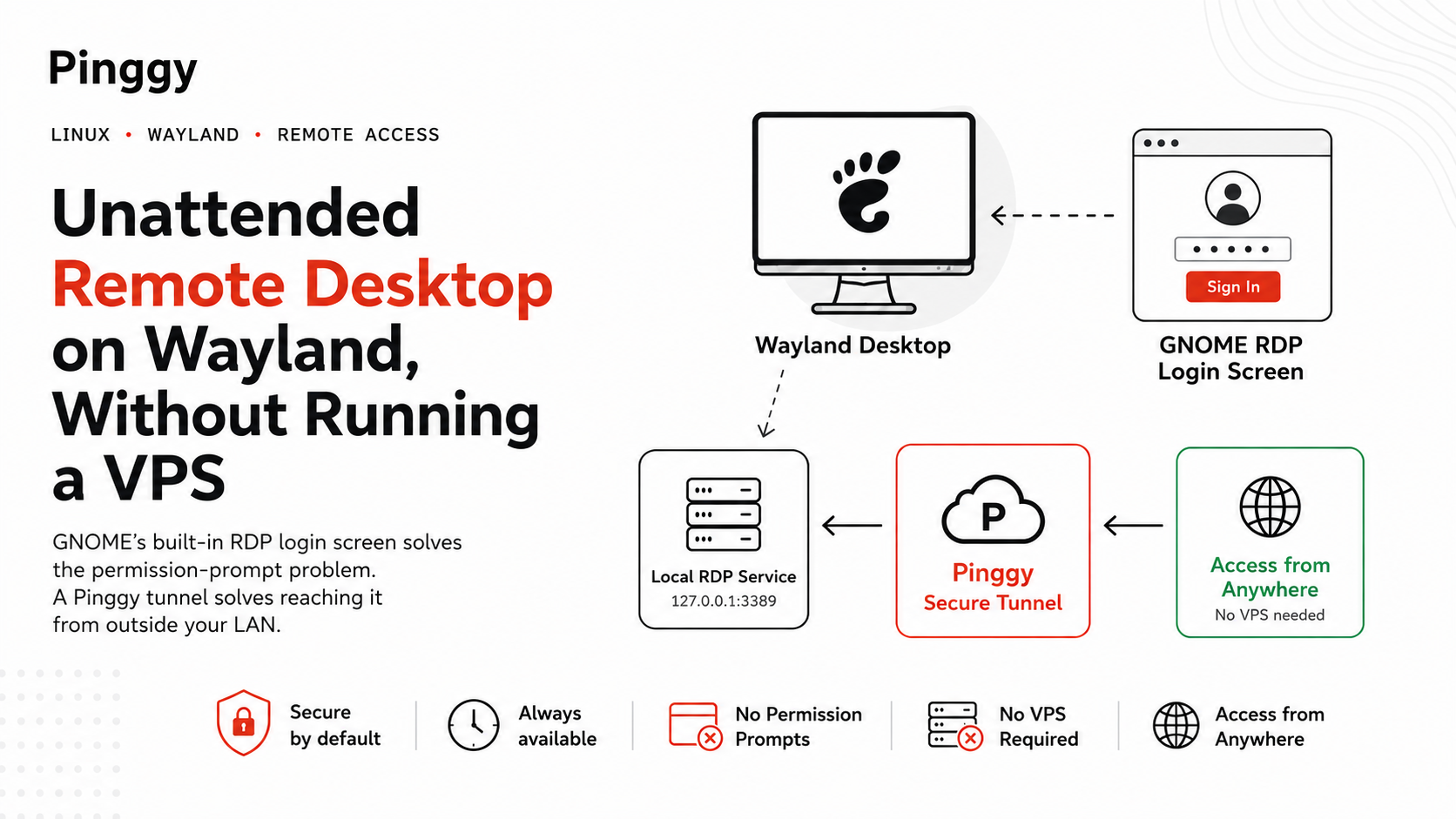
Remote access to a Linux desktop you are not sitting in front of - a homelab box, a workstation left running before a flight, a spare machine at a relative’s house - should be a solved problem by now. On Wayland it still isn’t, and the reason is architectural rather than a missing feature.
Wayland’s compositor won’t hand your screen to an app without an interactive permission dialog, and there’s nobody at the keyboard to click “Allow” on a headless box or a machine you just rebooted from three time zones away. AnyDesk still falls back to Xorg for incoming Linux sessions. TeamViewer calls its Wayland support experimental. RustDesk shipped a preview build for unattended Wayland access in August 2026, still x86_64 Debian/Ubuntu only, with Fedora and Arch support promised “once stable” (the current stable release, 1.4.6, does not include it).
What’s easy to miss in all of that is that GNOME already ships a built-in answer, and it’s been sitting in Settings since GNOME 46. It’s called Remote Login, it’s not the same feature as regular screen sharing, and it sidesteps the permission-dialog problem entirely instead of working around it. Reaching it from outside your own network is the other half of the problem, and that’s where Pinggy comes in.
Summary
- The problem: Wayland gates screen capture behind xdg-desktop-portal, which needs a human to approve access, and even GNOME’s persistent restore tokens get blocked on a locked or session-less screen. No workaround survives a cold reboot.
- GNOME’s fix: Remote Login serves RDP straight from the GDM greeter via Mutter’s privileged API, skipping the portal entirely.
- Enable it:
sudo grdctl --system rdp set-credentialsthen... enable, plussudo systemctl enable --now gnome-remote-desktop.service. Listens on port 3389, which you should never expose directly to the internet. - Reach it with a tunnel, not a VPS:
ssh -p 443 -R0:127.0.0.1:3389 tcp@free.pinggy.iogets a public TCP address in one command, no router config or WireGuard peers.
Why Wayland made this so hard
X11 never had a real permission model. Any app that could open a connection to the display server could grab the framebuffer and inject input, which is exactly why remote-desktop tools could offer true unattended access: install the daemon, and it just works, forever, with no dialogs.
Wayland compositors deliberately don’t allow that. Screen capture and remote input go through xdg-desktop-portal, backed by PipeWire, and the compositor is supposed to ask the user for permission before an app can start streaming the screen. That’s a real security improvement, but it collides head-on with the definition of “unattended”: if granting access requires someone to click a dialog, you’ve already lost the thing you wanted, which was not needing anyone there.
The portal spec has an escape hatch: restore tokens. An app passes persist_mode to org.freedesktop.portal.RemoteDesktop.SelectDevices, and if the user approves persistence, the portal hands back a restore_token the app can store and replay on the next launch to skip the dialog. Mutter implements this, and Plasma 6.5 (September 2025) added a settings page for managing the saved grants directly. So persistence is not the missing piece people often assume it is.
The piece that actually breaks is narrower and more stubborn. While a session is locked, Mutter refuses to create or restore a portal screencast at all, and each blocked attempt tends to burn the stored token, dropping the app back to the permission picker. Before you log in, there is no user session for the portal to live in at all. That is a property of where the portal sits in the architecture, not a bug in any particular app, which is why no amount of token-stashing gets you a desktop on a machine that just rebooted. It is also why app authors keep landing on the same two workarounds: PAM-based autologin so a session always exists, or swapping GDM for LightDM with an X11 greeter to escape Wayland’s restrictions entirely. Both work. Neither is something you want to maintain on a box you’re trying to simplify, not complicate.
The feature that was already there
GNOME Remote Desktop actually ships two distinct things that get talked about as if they were one:
- Remote Desktop (screen sharing during an active session) does go through the portal, and does hit the permission-prompt wall described above.
- Remote Login is a separate, system-level RDP service that logs you in at the GDM greeter itself, before any session exists. Because there’s no session yet, there’s no portal permission to ask for. It talks to Mutter’s privileged remote-desktop D-Bus API directly, which is exactly why the lock-screen restriction above never applies to it. You authenticate with a system-wide password to reach the greeter, then your normal account credentials to actually log in, the same two-step flow as sitting down at the machine.
The reason this is RDP and not VNC is worth knowing, because it explains the one rough edge you’ll hit later: RDP has a Server Redirection feature, and the implementation leans on it. A system daemon answers the connection, asks GDM for a headless login session, and redirects your client to it. Once you authenticate, GDM spawns your user session and a second redirection hands the client off again, this time using one-time credentials passed between daemons over D-Bus, with the system daemon peeking at routing tokens in the reconnecting client’s bytes to send it to the right place. Making that work with Windows’ native client also required implementing RDSTLS, an RDP security method FreeRDP didn’t support at the time.
The feature landed in GNOME 46, gained persistent sessions in GNOME 47 (disconnect and reconnect without being logged out), and got a substantial upgrade in GNOME 50, released 18 March 2026: video encoding is now offloaded to the GPU via Vulkan and VA-API, explicit sync smooths out NVIDIA setups, HiDPI support lets the client scale the remote display to match its own screen, and cameras attached to the client can be redirected into the remote session. Kerberos authentication landed in the same release for environments that want it.
It’s exposed through grdctl on the command line, documented in Red Hat's GNOME remote-access docs, or through Settings > System > Remote Desktop > Remote Login in the GUI, which will generate a self-signed certificate for you if you don’t already have one.
Setting it up
On a GNOME 46+ machine with gnome-remote-desktop installed:
# point at a TLS cert/key (self-signed is fine for personal use)
sudo grdctl --system rdp set-tls-key /path/to/rdp-tls.key
sudo grdctl --system rdp set-tls-cert /path/to/rdp-tls.crt

# set the password used at the GDM greeter
sudo grdctl --system rdp set-credentials

# turn the service on
sudo grdctl --system rdp enable
sudo systemctl enable --now gnome-remote-desktop.service
sudo systemctl enable --now gdm
The --system flag is what separates this from the per-user daemon; drop it and you’re configuring ordinary screen sharing, which is the portal-gated feature you’re trying to avoid. set-credentials takes an optional username and password as arguments and prompts if you leave them off, so the form above keeps the password out of your shell history. If you need a port other than 3389, sudo grdctl --system rdp set-port <port> sets it. Confirm the result before you walk away from the machine:
sudo grdctl --system statusThat’s the whole setup. RDP is now being served on port 3389 straight from the login screen, on a Wayland session, with nobody required to be logged in or present.
One quirk worth knowing about before you hit it cold, and it follows directly from the double-redirection described above: your client gets bounced from the login-screen server to a session-scoped one once you authenticate. Most RDP clients built on FreeRDP, including Remmina, follow that transparently. Microsoft’s own mstsc does not use RDSTLS by default, so you need to save an .rdp file and add use redirection server name:i:1 to it, or the handoff fails.
Don’t put 3389 on the public internet
Here’s the part that’s easy to gloss over once RDP is finally working: port 3389 is one of the most aggressively scanned ports on the internet, and exposed RDP has ranked as a leading initial-access vector for ransomware for years running. Attackers sweep the entire address space for it continuously, and a single working credential hands over an interactive desktop rather than a shell on one service. Port-forwarding it straight to your router is a bad trade even with a strong password behind it, and if you’re behind CGNAT, you don’t get the option anyway.
The usual fix is a VPN. One approach making the rounds alongside RustDesk’s Wayland news: rent a small VPS, run WireGuard on it, join your desktop and your client machine to that private network, and connect over the VPN-assigned IP. It works, but now you’re patching a VPS and managing WireGuard peers just to reach one desktop.
Reach it with a tunnel instead
Pinggy skips the VPS and the VPN peers. On the Wayland machine, after Remote Login is enabled:
ssh -p 443 -R0:127.0.0.1:3389 tcp@free.pinggy.ioCustomize your command:
That prints a public TCP address, something like tcp://qpeal-49-43-114-249.run.pinggy-free.link:46859. Point Remmina, Windows’ Remote Desktop Connection, or any other RDP client at that host and port, log in with your GNOME credentials the same way you would sitting in front of the machine, and you’re in. Because this is a raw TCP tunnel rather than an HTTP one, the bytes are forwarded untouched in both directions, which is what RDP’s TLS handshake and the redirection dance above need. Nothing was port-forwarded, nothing runs on your router, and port 3389 was never reachable from the open internet, only from Pinggy’s tunnel endpoint, which forwards to your machine over the SSH connection you started.
Treat the tunnel address the same way you’d treat a VPN credential: it’s live for as long as the SSH connection stays open, and closing your terminal tears it down. For anything beyond a quick session, Pinggy’s paid tiers add persistent subdomains and IP allowlisting if you want the address to stay put or be restricted to specific networks.
What this is actually good for
This combination is aimed at the same use case RustDesk’s preview build and the WireGuard-plus-VPS approach are both chasing: getting into a Linux desktop that rebooted while you weren’t there, or that you only need for a few minutes and don’t want to stand up permanent infrastructure for.
It’s not a replacement for a proper enterprise remote-support tool with audit logs and session recording, and GNOME’s Remote Login inherits normal GDM account security, so treat the system password the same way you’d treat any credential that unlocks a login screen. A password manager can help protect remote-access credentials without relying on password reuse or memory. But if you’ve been putting off Wayland remote access because every option seemed to involve a preview build, a compositor swap, or a VPS to babysit, the pieces to skip all three were already installed.
Conclusion
The unattended-access gap on Wayland is a real, well-documented problem, and it’s why RustDesk’s preview build made news and why portal permission management keeps getting called out as a milestone. But the gap was never really about persistence tokens. It was about the portal not existing yet at the moment you need it, on a machine that just rebooted with nobody in front of it. GNOME’s answer to that, Remote Login, has quietly existed since GNOME 46, works today without a preview build, a different compositor, or a fallback to X11, and got meaningfully faster in GNOME 50 with GPU-offloaded encoding. Pair it with a one-line Pinggy tunnel instead of a VPN and a VPS, and you have unattended, reachable-from-anywhere remote desktop on Wayland with two commands and no new infrastructure to run.