In this article
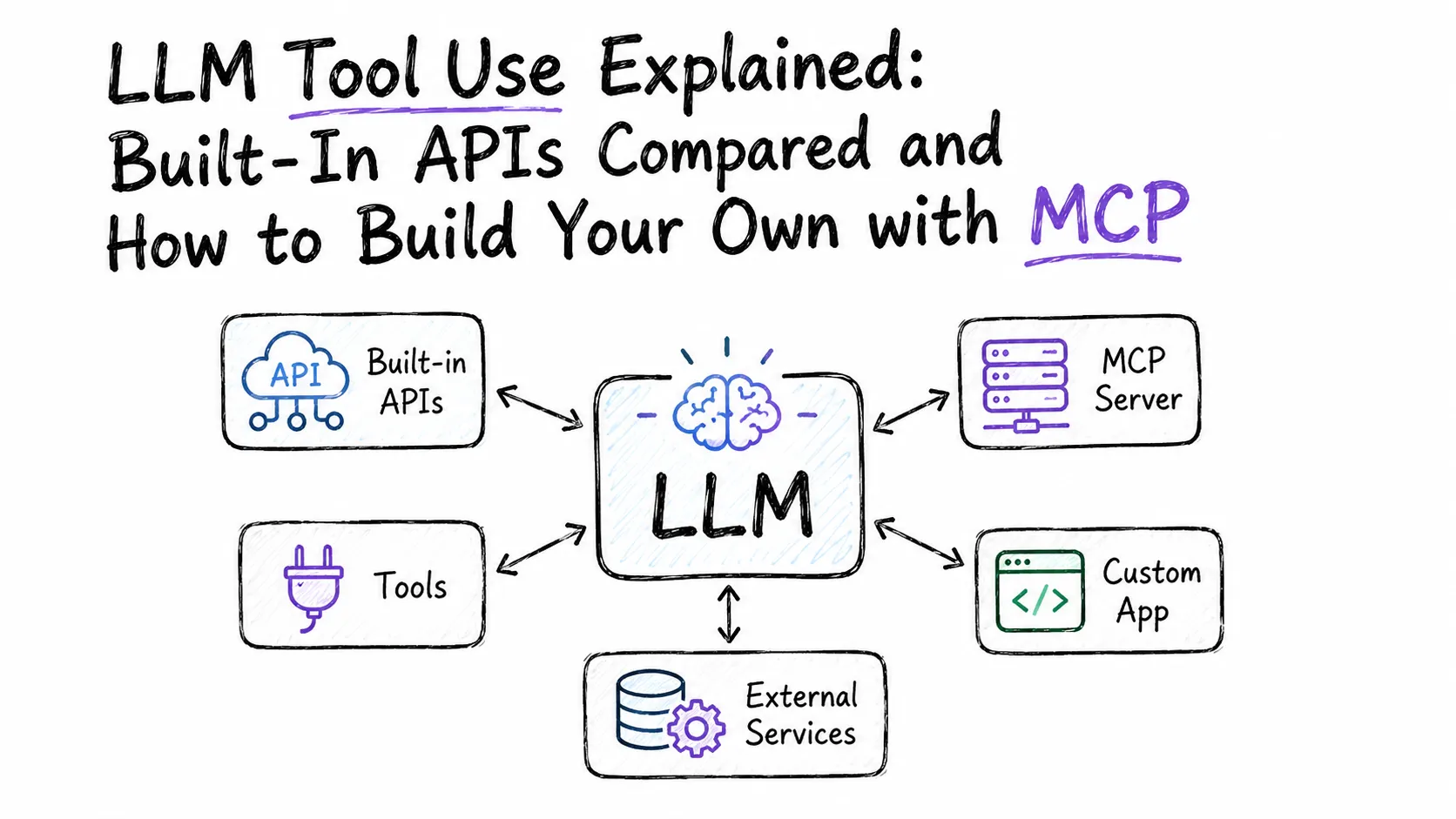
A language model on its own is a good conversationalist. It can reason, draft, summarize, and explain. What it cannot do - at least without help - is look up your database, run a calculation against live data, send an API request, or check what happened in the news an hour ago. Tools fix that. Every major LLM platform now ships with built-in tools you can switch on with a single parameter, and all of them let you define your own functions for the model to call.
This guide walks through what tools are available in the OpenAI, Google Gemini, Anthropic Claude, and xAI Grok APIs, shows concrete code for each, then covers how to build a reusable tool server using the Model Context Protocol so any MCP-compatible client can pick it up.
Summary
What tools are available across major LLM APIs:
- OpenAI (GPT):
web_search,file_search, code interpreter, remote MCP, custom function calling - Google Gemini:
google_searchgrounding,code_execution(Python only), URL context, Google Maps, custom function calling - Anthropic Claude: server-side
web_search,code_execution,web_fetch; client-side custom tools and Anthropic-schema tools (bash, text_editor) - xAI Grok:
web_search,x_search(real-time X/Twitter),code_interpreter, custom function calling
Building your own tools with MCP:
- Model Context Protocol is the open standard (5,000+ servers as of 2026) for connecting tools to LLM clients
- Use the Python
FastMCPlibrary and the@mcp.tool()decorator - your docstring becomes the tool description the model reads - Configure in Claude Desktop, VS Code, or any MCP client by pointing to your server binary
- MCP servers expose tools, resources, and prompts - you can share one server across multiple applications
What Is Tool Use in LLMs?
The core idea is straightforward: instead of returning plain text, the model can respond with a structured call to a function you defined. Your application executes that function, sends the result back, and the model continues its response with real data in hand.
This might seem like a minor quality-of-life improvement, but in practice it is what turns a chatbot into an agent. On benchmarks like SWE-bench, which tests a model’s ability to fix real GitHub issues, adding even basic shell and file tools produces enormous gains that text-only models simply cannot match. Tool use is also what makes the difference between a model that says “I think the stock is around $150” and one that actually calls your API and tells you the current price is $148.73.
There are two broad categories of tools across all platforms. Built-in tools are hosted by the provider. You declare them in your request, and the provider’s infrastructure handles execution - web search happens on their servers, the result comes back in the same API call. Custom function tools (sometimes called function calling) run in your application. The model signals that it wants to call your function, you execute it however you want, and you send the result back in a follow-up message.
The main practical difference: built-in tools require minimal setup and no extra round-trips, but you are limited to what the provider offers. Custom tools can call anything - your database, an internal API, a shell command, a third-party service - but you write the integration.
OpenAI: Web Search, File Search, and Function Calling
OpenAI’s tool layer is exposed through the Responses API. The tools parameter accepts an array of tool definitions. For built-in tools, you just specify the type; for custom functions, you add a full function schema.
Web Search
The simplest way to give GPT access to the live web is the web_search tool. The model decides on its own whether a search is warranted:
from openai import OpenAI

client = OpenAI()

response = client.responses.create(
    model="gpt-5.5",
    tools=[{"type": "web_search"}],
    input="What AI announcements came out this week?"
)
print(response.output_text)
No configuration is needed beyond including {"type": "web_search"} in the tools array. The response includes inline citations that you can surface to users.
File Search
If you have documents stored in a vector store, file_search retrieves relevant chunks at query time:
response = client.responses.create(
    model="gpt-5.5",
    tools=[{
        "type": "file_search",
        "vector_store_ids": ["vs_abc123"]
    }],
    input="Summarize the Q3 earnings report"
)
You create a vector store by uploading files through the Files API, then pass its ID here. The model handles retrieval automatically.
Custom Function Calling
Function calling is where things get interesting for your own integrations. You define what functions exist, the model decides when to call them, and you execute the actual logic:
from openai import OpenAI
import json

client = OpenAI()

tools = [
    {
        "type": "function",
        "name": "get_stock_price",
        "description": "Get the current price for a stock ticker symbol",
        "parameters": {
            "type": "object",
            "properties": {
                "ticker": {
                    "type": "string",
                    "description": "Stock ticker symbol, e.g. AAPL"
                }
            },
            "required": ["ticker"]
        }
    }
]

response = client.responses.create(
    model="gpt-5.5",
    tools=tools,
    input=[{"role": "user", "content": "What is Apple's stock price right now?"}]
)

# The model signals a function call
if response.output[0].type == "function_call":
    call = response.output[0]
    args = json.loads(call.arguments)
    # Execute your actual logic here
    price = fetch_stock_price(args["ticker"])
    # Send the result back to continue the conversation
    follow_up = client.responses.create(
        model="gpt-5.5",
        tools=tools,
        previous_response_id=response.id,
        input=[{
            "type": "function_call_output",
            "call_id": call.call_id,
            "output": json.dumps({"price": price, "currency": "USD"})
        }]
    )
    print(follow_up.output_text)
The previous_response_id field links the follow-up request to the original, so the model has context across the full exchange. Add "strict": true to the function parameters schema if you want OpenAI to guarantee the model only sends arguments that match your schema exactly.
OpenAI also supports Remote MCP Servers via URL in the tools array - point it at an MCP-compatible server endpoint and the model can call tools hosted there directly, which we cover later in the MCP section.
Google Gemini: Google Search, Code Execution, and Function Calling
Gemini’s tooling is organized around the Interactions API with client.interactions.create(). Gemini 3 series models support combining multiple built-in tools in a single request, and can use custom function calling alongside them.
Google Search Grounding
Adding {"type": "google_search"} anchors the model’s responses in live Google Search results, which dramatically reduces hallucinations on time-sensitive questions:
from google import genai

client = genai.Client()

interaction = client.interactions.create(
    model="gemini-3.5-flash",
    input="What are the biggest AI model releases in June 2026?",
    tools=[{"type": "google_search"}]
)
print(interaction.output_text)
The model runs search queries as needed and includes inline citations in the response. Billing for Gemini 3 models is per individual search query executed, not per prompt, so if the model runs three queries, you pay for three.
Code Execution
The code execution tool lets Gemini write and run Python code iteratively. It is useful for math, data analysis, or anything where you want precise computation rather than the model approximating an answer:
interaction = client.interactions.create(
    model="gemini-3.5-flash",
    input="Calculate the compound interest on $10,000 at 7% annually over 20 years.",
    tools=[{"type": "code_execution"}]
)
print(interaction.output_text)
One important constraint: Gemini can only execute Python, regardless of what language it generates code in. The tool has access to a curated set of libraries including NumPy, Pandas, Matplotlib, TensorFlow, OpenCV, and scikit-learn, but you cannot install additional packages. There is no extra charge beyond standard token rates.
Function Calling
Custom functions follow the same declare-then-execute pattern as other platforms:
from google import genai
import json

schedule_meeting = {
    "type": "function",
    "name": "schedule_meeting",
    "description": "Schedule a calendar meeting with specified attendees",
    "parameters": {
        "type": "object",
        "properties": {
            "attendees": {
                "type": "array",
                "items": {"type": "string"},
                "description": "List of attendee email addresses"
            },
            "date": {"type": "string", "description": "Date in YYYY-MM-DD format"},
            "time": {"type": "string", "description": "Time in HH:MM format"},
            "title": {"type": "string", "description": "Meeting title"}
        },
        "required": ["attendees", "date", "time", "title"]
    }
}

client = genai.Client()
interaction = client.interactions.create(
    model="gemini-3.5-flash",
    input="Book a 30-minute sync with alice@example.com and bob@example.com tomorrow at 10am about the launch.",
    tools=[schedule_meeting]
)

# The model returns a function_call step
fc_step = next(s for s in interaction.steps if s.type == "function_call")
if fc_step.name == "schedule_meeting":
    result = create_calendar_event(**fc_step.arguments)
    # Return result for final response
    final = client.interactions.create(
        model="gemini-3.5-flash",
        input=[{
            "type": "function_result",
            "name": fc_step.name,
            "call_id": fc_step.id,
            "result": [{"type": "text", "text": json.dumps(result)}]
        }],
        tools=[schedule_meeting],
        previous_interaction_id=interaction.id
    )
    print(final.output_text)
Gemini 3 models also support parallel function calling (multiple functions called simultaneously with "tool_choice": "any") and compositional calling (chaining functions across multiple turns). Beyond custom functions, Gemini offers URL Context (directing the model to analyze specific web pages), Google Maps grounding for location-aware queries, File Search for RAG over uploaded documents, and Computer Use (preview) for browser automation.
Anthropic Claude: Server Tools and Client Tools
Claude draws a clearer line than the others between tools that Anthropic’s infrastructure handles and tools that run in your application. This distinction matters for both implementation and billing.
Server tools (Anthropic handles execution): web_search, code_execution, web_fetch, tool_search. You include them in the request, the model calls them, the results come back automatically - no extra round-trips.
Client tools (your application handles execution): custom functions you define, plus Anthropic-schema tools like bash and text_editor that follow a defined interface but run in your environment.
Web Search (Server Tool)
import anthropic

client = anthropic.Anthropic()

response = client.messages.create(
    model="claude-opus-4-8",
    max_tokens=1024,
    tools=[{"type": "web_search_20260209", "name": "web_search"}],
    messages=[{"role": "user", "content": "What is the current Rust stable version?"}]
)
print(response.content)
The tool type string includes a date (20260209) - Anthropic versions tool schemas this way so behavior remains stable as the underlying implementation evolves. The name field is required but its value does not affect behavior.
Custom Function Tools (Client Tools)
When the model wants to call your function, the response comes back with stop_reason: "tool_use" and one or more tool_use blocks inside content. You execute, then send a tool_result back:
import anthropic
import json

client = anthropic.Anthropic()

tools = [
    {
        "name": "query_database",
        "description": "Run a read-only SQL query against the analytics database and return results",
        "input_schema": {
            "type": "object",
            "properties": {
                "query": {
                    "type": "string",
                    "description": "A valid SELECT statement"
                }
            },
            "required": ["query"]
        }
    }
]

messages = [{"role": "user", "content": "How many signups did we get last week?"}]

response = client.messages.create(
    model="claude-opus-4-8",
    max_tokens=1024,
    tools=tools,
    messages=messages
)

if response.stop_reason == "tool_use":
    for block in response.content:
        if block.type == "tool_use":
            # Execute the function
            result = run_query(block.input["query"])
            # Build the follow-up messages
            messages.append({"role": "assistant", "content": response.content})
            messages.append({
                "role": "user",
                "content": [{
                    "type": "tool_result",
                    "tool_use_id": block.id,
                    "content": json.dumps(result)
                }]
            })
    # Get the final response
    final = client.messages.create(
        model="claude-opus-4-8",
        max_tokens=1024,
        tools=tools,
        messages=messages
    )
    print(final.content)
The input_schema field is a JSON Schema object - Claude uses this to validate its own calls before returning them, so your schema doubles as documentation and a guard. Use strict: true if you want strict schema enforcement.
You can also force the model to always call a specific tool by setting tool_choice to {"type": "tool", "name": "query_database"}, which is handy for structured extraction pipelines where you always want a function call response rather than prose.
xAI Grok: Web Search, X Search, and Function Calling
Grok’s API is OpenAI-compatible, which means you can use the OpenAI Python SDK pointed at https://api.x.ai/v1. The built-in tools run on xAI’s infrastructure; custom functions run in your application using the same declare-execute pattern.
Web Search and X Search
Grok’s two built-in tools give it access to the broader web and to real-time content from X (formerly Twitter), which no other platform offers natively:
from openai import OpenAI
import os

client = OpenAI(
    api_key=os.getenv("XAI_API_KEY"),
    base_url="https://api.x.ai/v1"
)

response = client.responses.create(
    model="grok-4.3",
    tools=[
        {"type": "web_search"},
        {"type": "x_search"}
    ],
    input=[{"role": "user", "content": "What are developers saying about the new Grok 4 release?"}]
)
print(response.output_text)
The x_search tool supports keyword search, semantic search, user search, and thread fetching on X. You can combine both tools in a single request, and the model decides which to use based on the query. The old xAI Live Search API has been retired; web_search and x_search are its replacements. Grok also offers a code_interpreter built-in tool and a collections_search tool for querying indexed document collections.
Custom Function Calling
Function definitions follow the standard JSON Schema pattern:
from openai import OpenAI
import os, json

client = OpenAI(
    api_key=os.getenv("XAI_API_KEY"),
    base_url="https://api.x.ai/v1"
)

tools = [
    {
        "type": "function",
        "name": "lookup_order",
        "description": "Look up an order by its ID and return current status and details",
        "parameters": {
            "type": "object",
            "properties": {
                "order_id": {
                    "type": "string",
                    "description": "Order ID, e.g. ORD-2026-88421"
                }
            },
            "required": ["order_id"]
        }
    }
]

response = client.responses.create(
    model="grok-4.3",
    tools=tools,
    input=[{"role": "user", "content": "What is the status of order ORD-2026-88421?"}]
)

if response.output and response.output[0].type == "function_call":
    call = response.output[0]
    args = json.loads(call.arguments)
    result = fetch_order_from_db(args["order_id"])
    # Continue the conversation with the result
    follow_up = client.responses.create(
        model="grok-4.3",
        tools=tools,
        previous_response_id=response.id,
        input=[{
            "type": "function_call_output",
            "call_id": call.call_id,
            "output": json.dumps(result)
        }]
    )
    print(follow_up.output_text)
Grok supports parallel function calling by default (multiple tool requests in one response), and you can disable it by setting parallel_tool_calls: false. Tool choice control accepts "auto" (default), "required" (model must call at least one tool), "none" (tools disabled), or a specific tool name to force.
Building Your Own Tool with MCP
The four platforms above let you define custom functions inline in the API request. That works fine for a single application, but if you are building a tool that multiple apps should use, you end up duplicating the same function schema everywhere. The Model Context Protocol (MCP) solves this by separating tool definitions from the application code.
MCP is an open standard maintained by Anthropic. An MCP server is a small process that exposes a list of tools (and optionally resources and prompts) over a JSON-RPC interface. Any MCP-compatible client - Claude Desktop, VS Code with the Claude extension, Cursor, Windsurf, and many others - can discover and call those tools automatically. As of mid-2026 there are over 5,000 MCP servers in the wild, ranging from GitHub integrations to database connectors to custom internal tooling.
Three Things an MCP Server Can Expose
An MCP server can provide three types of capabilities, and you can mix them freely in one server:
- Tools: Functions the LLM can call during inference (file operations, API calls, database queries)
- Resources: Static or dynamic data sources the client can read (file contents, API responses, config)
- Prompts: Reusable prompt templates the user or application can invoke
This guide focuses on tools since that is the most common use case and maps directly to what you have been doing with the platform-specific APIs above.
Setting Up the Project
MCP’s Python SDK works well with uv, which handles environments and dependencies cleanly:
# Install uv if you do not have it
curl -LsSf https://astral.sh/uv/install.sh | sh

# Create a new project
uv init my-mcp-server
cd my-mcp-server

# Install the MCP SDK
uv add "mcp[cli]" httpx

# Create the server file
touch server.py
Python 3.10 or higher is required. You must use MCP SDK 1.2.0 or later.
Writing a Tool with FastMCP
FastMCP is the high-level class in the Python SDK. You initialize it with a server name, then use the @mcp.tool() decorator to register functions as tools. The decorator reads your type hints and docstring to generate the JSON Schema that the model sees - you do not write schema JSON by hand.
Here is a minimal server with two tools:
from typing import Any
import httpx
from mcp.server.fastmcp import FastMCP

mcp = FastMCP("my-mcp-server")

@mcp.tool()
async def get_github_stars(owner: str, repo: str) -> int:
    """Get the current star count for a GitHub repository.

    Args:
        owner: GitHub username or organization name
        repo: Repository name
    """
    url = f"https://api.github.com/repos/{owner}/{repo}"
    headers = {"Accept": "application/vnd.github+json", "User-Agent": "mcp-demo/1.0"}
    async with httpx.AsyncClient() as client:
        response = await client.get(url, headers=headers, timeout=10.0)
        response.raise_for_status()
        data = response.json()
        return data["stargazers_count"]


@mcp.tool()
async def convert_currency(amount: float, from_currency: str, to_currency: str) -> dict[str, Any]:
    """Convert an amount between currencies using live exchange rates.

    Args:
        amount: The amount to convert
        from_currency: Source currency code (e.g. USD)
        to_currency: Target currency code (e.g. EUR)
    """
    url = f"https://api.exchangerate-api.com/v4/latest/{from_currency}"
    async with httpx.AsyncClient() as client:
        response = await client.get(url, timeout=10.0)
        response.raise_for_status()
        rates = response.json()["rates"]
        converted = amount * rates[to_currency]
        return {
            "original": amount,
            "from": from_currency,
            "to": to_currency,
            "converted": round(converted, 2)
        }


if __name__ == "__main__":
    mcp.run(transport="stdio")
A few things to note. First, never write to stdout in an STDIO server. The MCP protocol uses stdout for JSON-RPC messages; any print() call will corrupt the channel. Use print(..., file=sys.stderr) or Python’s logging module instead. Second, async functions are fine - FastMCP handles the event loop. Third, the docstring’s first line becomes the tool description in the model’s context, and the Args: section maps to parameter descriptions in the schema. Write both carefully; the quality of tool descriptions directly affects whether the model uses them correctly.
Running and Testing the Server
Test it directly from the command line using the MCP inspector:
uv run mcp dev server.pyThis launches an interactive browser-based UI where you can invoke tools manually and see exactly what JSON-RPC messages your server sends and receives. It is the fastest way to confirm a tool works before wiring it into a client.
Configuring the Server in Claude Desktop
Claude Desktop reads MCP server definitions from a JSON config file. Open it in your editor:
# macOS
code ~/Library/Application\ Support/Claude/claude_desktop_config.json

# Windows
code $env:AppData\Claude\claude_desktop_config.json
Add your server under the mcpServers key:
{
  "mcpServers": {
    "my-mcp-server": {
      "command": "uv",
      "args": [
        "--directory",
        "/absolute/path/to/my-mcp-server",
        "run",
        "server.py"
      ]
    }
  }
}
Use the absolute path to your project directory. On macOS and Linux you can get it with pwd inside the project folder; on Windows use cd or copy from your file manager. After saving the file, restart Claude Desktop and your tools will appear in the available tools list.
If your server script lives at a known path and has a shebang line (#!/usr/bin/env python3), you can simplify the config:
{
  "mcpServers": {
    "my-mcp-server": {
      "command": "/absolute/path/to/my-mcp-server/.venv/bin/python",
      "args": ["/absolute/path/to/my-mcp-server/server.py"]
    }
  }
}
Configuring the Server in VS Code (Claude Extension)
VS Code with the Claude extension reads MCP servers from its settings. Add to your workspace .vscode/settings.json:
{
  "claude.mcpServers": {
    "my-mcp-server": {
      "command": "uv",
      "args": [
        "--directory",
        "/absolute/path/to/my-mcp-server",
        "run",
        "server.py"
      ]
    }
  }
}
Or add it to your user-level Claude settings so it is available across all projects.
HTTP Transport for Shared Servers
The STDIO transport is the right default for local tools. If you want to run a single MCP server that multiple developers on a team can reach, switch to HTTP:
if __name__ == "__main__":
    mcp.run(transport="http", port=8080)
Clients then connect via URL instead of a local command. This is useful for internal company tools you want to deploy once and share widely, and it is how remote MCP servers work in OpenAI’s tool ecosystem. Marketing teams can use a similar setup for publishing and analytics access, letting agents call social workflow connectors from a shared tool layer. You can expose a local HTTP MCP server to the internet using a tunnel - our guide to exposing an MCP server with Pinggy walks through that in detail.
Environment Variables and Secrets
If your tools need API keys, pass them as environment variables rather than hardcoding them in the server file. The Claude Desktop config accepts an env block:
{
  "mcpServers": {
    "my-mcp-server": {
      "command": "uv",
      "args": ["--directory", "/absolute/path/to/my-mcp-server", "run", "server.py"],
      "env": {
        "EXCHANGE_API_KEY": "your-key-here",
        "GITHUB_TOKEN": "your-token-here"
      }
    }
  }
}
Your Python server then reads them with os.environ["EXCHANGE_API_KEY"]. This keeps secrets out of your source code and out of the JSON-RPC messages the model sees.
Comparing the Platforms
Each platform has a different philosophy. OpenAI’s Responses API is the most recently redesigned and leans into the stateful conversation model - previous_response_id threads requests together cleanly. Gemini’s tooling is the broadest in terms of built-in integrations (Maps, Computer Use, URL Context) and Gemini 3 models can combine multiple built-in and custom tools in a single request through “tool context circulation.” Claude makes the server-vs-client split explicit and produces predictably structured tool_use blocks with well-typed inputs; its server tools (web search, code execution, web fetch) require zero implementation overhead. Grok is unique in offering real-time X search natively, which matters if you are building social listening or trend analysis applications.
For custom function calling the underlying pattern is nearly identical across all four: you describe a function with a name, description, and JSON Schema; the model returns a structured call; you execute and return a result. The differences are mostly in SDK ergonomics and what the follow-up request looks like. If you are building something that needs to work across providers, wrapping your function definitions in a thin adapter layer is straightforward.
MCP sits above all of this - it is provider-agnostic and lets you write your tools once for any client that speaks the protocol. If you are building internal developer tooling, a company knowledge base connector, or any tool you want to share across products, MCP is the right layer to invest in.
Conclusion
Built-in tools across OpenAI, Gemini, Claude, and Grok cost you one extra parameter in the API request. Custom function calling costs a bit more but gives you access to your own data. MCP ties it all together - write tools once, use them across every LLM client that speaks the protocol.