How to Remotely Control Claude Code and Codex on a VM or Home Devbox
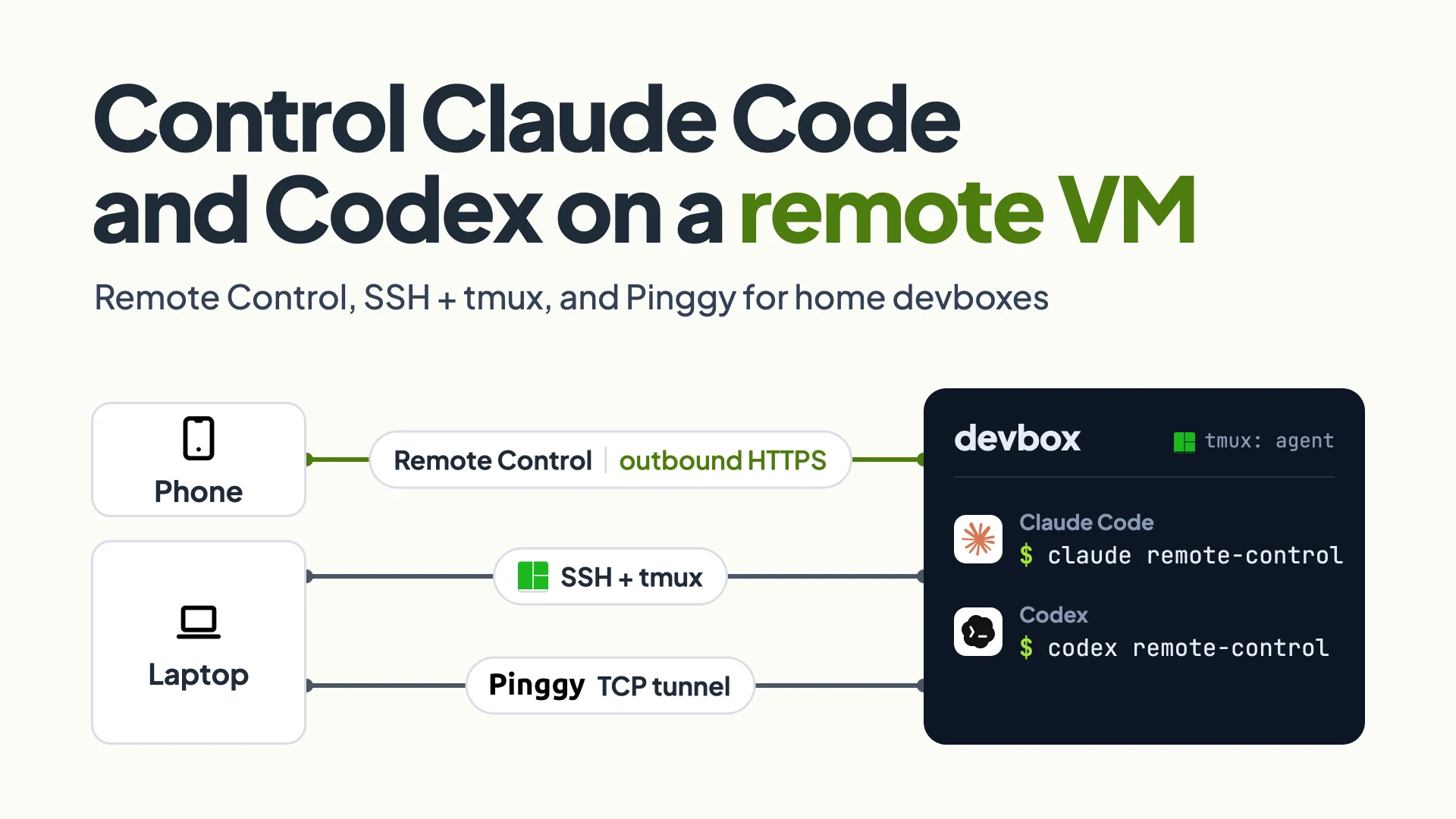
Coding agents increasingly run somewhere other than the laptop in front of you: a cloud VM with more cores, a workstation at home, a devbox from work. Sooner or later the agent stops to ask a question or wait for an approval, and you’re not at that machine.
As of October 2026, both big CLI agents have a built-in answer. Claude Code 2.1.310 ships claude remote-control, which puts a session running on your VM into the Claude mobile app and claude.ai/code. Codex 0.164.0 has an experimental codex remote-control daemon, and the ChatGPT desktop app can run Codex on hosts from your ~/.ssh/config. Claude Code’s mode makes outbound requests only, and OpenAI says its relay keeps hosts reachable without exposing them to the public internet. Both still need the agent process alive on the VM, and SSH is still how you install, log in and restart it.
This guide uses one VM, devbox, with a repo in ~/app, and covers SSH with tmux, Claude Code Remote Control, three Codex routes, and a Pinggy TCP tunnel for a home devbox behind NAT. Commands were checked against the official docs and both CLIs’ --help output.
Summary
- Run the agent inside tmux on the VM.
ssh -t devbox tmux new -A -s agentcreates or reattaches one session, so a dropped SSH connection doesn’t kill the agent. - For Claude Code, run
claude remote-control. It prints a session URL (press the spacebar for a QR code) and only makes outbound HTTPS requests. It needs a Pro, Max, Team or Enterprise login, not an API key (Remote Control docs). - For Codex, the documented route is the ChatGPT desktop app with the VM as an SSH host. The headless
codex remote-controldaemon is experimental, andcodex --remoteover an SSH port forward works from any terminal. - A home devbox behind NAT needs a tunnel for SSH.
ssh -p 443 -R0:localhost:22 tcp@free.pinggy.iogives port 22 a public address. Free tunnels last 60 minutes; a Pro token with a reserved port keeps a stable one.
Three ways to reach an agent on another machine
Every option here is one of three mechanisms: SSH gives you the VM’s terminal, a vendor relay (Anthropic’s or OpenAI’s) carries the conversation between the agent and your phone with the VM dialling out, and a tunnel makes SSH reachable when the VM has no public address.
| Route | Runs on the VM | Inbound port on the VM | You connect from |
|---|---|---|---|
| SSH + tmux | claude or codex in tmux | 22 | Any SSH client |
| Claude Code Remote Control | claude remote-control | None | Claude app, claude.ai/code |
| Codex SSH host | Codex app server, started over SSH | 22 | ChatGPT desktop app, phone via that host |
| Codex headless remote control | codex remote-control start | None | ChatGPT app (experimental) |
| Codex app-server over SSH | codex app-server on 127.0.0.1 | 22 | Codex CLI |
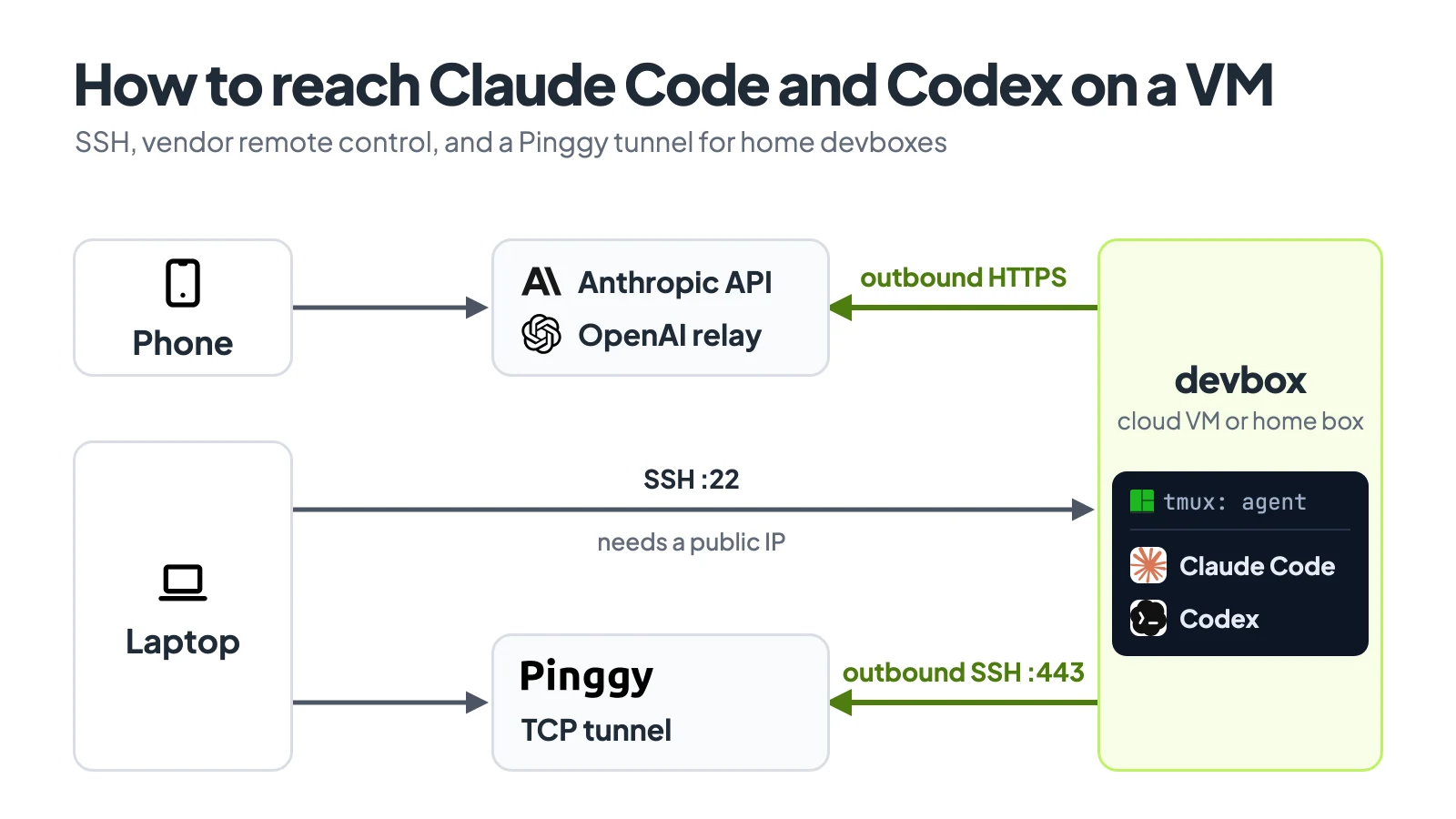
Arrows start at whoever opens the connection. Remote control and the Pinggy tunnel both start from the VM.
Step 1: SSH into the VM and keep the agent alive with tmux
Give the VM an SSH config entry, so every tool, including the ChatGPT desktop app, can find it by name:
Host devbox
  HostName 203.0.113.10
  User ubuntu
  IdentityFile ~/.ssh/id_ed25519
  ServerAliveInterval 30
Install both agents on the VM (plus tmux, if the image lacks it), then open a tmux session from your laptop:
curl -fsSL https://claude.ai/install.sh | bash   # Claude Code, on the VM
npm install -g @openai/codex                    # Codex, on the VM
ssh -t devbox tmux new -A -s agent              # from your laptop
new -A -s agent attaches to the agent session if it exists and creates it if it doesn’t, so one command works every time. Inside it, cd ~/app and run claude or codex. Press Ctrl-b then d to detach, and the agent keeps working after the SSH connection drops, which is what Anthropic’s docs recommend for remote machines.
Logging in on a headless VM
Claude Code prints a login URL on first run. Press c to copy it and open it on your laptop. The browser can’t reach the VM’s local callback server, so it shows a code to paste at the Paste code here if prompted prompt. Skip claude setup-token if you want Remote Control, which rejects those model-only tokens with Remote Control requires a full-scope login token.
For Codex, run codex login --device-auth (in beta), open the link it prints, and enter the one-time code. Device code login must first be enabled in your ChatGPT security settings or by a workspace admin. The fallback is to forward the callback port with ssh -L 1455:localhost:1455 devbox and run codex login in that session.
Step 2: Claude Code Remote Control on the VM
Remote Control lets you drive a Claude Code process on the VM, with its files, MCP servers and tools, from the Claude app or claude.ai/code. Inside tmux:
cd ~/app
claude remote-control --name "devbox app"
The first run asks Enable Remote Control? (y/n), plus Trust <directory>? [y/N] in a directory you haven’t trusted, then prints a session URL. Press the spacebar for a QR code and scan it. The session also appears under Code in the app, with a green dot while it’s online.
This is server mode, one process serving several sessions. --spawn sets how they share the repo: same-dir, the default unless you’ve saved another mode for the project, puts them all in ~/app, where two sessions can edit the same file; worktree gives each on-demand session its own git worktree, which suits parallel tasks started from your phone; session serves exactly one. --capacity defaults to 32. In an existing claude session over SSH, type /remote-control (or /rc) to carry the conversation over.
The process makes outbound HTTPS requests only: it registers with the Anthropic API and polls for work, so a firewall that blocks everything inbound except SSH is fine. The transcript is stored on Anthropic’s servers while connected; execution and file access stay on the VM.
The requirements catch people out:
- Plan. Pro, Max, Team or Enterprise, signed in through claude.ai. API keys aren’t supported, and on Team and Enterprise an Owner has to enable Remote Control first.
- Provider. It isn’t available on Amazon Bedrock, Google Cloud’s Agent Platform or Microsoft Foundry, with
ANTHROPIC_BASE_URLpointing at a gateway, or withCLAUDE_CODE_DISABLE_NONESSENTIAL_TRAFFICset. - Uptime. After about 10 minutes without network, server mode exits, so reattach to tmux and start it again. After a Ctrl+C stop, rerunning it in the same directory within about four hours brings the old sessions back.
Turn on Push when actions required in /config to get a phone notification when a session is waiting on you.
Step 3: Three ways to run Codex on the VM
The ChatGPT desktop app with the VM as an SSH host
The ChatGPT desktop app reads concrete host aliases from ~/.ssh/config, so devbox appears on its own. Enable it under Settings > Connections and pick ~/app as the remote project. The app starts the Codex app server on the VM over SSH, using the remote user’s login shell, so codex must be on the PATH there and already logged in.
To add your phone, pair it under Settings > Connections > Control this Mac or PC by scanning the QR code with ChatGPT. The phone drives the desktop host, which runs Codex on the VM, so if that Mac or PC sleeps, remote access stops.
Headless remote control on the VM (experimental)
The CLI also has its own daemon:
codex remote-control start   # start the app-server daemon with remote control enabled
codex remote-control pair    # print a short-lived manual pairing code
codex remote-control stop    # stop the daemon
The CLI reference documents these commands, but OpenAI’s mobile setup page still says setup starts in the desktop app, not the CLI. GitHub issue #23200, which asks for headless hosts, had no maintainer reply as of October 2026, though users there report that start plus pair works, one of them on a Hetzner VPS. I didn’t pair a phone this way, so treat it as experimental. The daemon’s README describes a detached, pidfile-backed process and nothing that starts it at boot, so run codex remote-control start again after a reboot.
Terminal only: codex app-server over an SSH port forward
This route needs no app. On the VM, inside tmux:
codex app-server --listen ws://127.0.0.1:4500Its startup banner says binds localhost only (use SSH port-forwarding for remote access), so on your laptop:
ssh -N -L 4500:127.0.0.1:4500 devbox
# then, in a second terminal
codex --remote ws://127.0.0.1:4500 -C /home/ubuntu/app
-C sets the working folder on the server side; in my test, Codex asked to trust that server folder rather than the laptop’s directory. OpenAI describes app-server as mainly for development and debugging, liable to change without notice, and not something to expose on a shared or public network, so keep it on 127.0.0.1 behind SSH. A loopback listener asks for no token (--ws-auth applies only to non-loopback listeners), so anyone with a shell on the VM can drive it.
Reaching a home devbox behind NAT with Pinggy
A cloud VM has a public IP. A box at home usually sits behind a router, sometimes behind your ISP’s CGNAT too, so port 22 can’t be reached from outside. Remote Control and the Codex daemon don’t care, since they dial out. But you still need SSH to install, log in, reattach to tmux and restart the agent, and the other two Codex routes run over SSH.
A Pinggy TCP tunnel solves this from the devbox’s side. With the SSH server running (on Ubuntu, sudo apt update, sudo apt install openssh-server, then sudo systemctl enable --now ssh), run this on the devbox:
ssh -p 443 -R0:localhost:22 tcp@free.pinggy.ioThe devbox dials out to Pinggy on port 443, and Pinggy prints a public address and port, shown in its SSH guide as tcp://example.pinggy.link:11223. Connections to that address come back down the tunnel to port 22:
ssh -p 11223 ubuntu@example.pinggy.linkSave it as devbox-home in ~/.ssh/config, with that HostName and Port, and every step above works unchanged, including the desktop app’s SSH host discovery.
Free tunnels last 60 minutes and get a new port on each connection, so that config entry goes stale. For a machine you depend on, use a Pro token with a port reserved in the Pinggy dashboard, and start it at boot with the systemd unit from Pinggy’s Linux startup guide:
ssh -p 443 -R0:localhost:22 <token>+tcp@pro.pinggy.ioA public port in front of sshd can be found and scanned, so turn password logins off. sshd keeps the first value it reads, and on Debian and Ubuntu it reads /etc/ssh/sshd_config.d/*.conf first, so a cloud-init drop-in there can override a line in sshd_config. Put PasswordAuthentication no in /etc/ssh/sshd_config.d/00-keys-only.conf, run sudo systemctl restart ssh, and check that sudo sshd -T | grep -i passwordauthentication prints passwordauthentication no.
If you always connect from a fixed address, an IP whitelist drops everything else at Pinggy’s edge:
ssh -p 443 -R0:localhost:22 -t tcp@free.pinggy.io w:203.0.113.7For how the reverse tunnel works underneath, see SSH reverse tunneling. For a self-hosted web UI instead of the vendors’ apps, see this guide to CloudCLI.
Which route to use
For Claude Code, run claude remote-control --spawn worktree inside tmux on the VM and use the Claude app. For Codex, use the desktop app’s SSH host if a Mac or PC stays on; otherwise the app-server port forward is the most predictable setup, and the headless daemon is there if you’re fine with experimental. At home, set up the Pinggy tunnel first, because every other route assumes you can SSH in.
Conclusion
Every route in this guide rests on one rule: the agent runs on the VM, and your phone and laptop are only windows into it. The work is keeping that process alive and reachable: tmux for the session, the remote-control mode your plan supports for the phone, and SSH for everything else, through a Pinggy tunnel when the box is at home. To check it, start a long task, detach from tmux, close the SSH session and open the session on your phone. If the agent is still working, you’re set.