In this article
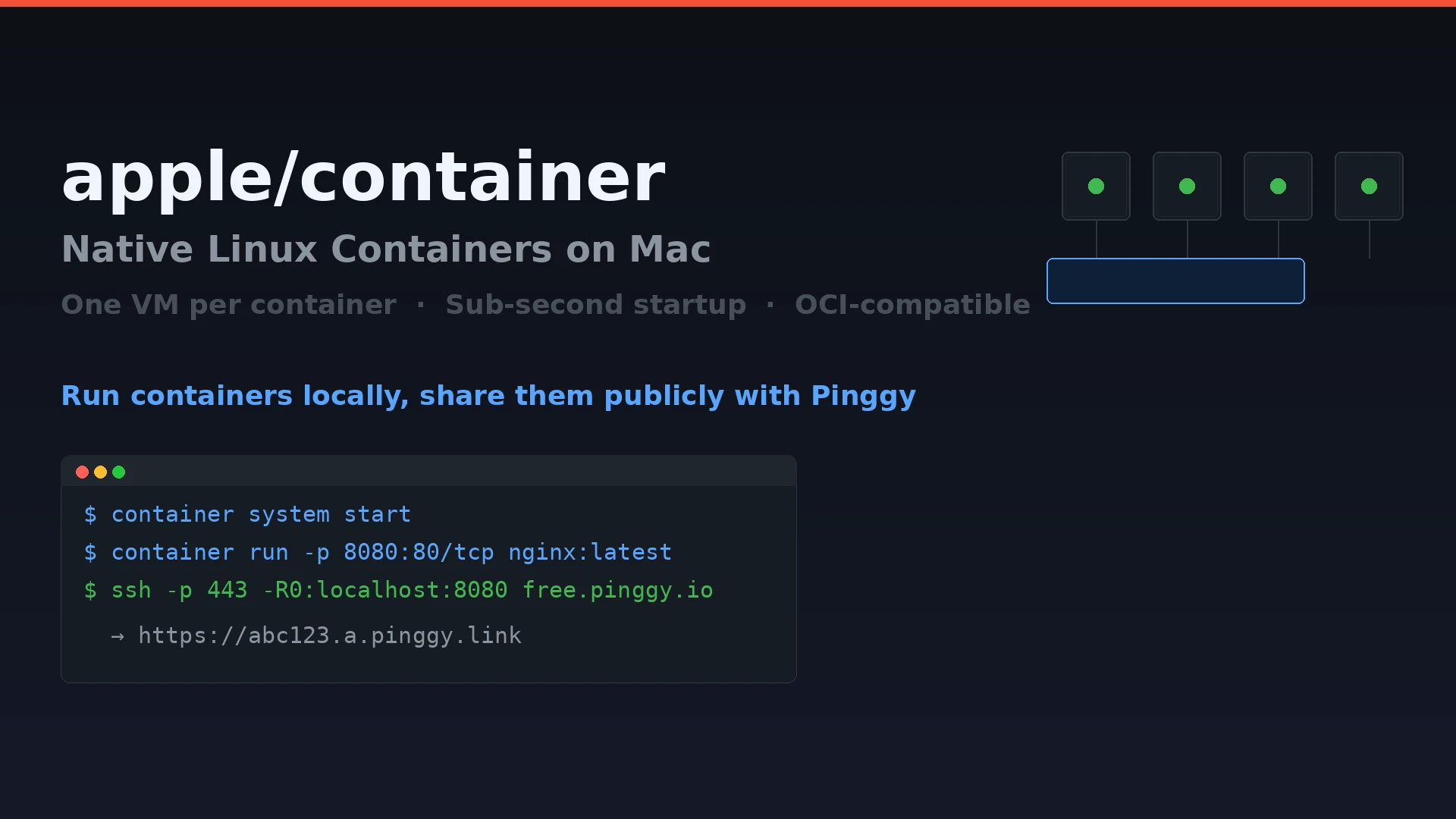
Apple shipped container v1.0.0 on June 9, 2026, the same week as WWDC. It is an open-source command-line tool for running Linux containers on a Mac using lightweight virtual machines. Written in Swift, Apache 2.0, optimized for Apple Silicon. As of today it is trending first on GitHub with over 2,400 new stars in 24 hours.
If you have been putting up with Docker Desktop’s update interruptions and resource overhead on your M-series Mac, it is worth a look.
Summary
- Install - download the signed
.pkgfrom github.com/apple/container releases, double-click, enter admin password. - Start the service:
container system start(installs a Linux kernel on first run - takes ~30 seconds) - Run a container:
container run --name web -p 8080:80/tcp nginx:latest - Access it:
curl http://localhost:8080or open in browser - Share it publicly with Pinggy:
ssh -p 443 -R0:localhost:8080 free.pinggy.io
Works with any OCI image - pull from Docker Hub, GitHub Container Registry, or your own registry. Requires Apple Silicon + macOS 15 Sequoia or macOS 26 Tahoe. No Docker Compose yet.
Why one VM per container matters
Docker Desktop runs all your containers inside a single Linux VM. That VM has to be pre-allocated enough RAM and CPU to handle whatever your containers might need - you size it at setup time and either under-allocate or over-allocate. When no containers are running, the VM still sits there consuming memory.
Apple’s tool does it differently. Each container gets its own dedicated lightweight VM, spun up using the macOS Virtualization framework - the same API that powers Apple’s own software virtualization. The VM boots in under a second, consumes near-zero memory when idle, and is torn down when the container exits.
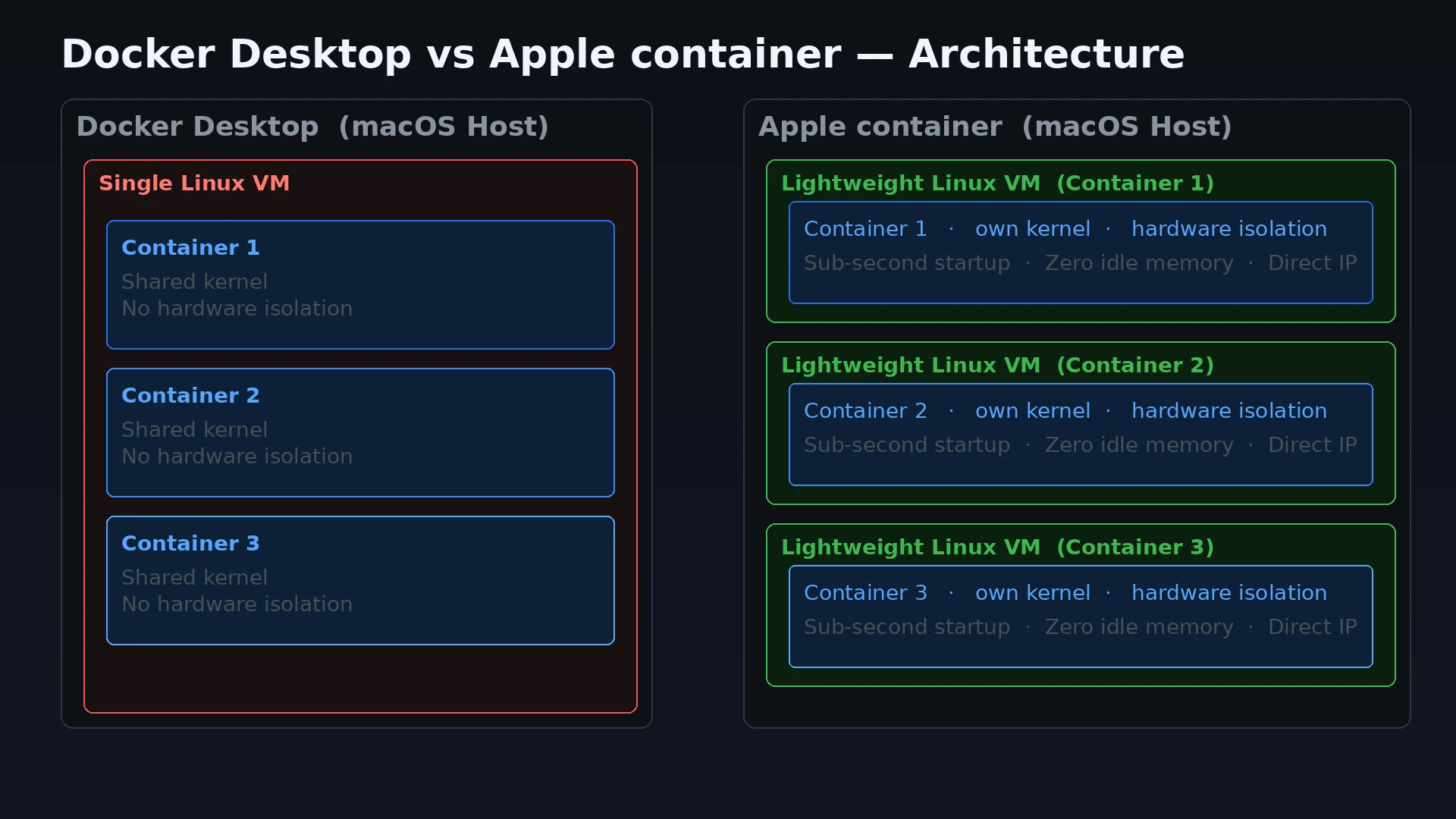
Practically, this means:
- No pre-allocated pool. Resources are claimed only when a container is actively running.
- True hardware isolation. Containers can’t reach into each other’s memory. Each VM gets its own IP address on a private network managed by the runtime.
- Startup proportional to the app, not the VM. Alpine with a static binary starts in about 300ms. A heavier image takes longer, but you’re paying for your app’s startup, not a shared kernel boot.
The tradeoff is slightly higher per-container overhead compared to Docker’s shared-kernel model. For a single developer running a few containers at a time on an M3 or M4, this is irrelevant. For a CI pipeline spinning up 40 containers simultaneously, you’d want to benchmark before switching.
Getting started
Download the installer from the releases page. There is no Homebrew formula yet - it’s a signed .pkg that places the container binary at /usr/local/bin/container and registers a system service.
container system startFirst run prompts you to install a default Linux kernel. Accept it. The download takes about 30 seconds. After that the daemon is running and you’re ready to pull images.
# Pull and run Alpine interactively
container run --rm -it docker.io/library/alpine:latest sh

# Run nginx in the background with a port mapping
container run -d --name web -p 8080:80/tcp nginx:latest

# Check what's running
container list

# Tail logs
container logs -f web

# Stop and remove
container stop web && container rm web
The CLI is deliberately close to Docker’s. If your muscle memory is docker run, you’ll adjust quickly - it’s mostly docker → container.
Networking
This is where it gets genuinely different from Docker.
Each container gets a private IP address assigned by the runtime. You can find it with container inspect <name> and hit the container directly without any port mapping. Apple also ships an embedded DNS service: if you name your container web, it’s accessible at web.dev.local from your Mac. No /etc/hosts edits, no extra configuration.
Port mapping still exists for cases where you want to bind to localhost on the host - useful for sharing via Pinggy or exposing to other machines on your network:
# Map host port 8080 → container port 80 (TCP)
container run --name web -p 8080:80/tcp nginx:latest

# Now reachable at http://localhost:8080 on your Mac
After sleep/wake cycles, DNS occasionally needs a kick:
container system stop && container system startRough edge, known issue, presumably fixed in a near future release.
Building images
container build is a wrapper around BuildKit. The syntax is the same as docker build:
# Build from a Dockerfile in the current directory
container build --tag myapp:latest .

# Build with a specific file
container build --tag myapp:latest --file deploy/Dockerfile .

# Push to a registry
container push ghcr.io/yourorg/myapp:latest
The tool consumes and produces standard OCI images. You can push images built with container build to Docker Hub or GitHub Container Registry and run them with Docker on Linux - the format is interchangeable.
Cross-platform development with container machines
WWDC 2026’s session “Discover container machines” (session 389) showed off a feature called container machines - persistent Linux environments that mirror your macOS username and working directory automatically. It’s meant for cross-platform development: edit your Swift server code in Xcode on macOS, run swift run inside a container machine to build and test the Linux binary, and have Safari on macOS access the running service via the container’s IP.
# Create a container machine based on Alpine and set it as default
container machine create --name dev --set-default alpine

# Run a command in it
container machine run swift build

# Drop into a shell
container machine run
This is the use case where Apple’s one-VM-per-container approach shines. The container machine persists across restarts, shares your filesystem paths, and feels like a terminal into a Linux machine that lives next to macOS rather than under it.
What it doesn’t do yet
No Docker Compose. This is the biggest gap. You can’t define a multi-service stack with a compose.yaml and bring everything up in one command. If your local dev setup involves an app server, a database, and a cache talking to each other, you’re stuck with Docker Desktop or another solution for now. Apple has acknowledged this and there are open issues tracking it.
No VS Code DevContainers. DevContainer support is incomplete. If your team standardizes on .devcontainer/devcontainer.json, the experience is rough today.
Apple Silicon only. If you’re on an Intel Mac, container doesn’t run at all. Intel Mac users aren’t the target audience, but it’s worth knowing before you recommend it to your whole team.
Small-file I/O overhead. Each container’s filesystem is a real EXT4 block device. Operations like npm install against a large node_modules can be noticeably slower than on Docker Desktop. This is a known architectural tradeoff with the per-VM model.
For solo development on a single service, or for running a database or test environment you start once and leave running, it works well today. For multi-container orchestration, wait for Compose support.
Sharing a container publicly with Pinggy
One thing that works very cleanly with Apple’s container tool is exposing a running service to the internet for a demo, webhook test, or quick client share. You’re running localhost:8080 - Pinggy turns that into a public HTTPS URL with one SSH command, no account required.
# Start your container
container run -d --name web -p 8080:80/tcp nginx:latest

# In a second terminal, open a Pinggy tunnel
ssh -p 443 -R0:localhost:8080 free.pinggy.io
Pinggy prints something like https://rndm-string.a.pinggy.link. Share that URL and anyone can reach your container over HTTPS. The tunnel stays alive as long as the SSH session is open.
This pairs well with webhook development. Run your app in an Apple container, point the webhook source at the Pinggy URL, and iterate locally. No need to deploy to a staging server to test integrations.
For a persistent URL across restarts, Pinggy Pro lets you reserve a custom subdomain so your webhook endpoint doesn’t change every session.
Should you switch?
If you’re on Apple Silicon and you do most of your local development against a single service at a time, container is genuinely worth trying. The lack of a global background VM that you have to babysit is a real quality-of-life improvement, and the tool feels snappy.
If you rely on Docker Compose for a multi-service local environment, hold off. The missing Compose support isn’t a minor annoyance - it’s a blocker for a large fraction of real-world setups.
The repo is at github.com/apple/container. It’s Apache 2.0, active, and accepting contributions. Given that Apple shipped this alongside a WWDC session, Compose support is likely coming - it would be strange to ship a developer tool without it.
Sources: