In this article
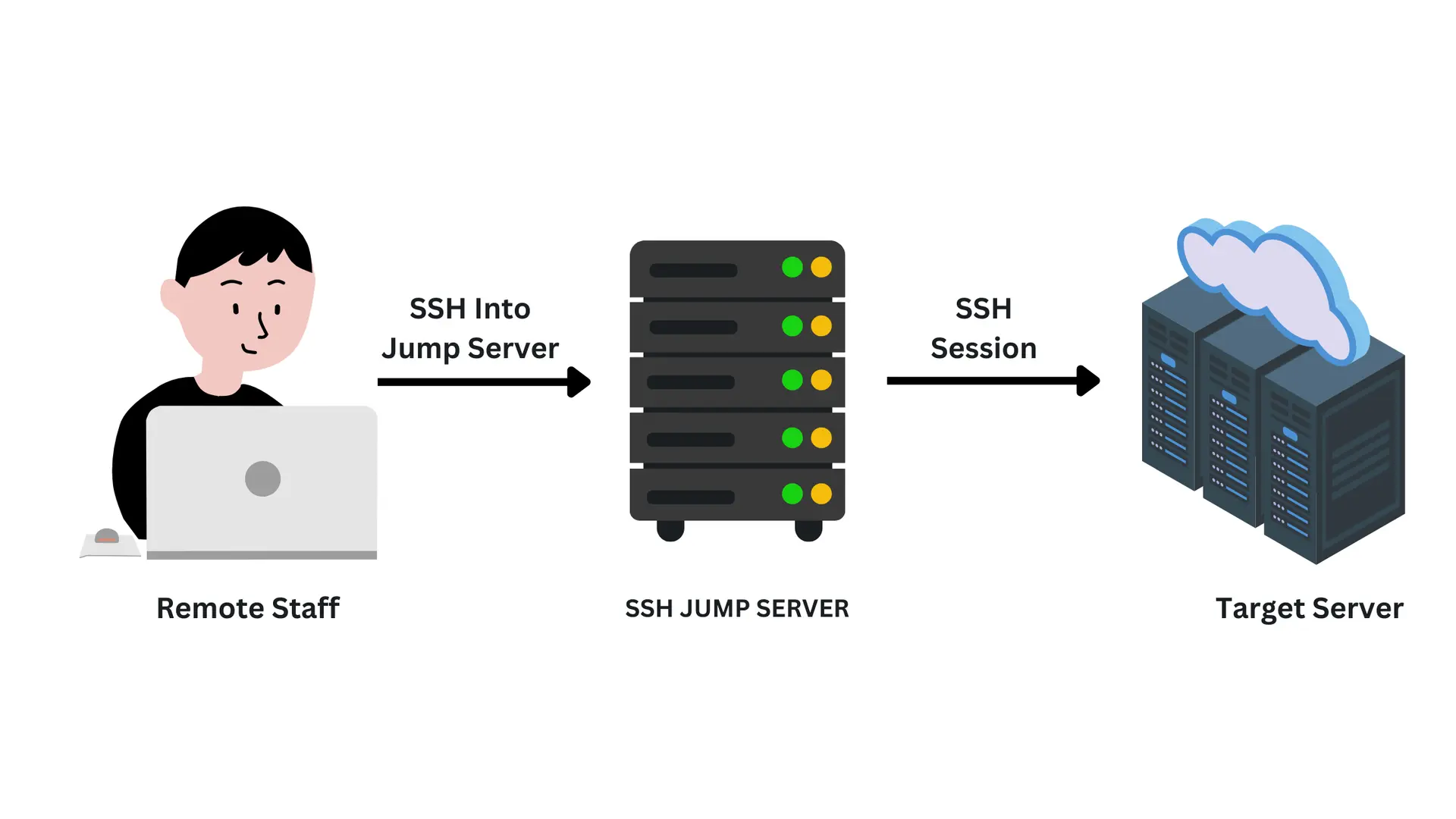 Production servers are rarely sitting on the open internet where you can SSH straight into them, and that is usually deliberate. In practice, a direct SSH connection is often impossible because of network segmentation policies, firewall limitations, or strict security measures at the organisation’s end.
This is where Jump Hosts, commonly referred to as bastion hosts, fill the gap by providing a way to bridge two or more network segments. Together with SSH’s ProxyJump feature, they offer a secure route to servers that otherwise cannot be reached. This guide dives into SSH ProxyJump and Jump Hosts, providing practical tips and configurations to maximise their effectiveness.
Summary
If you have a server
jump_hostwhere you can SSH directly, and another servertarget_hostwhere you can SSH fromjump_host, then you can directly accesstarget_hostusing the command:ssh -J username@jump_host username@target_hostReplace
jump_hostandtarget_hostwith their IP addresses or domain names. Also set theusernameappropriately.
Understanding SSH and Its Importance
SSH, or Secure Shell, is a protocol designed to secure data transmission over unsecured networks. It enables remote login, command execution, and secure file transfers (via SFTP and SCP) through encrypted communication, ensuring data protection against interception and unauthorized access.
Core Features of SSH:
- Encryption: Protects data from interception and man-in-the-middle attacks.
- Authentication: Confirms the identities of clients and servers using passwords, public keys, or certificates.
- Integrity: Ensures data hasn’t been tampered with using cryptographic hash functions.
- Port Forwarding: Allows secure tunneling of network services.
SSH is crucial for securely replacing outdated, insecure protocols like Telnet, ensuring privacy and compliance with security standards - especially essential for organizations managing sensitive data.
What is a Jump Host?
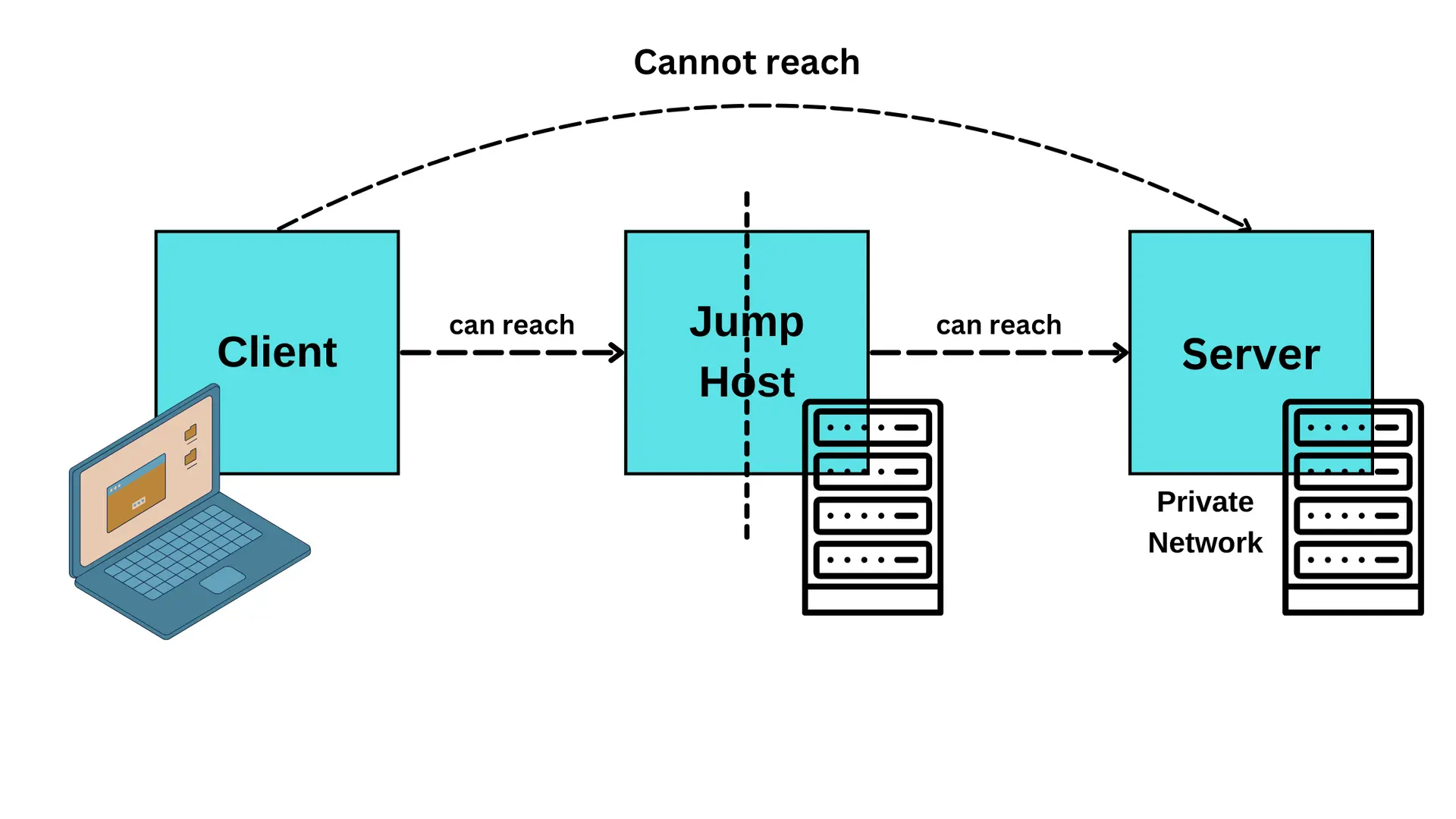
A Jump Host is an agnostic intermediate system in which network traffic is switched to access the target servers from a different security domain or logical network layer. This is a controlled gateway through which the external networks can access some servers that are otherwise not directly recognisable from the external network by other users, such as the administrators and other accredited users.
Why Use a Jump Host?
- Enhanced Security: Funnels access through a single, hardened entry point that is far easier to monitor than many exposed servers.
- Network Segmentation: Connects separate network sectors with one another without enabling direct access to sensitive internal hosts in external networks.
- Compliance and Auditing: Helps in offering an easy access channel that can always be examined for any malicious incidences.
- Reduced Risk: Reduces the risk of compromise of a site by placing most important and sensitive systems behind a more secure middle tier.
What is SSH ProxyJump
Previously, using a Jump Host meant first establishing an SSH connection to the Jump Host and then initiating another SSH connection to the target server from there. It worked, but it was tedious, and there was no simple way to declare one or more Jump Hosts as part of a single connection: you had to fall back on awkward workarounds like local port forwarding or a hand-written ProxyCommand. OpenSSH 7.3 introduced the ProxyJump option, which lets you name the Jump Hosts directly in the SSH command or config file and have the client handle the rest. Learn more about ProxyJump in the OpenSSH release notes for version 7.3.
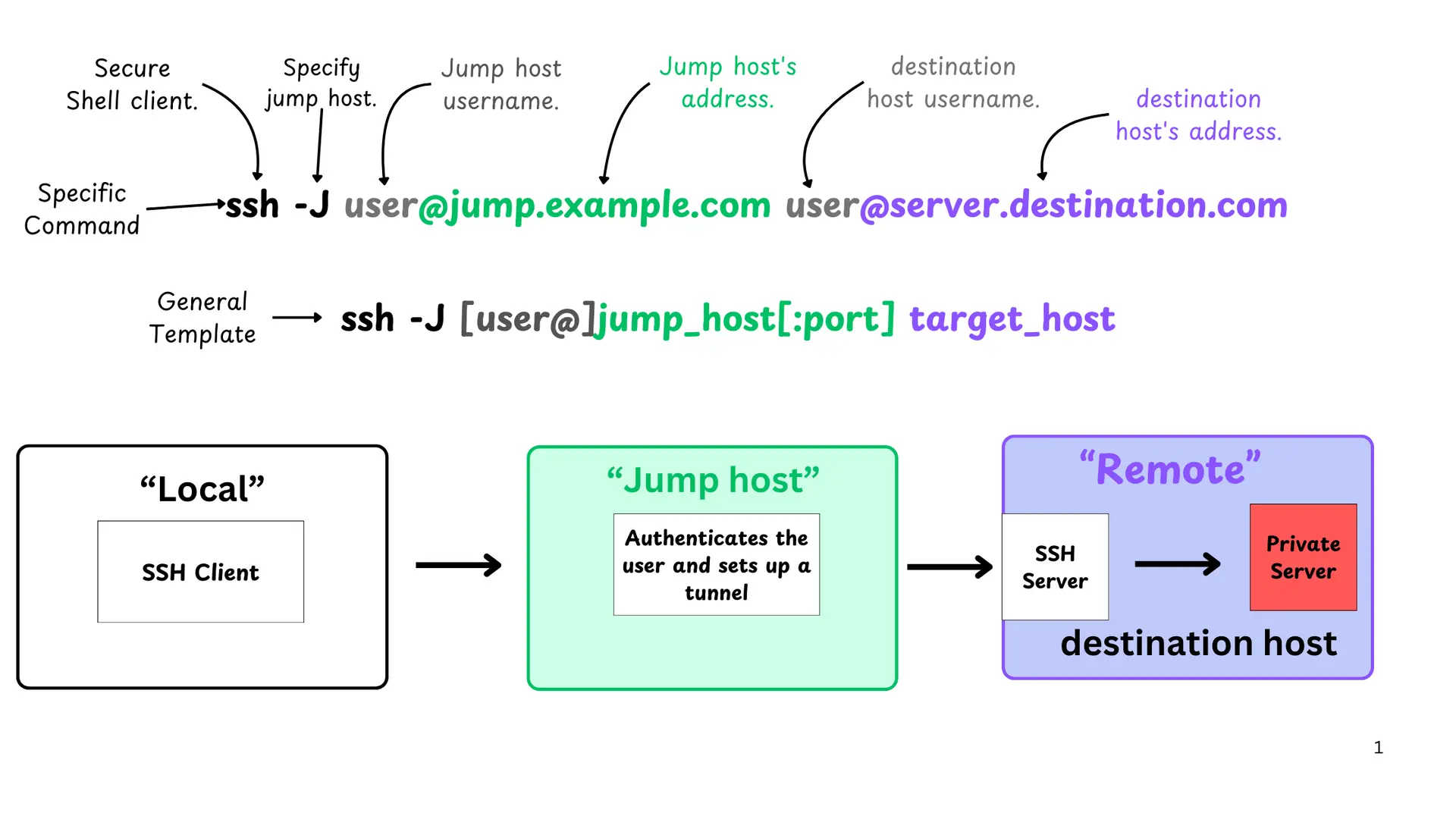
Basic Syntax:
ssh -J [user@]jump_host[:port] target_hostAdvantages of Using ProxyJump:
- Simplicity: Saves time as compared to having to type more than one command about SSH or has to make specific configurations when the port forwarding is getting used.
- Efficiency: Connects to a single system and creates an end-to-end encrypted channel over a single TCP port thus saving latency and resources.
- Flexibility: Allows for cascading multiple Jump Hosts suitable for complex network structures.
- Seamless Integration: Interacts with ssh settings and has many other useful features such as forwarding of ssh agent, tcp port forwarding and X11.
Practical Examples
1. Single Jump Host Access
To access server.destination.com through jump.example.com, use the following command:
ssh -J user@jump.example.com user@server.destination.com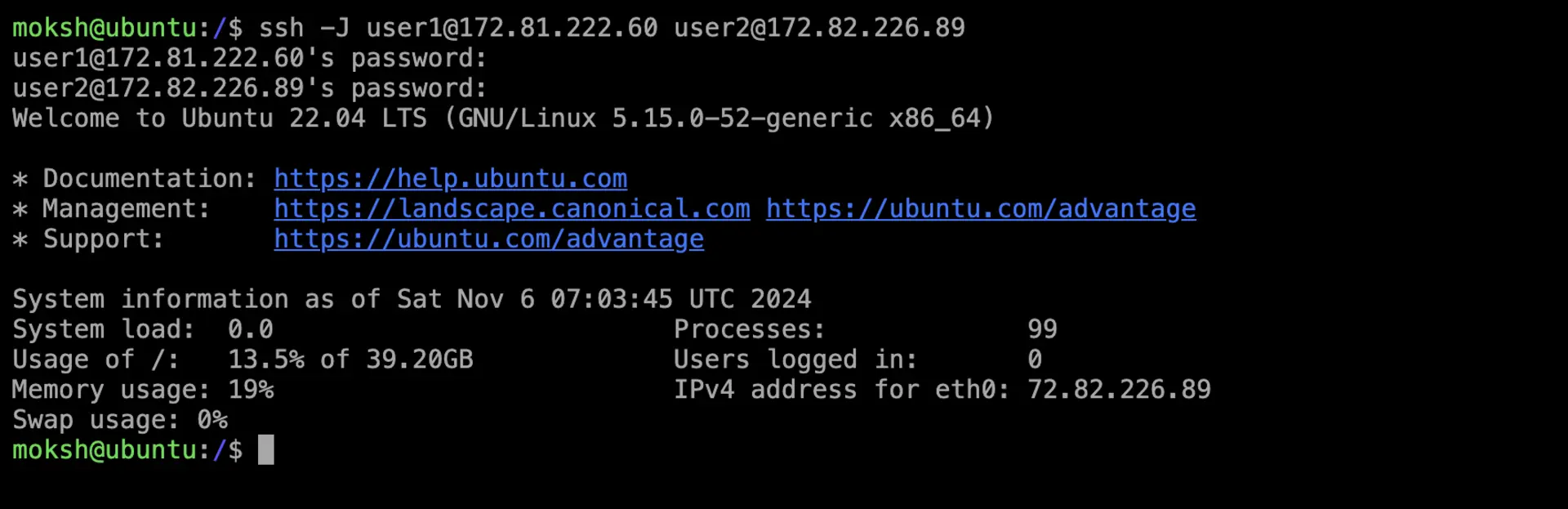
This command tells SSH to first connect to jump.example.com as user and then connect to server.destination.com as user.
2. Multiple Jump Hosts (Chained Access)
In complex environments, you may need to hop through multiple Jump Hosts to reach your target server. For example:
ssh -J user@jump1.example.com,user@jump2.example.com user@server.destination.comThis command chains two Jump Hosts, jump1.example.com and jump2.example.com, before accessing the target server.
3. SSH Config File for Convenience
Typing these command’s every time can prove quite cumbersome, it is therefore for convenience that you can set up your SSH client by making entries in the ~/.ssh/config file.
Host jump-host
    HostName jump.example.com
    User user

Host host_destination
    HostName server.destination.com
    User user
    ProxyJump jump-host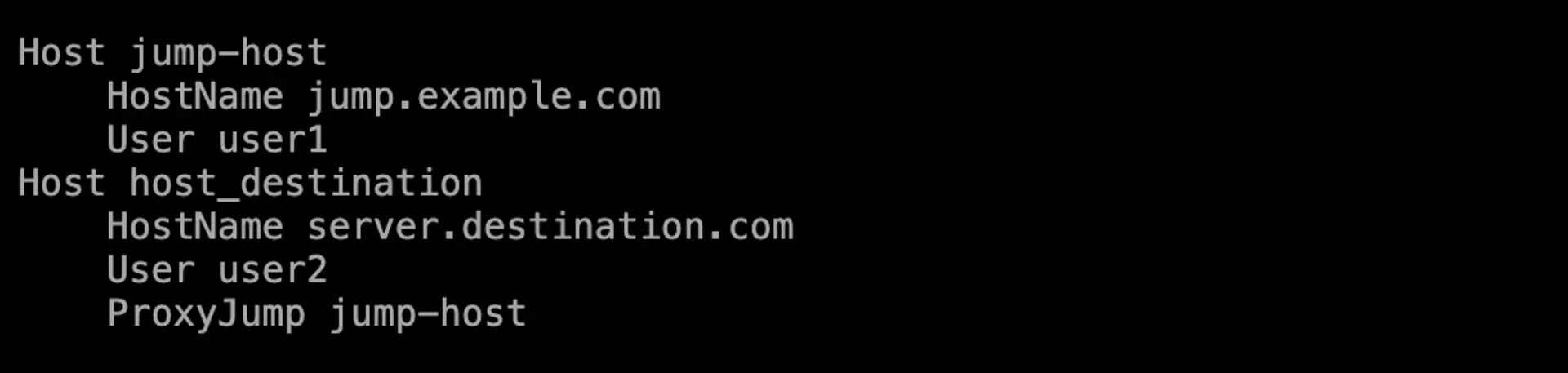
With this configuration, you can connect to the destination server using:
ssh host_destination 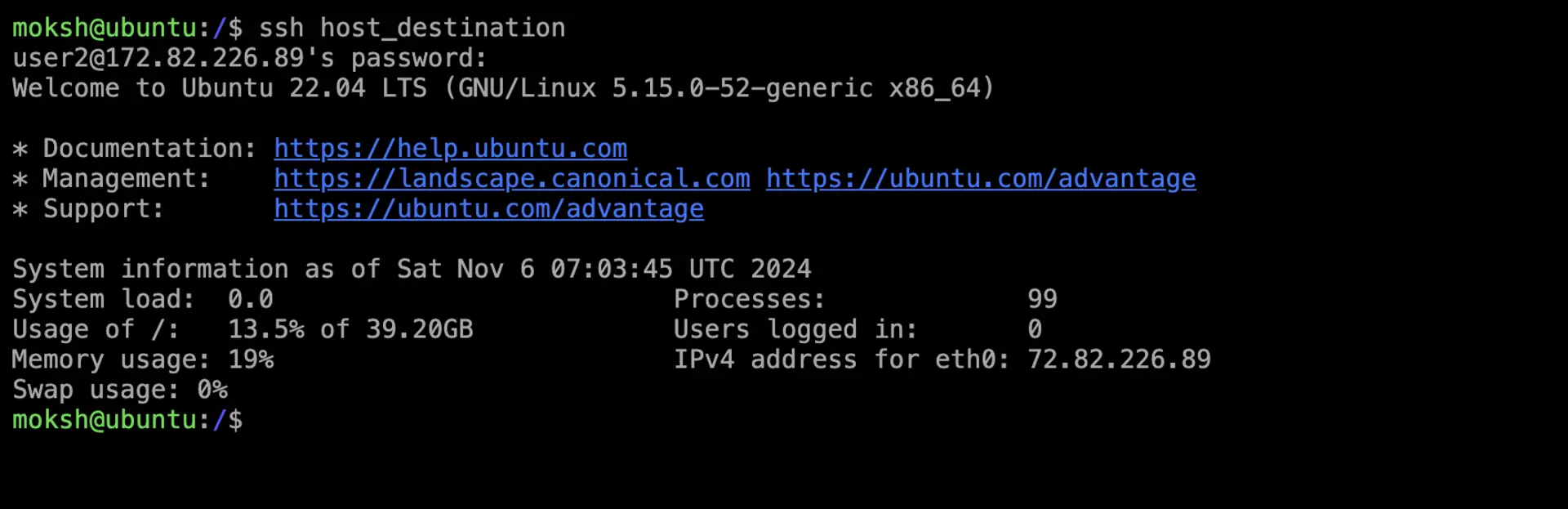
4. SSH Tunnel Using Jump Host
ProxyJump combines with local port forwarding, which is useful when a service on the target network is not directly reachable from your machine. Add -L alongside -J and the forward is set up over the jumped connection:
ssh -J user@jump.example.com -L 8080:remote_service:80 user@server.destination.comThis forwards your local port 8080 to port 80 on remote_service, as resolved from the target server, so you can reach it at http://localhost:8080 on your machine.
Using SSH Keys to Avoid Entering Passwords Every Time
Among the benefits of the SSH, there is a possibility to use the key-based authentication. By utilizing ssh keys, you have the ability to log into your servers without entering a password every time, which not only enhances convenience but also security.
Generating SSH Keys
To generate an SSH key pair, use the following command:
ssh-keygen -t ed25519 -C "your_email@example.com"Ed25519 is the default key type in current OpenSSH releases: the keys are short, fast, and there is no key size to pick, unlike RSA where you would need -b 4096. Stick with -t rsa -b 4096 only if you have to talk to something old enough that it does not accept Ed25519.
Press Enter to save the pair under the default paths (~/.ssh/id_ed25519 and ~/.ssh/id_ed25519.pub), then set a passphrase if needed. Refer to the OpenSSH key generation documentation for more details.
Copying Your Public Key to the Server
Use the ssh-copy-id command to copy your public key to the remote server:
ssh-copy-id user@server.destination.comThis adds your public key to the ~/.ssh/authorized_keys file on the server and allowing you to authenticate without a password.
Using SSH Keys with Jump Hosts
When connecting through a Jump Host, ensure that your SSH keys are set up on both the Jump Host and the target server.
Copy your key to the Jump Host:
ssh-copy-id user@jump.example.comThen, from the Jump Host, copy your key to the target server:
ssh user@jump.example.com
ssh-copy-id user@server.destination.com
Alternatively, you can copy your public key directly to the target server using:
ssh -J user@jump.example.com user@server.destination.com 'mkdir -p ~/.ssh && cat >> ~/.ssh/authorized_keys' < ~/.ssh/id_ed25519.pubSSH Agent Forwarding
If you cannot copy your SSH key to the target server, you can use SSH agent forwarding. This allows you to authenticate to the target server using your local SSH keys.
Add the following to your SSH configuration:
Host *
    ForwardAgent yes
Note that SSH agent forwarding should be used with caution, as it can be a security risk if the Jump Host is compromised.
Using ProxyCommand to Jump Host
Although ProxyJump simplifies the process of connecting through a Jump Host, there are scenarios where using ProxyCommand is preferable, especially in environments that require custom proxy settings or non-SSH proxies.
Using ProxyCommand in SSH Config
You can set up ProxyCommand in your ~/.ssh/config file:
Host host_destination
    HostName server.destination.com
    User user
    ProxyCommand ssh -W %h:%p user@jump.example.com
This configuration instructs SSH to connect another SSH session at jump.example.com and then channel on to the target server.
Advantages of ProxyCommand
- Flexibility: Works with non-SSH proxies and anything else you can drive from a command line.
- Compatibility: It comes in handy where ProxyJump is not feasible because the server has outdated SSH servers.
- Customizability: Lets you route the connection through
netcator a custom script when a plain SSH hop is not enough.
Security Best Practices
While, the usage of Jump Hosts and ProxyJump make it easier to work, one needs to make sure that the network and systems are secure enough.
1. Harden the Jump Host:
- Minimal Services: Only have the indispensable software on the machine and turn off other services to minimize the chances the machine will be attacked.
- Regular Updates: The latest updates with security fixes should apply to the operating system as well as all installed software.
- Firewall Configuration: Put stringent rules for connection security to and from the Jump Host to only allow the necessary traffic.
- Intrusion Prevention Systems (IPS): Use IPS solutions to ensure that the organization gets rid of malicious activities.
2. Strong Authentication Mechanisms:
- SSH Key Authentication: Public key authentication must be used and it is recommended that password authentication be turned off because an attacker can attempt to guess a user’s password and gain access to the system.
- Multi-Factor Authentication (MFA): Require a second factor on top of the key or password, so a stolen credential alone is not enough to get in.
- Authorized Keys Management: This means that people should audit and manage those keys that are allowed in the operating system to avoid having unauthorized keys being accepted by the operating system.
3. Access Control:
- Principle of Least Privilege: Users should be given just the basic level of permissions required by their functions in the application and should not be provided with administrative permission when not required.
- Role-Based Access Control (RBAC): Use RBAC in order to organize permissions belonging to roles that are or might be applied in the organization.
- User Account Management: Daily monitor user accounts and check which of these accounts can now be deleted or deactivated since they are no longer useful.
4. Monitoring and Logging:
- Comprehensive Logging: Allow comprehensive recording of all the ssh sessions; regular login attempts, successful or failed login attempts, commands issued and file transfers made.
- Centralized Log Management: For the Jump Host and other strategic systems, integration of a centralized logging server will be useful in compilation of logs.
- Security Information and Event Management (SIEM): Use SIEM tools to analyze events occurring in the network looking for peculiarities that may indicate an issue. Learn more about Security Information and Event Management (SIEM).
Applying use cases in an application development scenarios
1. Enterprise Network Management:
Large organizations are usually characterized by a highly complex topology and numerous security perimeters. These zones are tenanted by Jump Hosts which administrators use to access servers safely in the zones, preventing risking the highly sensitive items to the networks which may be relatively insecure.
2. Cloud Environments:
Originally in cloud environment like AWS, Azure or Google Cloud, to gain access to instances located in the private subnets, the usage of the bastion hosts or Jump Hosts was well-marked. They offer a gateway to the instant without exposing all the instances to the internet.
3. Remote Support and Maintenance:
Through a Jump Host, external vendors or support teams can be given right of entry so that essential maintenance jobs can be done without direct contact with inner resources. Such access can be well regulated and supervised.
4. Compliance with Security Standards:
Some standards like PCI DSS, HIPAA, and the GDPR necessitate the use of secure access and logging; Jump Hosts meet these needs in industries comprising finance, pharmaceutical, and tech.
Troubleshooting Common Issues
1. Connection Timeouts:
- Network Reachability: Ensure that both the Jump Host and the target server are network accessible. Do not use unpredictable names, only ping and traceroute for diagnosis of the network connectivity problems.
- Firewall Rules: Ensure firewalls on all the intermediate devices allow connection to the required ports for traffic SSH.
- DNS Resolution: Confirm every hostname in the chain actually resolves. Remember that the target host is resolved from the jump host, not from your machine, so a name that works locally may still fail mid-hop. Substitute IP addresses to rule DNS out.
2. Authentication Failures:
- SSH Key Permissions: Make sure that the permissions of your SSH keys are well configured that is private keys in 600 and public keys in 644.
- Authorized Keys: Ensure your public key is properly integrated in the ~/.ssh/authorized_keys file on both the Jump Host, and the target server.
- User Accounts: Make sure that the user account exist on the Jump Host as well as on the target server; the account should have proper permissions.
3. SSH Version Compatibility:
- Update OpenSSH: It is, therefore, important to ensure you are using a version of OpenSSH that supports the ProxyJump option - the minimum is 7.3, and
ssh -Vwill tell you what you have. - Server Compatibility: In this case make sure that the version of the SSH servers on the Jump Host and the target server correlate by being the same or compatible.
4. Configuration Errors:
- SSH Config File Syntax: Check
~/.ssh/configfor typos and misplaced directives.ssh -G host_destinationprints the fully resolved configuration for a host, which is the quickest way to confirm SSH is reading what you think it is. - ProxyJump and ProxyCommand Conflicts: These two options compete, and whichever is specified first prevents any later instance of the other from taking effect. So if a
Host *block earlier in your config sets one of them, a per-host setting further down will be silently ignored. Remove the redundant directive rather than trying to layer both.
Enhanced SSH Configurations
1. Using ControlMaster for Connection Multiplexing:
Connection multiplexing lets several SSH sessions to the same host share one network connection, which cuts the per-session handshake overhead and makes subsequent connections noticeably faster.
Host *
    ControlMaster auto
    ControlPath ~/.ssh/sockets/%r@%h-%p
    ControlPersist 10m
2. Automating SSH Configurations:
Once you are managing more than a handful of servers, each with its own access path, hand-editing ~/.ssh/config stops scaling. Tools like Ansible or Puppet can generate the SSH config and distribute keys for you.
3. Secure File Transfers Through Jump Hosts:
scp accepts the same -J flag as ssh, so files can be copied through the jump host in one command:
scp -J user@jump.example.com file.txt user@server.destination.com:/path/to/destination/Conclusion
SSH ProxyJump and Jump Hosts are one of the most valuable addons in managing a complex and secure network. Through these features, administrators are put in a position to be able to control easy access to remote servers in large network topologies as well as improve the security and efficiency of the running operations. Besides, such tools define the ways of enhancing the accessibility while strengthening the given organization’s network infrastructure against various cyber threats.