SSH Port Forwarding
Updated on Jun 12, 2026 · 6 min read
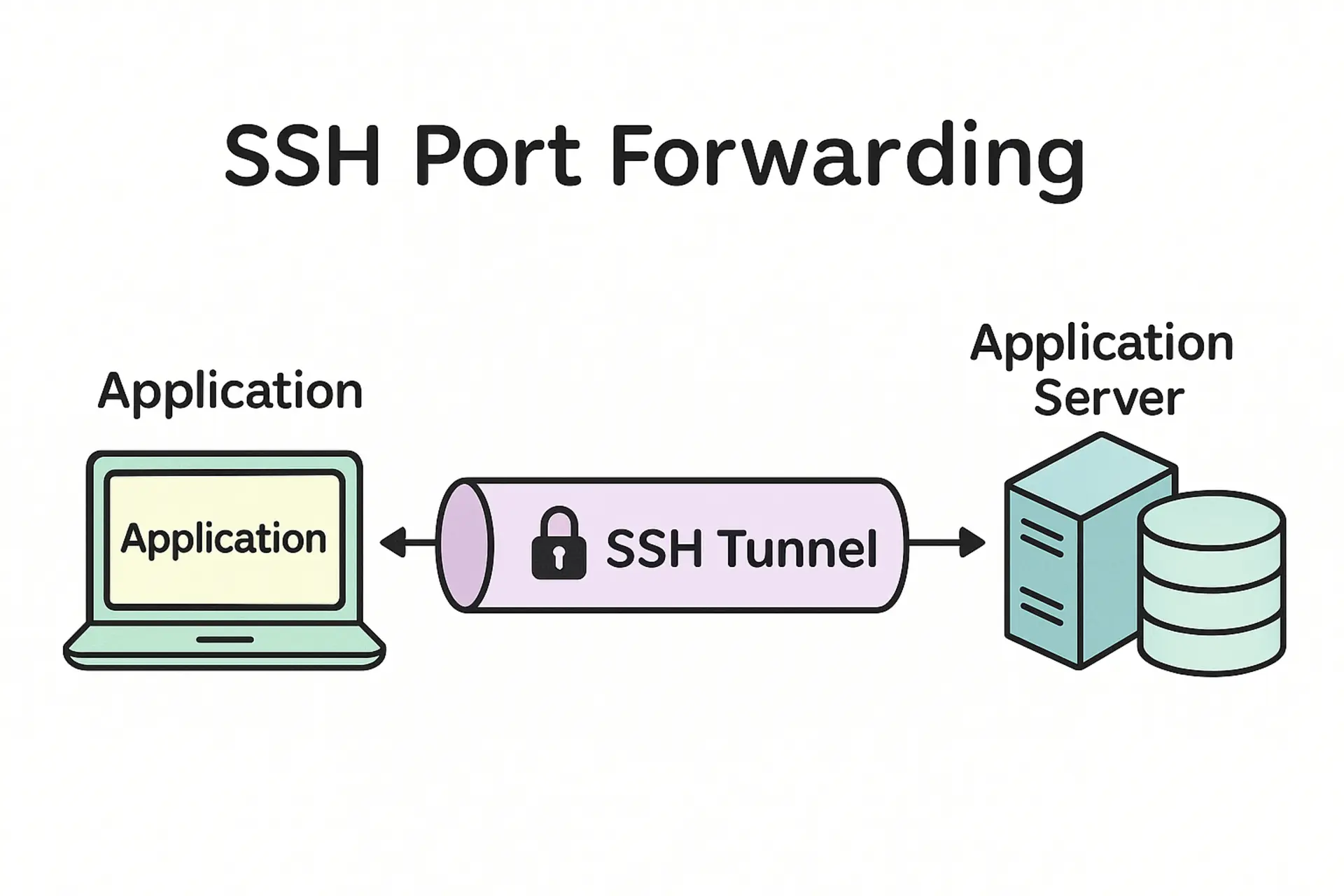
SSH port forwarding tunnels TCP traffic through an SSH connection to reach services that aren’t directly accessible from your machine - a database behind a firewall, a dev service on a private network, or a local app you need to expose to the internet. It’s built into OpenSSH, works over the same connection as a normal SSH session, and encrypts everything in transit.
Summary
Three types of SSH port forwarding:
Local forwarding (most common):
ssh -L 8080:localhost:80 user@serverAccess remote service at
localhost:8080Remote forwarding:
ssh -R 0.0.0.0:8080:localhost:80 user@gatewayExpose local service to remote server
Dynamic forwarding (SOCKS proxy):
ssh -D 1080 user@gatewayRoute all traffic through encrypted tunnel
What is SSH Port Forwarding?
SSH port forwarding, also known as SSH tunneling, routes a TCP connection through an SSH session rather than directly to the destination. The SSH session carries your other traffic, encrypting it end-to-end and letting you reach services gated by network policy - without needing a VPN or a separate client.
The Three Types of SSH Port Forwarding
Local Port Forwarding (Most Common)
Local port forwarding is probably what you’ll use 90% of the time. It forwards a port on your local machine to a port on a remote machine through the SSH connection. This is incredibly useful when you need to access a service running on a remote server that’s not directly accessible from your location.
The syntax comes in short and long forms:
Short form:
ssh -L 8080:localhost:80 user@serverLong form:
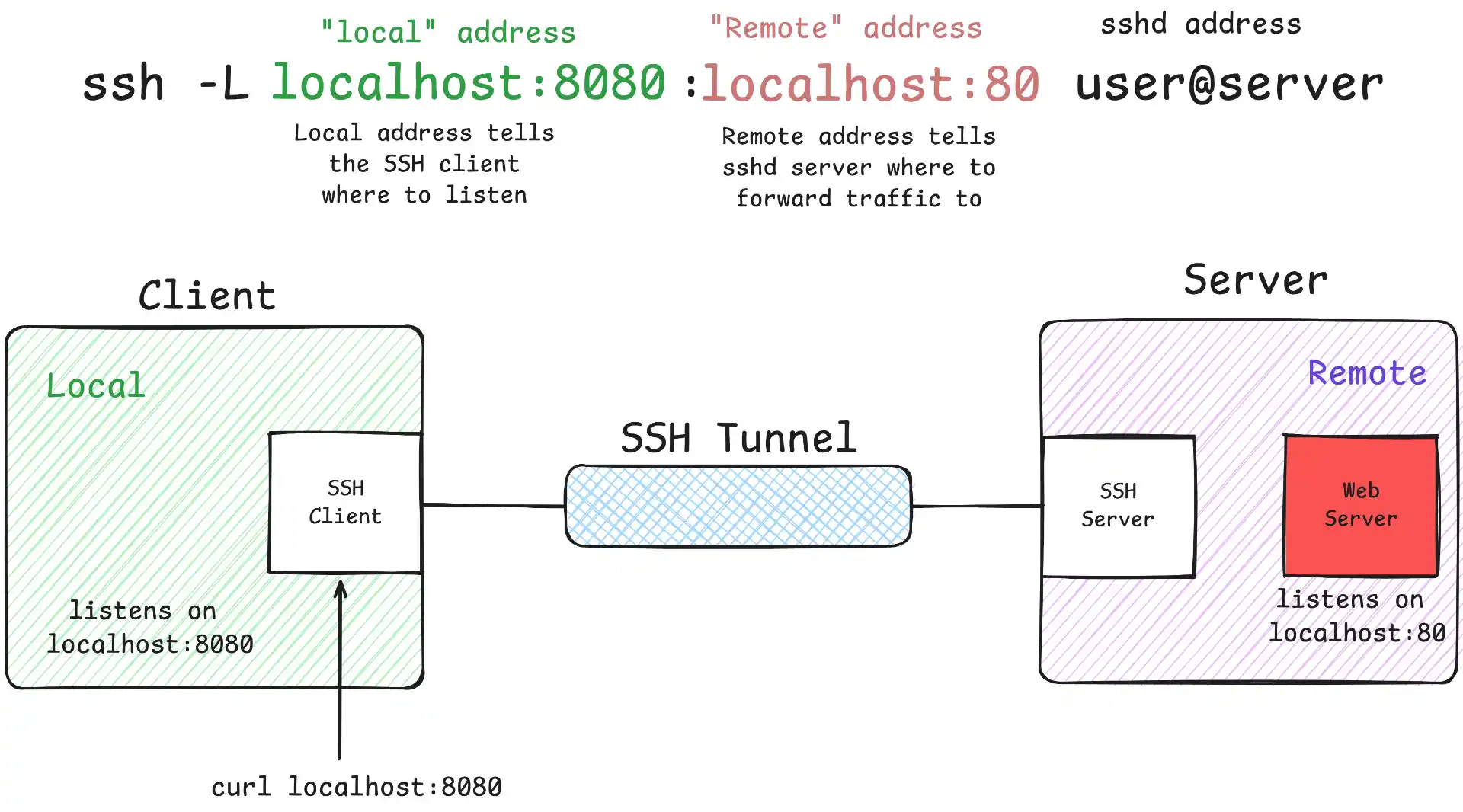
ssh -L localhost:8080:localhost:80 user@serverHere’s a practical example. Let’s say you’re working from a coffee shop and need to access your company’s database server that’s only accessible from within the office network. You can create a tunnel through your office SSH server:
ssh -L 5432:db.company.com:5432 john@office-server.company.comNow you can connect to localhost:5432 on your laptop, and it’ll be as if you’re connecting directly to the database from inside the office network. Your database client doesn’t know the difference, but all the traffic is securely encrypted through the SSH tunnel.
Remote Port Forwarding
Remote port forwarding works in the opposite direction: it forwards a port on the remote server back to your local machine. Useful when you need to expose a local service to a remote network - sharing a dev build, receiving webhooks, or testing integrations without deploying. For a deeper dive into remote tunneling, check out our SSH reverse tunneling guide.
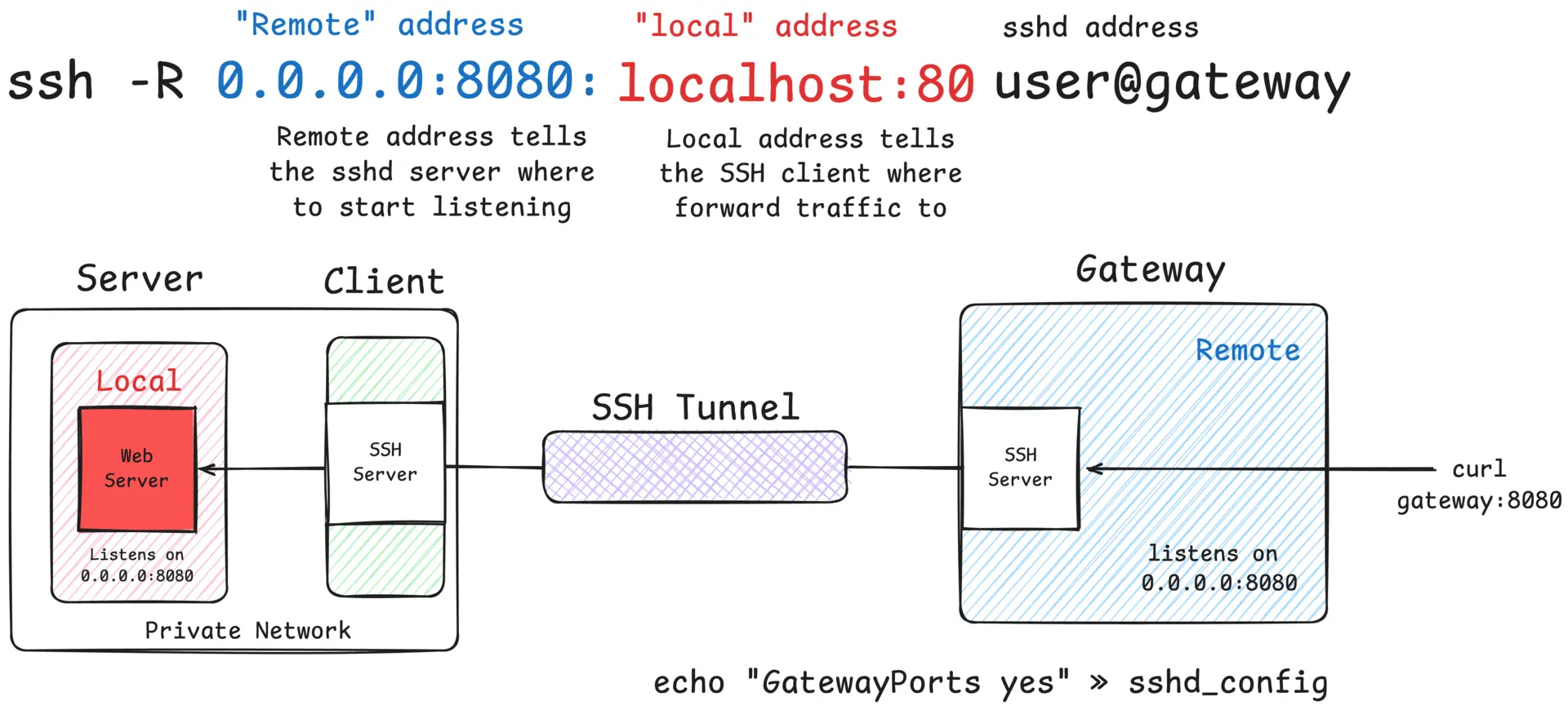
ssh -R 0.0.0.0:8080:localhost:80 user@gatewayImagine you’re building a webhook handler for a payment processor locally. The payment service needs to send webhooks to your application, but it can’t reach your laptop directly:
ssh -R 0.0.0.0:8080:localhost:80 john@my-public-server.comNow when the payment service sends a webhook to my-public-server.com:8080, it gets forwarded to your local development server on port 80. Test webhooks in real-time without deploying anything.
Dynamic Port Forwarding (SOCKS Proxy)
Dynamic port forwarding creates a SOCKS proxy that routes selected application traffic through the SSH connection. It’s handy when you want to send traffic via a specific network for debugging, testing, or reaching resources available from the SSH server’s network.
ssh -D [local_port] [user]@[remote_server]For example, if you’re traveling and need to access services on your home network:
ssh -D 1080 john@home-server.comThen configure your browser to use localhost:1080 as a SOCKS proxy so traffic goes out via your home server.
Real-World Development Scenarios
Database Access Through Bastion Hosts
Most production databases sit behind multiple layers of security, often accessible only through bastion hosts or jump servers. SSH port forwarding makes this seamless for developers who need to run queries or debug issues.
ssh -L 3306:prod-db.internal:3306 john@bastion.company.comConnect your favorite database client to localhost:3306, and you’re directly querying the production database through the secure tunnel. No need to install special VPN clients or configure complex network routes.
Accessing Development Services
When you’re working on microservices that need to communicate with each other, SSH port forwarding can help you test integrations without deploying everything to a shared environment.
# Forward multiple services at once
ssh -L 8001:service1.dev:8080 -L 8002:service2.dev:8080 -L 8003:service3.dev:8080 john@dev-server.com
Now your local application can hit localhost:8001, localhost:8002, and localhost:8003 to communicate with the remote development services.
Advanced SSH Port Forwarding Techniques
Multiple Port Forwards in One Command
You can forward multiple ports in a single SSH command, which is great for complex development setups:
ssh -L 5432:db:5432 -L 6379:redis:6379 -L 9200:elasticsearch:9200 john@dev-server.comThis gives you local access to a database, Redis cache, and Elasticsearch cluster all through one SSH connection.
Background Tunnels
Add the -f flag to run the SSH tunnel in the background, and -N to prevent executing remote commands:
ssh -f -N -L 5432:db:5432 john@server.comThis creates the tunnel and returns you to your shell prompt while keeping the tunnel active in the background.
Persistent Tunnels with autossh
For tunnels that need to stay up even when the connection drops, use autossh:
autossh -M 0 -f -N -L 5432:db:5432 john@server.comThe -M 0 disables autossh’s built-in monitoring and relies on SSH’s built-in keep-alive mechanisms instead.
Persistent Tunnels with ~/.ssh/config
Rather than typing out flags every time, you can define forwarding rules in ~/.ssh/config:
Host dev-tunnel
    HostName dev-server.company.com
    User john
    LocalForward 5432 db.internal:5432
    LocalForward 6379 redis.internal:6379
    LocalForward 9200 elasticsearch.internal:9200
Now you can just run ssh dev-tunnel and all your port forwards are automatically set up.
For dynamic forwarding, add:
Host proxy-tunnel
    HostName proxy-server.com
    User john
    DynamicForward 1080
Security Considerations
SSH port forwarding is generally very secure since it uses SSH’s encryption, but there are some things to keep in mind. When you create local port forwards, the forwarded ports are usually bound to localhost only, which means other machines on your network can’t access them. This is usually what you want for security reasons.
If you need to allow other machines to connect to your forwarded ports, you can use the -g flag, but be careful:
ssh -g -L 5432:db:5432 john@server.comThis binds the forwarded port to all interfaces, making it accessible from other machines on your network. Only do this if you trust your local network and understand the security implications.
Always use SSH key authentication instead of passwords when possible, especially for automated or long-running tunnels. SSH port forwarding inherits the security of your SSH connection, so keep your SSH client and server software updated.
Pinggy: quick tunnels when SSH port forwarding isn’t an option
Sometimes you just need to share a local app on the internet and you don’t have a public SSH server, or you’re behind CGNAT. Pinggy opens a reverse tunnel from your machine to a public URL - no router changes, public IP, or DNS required.
Start a quick HTTP tunnel in seconds:
ssh -p 443 -R0:localhost:3000 free.pinggy.io
This gives you a public URL that forwards to your local port. For stable URLs and custom domains, sign in to the Pinggy Dashboard. Pinggy also supports TCP tunnels (for SSH/databases) when you need raw TCP instead of HTTP.
Conclusion
SSH port forwarding is built into OpenSSH, so it’s available on virtually every Unix-like system with no extra installs. The three types - local, remote, and dynamic - cover most networking situations you’ll hit as a developer: accessing services through bastion hosts, testing webhooks locally, proxying traffic through a remote network.
Start with local forwarding for database access, then pick up remote and dynamic forwarding as your needs expand.