Self-Host Voicebox and Access Your AI Voice Studio from Anywhere
Voicebox crossed 31,000 GitHub stars this week, making it one of the fastest-rising open-source projects in the voice AI space. It is a local-first voice studio: voice cloning from a short sample, real-time dictation via a global hotkey, a seven-engine TTS pipeline (Qwen3-TTS, Kokoro, Chatterbox, TADA, and more), a multi-track timeline editor, and a built-in MCP server that any AI agent can call. Everything runs on your machine - voice data and models never leave your hardware.
The catch is the same one that hits every local AI tool: the server only listens on localhost. If you want to reach it from your phone, your laptop while the workstation crunches audio in the other room, or an AI agent running in the cloud, you are stuck. Pinggy fixes that in one SSH command.
Summary
- Install Voicebox - desktop app from voicebox.sh, or
docker compose upfrom the GitHub repo. - The backend starts on
http://localhost:17493automatically. - Expose it:
ssh -p 443 -R0:localhost:17493 free.pinggy.io - Pinggy prints a public URL like
https://abc123.a.pinggy.link- hit the REST API or MCP server from anywhere.
What Voicebox actually does
Voicebox version 0.5.0 (the “Capture release”, shipped April 2026) is more than a TTS wrapper. The architecture has three layers working together:
The desktop app (Tauri/React) is where you clone voices, record samples, compose multi-track Stories, and manage profiles. You add a voice by recording or uploading a 10-second clip. Voicebox feeds it through Whisper for transcription, then uses it as a reference for Qwen3-TTS or whichever engine you pick.
The FastAPI backend runs at http://127.0.0.1:17493 and is always on while the app is open. It exposes clean REST endpoints:
POST /generate- generate speech from text and a profile IDPOST /speak- generate and immediately play on the machine’s audio outputPOST /transcribe- transcribe audio dataGET /profiles- list available voice profiles and their engine configs
Full interactive docs live at http://localhost:17493/docs.
The MCP server sits at http://127.0.0.1:17493/mcp and exposes four tools: voicebox.speak, voicebox.transcribe, voicebox.list_captures, and voicebox.list_profiles. Claude Code, Cursor, Windsurf, and any MCP-compatible client can connect to it and trigger voice generation as part of an agentic workflow.
The dictation side is worth noting too. Voicebox installs a global hotkey (right Cmd + right Option on macOS by default). Hold the chord anywhere, speak, release - the transcript lands in whichever text field has focus. A local Qwen3 model (0.6B, 1.7B, or 4B depending on your preference) cleans up punctuation and strips Whisper’s repetition artifacts before pasting.
Installing Voicebox
Desktop app (macOS / Windows): Download the installer from voicebox.sh. Run it, follow the setup wizard to download the TTS models you want, and the backend starts automatically.
Docker (any platform with a CUDA or Apple Silicon runtime):
git clone https://github.com/jamiepine/voicebox.git
cd voicebox
docker compose up
Docker Compose pulls the right base image for your hardware - CUDA for Nvidia, MPS for Apple Silicon, CPU fallback otherwise. The backend binds to 127.0.0.1:17493 inside the container and is mapped to the host port by default.
Development build (if you want to hack on it):
# Prerequisites: Bun, Rust, Python 3.11+, Tauri CLI
just setup    # creates Python venv, installs deps
just dev      # starts backend + desktop app in watch mode
Once Voicebox is running, confirm the backend is up:
curl http://localhost:17493/profilesYou should get a JSON array of voice profiles. If the app just launched and you have not added any voices yet, you will get an empty array - that is fine.
The remote access problem
By default, the backend only accepts connections from 127.0.0.1. That is a deliberate privacy choice - Voicebox’s own documentation frames it as: “Complete privacy - models, voice data, and captures never leave your machine.”
But the same isolation creates friction in a few common situations:
- You run Voicebox on a beefy desktop with a GPU. Your lightweight laptop should use it for generation, not run models itself.
- You are building an agent pipeline that needs voice output, but the orchestrator runs in a cloud VM or on a different machine.
- A colleague wants to test a voice profile you cloned without installing the full stack.
- You want to trigger dictation or playback from your phone.
Voicebox’s own docs mention a “remote server mode” for exactly the first scenario - connecting a client to a GPU machine on the network. Pinggy is the simplest way to get there, especially when you do not want to mess with your router, open firewall ports, or set up a VPN.
Exposing Voicebox with Pinggy
With Voicebox running, open a new terminal and run:
ssh -p 443 -R0:localhost:17493 free.pinggy.ioPinggy will print something like:
You are allocated a random subdomain.
Please use the following URLs to connect to your tunnel:

http://abc123.a.pinggy.link
https://abc123.a.pinggy.link
That HTTPS URL is now a public endpoint for your Voicebox backend. No port forwarding, no DNS setup, no certificates to manage.
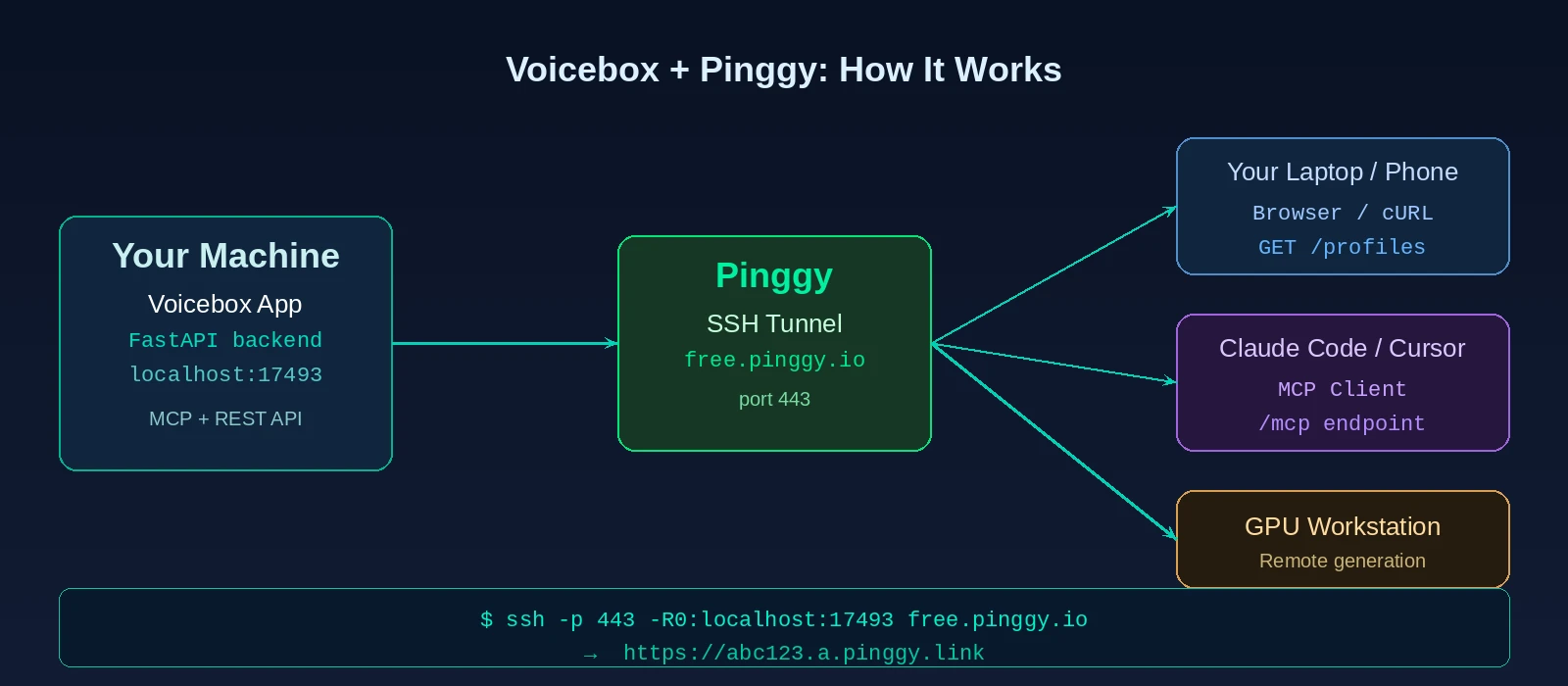
Test it from any device:
# List voice profiles
curl https://abc123.a.pinggy.link/profiles

# Generate speech (replace PROFILE_ID with an actual profile ID from the list)
curl -X POST https://abc123.a.pinggy.link/generate \
  -H "Content-Type: application/json" \
  -d '{"text": "Hello from a remote machine", "profile_id": "PROFILE_ID"}'
The audio data comes back as a base64-encoded WAV in the response JSON. You can decode it and play it locally, pipe it into another service, or save it to a file.
Connecting an MCP client remotely
The MCP server is where things get interesting for agent builders. Voicebox ships a Streamable HTTP MCP server at /mcp. Once you have a Pinggy URL, you can point any MCP-compatible client at it from another machine.
In Claude Code (or Cursor, Windsurf, or any client that reads an MCP config file):
{
  "mcpServers": {
    "voicebox": {
      "url": "https://abc123.a.pinggy.link/mcp"
    }
  }
}
With that in place, the AI agent can call voicebox.speak to generate and play audio on the Voicebox machine, voicebox.transcribe to convert audio blobs to text, and voicebox.list_profiles to discover which voices are available. Useful if you are building a workflow that generates narrations, podcasts, or audio alerts as part of a larger pipeline.
For more on exposing MCP servers over Pinggy, see our earlier guide on sharing local MCP servers with Pinggy.
Persistent URL with a Pinggy subscription
The free tier gives you a random subdomain that changes every time you reconnect. If you want a stable URL - https://myvoicebox.a.pinggy.link, for example - Pinggy’s paid plan lets you reserve a custom subdomain. That matters when you have other services or agent configs hardcoded to a specific URL.
For a persistent tunnel:
ssh -p 443 -R0:localhost:17493 -t a@free.pinggy.io +https+myvoiceboxOr use Pinggy’s web dashboard to create a persistent tunnel with authentication baked in.
Locking it down
The Pinggy URL is public by default - anyone with it can call your voice generation API. A few things to keep in mind:
Running voice generation is GPU-intensive. You probably do not want random internet traffic queuing up jobs. Add HTTP basic authentication to the tunnel so only you (and whoever you share credentials with) can reach it:
ssh -p 443 -R0:localhost:17493 -t a@free.pinggy.io +https+auth:username:passwordFor MCP clients that authenticate over HTTP headers, you can add a bearer token instead. Pinggy’s tunnel authentication docs cover both approaches.
If you only need access from known machines, an easier option is to keep the random ephemeral URL and share it over a secure channel only when you need it.
Where this fits
Voicebox is genuinely useful as a self-hosted alternative to ElevenLabs or Whisper Flow when you care about keeping your voice data private. The model quality from Qwen3-TTS is competitive for most narration use cases, and Kokoro 82M is surprisingly fast even on CPU.
The Pinggy integration adds a layer that the app itself does not yet provide out of the box: network accessibility. Whether that is for your own multi-machine setup, a shared team environment, or plugging voice I/O into a remote agent pipeline, exposing port 17493 with a single SSH command is the fastest path to get there.
The source is on GitHub under MIT, and the changelog moves fast - 0.5.0 landed just two months ago and already added the full dictation system, MCP tools, and the refinement engine. Worth starring if you’re watching the local AI voice space.
Conclusion
Voicebox handles the hard part - voice cloning, multi-engine TTS, real-time dictation, MCP integration - entirely on your own hardware, with no audio data leaving your machine. Pinggy handles the access layer: one SSH command turns the localhost-only backend into a reachable HTTPS endpoint you can call from any device or point an AI agent at from anywhere.