How to Control Your Computer with AI Agents in 2026: Claude, ChatGPT and Open-Source Setups
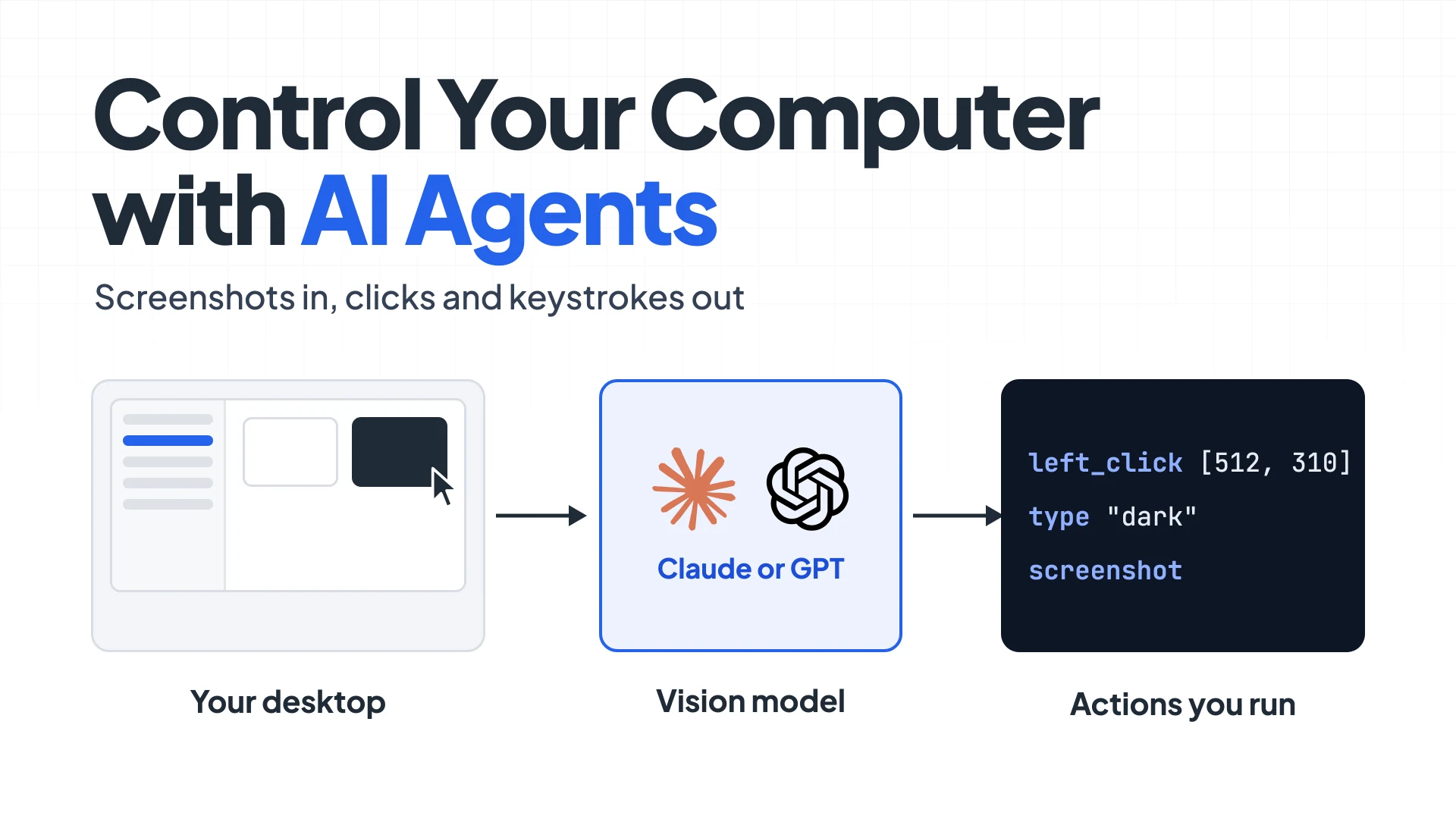
Most of what people do on a computer still happens in apps that have no API: settings panels, design tools, old internal dashboards, anything behind a login. Automating that used to mean brittle macros that broke the moment a button moved.
AI agents now do this work by looking at the screen and moving the mouse. On OSWorld-Verified, a benchmark of 369 real desktop tasks where humans finish about 72%, Claude Fable 5 now scores 85.96% and Claude Opus 5 scores 83.39% (official leaderboard, checked September 25, 2026). This guide shows how that works under the hood, the fastest ways to try it on your own machine, and a small Python agent you can run against Claude’s computer use API. The running example throughout is one boring task: “switch this Mac to Dark Mode in System Settings.”
Summary
- Every computer-use agent runs the same loop: take a screenshot, send it to a vision model, get back actions like
left_clickortype, run them, and repeat until the task is done. - No code needed: Claude Desktop and Cowork (Pro and Max, macOS and Windows), Claude Code (
/mcp->computer-use, macOS), and ChatGPT’s Computer Use plugin in the desktop app can all drive your real desktop. See the Claude help article and OpenAI’s Computer Use docs. - To build your own, declare Claude’s
computer_toolset_20260801(17 member tools, no beta header) or OpenAI’scomputertool, and execute the returned actions yourself. The Claude computer use docs list the members and model support. - Open-source agents such as Browser Use, Agent S and UI-TARS Desktop work with several models, including local ones.
- Run it in a VM or container first. Anything on screen can carry a prompt injection, so keep credentials out and confirm anything that spends money or deletes data.
How a computer-use agent sees and clicks
A language model can’t move your mouse. What it can do is look at an image and answer with structured tool calls, and computer use is built from that. Your code (the “harness”) takes a screenshot and sends it to the model along with the task. The model replies with actions such as left_click at [512, 310] or type with "dark". Your harness executes those actions with an OS automation library, takes a fresh screenshot, and sends it back. The loop ends when the model stops asking for actions.
For the Dark Mode task, a run looks like this: screenshot of the desktop -> key with cmd+space -> type with System Settings -> key with Return -> screenshot -> left_click on “Appearance” in the sidebar -> screenshot -> left_click on the “Dark” tile -> screenshot to confirm.
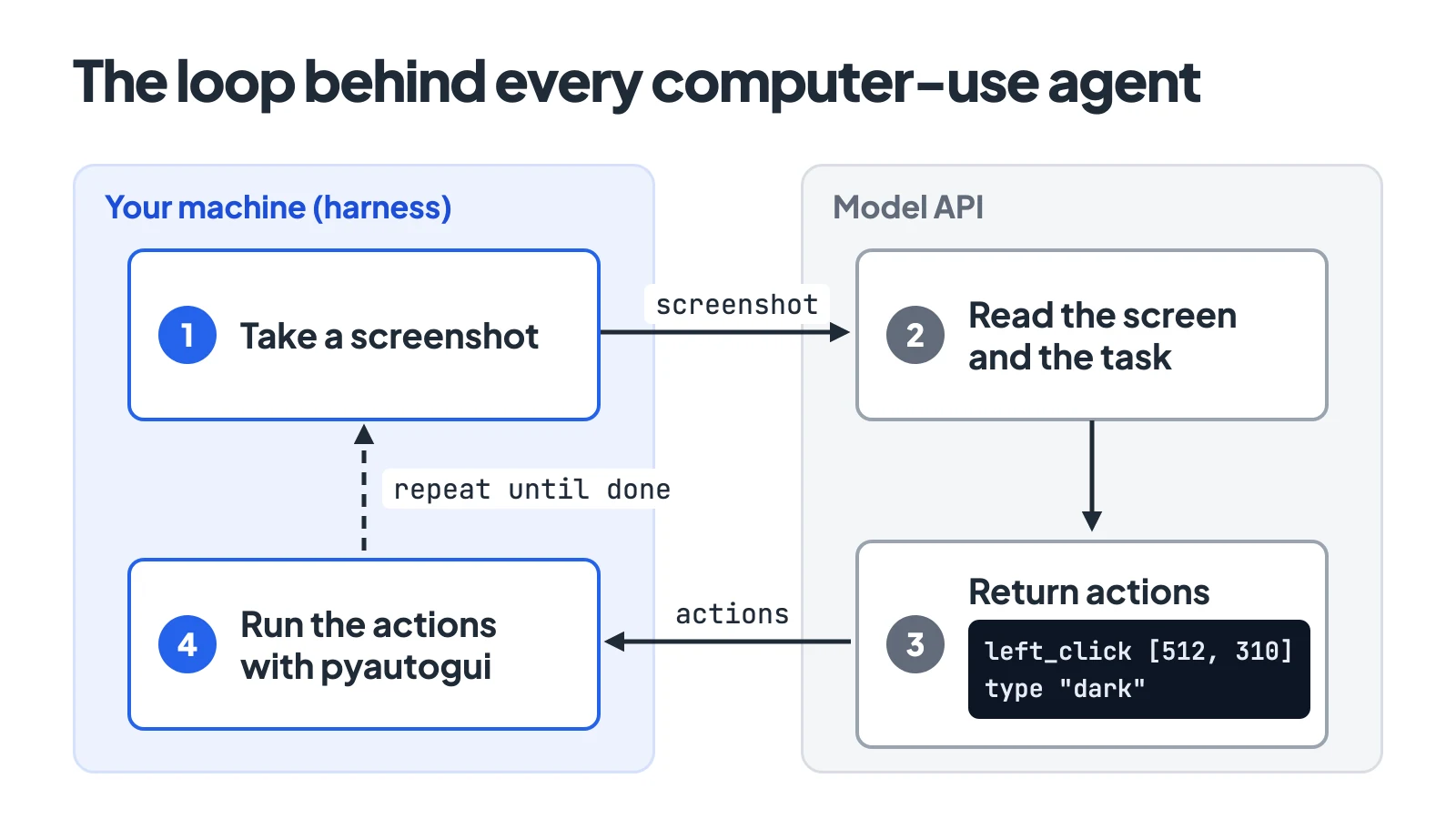
Two details matter in practice. First, the model answers in the pixel space of the image it saw, so if you shrink a 3024x1964 Retina screenshot to 1280 pixels wide, you have to scale every coordinate back up. Second, screenshots are expensive: Anthropic’s docs put each one at roughly 1,000 to 1,800 input tokens. That is why some tools skip pixels and read the operating system’s accessibility tree instead, which I covered in the computer use MCP servers roundup.
The quickest way: agents built into desktop apps
Claude Desktop and Cowork. Anthropic’s help center says computer use is “in beta for Pro and Max plans” in Cowork and in Claude Code inside the desktop app, on both macOS and Windows. Claude tries connectors first, then the browser, and clicks around the screen only as a last resort. On macOS 15 or later it can work in background windows.
Claude Code in the terminal. Computer use ships as a built-in MCP server called computer-use, off by default. Run /mcp, select computer-use, and choose Enable, then grant your terminal Accessibility and Screen Recording permissions in macOS System Settings. The docs describe it as “a research preview on macOS that requires a Pro or Max plan”. It is not available on Team or Enterprise plans and does not work in non-interactive -p mode. You approve apps per session, and pressing Esc stops it.
ChatGPT and Codex. OpenAI’s Computer Use plugin runs in the ChatGPT desktop app, in the Work and Codex modes, on macOS and Windows in supported regions. You install it from Plugins -> Computer Use, grant the same two macOS permissions, and mention @Computer or an app name in your prompt. On Windows it runs in the foreground only, and OpenAI’s docs suggest a VM if you want it to work in the background. ChatGPT agent (/agent) is a different product: it runs in a virtual browser on OpenAI’s side, not on your desktop.
Build your own agent with the Claude API
To automate your own workflow, run it on a schedule, or point it at a VM, you need your own harness. On current Claude models (Opus 5.5, Opus 5, Sonnet 5, Fable 5.1, Fable 5 and Opus 4.8), computer use is a client toolset: one {"type": "computer_toolset_20260801"} entry in tools, with no name, no screen size and no beta header.
That single entry gives Claude 17 member tools: screenshot, zoom, left_click, right_click, middle_click, double_click, triple_click, left_click_drag, mouse_move, left_mouse_down, left_mouse_up, cursor_position, scroll, type, key, hold_key and wait. Each call comes back as a tool_use block whose name is the action, tagged with "toolset_name": "computer". Claude often sends several in one turn (a “batch action”). You run them in order, stop at the first failure, and return one tool_result per call with the same toolset_name. Declaring the toolset costs about 4,500 input tokens per request, per the docs. Older models such as Opus 4.7 and Sonnet 4.6 still use the earlier computer_20251124 tool with the computer-use-2025-11-24 beta header.
Here is a minimal harness for macOS, Windows or Linux using pyautogui. It handles only the four actions the Dark Mode task needs (screenshot, left_click, type and key) and returns an error for anything else. Add branches for scroll, double_click and the other members as your tasks need them:
python3 -m venv venv && source venv/bin/activate
pip install anthropic pyautogui pillow
export ANTHROPIC_API_KEY=sk-ant-...import base64, io, sys
import anthropic, pyautogui
client = anthropic.Anthropic()
W = 1280 # screenshots are resized to this width, and Claude's coordinates use it too
def screenshot():
sw, sh = pyautogui.size()
buf = io.BytesIO()
pyautogui.screenshot().resize((W, round(sh * W / sw))).save(buf, format="PNG")
data = base64.b64encode(buf.getvalue()).decode()
return [{"type": "image", "source": {"type": "base64", "media_type": "image/png", "data": data}}]
def execute(name, args):
if name == "screenshot":
return screenshot()
f = pyautogui.size()[0] / W # back to screen points, which also handles Retina
if name == "left_click":
x, y = args["coordinate"]
pyautogui.click(round(x * f), round(y * f))
elif name == "type":
pyautogui.write(args["text"], interval=0.02)
elif name == "key": # Claude sends "cmd+space", "Return", ...
pyautogui.hotkey(*[{"cmd": "command", "Return": "enter"}.get(k, k.lower()) for k in args["text"].split("+")])
else:
raise ValueError(f"{name} is not implemented")
return [{"type": "text", "text": "OK"}]
def run(task, max_turns=40):
messages = [{"role": "user", "content": task}]
for _ in range(max_turns):
resp = client.messages.create(model="claude-opus-5", max_tokens=16000,
tools=[{"type": "computer_toolset_20260801"}], messages=messages)
messages.append({"role": "assistant", "content": resp.content})
calls = [b for b in resp.content if b.type == "tool_use"]
if resp.stop_reason != "tool_use" or not calls:
return "".join(b.text for b in resp.content if b.type == "text")
results, failed = [], False
for c in calls: # a batch runs in order; after a failure, skip the rest
r = {"type": "tool_result", "tool_use_id": c.id, "toolset_name": "computer"}
try:
if failed:
raise RuntimeError("Not executed: an earlier action failed.")
r["content"] = execute(c.name, c.input)
except Exception as e:
failed = True
r |= {"is_error": True, "content": str(e)}
results.append(r)
messages.append({"role": "user", "content": results})
if __name__ == "__main__":
print(run(sys.argv[1]))Run it with python computer_agent.py "Open System Settings and switch the appearance to Dark".
I tested this with anthropic 1.8.0, pyautogui 0.9.54 and Python 3.13 on a MacBook with a 1512x982 display. I fed it stubbed API responses in the documented toolset format, since I had no API key on that machine, so the live model call itself is untested here. The harness side worked: a left_click at [640, 400] in the 1280x831 screenshot mapped to (756, 472) on screen, and an unsupported zoom came back as is_error with the rest of the batch marked “Not executed”. On the first run, the screenshot call failed with screencapture ... returned non-zero exit status 1. That is macOS refusing Screen Recording to the terminal, and granting the permission fixes it.
This harness keeps every screenshot in the history. For long tasks, Anthropic recommends keeping at most 20 images per request and pruning old screenshots in batches (for example, keep the last three and prune every 25 turns), so prompt caching keeps working.
Try it in a sandbox before your real desktop
Anthropic’s reference implementation runs the whole thing inside an Ubuntu desktop in Docker:
export ANTHROPIC_API_KEY=sk-ant-...
docker run \
    -e ANTHROPIC_API_KEY=$ANTHROPIC_API_KEY \
    -v $HOME/.anthropic:/home/computeruse/.anthropic \
    -p 5900:5900 -p 8501:8501 -p 6080:6080 -p 8080:8080 \
    -it ghcr.io/anthropics/anthropic-quickstarts:computer-use-demo-latest
I pulled and started this image, and all four ports came up. http://localhost:8080 serves the combined chat and desktop view, 8501 is the Streamlit chat alone, 6080/vnc.html is the browser-based VNC view, and 5900 is raw VNC. The README says the demo defaults to Claude Opus 4.8. The agent loop runs inside the same container it controls, and only one session can use it at a time.
The OpenAI equivalent: the computer tool
OpenAI’s version is the same loop with a different wire format. In the Responses API you declare tools=[{"type": "computer"}] with a model like gpt-5.6-sol, and the model returns a computer_call containing a batched actions[] array (click, double_click, drag, move, scroll, keypress, type, wait, screenshot). You execute them and reply with a computer_call_output holding the new screenshot and the same call_id. The older computer-use-preview model and computer_use_preview tool are kept “only to maintain older integrations”, according to the migration guide.
One difference is worth knowing. For GPT-6 Astra, OpenAI’s guide recommends letting the model write Playwright or PyAutoGUI code through code execution, and keeps the computer tool as the alternative. The openai-cua-sample-app repo ships both styles, a Playwright browser agent and a PyAutoGUI desktop agent, behind one console at http://127.0.0.1:3000.
Open-source agents
If you want to swap models, run a local model, or skip API-specific tool formats, these are the active projects (stars checked September 25, 2026):
| Project | Controls | Latest release | Stars / license |
|---|---|---|---|
| Browser Use | Web browser only | 0.13.10 (Sep 4, 2026) | ~116k, MIT |
| Agent S3 | Full desktop (Linux, macOS, Windows) | gui-agents 0.3.2 (Dec 16, 2025) | ~12.4k, Apache-2.0 |
| UI-TARS Desktop | Desktop app (macOS, Windows) and browser | App 0.2.4 (Aug 21, 2025) | ~39.1k, Apache-2.0 |
| Cua | Sandboxes, VMs and a driver for native apps | sandbox-v0.8.0 (Sep 15, 2026) | ~26.3k, MIT |
Browser Use is the pick when the task lives entirely in web pages; it needs Python 3.11 or newer and installs with uv add browser-use. Agent S3 pairs a reasoning model with a separate grounding model (the README recommends UI-TARS-1.5-7B) and reports 72.6% on OSWorld with its Best-of-N setup. It installs with pip install gui-agents and runs single-monitor only. UI-TARS Desktop is a GUI app around ByteDance’s own UI-TARS models, which are open weights you can host yourself. Cua gives you the isolation layer: cloud desktops, local macOS and Linux VMs on Apple Silicon through Lume, and a driver that works with any of the agents above.
Watching the agent’s desktop from another machine with Pinggy
The Docker sandbox is most useful on a spare Linux box or home server, where the agent can run for an hour without taking over your laptop. The catch is watching it. The combined page on port 8080 embeds http://localhost:8501 and http://127.0.0.1:6080 in iframes, so opening it from another machine breaks. VNC on port 5900 works from anywhere, but the container starts x11vnc with -nopw, meaning no password at all.
A Pinggy TCP tunnel with an IP whitelist solves both problems. On the machine running the container, allow only your own public IP (203.0.113.7 below is a placeholder):
ssh -p 443 -R0:localhost:5900 -t tcp@free.pinggy.io w:203.0.113.7
Pinggy prints a tcp:// host and port. Point any VNC client at it and you’ll see the agent’s desktop live, and you can take over when it gets stuck. Pinggy drops connections from every other address without a response. Free tunnels expire after 60 minutes; a Pro token removes that limit. For more remote desktop setups, see remote desktop into Wayland without a VPS.
What to lock down before you let it loose
Anthropic and OpenAI give the same advice. Run the agent in a dedicated VM or container with minimal privileges. Keep passwords and payment details out of its reach. Allowlist the domains it can visit. Require a human to confirm anything with real-world consequences, like purchases, deletions or accepting terms. The underlying problem is prompt injection: the model reads everything on screen, so a web page or an email can contain text written to hijack it. Anthropic runs classifiers on screenshots that flag suspicious instructions, but a classifier is a mitigation, not a guarantee. Cap the loop too: max_turns=40 in the harness above stops a confused agent from clicking all night on your API bill.
Conclusion
Computer use is practical now. The screenshot -> action loop fits in about 50 lines of Python, and the best models beat the human baseline on OSWorld-Verified. It’s still slower and more expensive than an API call, though. Use an API, a connector or a browser tool whenever one exists, and save pixel-level control for the apps that leave you no other choice. To try it today, start with the Docker demo, give it the Dark Mode task, and watch the VNC view to see what it does and where it hesitates.