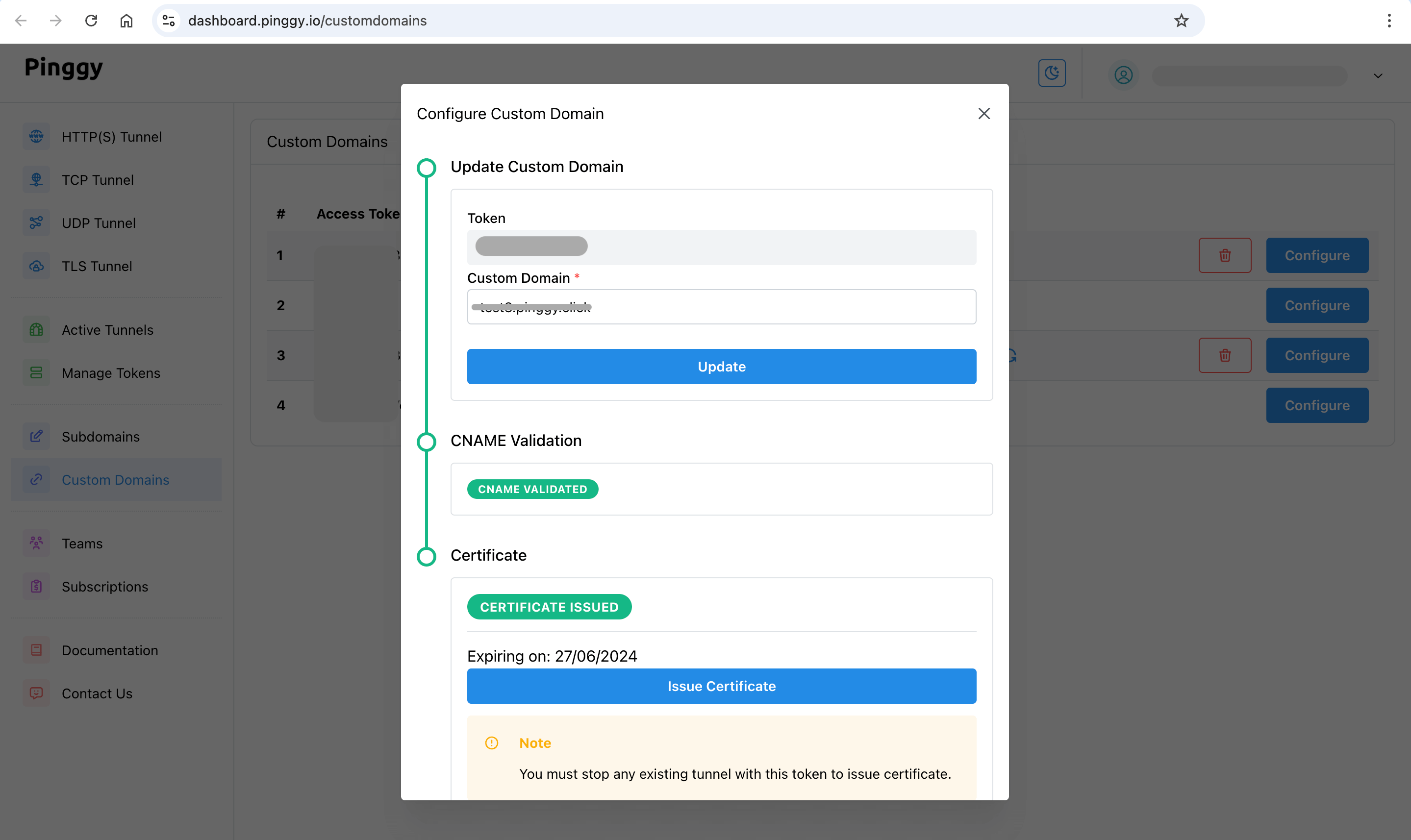
# Custom Domain
> Configure custom domain with Pinggy. Access your localhost with the domain of your choice.
> Source: https://pinggy.io/docs/custom_domain/
# Custom Domain
With Pinggy Pro you can configure your own domain name, such as `www.mysite.com` or `*.example.com`, to access your tunnels. Pinggy also configures TLS certificates for you automatically. The certificates are provided by Let's Encrypt.
## Get your domain
- This guide assumes that you own a domain name such as `example.com`.
- We also require you to be able to manage the DNS records for this domain.
- In case you do not own a domain and wish to buy one, you can get one from any popular domain name provider such as GoDaddy, Namecheap, etc.
## Configure Custom Domain in Pinggy
Once you have upgraded to Pinggy Pro, log in to Pinggy Dashboard -> Domains.
- Click on the **edit icon** for the domain for which you want to set up the custom domain.
- Click on the "Custom Domain" tab.
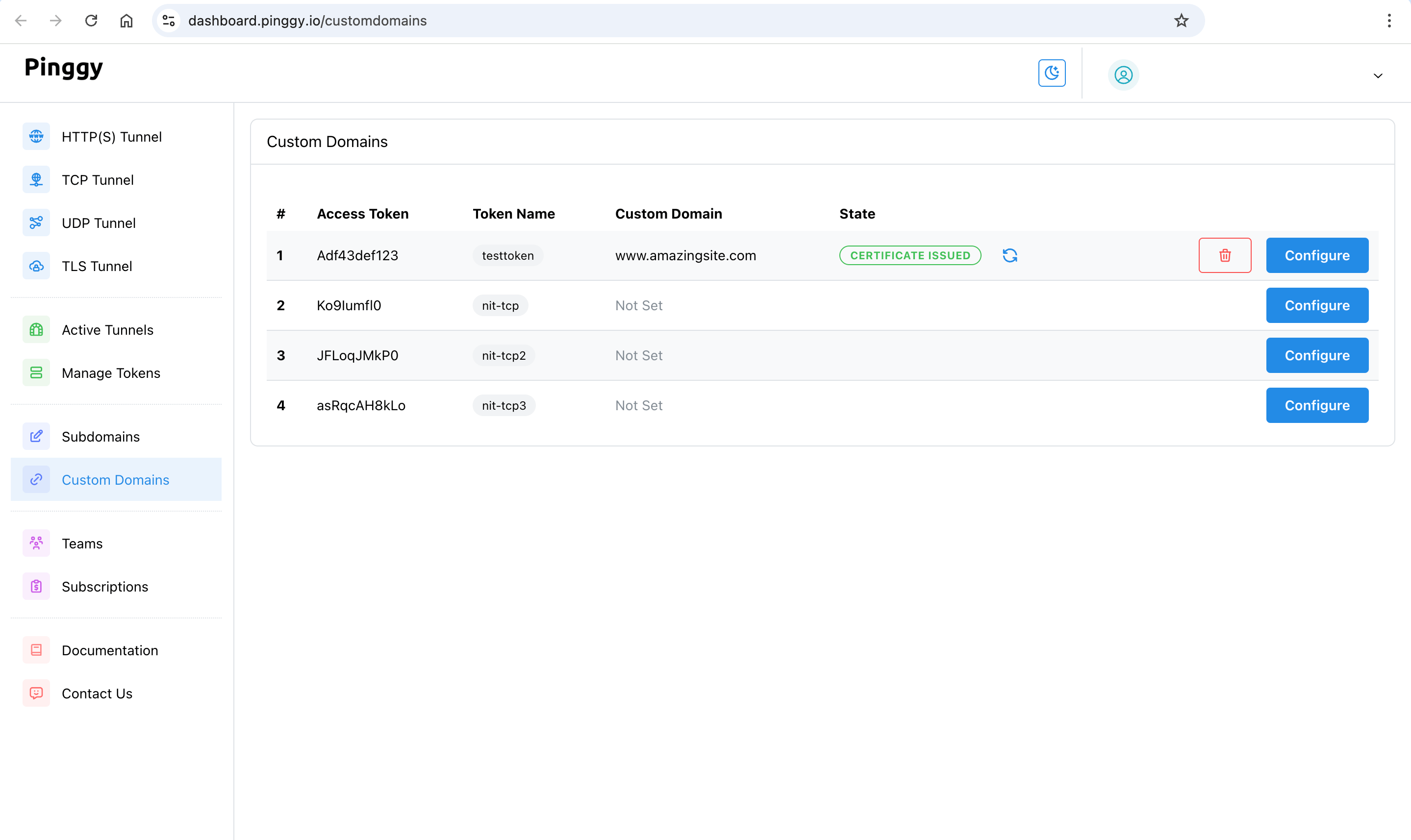
- Enter your custom domain such as `app.example.com`. Then press the **Update** button.
- You may also enter a wildcard custom domain such as `*.example.com`.
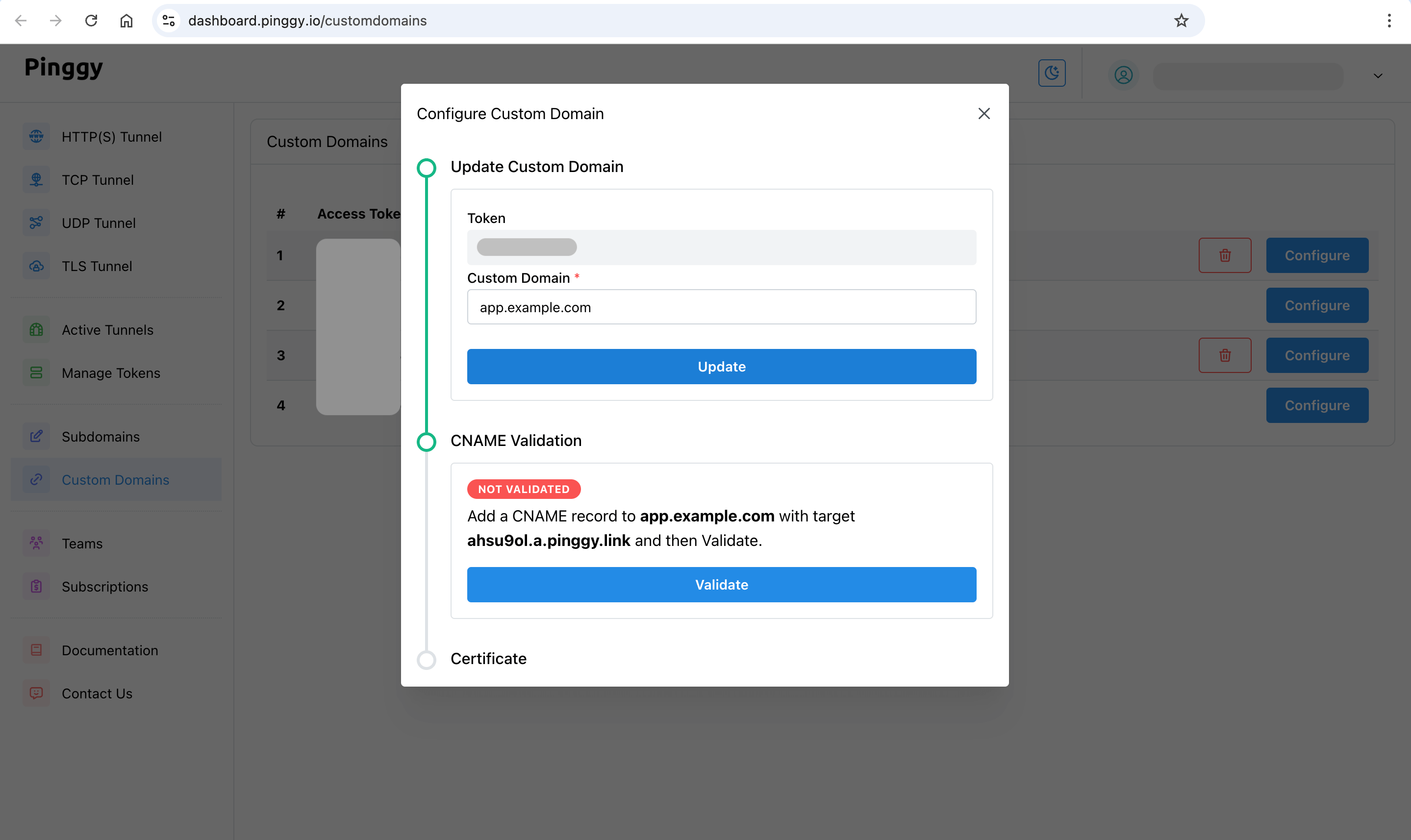
- After that, you will get the **CNAME configuration instructions**, such as:
> Add a CNAME record to `app.example.com` with target `ahsu9ol.a.pinggy.link` and then Validate.
---
> **NOTE:** If you use a base domain, such as `mysite.com`, instead of a subdomain (`app.mysite.com`), then you will be guided through a [relay setup process](/docs/relays/). Click [here](/docs/relays/) to read about the relay setup process.
---
## Set the CNAME Record
- Follow the given instructions to set the CNAME record.
- For example, for the above example, you need to set the cname record for `app.example.com` with the value `ahsu9ol.a.pinggy.link.`.
- For configuring your CNAME record, visit your domain name provider's DNS manager.
- The record type will be `CNAME`.
- Host value will be the part of the domain name excluding your base domain. For example: `app` in case of `app.example.com`. Similarly, for `abc.def.example.com`, host will be `abc.def`.
- The value of the record will be the target value shown in the dashboard. For example: `ahsu9ol.a.pinggy.link.` [ The dot at the end might be necessary ]
- We recommend a low TTL such as `600`.
- **If you use Cloudflare to manage DNS, then turn off "proxy" option.**
- **Check the CNAME record:** Use the online tool: toolbox.googleapps.com/apps/dig/ to check if your CNAME record is set correctly or not.
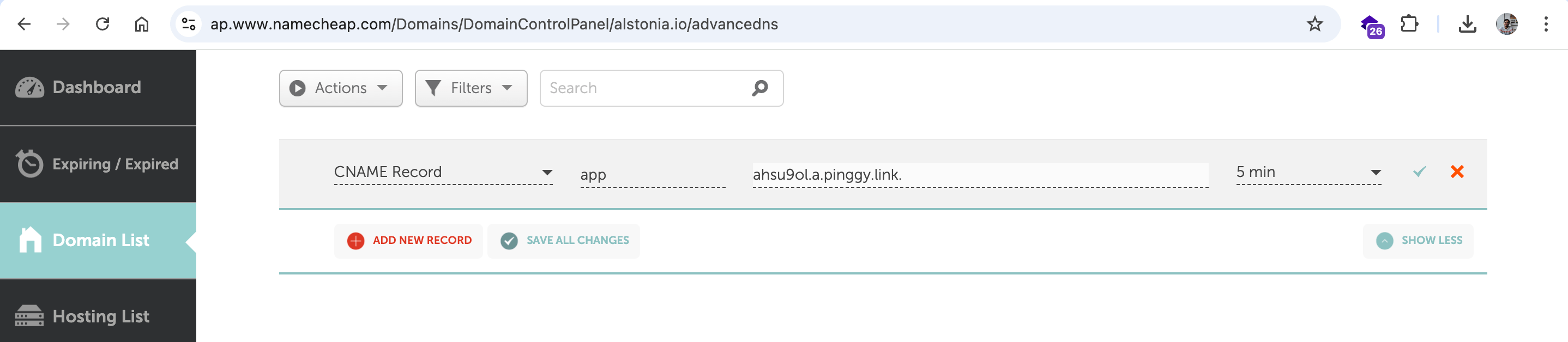
### Example with Namecheap for setting up CNAME record
- Log in to Namecheap.
- Navigate to Namecheap Dashboard -> "Domain List"
- Click on the "Manage" button.
- Click on "Advanced DNS" tab.
- Click on "ADD NEW RECORD"
- Type will be `CNAME`.
- Assuming your domain is `app.example.com`, host will be `app`.
- Value of the record will be the target value shown in the dashboard. For example: `ahsu9ol.a.pinggy.link.`
- Set a low TTL such as 5 min.
## Issue Certificate
- After the CNAME record is set, click on "Validate" in the Pinggy dashboard.
- Once validated, you can issue the TLS certificate.
- Make sure that **no tunnel is running** (with this token).
- Click on the "Issue Certificate" button.
- Certificate issuing process may take up to a minute.
- After the certificate is issued, restart your tunnels after some time. It may take up to 7 minutes for the certificate to be active.
- You can now access your tunnels with your custom domain such as `app.example.com`.
Reach out to us at `contact@pinggy.io` if you are facing any difficulty in configuring the custom domain.