Pinggy made Windows Remote Desktop really remote
Updated on May 23, 2026 · 6 min read
I was packing for a trip and realised I had no way to reach my home desktop if something went sideways. I didn’t want to install TeamViewer or any other agent, just plain RDP over a tunnel. This post walks through that setup on a current Windows 11 box (24H2 / 25H2), the security gotchas, and the alternatives worth knowing.
Quick primer if you’ve never used it: Remote Desktop Protocol (RDP) is the built-in remote-control protocol that ships with Windows Pro/Enterprise/Server. The host listens on TCP 3389. The client paints the desktop and forwards keyboard, mouse, clipboard, audio, and (optionally) printers and drives. It’s fast, native, and free if you’re already paying for a Pro license.
The catch: 3389 is one of the most attacked ports on the internet. Don’t expose it directly. More on that below.
Enabling RDP on Windows 11
The path in Windows 11 (22H2 and later, including 24H2 and 25H2) is:
Settings > System > Remote Desktop > toggle on
That’s the current Microsoft-supported path (docs). The old Control Panel route (System > Advanced system settings > Remote tab) still works but is being phased out.
If you’d rather do it from PowerShell (run as admin):
Set-ItemProperty -Path 'HKLM:\System\CurrentControlSet\Control\Terminal Server' -Name "fDenyTSConnections" -Value 0
Enable-NetFirewallRule -DisplayGroup "Remote Desktop"
First line flips the registry switch. Second line opens the firewall rule group Windows ships disabled by default. Reboot not required.
Windows Home edition still cannot host RDP in 2026. It can connect out as a client, but the inbound server piece is locked to Pro and above. RDP Wrapper exists as an unofficial unlock, but it breaks on most cumulative updates and lives in a licensing grey zone. If you’re on Home, jump to the alternatives section.
While you’re in the settings panel, click “Select users that can remotely access this PC” and confirm only the accounts you want are listed. Administrators are included implicitly - don’t add Domain Users or Everyone.
Tunneling RDP with Pinggy
Pinggy gives you a TCP endpoint without installing anything - the built-in OpenSSH client that ships with Windows 10+ does the work. From an admin PowerShell or Command Prompt:
ssh -p 443 -R0:127.0.0.1:3389 tcp@free.pinggy.io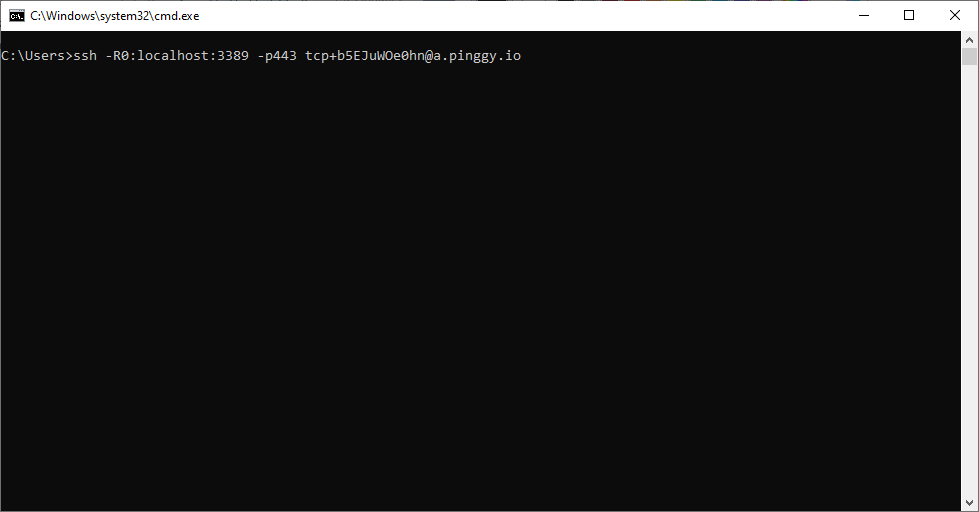
Pinggy replies with a public address like tcp://kduyqzdhwu.a.free.pinggy.link:22348.
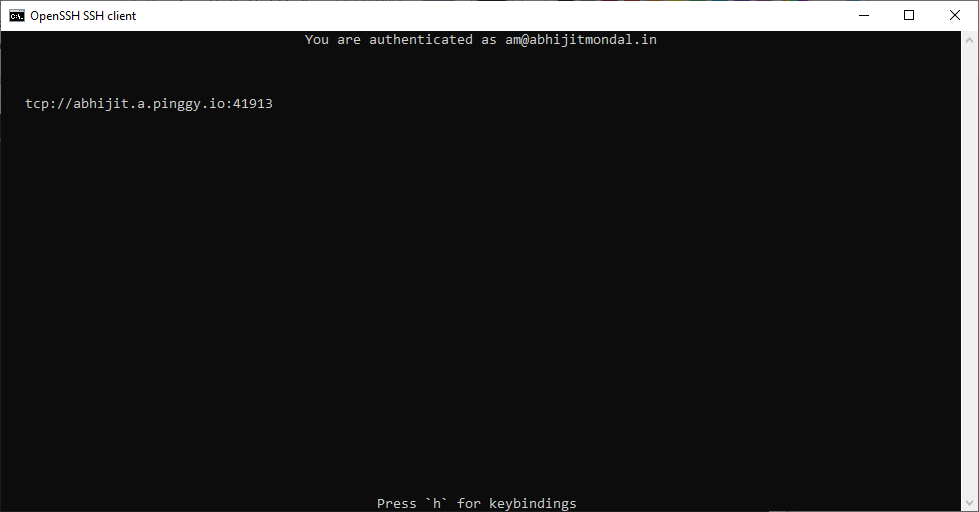
That host:port is what you paste into the Remote Desktop client on the other end. Free tier tunnels rotate the address on reconnect; with a Pinggy plan and an access token you get a persistent subdomain and can put the SSH command in a while true loop so it survives network blips:
ssh -p 443 -R0:127.0.0.1:3389 yourtoken+tcp@pro.pinggy.ioYou can also use Pinggy’s TLS mode (port 443, SNI-based routing). The advantage is everything is encrypted on the wire before Pinggy sees it - Pinggy itself can’t read RDP traffic. RDP also has its own TLS layer, so even plain TCP is already encrypted; TLS mode mostly buys you cleaner firewall traversal because outbound 443 is rarely blocked.
Don’t skip the security part
Putting RDP on a public address - even via a tunnel with a random port - changes your threat model. Treat it accordingly:
- Network Level Authentication (NLA) on. It’s the default in modern Windows, but verify: Settings > System > Remote Desktop > “Require devices to use Network Level Authentication”. NLA forces the client to authenticate (via CredSSP) before the session is created, so unauthenticated scans never reach a logon screen.
- Strong passwords or, better, Windows Hello for Business + smart card / FIDO2. RDP supports passwordless auth on AAD-joined devices. If you’re on a standalone Pro install, at minimum use a 14+ character password and enable account lockout (
secpol.msc> Account Lockout Policy: 5 attempts, 15-minute lockout). - Limit the user list. Only specific accounts in the Remote Desktop Users group. Never enable the Guest account.
- Patch. RDP has had a steady drumbeat of CVEs (BlueKeep, the CredSSP issues, the recent gateway bugs). Keep the host on current cumulative updates.
- Don’t publish 3389 directly to the internet. A Pinggy tunnel with a randomised port is much better than a static
1.2.3.4:3389because scanners hammering known IPs won’t find it, but if you want defense-in-depth, layer one of these in front:- A VPN (WireGuard, OpenVPN) or ZTNA (Tailscale, Twingate, Cloudflare Access). You connect to the overlay network first, then RDP over the private address.
- An RD Gateway with a valid TLS cert if you’re in an org setting.
- Watch the logs. Events 4624/4625/4776 in the Security log are your friends. If you see thousands of 4625s, something has found your endpoint.
For a single-user home setup, the realistic threat is opportunistic credential stuffing. A long password + NLA + a non-default port (which Pinggy gives you for free) covers most of it. For anything multi-user or business-y, put it behind a VPN or ZTNA.
The client side: it’s called “Windows App” now
Heads up if you haven’t touched RDP since 2024: Microsoft renamed the cross-platform “Microsoft Remote Desktop” client to Windows App starting September 2024 (announcement). Same app, same RDP under the hood, new name and a unified UI that also handles Azure Virtual Desktop, Windows 365, and Dev Box.
- macOS, iOS, iPadOS, Android, ChromeOS, web browser: install Windows App from the respective store. The old Microsoft Remote Desktop apps on Mac and mobile have been replaced.
- Windows: the classic
mstsc.exe(Remote Desktop Connection) is still bundled and works fine. The Windows App is also available from the Microsoft Store and is the path Microsoft is steering people toward, butmstscisn’t deprecated yet.
In any client, the address you punch in is host:port from the Pinggy output - for example kduyqzdhwu.a.free.pinggy.link:22348. Username is the local Windows account (or MACHINENAME\username). Credentials go through NLA, then you get the desktop.
Alternatives worth knowing
RDP is great when both ends are Windows and you control the host. If not:
- RustDesk - open-source TeamViewer-style remote control, self-hostable relay. Big momentum since 2023; over 110k GitHub stars. Cross-platform host and client. Patch to 1.4.6+ for the recent CVE fixes.
- MeshCentral - open-source remote management, web-based, runs on Node.js. Strong if you want to manage a fleet from a browser.
- Apache Guacamole - HTML5 gateway that proxies RDP/VNC/SSH through a browser. Useful when you can’t install a client on the device that’s connecting.
- Sunshine + Moonlight - originally a game-streaming pair (Sunshine is an open-source NVIDIA GameStream-compatible host, Moonlight is the client). Low latency, hardware-encoded video. Not a drop-in RDP replacement (no real session isolation, no clipboard parity), but excellent for “I want to actually use my desktop, including a 3D app, from a laptop.”
- Chrome Remote Desktop - the easy answer for Windows Home users who don’t want to mess with RDP Wrapper. Browser-based, Google-account-tied, fine for occasional use.
Wrap-up
For my packing-for-a-trip use case, the recipe is: enable RDP in Settings, run the ssh -p 443 -R0:127.0.0.1:3389 tcp@free.pinggy.io one-liner before I leave, save the address, and connect from the Windows App on my laptop. NLA is on, the account has a strong password, and the random Pinggy port is doing its bit to keep mass scanners out. If you need this for more than one machine or more than yourself, layer a VPN or ZTNA in front - RDP is too valuable a target to trust a single password with.