whichllm: One Command to Find the Best Local LLM for Your Hardware
Updated on Jun 7, 2026 · 8 min read
The honest answer to “which local LLM should I download?” used to be: try three, see which crashes, give up on the fourth. HuggingFace lists thousands of models. Benchmarks are inconsistent, often outdated, and almost never account for what your GPU can actually load. The community advice amounts to “Qwen is good” or “just try llama3,” which isn’t wrong, but it’s not exactly a system.
whichllm is a small Python CLI that just blew up on Hacker News (144 points, Show HN). It auto-detects your GPU, CPU, and RAM, then ranks HuggingFace models against real benchmark data - not parameter count, not marketing claims. One command, you get a ranked list of the models that both fit your hardware and actually perform well.
Summary
- Install whichllm:
uvx whichllm@latest(no install needed with uv) orpip install whichllm - Run
whichllm- it detects your GPU/CPU/RAM and ranks the best models for your system - Pull the top result with Ollama:
ollama pull <model-tag-from-output> - Start serving:
ollama serve- API is now onlocalhost:11434 - Share with Pinggy:You get a public
ssh -p 443 -R0:localhost:11434 -t qr@free.pinggy.io "u:Host:localhost:11434"https://abc123.pinggy.linkURL your team can hit directly.
The problem whichllm is solving
Running a local LLM has three distinct phases where you can go wrong. The first is figuring out what your hardware can handle. The second is finding which of the models that fit is actually the best one. The third is actually getting it running.
Most tools help with phase three. Phase one requires you to look up GGUF quantization math and cross-reference it against your VRAM - doable, but annoying. Phase two is worse. Leaderboards age poorly. A model that dominated Chatbot Arena eight months ago might be behind two newer ones that just launched last week. Picking by star count or community buzz selects for hype more than quality.
whichllm handles phases one and two in a single command. It builds a picture of your hardware, fetches live benchmark data, merges multiple scoring sources with recency weighting, and hands you a ranked list. The output tells you the exact quantization variant to pull, the expected tokens-per-second on your hardware, and a composite quality score.
How it works under the hood
The hardware detection side covers NVIDIA GPUs via nvidia-ml-py, AMD via ROCm, Apple Silicon via Metal, and falls back to CPU + RAM for CPU-only inference. It queries available VRAM, system RAM, and free disk space to determine what can fit.
For ranking, it merges several benchmark sources:
- LiveBench and Artificial Analysis Index - live leaderboards updated regularly
- Aider’s coding benchmark - specifically relevant if you’re using the model for coding assistance
- Chatbot Arena ELO - crowd-sourced quality from millions of real conversations
- Open LLM Leaderboard v2 - academic benchmark suite
The key detail is the recency weighting. A 2024 model can’t outrank a current-generation one on a stale score from its launch year. Scores are demoted along a model’s lineage over time, so the ranking reflects what’s actually good now. Each model gets a 0-100 composite score, weighted by benchmark evidence confidence.
Quantization penalties are factored in. A Q3_K_M that barely fits gets penalized relative to a Q5_K_M that fits comfortably - quality degradation matters, not just raw fit.
Install and run
The fastest path if you have uv installed:
uvx whichllm@latestThis runs the latest version without touching your system Python. If you prefer a persistent install:
uv tool install whichllm
# or
pip install whichllm
# or
brew install andyyyy64/whichllm/whichllm
Then just run it:
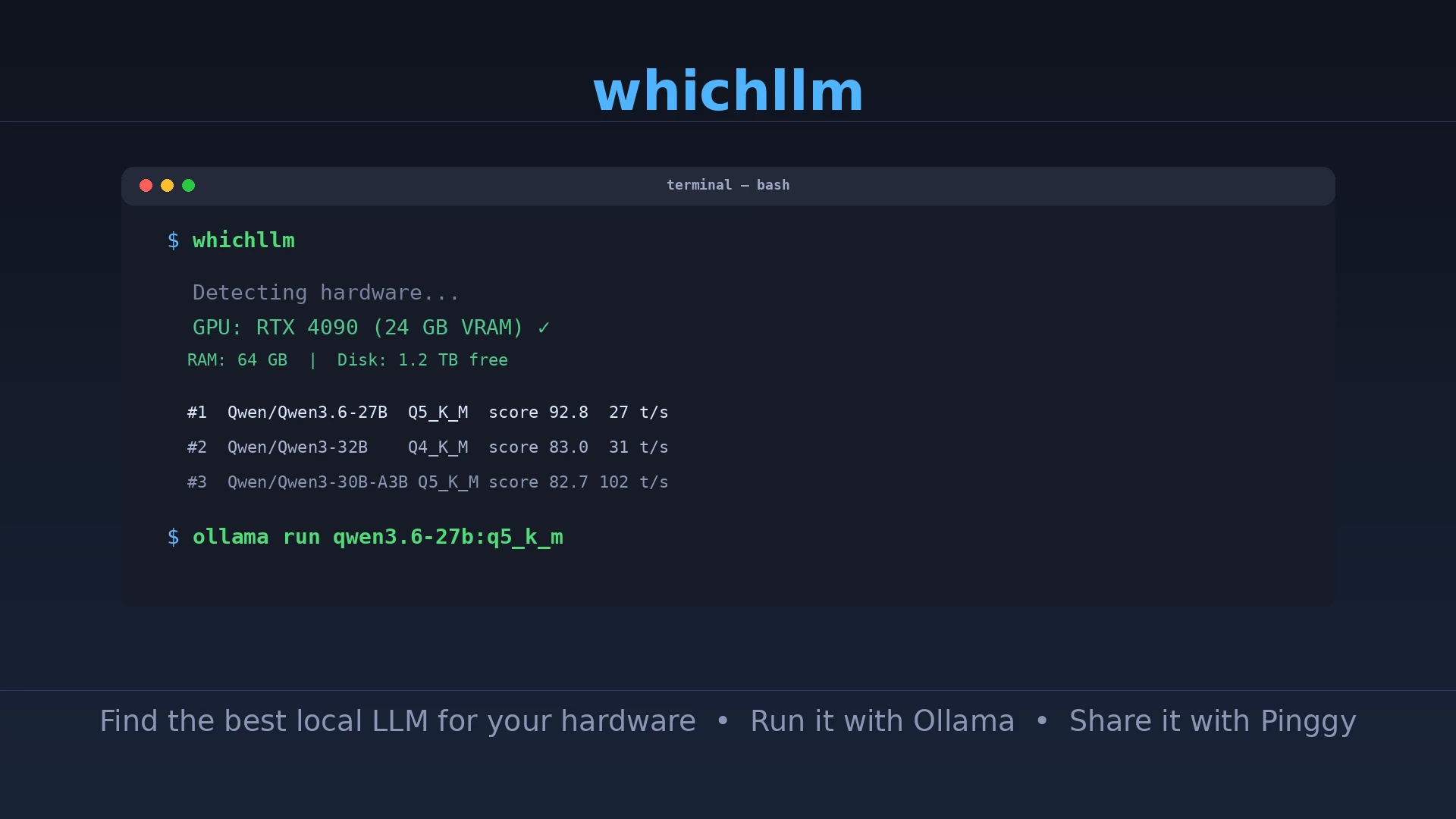
whichllmOutput on an RTX 4090 system looks like this:
Detecting hardware...
  GPU   NVIDIA GeForce RTX 4090  24 GB VRAM
  CPU   AMD Ryzen 9 7950X  32 cores
  RAM   64 GB

Top models for your hardware:

  #1  Qwen/Qwen3.6-27B         27.8B  Q5_K_M  score 92.8  27 t/s
  #2  Qwen/Qwen3-32B           32.0B  Q4_K_M  score 83.0  31 t/s
  #3  Qwen/Qwen3-30B-A3B       30.0B  Q5_K_M  score 82.7  102 t/s
  #4  mistral-nemo-instruct    12.2B  Q8_0    score 79.1  48 t/s
  #5  Llama-3.3-70B-Instruct   70.6B  Q2_K    score 71.2  14 t/s
The #3 entry is Qwen3-30B-A3B, a Mixture-of-Experts model. It’s 30B total parameters but only activates 3B at inference time, which is why it hits 102 t/s - noticeably faster than a 27B dense model despite ranking comparably for quality.
A few useful flags:
# See what you'd get with different hardware
whichllm --gpu "RTX 5090"

# Plan an upgrade path
whichllm upgrade "RTX 4090" "RTX 5090"

# Chat with the top recommendation immediately
whichllm run "qwen3.6"

# Get Python code snippet for the top model
whichllm snippet "qwen3:14b"

# JSON output for scripting
whichllm --json
The plan subcommand is useful if you’re shopping: whichllm plan "llama 3 70b" tells you exactly what hardware you’d need to run that model at a given quality level.
Pull and run with Ollama
Once you have your model ID from whichllm, pull it with Ollama. Ollama handles quantized GGUF natively and manages model storage automatically.
# Install Ollama if you haven't
curl -fsSL https://ollama.com/install.sh | sh

# Pull the top recommendation (adjust the tag to match whichllm's output)
ollama pull qwen3:27b-q5_k_m

# Start the API server in the background
ollama serve
Ollama’s API is now on localhost:11434. You can verify it:
curl http://localhost:11434/api/tagsTo send a quick test completion:
curl http://localhost:11434/api/generate -d '{
  "model": "qwen3:27b-q5_k_m",
  "prompt": "Explain GGUF quantization in one paragraph.",
  "stream": false
}'
Ollama also exposes an OpenAI-compatible endpoint at localhost:11434/v1, so most tools and libraries that support the OpenAI API work against it without changes.
Share the API with Pinggy
Ollama binds to localhost by default, which means it’s not reachable from other machines on your network or from the internet. If you want teammates to use your local model, need to test from a phone, or want to connect a hosted application to your local LLM without deploying it to a server, you need to expose port 11434 publicly.
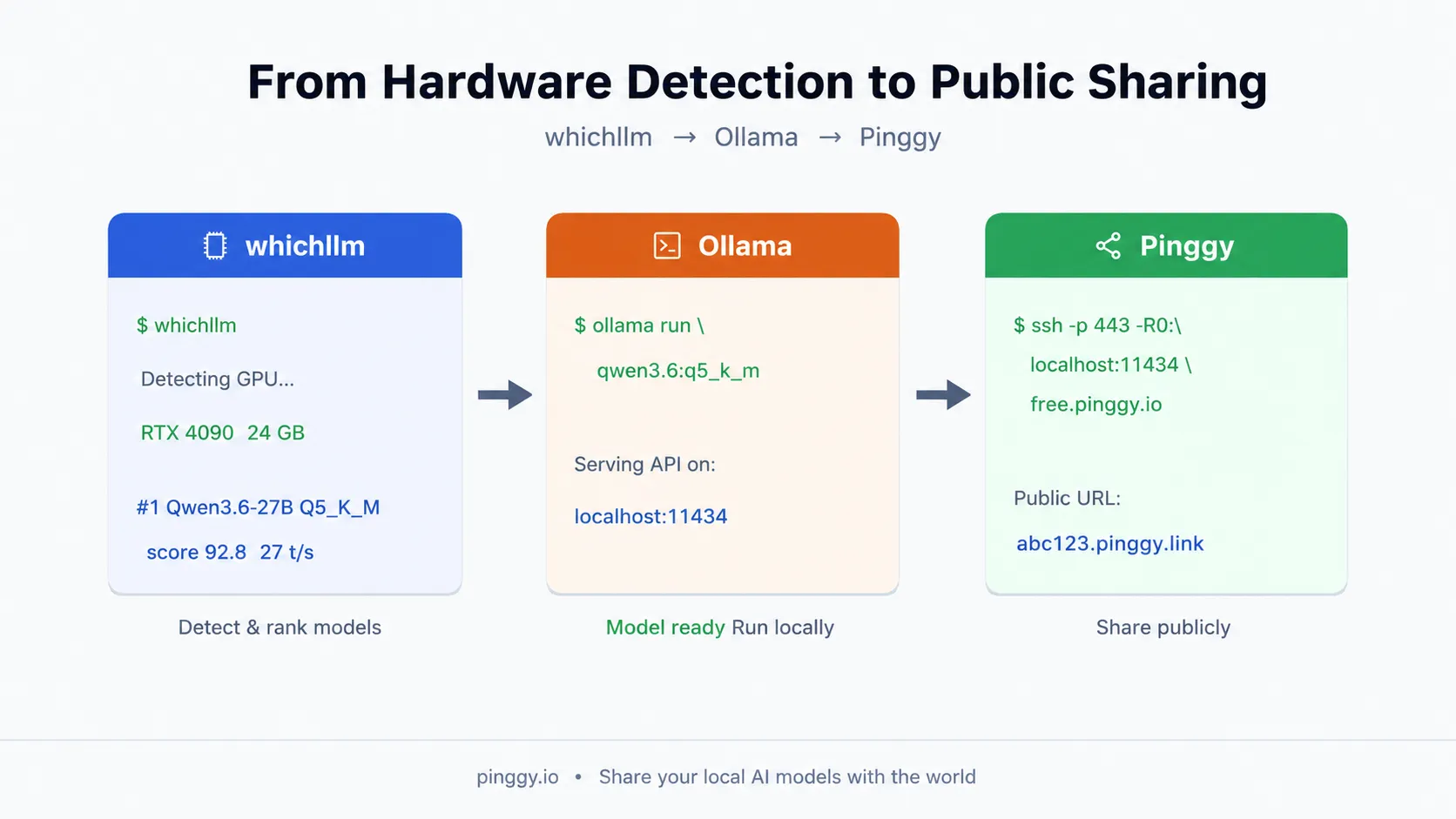
Pinggy does this over SSH - no binary to install, no account required for free tunnels:
ssh -p 443 -R0:localhost:11434 -t qr@free.pinggy.io "u:Host:localhost:11434"The u:Host:localhost:11434 part adds a Host header rewrite so Ollama responds correctly to requests that arrive with the Pinggy domain name in the Host header. Without it, some Ollama endpoints reject the request. Pinggy prints a URL that looks like https://abc123.pinggy.link - that’s your public Ollama endpoint.
You can now point any OpenAI-compatible client at it. For example, to use the Ollama Python client against the public URL:
from ollama import Client

client = Client(host="https://abc123.pinggy.link")
response = client.chat(model="qwen3:27b-q5_k_m", messages=[
    {"role": "user", "content": "What's the capital of France?"}
])
print(response.message.content)
Or with the OpenAI Python SDK:
from openai import OpenAI

client = OpenAI(
    base_url="https://abc123.pinggy.link/v1",
    api_key="not-needed",  # Ollama doesn't require a key
)
response = client.chat.completions.create(
    model="qwen3:27b-q5_k_m",
    messages=[{"role": "user", "content": "Hello"}]
)
For a persistent tunnel with a fixed subdomain, sign up at pinggy.io and use your access token:
ssh -p 443 -R0:localhost:11434 -t token@free.pinggy.io "u:Host:localhost:11434"Add authentication before sharing widely
Ollama has no built-in API key authentication. Anyone who has your Pinggy URL can query your model and rack up GPU hours on your machine. Before you share the URL beyond a small trusted group, add a token requirement via Pinggy:
ssh -p 443 -R0:localhost:11434 -t qr@free.pinggy.io "u:Host:localhost:11434" "k:mysecrettoken"Callers must then pass the token as a bearer header:
curl https://abc123.pinggy.link/api/generate \
  -H "Authorization: Bearer mysecrettoken" \
  -d '{"model":"qwen3:27b-q5_k_m","prompt":"Hello","stream":false}'
Pinggy validates the token before forwarding the request to your local server, so Ollama itself never sees unauthenticated traffic.
If you want browser-based access with basic auth instead, Pinggy supports that too via the web dashboard at pinggy.io.
What whichllm doesn’t do
The tool makes one specific promise: given your hardware, which freely available text-generation models should you consider, ranked by quality. It doesn’t cover vision models (though the benchmark merge includes some multimodal scores where available), audio, or embedding-only models. It pulls from HuggingFace’s public model API, so private or gated models won’t show up.
The benchmark data has inherent lag - even with recency weighting, a model that launched last week might not have enough third-party evaluation data to score accurately. If you’re chasing a brand-new model release, whichllm will probably rank it conservatively until evidence accumulates. That’s the honest tradeoff for using real benchmark data rather than the model card’s self-reported numbers.
The speed estimates are approximations. Real-world throughput depends on context window size, your system’s memory bandwidth, whether layers are offloaded to CPU RAM, and background load on the machine. Treat the t/s number as ballpark, not a guarantee.
Putting it together
The flow is straightforward: run whichllm, pull the top recommendation with ollama pull, start the server with ollama serve, and if you need remote access, open a Pinggy tunnel with the SSH command above. The whole thing takes about five minutes on a fast internet connection, most of which is the model download.
whichllm fills a real gap. The “which model should I run?” question has been answered differently by everyone you ask, usually based on what they personally tried on hardware that might be nothing like yours. Having a tool that answers it from first principles - your actual hardware, real benchmarks, fresh data - is worth a lot more than the ten minutes it takes to install and run.
The whichllm repo is actively maintained. Version 0.5.2 is current as of June 2026. If you find the rankings consistently off for a model you know well, the benchmark weighting is configurable and the project takes issues.