Ngrok UDP Alternative
Updated on Nov 18, 2026 · 7 min read
Ngrok is the tool most people reach for when something on localhost needs to be online, but it only tunnels HTTP, TCP and TLS. There’s no UDP, so a game server, a VoIP service, a DNS resolver or a WireGuard endpoint running on your machine can’t go through it.
Pinggy can carry UDP. Its CLI and the desktop Pinggy App both open UDP tunnels, and the free tier is enough to try one. Below are both ways to set it up, a quick netcat test, and the other tools that tunnel UDP if Pinggy isn’t the right fit. Prices and versions were checked on November 18, 2026.
Summary
- Ngrok has no UDP. Its endpoints are HTTP, TCP and TLS only, on every plan.
- Pinggy carries UDP through its CLI (still labelled beta) or the Pinggy App. The plain SSH command can’t, because SSH only forwards TCP.
- One command with the CLI:
pinggy -p 443 -R0:localhost:8000 udp@free.pinggy.io - Test it by listening with
nc -u -l 8000and sending a datagram to the public address from another machine. - Other options: Playit.gg for game servers, LocalXpose and Localtonet as managed tunnels, and frp or chisel if you’d rather run your own relay.
A UDP tunnel gives a local UDP port a public address
UDP sends datagrams without a connection, acknowledgements or retransmits. Lost packets stay lost, and in return there’s very little latency, which is why it carries most real-time traffic:
- Game servers, such as Minecraft Bedrock (port 19132), Valheim or Palworld.
- Voice and video, where a late packet is worse than a missing one.
- DNS, which answers most queries over UDP port 53.
- VPNs like WireGuard, which runs entirely over UDP.
- IoT telemetry, where small devices send short readings and can’t afford connection overhead.
A UDP tunnel puts a public hostname and port in front of a UDP service on your machine. Your client opens an outbound connection to the tunnel’s relay, the relay accepts datagrams on its public port, and it forwards them down that connection to your local port. Nothing on your router changes, so it works behind CGNAT and strict firewalls where port forwarding isn’t an option.
Ngrok only tunnels HTTP, TCP and TLS
Ngrok’s pricing page lists its endpoint protocols as HTTP, TCP and TLS, and none of the plans, from Free through Pay-as-you-go, adds UDP. A TCP endpoint doesn’t help either: a game server or a DNS resolver listening for UDP never sees TCP traffic, so the packets have nowhere to land. If you need UDP, you need a different tool. The ngrok alternatives comparison covers the wider field; the rest of this post sticks to UDP.
Set up a UDP tunnel with the Pinggy CLI
UDP is the one tunnel type Pinggy’s SSH command can’t create, because plain SSH only carries TCP. Install the Pinggy CLI instead: it’s one command on macOS, Linux and Windows, or npm install -g pinggy.
Then start the tunnel, replacing 8000 with the port your UDP service listens on:
Pinggy prints a public hostname and a UDP port. Point your game client, SIP phone or dig at that pair and the datagrams arrive on localhost:8000. For a Minecraft Bedrock server, the local port is 19132. If an AI agent or a script is starting the tunnel, add --notui to get plain log lines instead of the interactive terminal UI.
The UDP tunnel docs still label UDP support as beta.
Set up a UDP tunnel with the Pinggy App
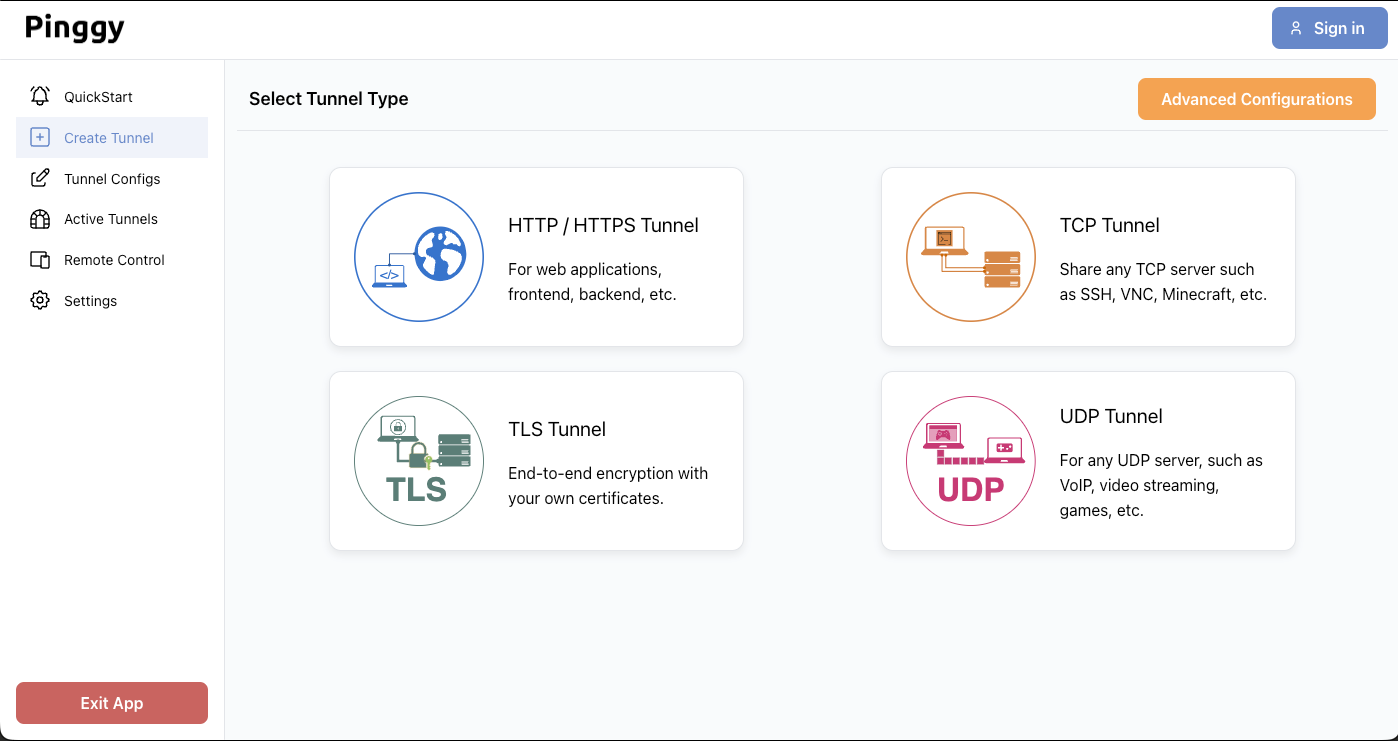
If you’d rather click than type, the Pinggy App does the same thing from a window. It’s a desktop app for macOS (Apple Silicon and Intel), Windows (x64 and ARM64) and Ubuntu, currently v1.3.8 and marked beta, and it creates HTTP, TCP, UDP and TLS tunnels.
- Download the Pinggy App from pinggy.io/app and install it for your operating system.

- Open the app and go to Create Tunnel.

- Pick UDP Tunnel from the four tunnel types.
- Set your local port (8000 in this example). If you have a Pro access token, paste it into Access Token.

- Click Save and Start Tunnel.

- Copy the
udp://address at the top of the tunnel page. That’s the hostname and port your clients connect to. On the free plan you’ll also see the countdown to the 60-minute limit.

Test the tunnel with netcat
Before you point a real game or phone at the tunnel, check that datagrams make it through. On the machine running the tunnel, listen on the local port:
nc -u -l 8000That’s the syntax for macOS and the OpenBSD netcat most Linux distros ship. Traditional netcat wants nc -u -l -p 8000.
From a different machine, send a line to the public hostname and port Pinggy gave you:
echo "hello over udp" | nc -u -w1 <hostname> <port>The listener should recieve the line within a second. If nothing shows up, check that the port in the tunnel command matches the one you’re listening on, and that the free tunnel hasn’t hit its 60-minute limit. socat - UDP:<hostname>:<port> does the same job if you prefer socat.
Free and Pro limits for Pinggy UDP tunnels
The free tier needs no sign-up. UDP tunnels get unlimited data transfer, but they last 60 minutes, and the public port changes on every connection, so you hand out a new address each time.
Pro is $3/month, or $2.50/month billed yearly. It lets you reserve a persistent UDP port from the dashboard, so the address you give players or devices stays the same, and it removes the time limit. That’s the plan to use for a game server your friends join every evening or a device that reports in around the clock.
Other tools that tunnel UDP
Pinggy isn’t the only option. Here’s how the other well-known tunnels handle UDP:
| Tool | UDP | Cheapest way to get UDP | Notes |
|---|---|---|---|
| Playit.gg | Yes | Free: game presets plus generic UDP, 4 ports | Premium ($3/month) adds TCP+UDP tunnels and 16 ports; built for game servers |
| LocalXpose | Yes | PRO, $8/month billed yearly | The free Starter tier is 2 HTTP(S) tunnels only |
| Localtonet | Yes | Free: 1 tunnel, stops after 30 minutes per start | About $2/month per tunnel with no timeout; dedicated UDP and mixed UDP/TCP types |
| Inlets | Yes, on TCP tunnels | Personal, $25/month | UDP since 0.11.13; you run the exit server or use Inlets Cloud |
| frp | Yes | Free, self-hosted | v0.72.0; you run frps on a server with a public IP |
| chisel | Yes | Free, self-hosted | UDP remotes look like 1.1.1.1:53/udp; v1.12.0 |
| zrok | Private shares only | Free managed tier (5GB a day) or self-host | The other side has to run zrok2 access private |
| Tailscale Funnel | No | None | Funnel only serves TLS on ports 443, 8443 and 10000 |
| Cloudflare Tunnel | Not on quick tunnels | Private networking | Visitors need the Cloudflare One client on their device |
| Ngrok | No | None | HTTP, TCP and TLS only |
Playit.gg is the closest match if all you’re hosting is a game server: generic UDP is free, and the agent is open source. LocalXpose and Localtonet are managed tunnels with UDP, LocalXpose behind its paid plan and Localtonet with a short-lived free tunnel. frp and chisel are the self-hosted picks, and they cost you a VPS and some config, but the relay is yours. Tailscale is a different story: it’s a WireGuard mesh, so UDP works fine between devices inside your tailnet, but Funnel can’t publish a UDP port to the public internet.
You’ll also see SSH suggested for this. Plain SSH can’t forward UDP, and the usual trick is to wrap the datagrams in TCP with socat on both ends of an ssh -L or ssh -R forward. It works for a one-off DNS test, but every lost packet stalls the ones queued behind it, which is teh opposite of what a game or a voice call needs.
Conclusion
If ngrok is your tunnel and you hit a UDP service, Pinggy is the quickest fix: install the CLI, run one command, and you have a public UDP address, with a persistent port on Pro for $3/month. Playit.gg is worth a look for game servers, and frp or chisel make sense if you’d rather run the relay yourself. For a wider comparison of tunnels beyond UDP, see the ngrok alternatives guide.