Meetily: A Self-Hosted AI Meeting Assistant Trending on GitHub
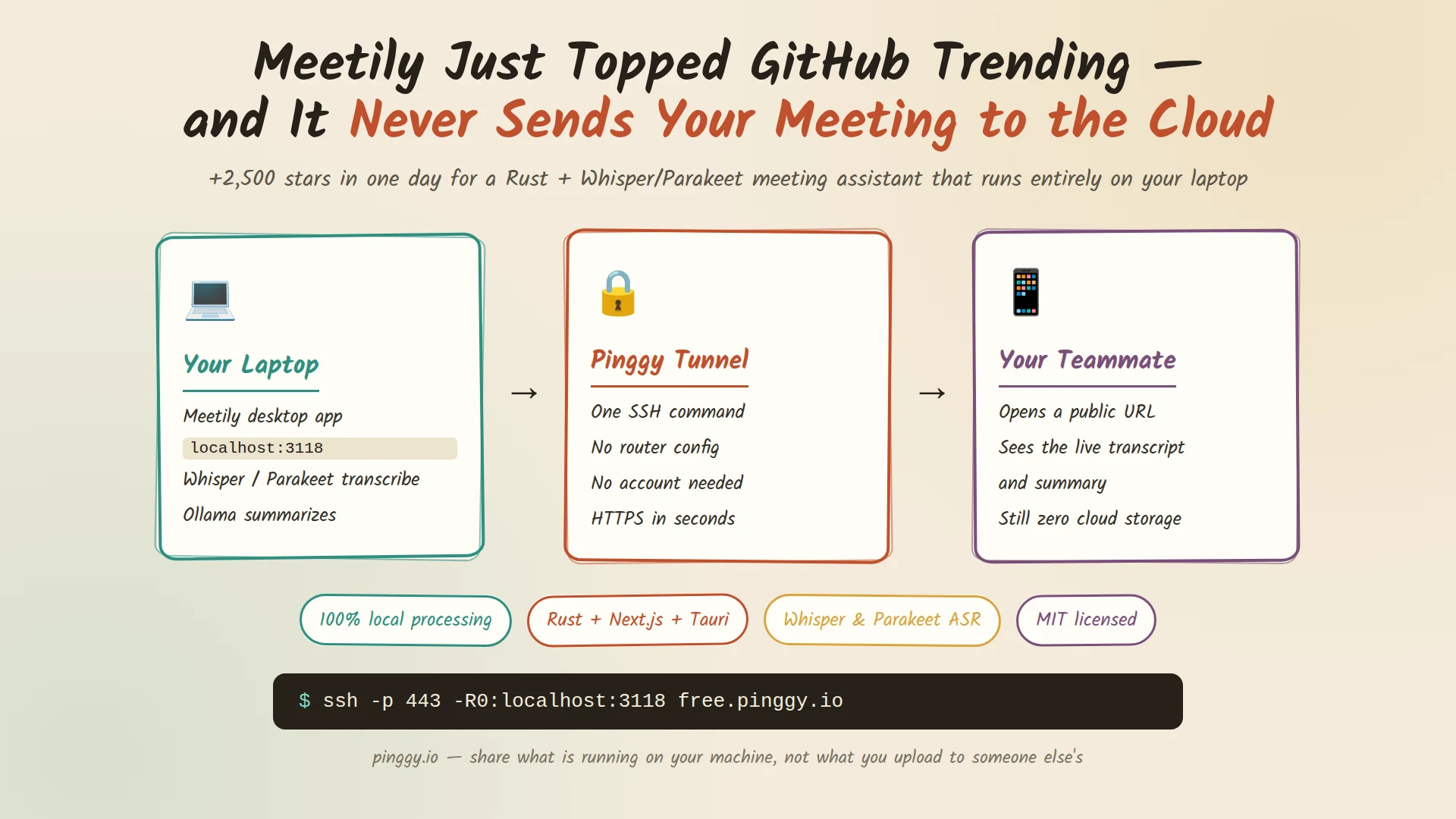
Meetily sat at #3 on GitHub’s daily trending page as I was writing this, having picked up around 2,500 stars in a single day on top of the roughly 18,000 it already had. That is an unusual rate for a project that has been public for over a year. What is pulling people in is the pitch: an AI meeting assistant that transcribes and summarizes your calls entirely on your own machine, with no audio, transcript, or API key ever leaving your laptop unless you decide to send it somewhere.
That pitch lands hard right now. Every video call tool has shipped an AI notetaker in the last two years, and every one of them works by piping your meeting audio through somebody else’s servers. Meetily’s answer is to run Whisper or NVIDIA’s Parakeet model locally for transcription and Ollama (or any OpenAI-compatible endpoint you configure) for summarization, packaged as a Rust and Next.js desktop app built with Tauri.
Summary
- Get it: macOS and Windows have installers on the releases page. Linux users build from source.
- Build on Linux:
git clone https://github.com/Zackriya-Solutions/meeting-minutes && cd meeting-minutes/frontend && pnpm install && ./dev-gpu.sh - Building on macOS from source? Don’t just install the Xcode Command Line Tools - the
cidrecrate (system-audio capture via ScreenCaptureKit) needs the full Xcode app because its build script callsxcodebuild. You also need Rust (rustup.rs), Homebrew,cmake,node, andpnpm. - It’s a real web server: dev mode runs the UI on
http://localhost:3118(Whisper/Parakeet, Ollama, and the app’s own coordinator API run on separate local ports too). - Share it:
ssh -p 443 -R0:localhost:3118 free.pinggy.iogets you a public HTTPS URL in seconds. - Lock it down: add
-t "b:user:password"to the SSH command so a bare URL isn’t enough to read someone’s meeting notes.
What Meetily actually does
Meetily (packaged from the repository Zackriya-Solutions/meeting-minutes) records a meeting - either system audio or a microphone feed - and runs it through a local transcription pipeline in near real time. You get a live transcript as the call happens, then an AI-generated summary once it ends: action items, decisions, key points, whatever template you’ve configured. The repository describes it as:
“Privacy first, AI meeting assistant with 4x faster Parakeet/Whisper live transcription, speaker diarization, and Ollama summarization built on Rust. 100% local processing, no cloud required.”
The stack backing that claim:
- Transcription: OpenAI’s Whisper or NVIDIA’s Parakeet, the latter converted to ONNX and run locally for roughly 4x the speed of stock Whisper on the same hardware.
- Summarization: Ollama by default, with support for pointing at Claude, Groq, OpenRouter, or any custom OpenAI-compatible endpoint if you’d rather use a hosted model for that step specifically.
- Hardware acceleration: Metal and CoreML on Apple Silicon, CUDA on NVIDIA, Vulkan on AMD/Intel.
- App shell: a Rust core (about half the codebase) handling audio capture, transcription, and SQLite storage, wrapped in Tauri with a Next.js frontend for the UI.
- License: MIT.
None of this is exotic on its own. Local Whisper transcription has been around for years and Ollama-backed summarization is a weekend project for plenty of people. What Meetily gets right is packaging: a normal person can install it and get an offline, no-signup meeting assistant without touching a terminal, which is exactly the audience that would otherwise be stuck paying for Otter, Fireflies, Krisp, or whatever their video call vendor bundles in.
Why the timing makes sense
Cloud meeting bots have had a rough stretch of press: recording-retention questions, bots joining calls uninvited, and a general unease about handing a transcript of every internal meeting to a third party’s servers. Local-first tooling has been the quiet counter-trend in dev circles for a while now (see also: local LLMs, self-hosted analytics, self-hosted everything), and Meetily is a clean example landing at the point where that sentiment is strongest. A tool that promises “the recording never leaves your machine” doesn’t need much more of a pitch to a room full of people already running Ollama on their laptop.
Peeking at the architecture through its own security policy
The interesting detail, if you like poking at how a desktop app is actually wired, is in frontend/src-tauri/tauri.conf.json. Tauri apps declare a content security policy that whitelists which local origins the embedded webview is allowed to talk to, and Meetily’s CSP names four ports:
3118- the Next.js frontend (next dev -p 3118in dev mode,next start -p 3118in production)11434- Ollama, at its usual default8178- the bundled whisper-server handling transcription requests5167- the app’s own coordinator API for meeting state and summaries
So despite being marketed as “a single, self-contained application,” Meetily is really a handful of local HTTP services that the frontend calls over localhost, all launched together by the Tauri shell. That is a completely reasonable way to build this kind of app - it keeps the Rust transcription engine, the summarization call, and the UI as separate concerns - but it also means the pieces are individually addressable if you ever wanted to reach one from outside the machine.
Getting it running
macOS and Windows are the two supported binary targets. Grab the .dmg or the x64-setup.exe from the releases page, install, done.
Linux does not get an installer. You build from source, which means installing Rust and Node/pnpm first, then:
git clone https://github.com/Zackriya-Solutions/meeting-minutes
cd meeting-minutes/frontend
pnpm install
./build-gpu.sh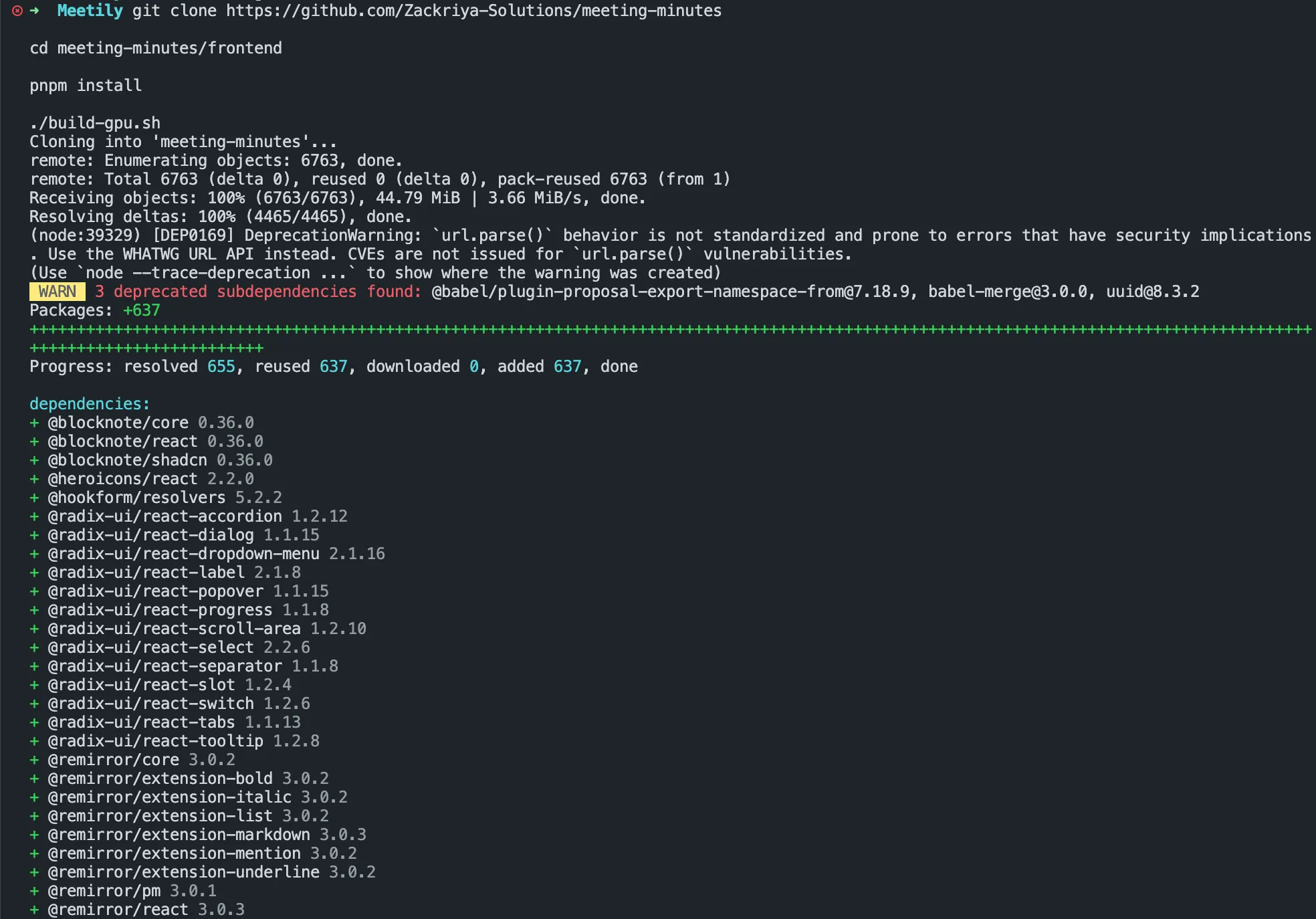
For active development with hot reload instead of a production build:
./dev-gpu.shBoth scripts auto-detect available GPU acceleration (CUDA, Vulkan, or CPU fallback); check the project’s docs/building_in_linux.md for the flags if auto-detection picks the wrong backend for your setup. Either way, once it’s running you have a Next.js server listening on localhost:3118, exactly like any other local web app you’d want to reach from somewhere else.
Building on macOS from source (skip this if you used the installer)
Most Mac users should just grab the .dmg. But if you want unreleased fixes, a specific GPU feature flag, or you’re contributing to the project, you build it the same way Linux users do - pnpm install followed by ./dev-gpu.sh or ./build-gpu.sh (or pnpm tauri:dev / pnpm tauri:build directly). Before any of that works you need Homebrew, cmake, node, pnpm, and the Rust toolchain via rustup.
Heads up: the Xcode Command Line Tools alone are not enough. Meetily’s Rust core pulls in
cidre, a crate that binds to Apple’s ScreenCaptureKit for system-audio capture, and its build script shells out toxcodebuild. If you’ve never opened the full Xcode app, the build dies at thecidrecompile step with:xcode-select: error: tool 'xcodebuild' requires Xcode, but active developer directory '/Library/Developer/CommandLineTools' is a command line tools instanceFix: install Xcode from the App Store (it’s a multi-gigabyte download, budget the time), then point the active developer directory at it and accept the license:
sudo xcode-select -s /Applications/Xcode.app
sudo xcodebuild -license accept
Re-run the build after that and
cidrecompiles cleanly.
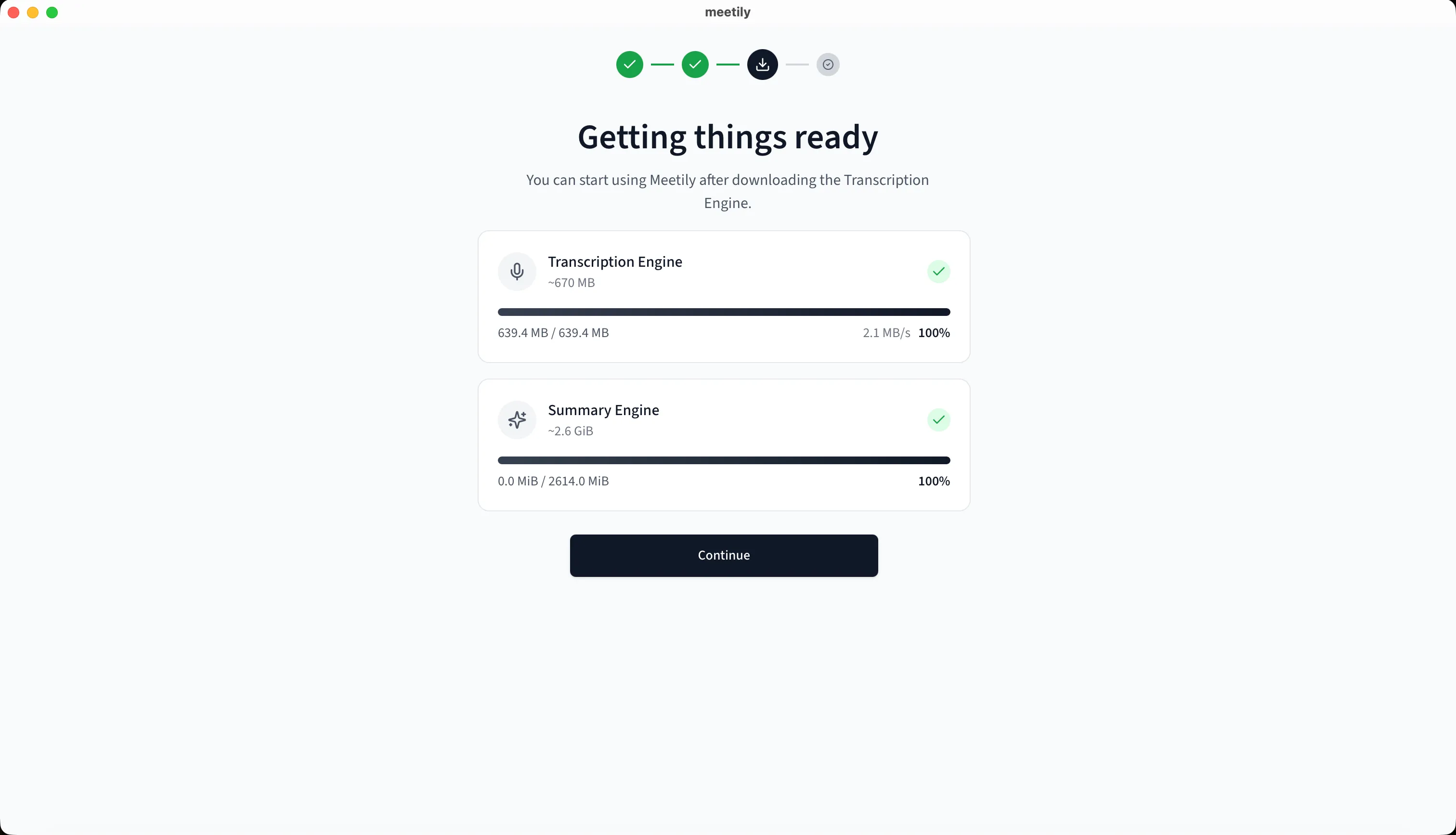
The first launch, either from the installer or a source build, pauses on a download screen: Meetily fetches the transcription engine and summary engine models before it lets you record anything.
Sharing a live meeting session with Pinggy
This is the part that is genuinely useful and not just a novelty: Meetily has no built-in way to share what’s on your screen with someone who isn’t sitting at your laptop. There’s no “share this session” button, no cloud sync unless you opt into a paid tier, and on Linux there isn’t even an installer, just a dev server on a port. If you want to check the live transcript from your phone while you’re walking around during a call, or let a teammate follow along on a meeting they couldn’t join, you need a tunnel.
Open a second terminal (leave Meetily running in the first) and run:
Pinggy responds with a public HTTPS URL, something like https://abc123.a.pinggy.link. Open it from any device and you’re looking at the same Meetily UI you’d see on localhost:3118 - live transcript, running summary, whatever’s on screen - except now it’s reachable from your phone’s data connection or a colleague’s browser on the other side of the building. The transcription and summarization are still happening entirely on your machine; the tunnel just carries the UI traffic, the same way it would for any other local dev server.
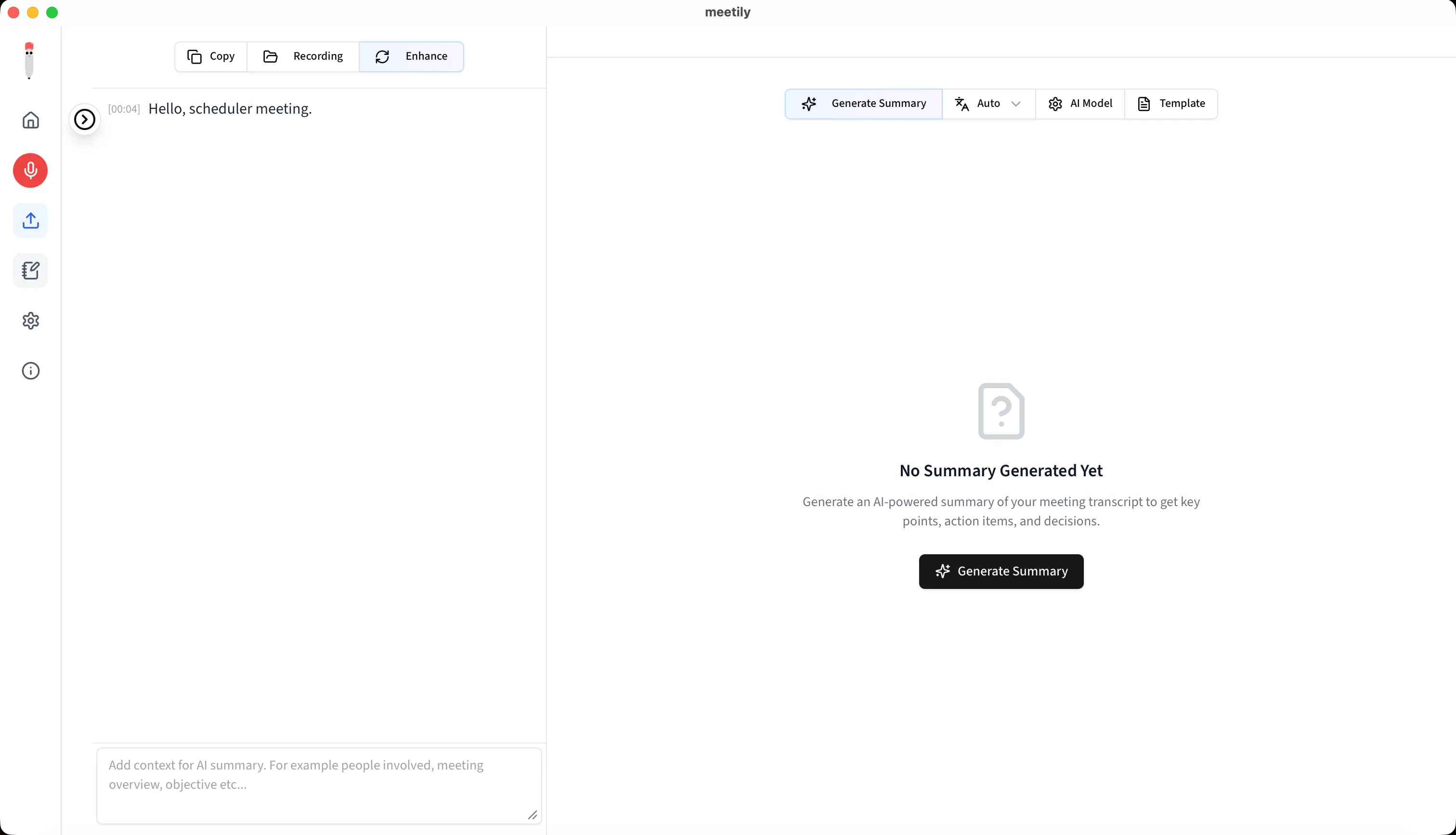
Because a meeting transcript is not something you want indexed by whoever stumbles across a guessable URL, add HTTP basic auth to the tunnel:
ssh -p 443 -R0:localhost:3118 a.pinggy.io -t "b:reviewer:temporarypass"That is enough friction to keep the link from being scraped or shared further while you’re using it for a single session. It is not a substitute for real authentication if you were building this into a permanent workflow, but for “let one specific person check in on this one meeting,” it’s sufficient.
What this is and is not good for
Good for: checking a live transcript from your phone mid-meeting, letting a remote teammate follow along on a call they weren’t invited to, demoing Meetily to a client or coworker without deploying anything, or debugging your Ollama summarization prompt from a second machine.
Not good for: leaving the tunnel running indefinitely as a substitute for actual multi-user access. Meetily’s dev server has no concept of accounts or per-user permissions, so anyone with the URL and your basic auth credentials sees everything - past meetings included, since the SQLite database backs the same local API the frontend queries. Treat the tunnel as a temporary, single-purpose bridge, not a deployment.
Conclusion
Meetily’s spike on GitHub trending is a decent proxy for where developer sentiment is right now: people want the AI meeting assistant, but not the part where a vendor keeps a copy of every conversation. Running it locally solves that, and a Pinggy tunnel solves the one problem local-only tools always have, which is that “local” also means “nobody else can see it” until you explicitly decide otherwise. One SSH command changes that for exactly as long as you need it to, without touching a router or standing up infrastructure. If you’ve been meaning to try a local meeting assistant, this is a reasonable weekend to do it.