You can host your website on Android! Here's how.
Updated on May 23, 2026 · 7 min read
Your phone is a Linux box with a battery, an aarch64 CPU, a few GB of RAM, and a network connection. With Termux you get a real userland on it - apt, Node, Python, OpenSSH - and with Pinggy you get a public HTTPS URL pointing at whatever you’re running on localhost. Put the two together and an old Android phone becomes a usable little web server for demos, side projects, or sharing a static site with a friend.
It is not production hosting. Phones throttle under load, Doze mode will pause your processes if you ignore it, and Android 15+ keeps tightening what background apps can do. We’ll cover the caveats at the end. First, the setup.
To give you a glimpse of a blog running on a $180 Android phone, here are some screenshots. The first image shows the Node.js http-server running, while the second image displays Pinggy’s terminal user interface showing the live requests to the website as they arrive.
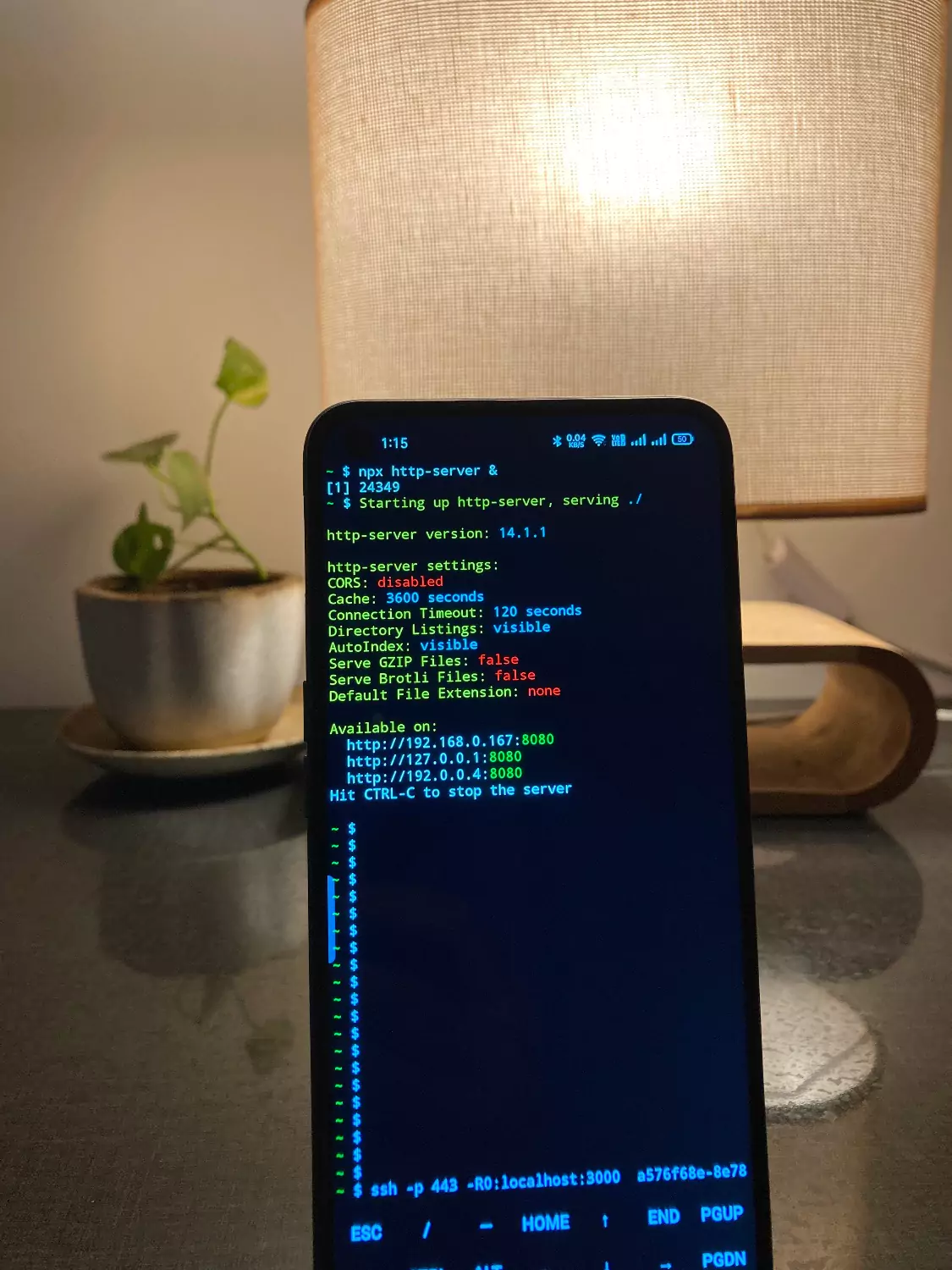
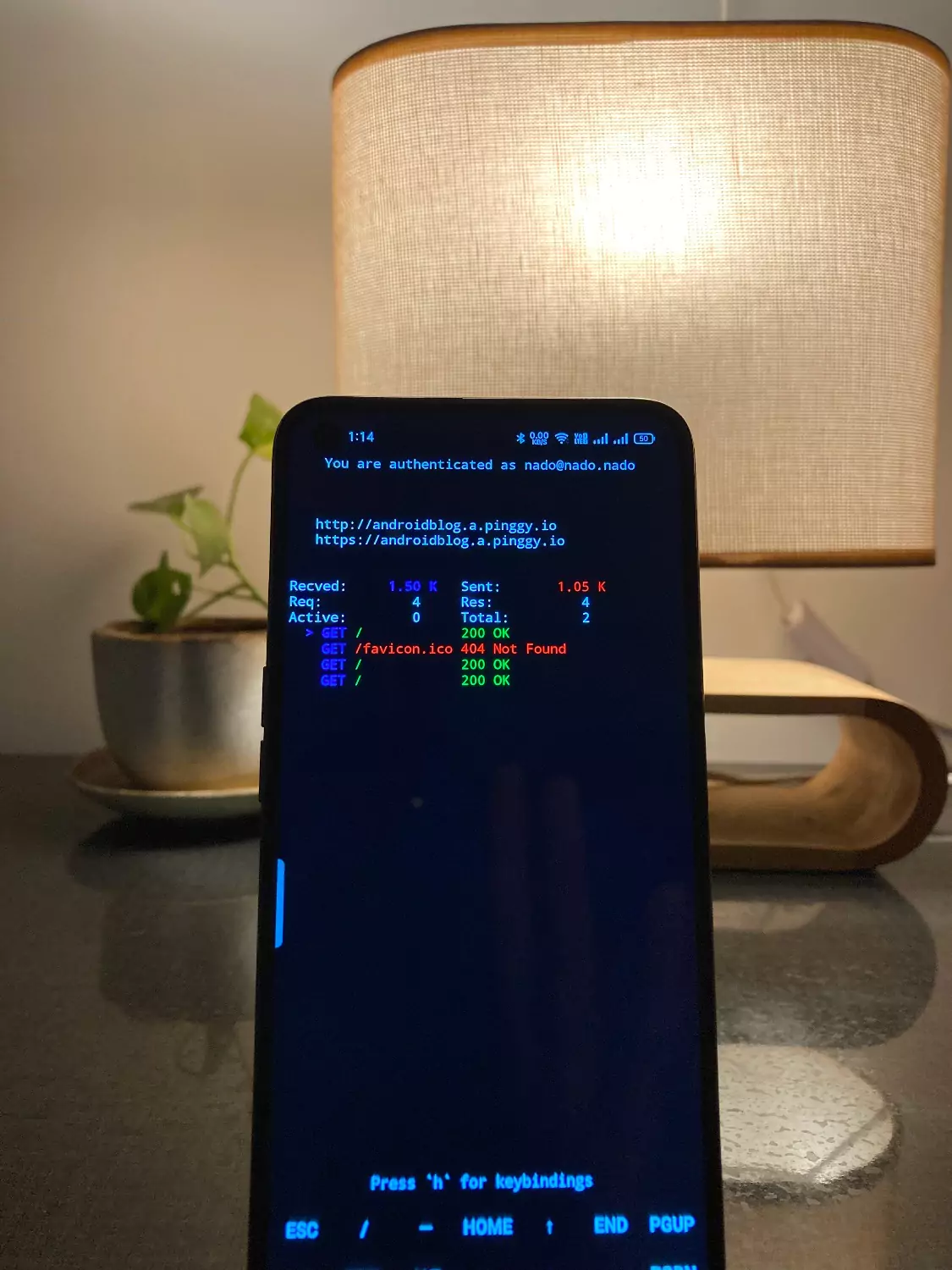
Follow these steps to serve your own page from your Android phone.
Step 1. Install Termux
Termux is a terminal emulator that ships a Linux userland for Android. No root, no special setup; you install packages with pkg (a thin wrapper over apt).
Don’t install Termux from the Google Play Store. The Play Store build has been deprecated for years and is functionally frozen around v0.108 because of Google’s target-SDK policy. The actively maintained app lives on F-Droid and GitHub.
Two good options:
- F-Droid: grab the APK directly from f-droid.org/packages/com.termux. You don’t need the F-Droid client app; the “Download APK” link at the bottom of each version works fine.
- GitHub Releases: download the latest signed APK from github.com/termux/termux-app/releases. As of writing, the stable release is v0.118.3, which includes the Android 16 QPR1 crash fix.
If you’ve installed Termux before from a different source, uninstall it first. The signing keys differ between Play Store, F-Droid, and GitHub builds, and Android refuses to update across them.
Step 2. Install packages
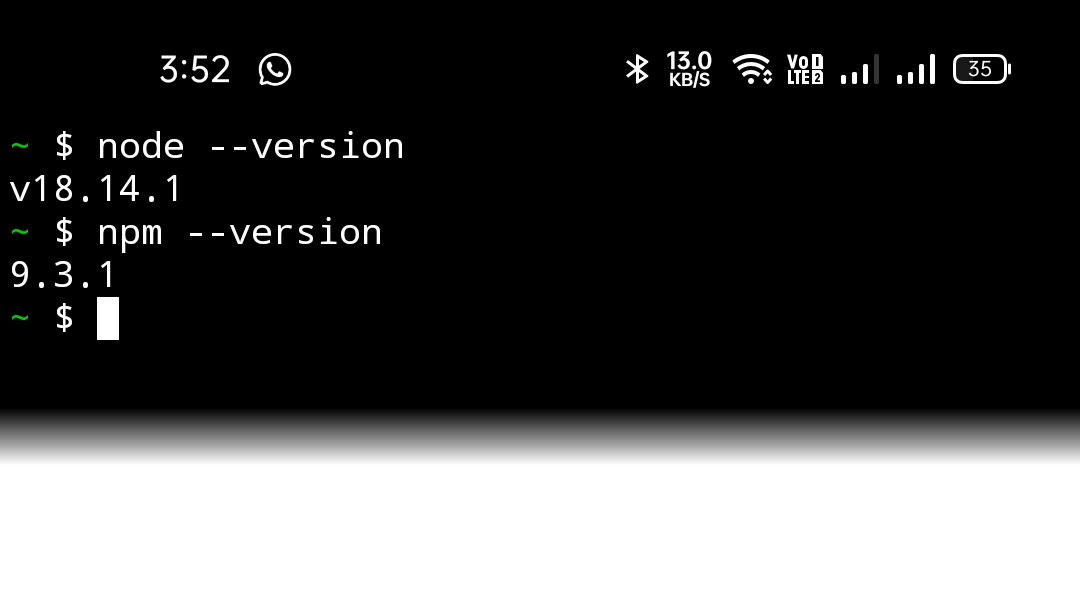
Update first, then install OpenSSH (we use the ssh client to open the Pinggy tunnel) and Node.js LTS.
pkg update
pkg upgradepkg install openssh
pkg install nodejs-ltsConfirm the install:
node --version   # v22.x at time of writing
npm --version
If you’d rather use Python or PHP, both are one package away:
pkg install python   # Python 3.12
pkg install php      # PHP 8.x, includes the built-in -S server
Bun is still awkward on Android (the official Linux aarch64 build is not a PIE binary, which Android’s loader rejects), so stick to Node, Python, or PHP unless you want to experiment with community Bun-on-Termux wrappers. Deno builds for aarch64 and runs in Termux if you prefer it.
Step 3. Start the server and open a tunnel
Create a sample page:
echo "<h1>Hello World!</h1>" > index.htmlEdit it with nano index.html if you want something less minimal. vim is available via pkg install vim.
Start a static HTTP server:
npx http-server &The & puts it in the background. Use fg to bring it back and Ctrl-C to stop. Default port is 8080; check the output to be sure - if 8080 is taken, http-server will fall through to the next free one.
If you’d rather not use Node:
python -m http.server 8080      # Python's built-in server
php -S 0.0.0.0:8080             # PHP's built-in server
Now open a Pinggy tunnel that forwards public HTTPS traffic to that local port:
ssh -p 443 -R0:localhost:8080 free.pinggy.ioYou’ll get back a URL like https://ranxyzxxxx.a.free.pinggy.link. Anyone with that link can hit the page running on your phone. On the free plan the tunnel lasts 60 minutes, then you reconnect and get a fresh URL.
If your server ended up on a port other than 8080, change both numbers in the SSH command. Ctrl-C stops the tunnel.
Pinggy’s terminal UI prints live request lines as people hit your site. Press Return for a fuller request/response dump, including the user agent and headers.
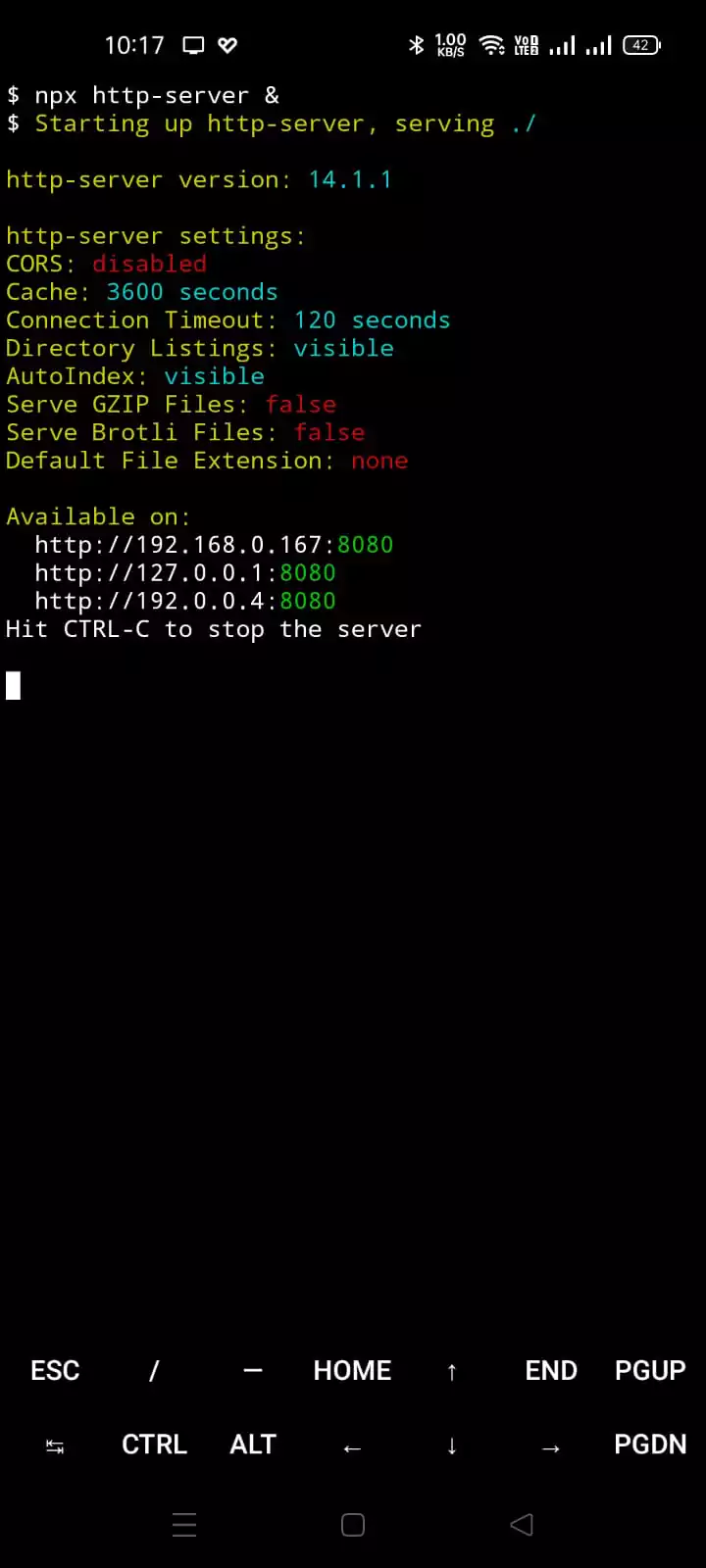
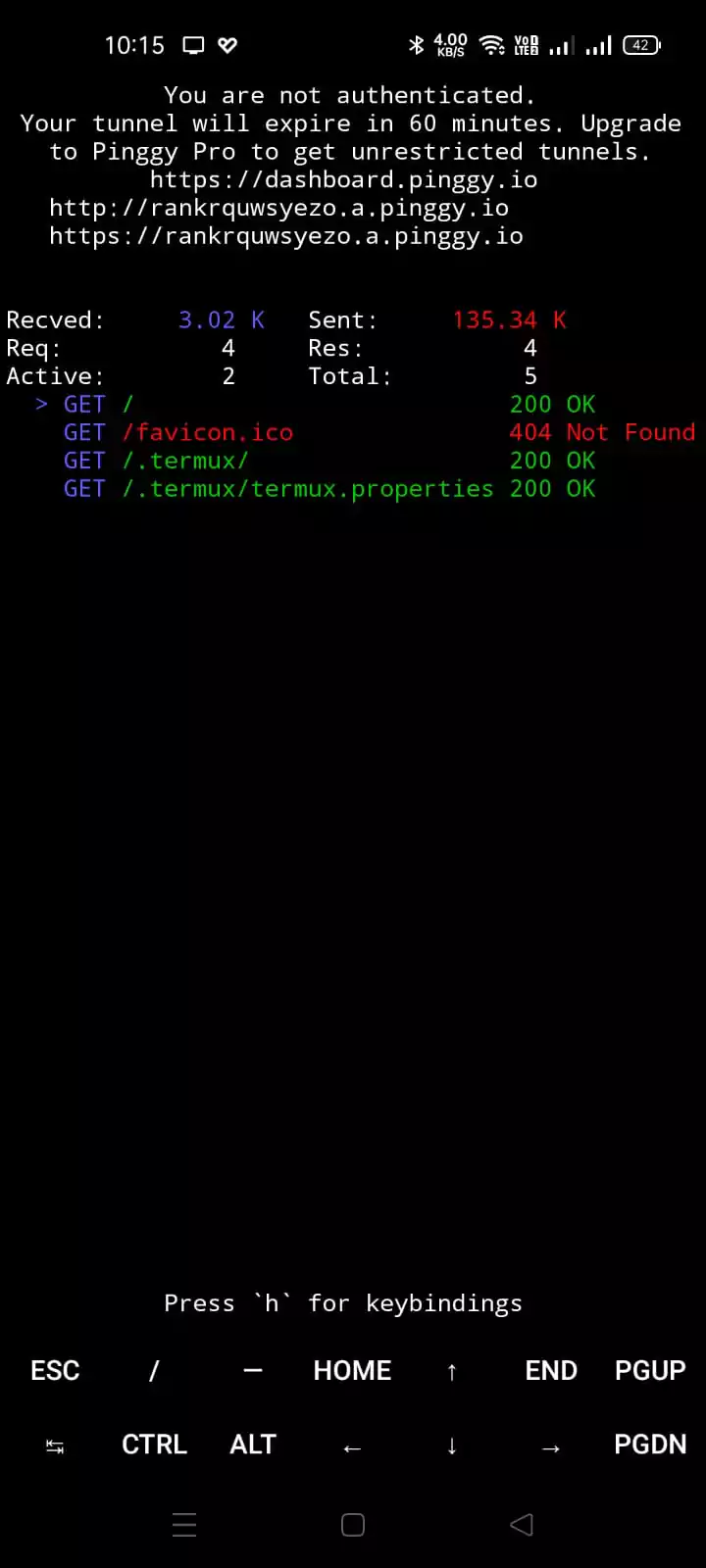
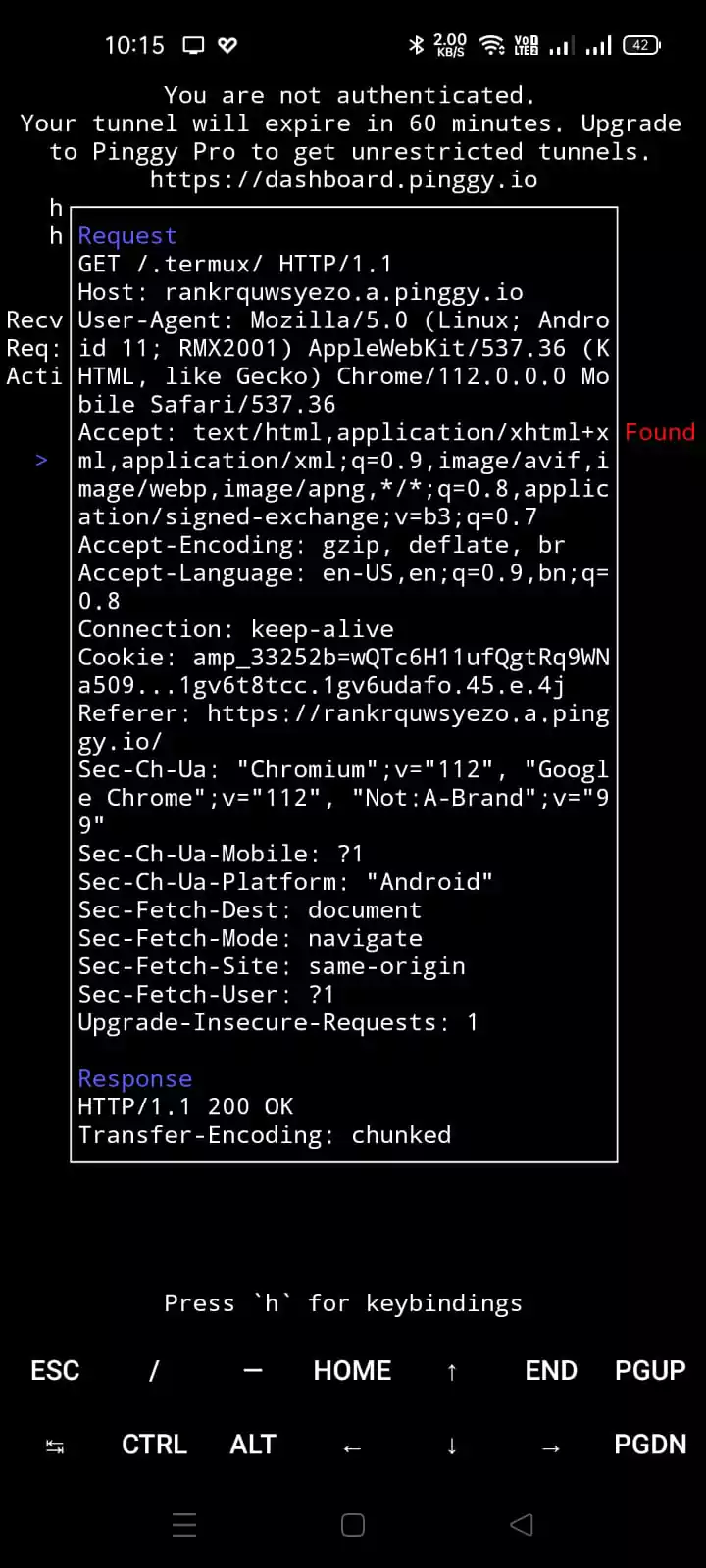
The first image shows the Node.js http-server running and listening on port 8080. The second shows the Pinggy tunnel starting up and a public URL appearing. The third is the same tunnel after pressing Return, with the headers for a single request expanded.
Connect it to your own domain
If you’d rather not hand out *.a.free.pinggy.link URLs, point a domain or subdomain at the tunnel instead, e.g. https://myandroidblog.example.com.
Sign up for Pinggy, subscribe to Pinggy Pro, then open the dashboard and click Custom Domains in the nav.
Enter the domain you want to use. Pinggy returns a CNAME record; add it to your DNS. Once it propagates, click Validate and then Issue Certificate to finish setup.
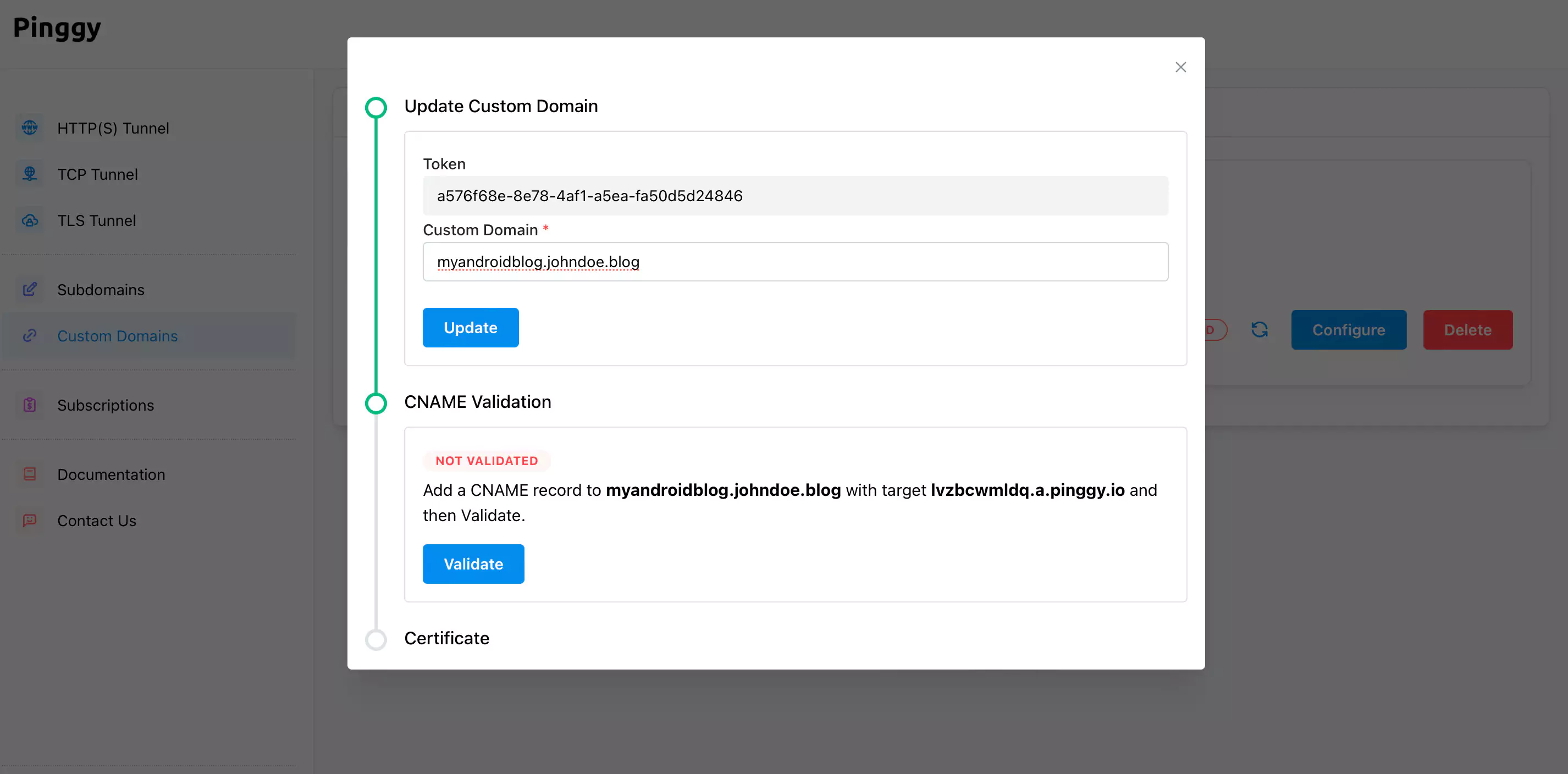
Once the domain is wired up, include your Pinggy access token in the tunnel command:
ssh -p 443 -R0:localhost:8080 <your-pinggy-token>@pro.pinggy.ioThe same command also pins your URL on a paid plan, so reconnects keep the same hostname.
Keep it alive: wake locks and Doze
Android aggressively pauses background work. If you start a tunnel and lock the screen, the OS may suspend Termux within minutes, especially on phones with vendor skins (MIUI, ColorOS, HarmonyOS, OneUI) that layer extra battery managers on top of stock Doze.
A few things help:
- Acquire a Termux wake lock. Run
termux-wake-lockbefore you start the server. A persistent notification appears; that’s the cue to Android that Termux is doing real work.termux-wake-unlockreleases it. - Mark Termux as “Unrestricted” in battery settings. Settings -> Apps -> Termux -> Battery -> Unrestricted (the path varies by skin).
- Keep the phone plugged in. Doze treats charging devices more leniently, and you avoid the thermal throttling that kicks in after ~20 minutes of sustained CPU on most phones.
- Use
tmux(pkg install tmux) if you want the server and the tunnel to survive accidentally swiping Termux out of recents. Start both inside atmuxsession and reattach later.
Watch out for “Phantom Process Killer” on Android 12+. It can SIGKILL Termux child processes once you cross a few dozen of them. If you see processes vanishing under load, that’s it.
What this is good for (and what it isn’t)
Honest tradeoffs first:
- Battery and heat: an aarch64 phone serving static files barely registers; running a Node app server under real traffic will get warm and throttle. Expect a phone-as-server to lose 30-50% of its peak throughput once it heats up.
- Reliability: Android can kill your process at any time. The tunnel keeps the URL alive only as long as the SSH session lives, and on the free plan there’s a 60-minute cap regardless.
- Inbound networking: you can’t realistically bind privileged ports, and most carrier networks (CGNAT, IPv6-only) won’t route inbound connections to your phone anyway. The tunnel is doing real work here - it’s not optional, it’s the bridge.
- Storage: Termux uses scoped storage.
~/storageis wired up after runningtermux-setup-storage, but your server’s working directory should stay inside$HOMEto avoid permission surprises.
Where this setup shines:
- Sharing a draft site or a static demo from anywhere with mobile data.
- Receiving webhooks while you build something locally on the phone (Termux + a small Node app + Pinggy).
- A “spare phone as homelab” for low-traffic personal tooling - a status page, a Telegram bot, a Pi-hole-style filter for your own DNS over the tunnel.
If you need 24/7 uptime, run it on a Raspberry Pi or a $4 VPS. If you want to see what a webpage looks like running off the phone in your pocket, this is most of an hour’s work.
A pocket-sized Linux server is still a fun reminder of what mobile hardware actually is under the surface. Install Termux from F-Droid, pkg install what you need, open a Pinggy tunnel, and you have a public URL. Run it on a phone you don’t depend on, keep it plugged in, and don’t expect miracles past a couple of requests per second - then it works surprisingly well.