Expose a Local MCP Server with Pinggy
Updated on Jun 4, 2026 · 7 min read
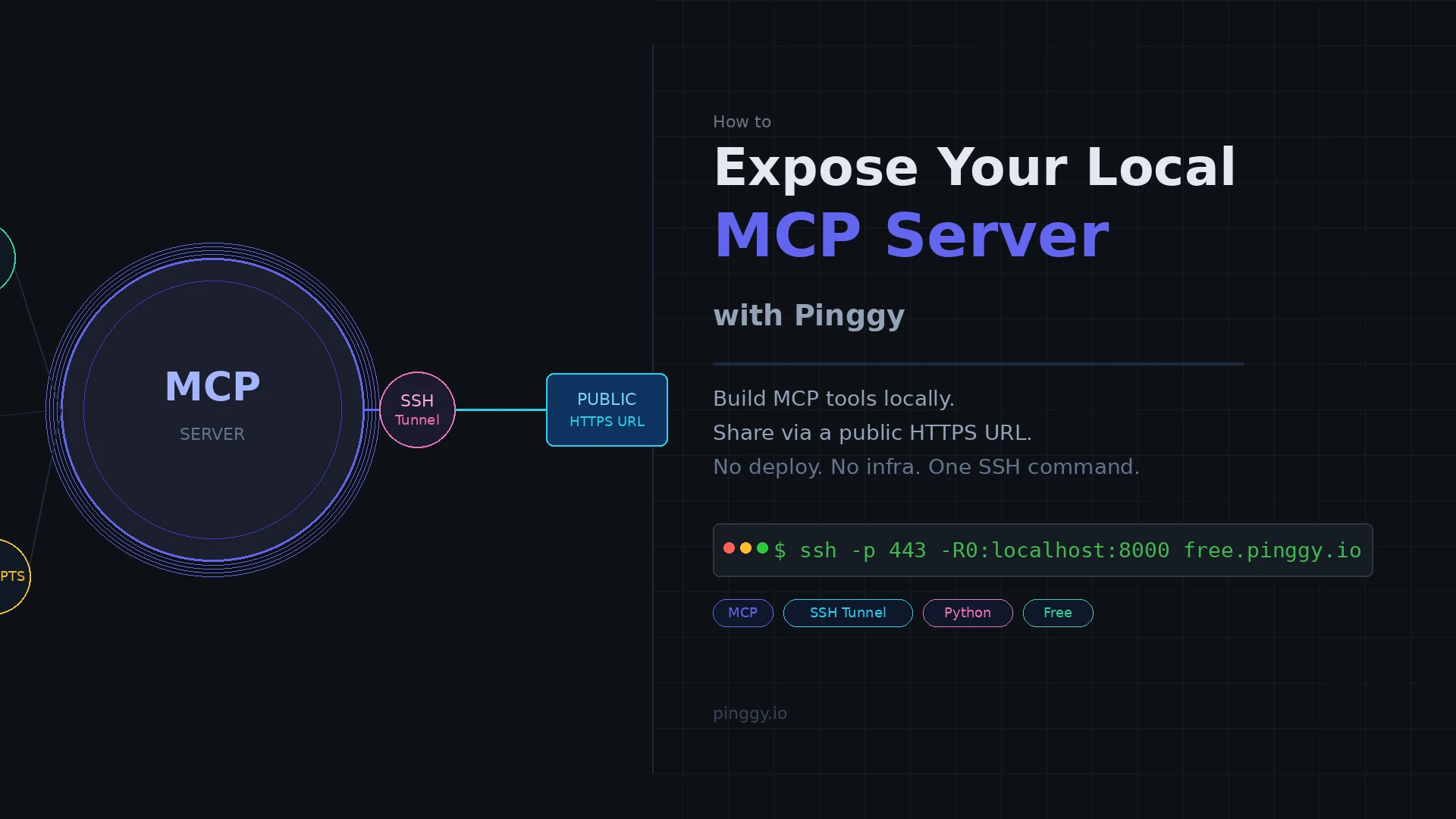
You built an MCP server. It works great on your machine. Now you want to hook it up to Claude Desktop on a different computer, share it with a teammate, or let a remote AI agent call your tools. The problem: it’s listening on localhost:8000, which no one outside your machine can reach.
The usual answer is to deploy it somewhere - spin up a VM, configure TLS, set up a reverse proxy. That’s a lot of overhead for something you’re still iterating on.
Pinggy gets you from localhost:8000 to a live public HTTPS URL in one command, with no account signup and no software to install.
Summary
- Build a FastMCP server running on HTTP transport at
localhost:8000:pip install fastmcpfrom fastmcp import FastMCP mcp = FastMCP("MyServer") @mcp.tool def hello(name: str) -> str: return f"Hello, {name}!" mcp.run(transport="http", host="0.0.0.0", port=8000) - Expose it with Pinggy - open a second terminal:Pinggy prints something like
ssh -p 443 -R0:localhost:8000 free.pinggy.iohttps://rndm-string.pinggy.link. Your MCP endpoint is at/mcp. - Connect Claude Desktop - go to Settings > Integrations and paste
https://rndm-string.pinggy.link/mcp. - Connect Claude Code from terminal:
claude mcp add --transport http myserver https://rndm-string.pinggy.link/mcp
What MCP Is and Why It Matters Right Now
Model Context Protocol is Anthropic’s open standard for connecting AI models to external tools and data sources. Think of it as a common plug that any MCP-compatible AI client (Claude Desktop, Claude Code, Cursor, Windsurf, OpenAI Agents) uses to call your tools, read your data, or retrieve your prompts.
Instead of writing a custom integration for each AI product, you write one MCP server and all the clients can use it. The protocol defines three primitives:
- Tools - functions the AI can call, like
search_database,run_query, orsend_email - Resources - data the AI can read, like files, database tables, or API responses
- Prompts - reusable prompt templates your server can provide
As of April 2026, the MCP spec standardized on Streamable HTTP as the recommended transport for remote servers, replacing the older SSE approach. This matters here because Streamable HTTP is a plain HTTP server with a /mcp endpoint - which is easy to expose through a tunnel.
The Localhost Problem
When you run mcp.run(transport="http", port=8000), your server is accessible at http://localhost:8000/mcp on your machine only. NAT, home routers, and corporate firewalls all block inbound connections.
The workaround developers usually reach for is ngrok. It works, but the free tier gives you a random URL that changes every time you restart, and rate limits on connections. If you want persistent URLs you’re paying $8-20/month.
Pinggy does the same thing via a plain SSH reverse tunnel. No client software to install. It works on port 443 - the HTTPS port - so it punches through firewalls that block non-standard ports. And the free tier is genuinely usable for development.
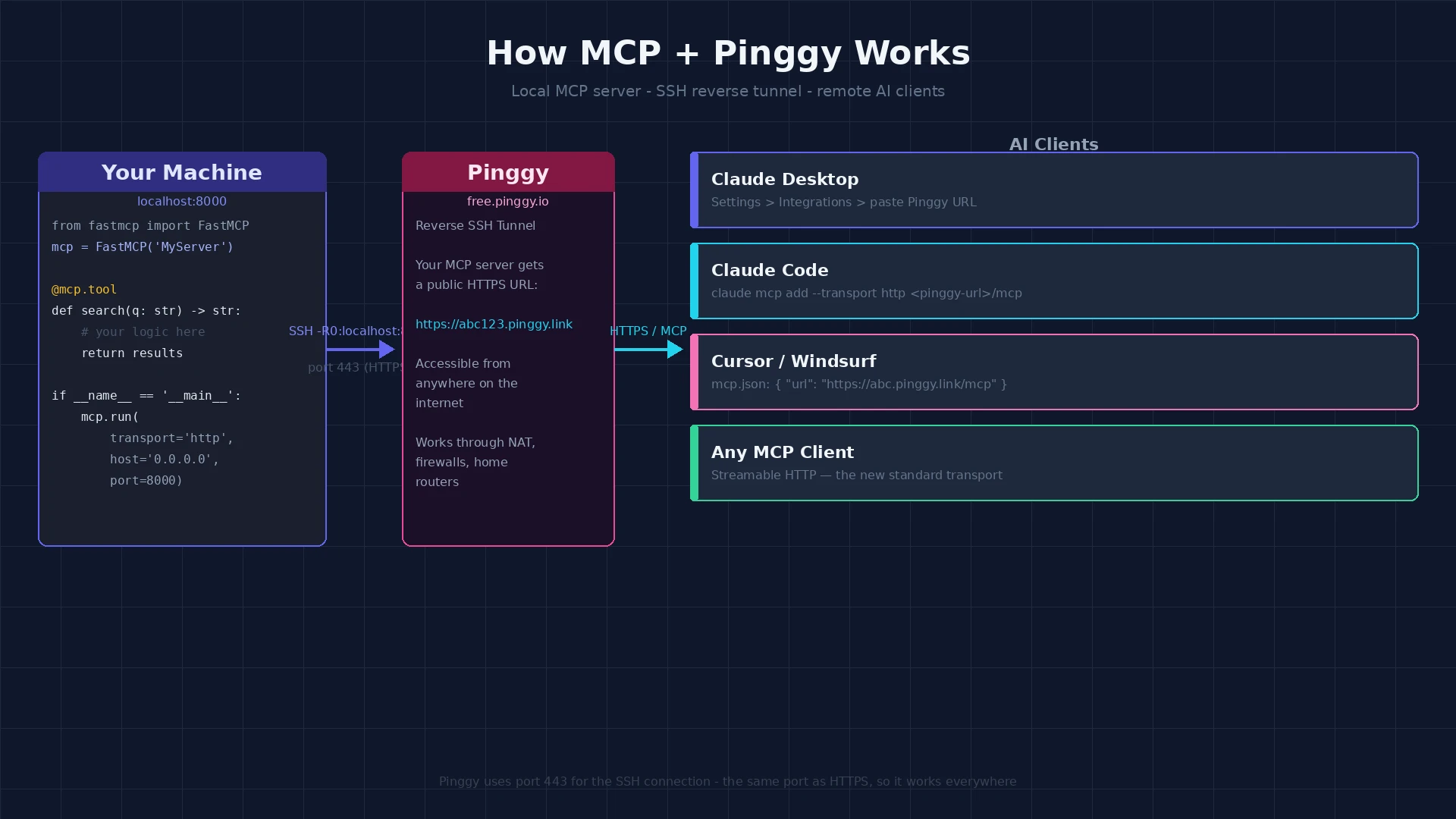
Step 1: Build a Local MCP Server with FastMCP
FastMCP is the fastest way to write a Python MCP server. Install it:
pip install fastmcpHere’s a minimal server with two tools:
# server.py
from fastmcp import FastMCP

mcp = FastMCP("DemoServer")

@mcp.tool
def add(a: int, b: int) -> int:
    """Add two numbers."""
    return a + b

@mcp.tool
def search_files(directory: str, pattern: str) -> list[str]:
    """Find files matching a glob pattern in a directory."""
    import glob, os
    return glob.glob(os.path.join(directory, pattern))

if __name__ == "__main__":
    mcp.run(transport="http", host="0.0.0.0", port=8000)
Two things to note: host="0.0.0.0" (not 127.0.0.1) makes the server bind to all interfaces, which the tunnel needs. And port=8000 is the default - Pinggy will forward traffic to this port.
Run it:
python server.pyYou should see FastMCP confirm it’s listening. Test it locally with curl:
curl -X POST http://localhost:8000/mcp \
  -H "Content-Type: application/json" \
  -d '{"jsonrpc":"2.0","method":"tools/list","id":1}'
If you get a JSON response listing your tools, the server is up.
You can also use the CLI shortcut:
fastmcp run server.py --transport http --port 8000Step 2: Expose It with Pinggy
Open a second terminal. No installation required - just SSH:
ssh -p 443 -R0:localhost:8000 free.pinggy.ioPinggy prints a few lines including something like:
Host: rndm-abcd1234.pinggy.linkThat’s your public URL. Your MCP endpoint is now live at:
https://rndm-abcd1234.pinggy.link/mcpThe -R0:localhost:8000 part tells SSH to pick a random port on the Pinggy server and forward it to your local port 8000. The -p 443 means the SSH connection itself goes over port 443, which is how it passes through firewalls.
Keep this terminal open. The tunnel lives as long as the SSH connection does.
Step 3: Connect Claude Desktop
Claude Desktop (on Pro, Max, Team, or Enterprise plans) supports remote MCP servers via Streamable HTTP. Go to Settings > Integrations and add your Pinggy URL:
https://rndm-abcd1234.pinggy.link/mcpDo not add remote MCP servers to claude_desktop_config.json - that file is for local stdio servers only. Use the Integrations UI for HTTP servers.
Once added, Claude will list your tools when you start a new conversation. You can ask it to call add or search_files and it will forward the request through the tunnel to your local server.
Step 4: Connect Claude Code
From your terminal:
claude mcp add --transport http myserver https://rndm-abcd1234.pinggy.link/mcpVerify it shows up:
claude mcp listClaude Code will now use your local server’s tools during coding sessions. If you’re testing a tool that reads from your filesystem, it accesses your files directly - no data leaves your machine except through the explicit tool call results.
Connecting Other Clients
Most MCP clients in 2026 support Streamable HTTP. For Cursor or Windsurf, add this to your project’s mcp.json:
{
  "mcpServers": {
    "myserver": {
      "url": "https://rndm-abcd1234.pinggy.link/mcp"
    }
  }
}
For the Python MCP SDK (if you’re building an agent that connects to your server):
from mcp import ClientSession
from mcp.client.streamable_http import streamablehttp_client

async with streamablehttp_client("https://rndm-abcd1234.pinggy.link/mcp") as (r, w, _):
    async with ClientSession(r, w) as session:
        await session.initialize()
        tools = await session.list_tools()
        print([t.name for t in tools.tools])
Persistent URLs for Shared Dev Environments
The free Pinggy URL changes on each connection. If you’re sharing the URL with a team or embedding it in a config file, that’s inconvenient.
With a Pinggy account, you can use a persistent subdomain:
ssh -p 443 -R0:localhost:8000 your-token@pro.pinggy.ioEvery tunnel you start with the same token gets the same URL. You can commit it to your shared config, post it in Slack, and it stays valid until you explicitly change it.
Security Notes
A Pinggy tunnel exposes your local server to the public internet. A few things to keep in mind:
Authentication. FastMCP doesn’t add auth by default. If your tools do anything sensitive - write files, query production databases, call external APIs - add token authentication before sharing the URL. FastMCP supports middleware:
from fastmcp.auth import APIKeyAuth

mcp = FastMCP("MyServer", auth=APIKeyAuth(api_key="your-secret-key"))
Scope. Tools that access your filesystem will access your filesystem. Be deliberate about what you expose. A read_file tool scoped to a specific project directory is much safer than an unrestricted one.
Tunnel duration. The free Pinggy tunnel closes when the SSH connection drops. That’s actually a useful safety property during development - if you walk away, the tunnel closes.
For production use, deploy the MCP server properly (a VPS, a container, Cloudflare Workers). Pinggy tunnels are for development, demos, and testing - not for serving production traffic.
What This Looks Like in Practice
I’ve found this pattern useful in a few scenarios:
Testing a new MCP tool with a teammate. Instead of walking them through cloning your repo and setting up a Python env, you run the server, send them the Pinggy URL, and they paste it into their Claude Desktop. Two minutes from “I built this thing” to “try it yourself.”
Iterating fast during development. You keep the MCP server running locally, the tunnel open in a second terminal, and Claude Code connected to it. You edit server.py, the server reloads, and the change is immediately live. No build step, no deploy.
Showing a demo during a call. You start the tunnel before the meeting, share the URL, and the other person can use the tools in real time. The tunnel closes when you close your terminal.
The workflow is notably simpler than standing up a staging environment. The tunnel command takes maybe five seconds to type, and you get a working HTTPS URL without touching any cloud infrastructure.
MCP is becoming the standard way AI agents access tools, and most of the interesting tooling is being built and tested locally first. Pinggy closes the gap between “works on my machine” and “anyone can use this” - without getting in the way of how you actually develop.