How to Build and Publish a ChatGPT Plugin with MCP in 2026
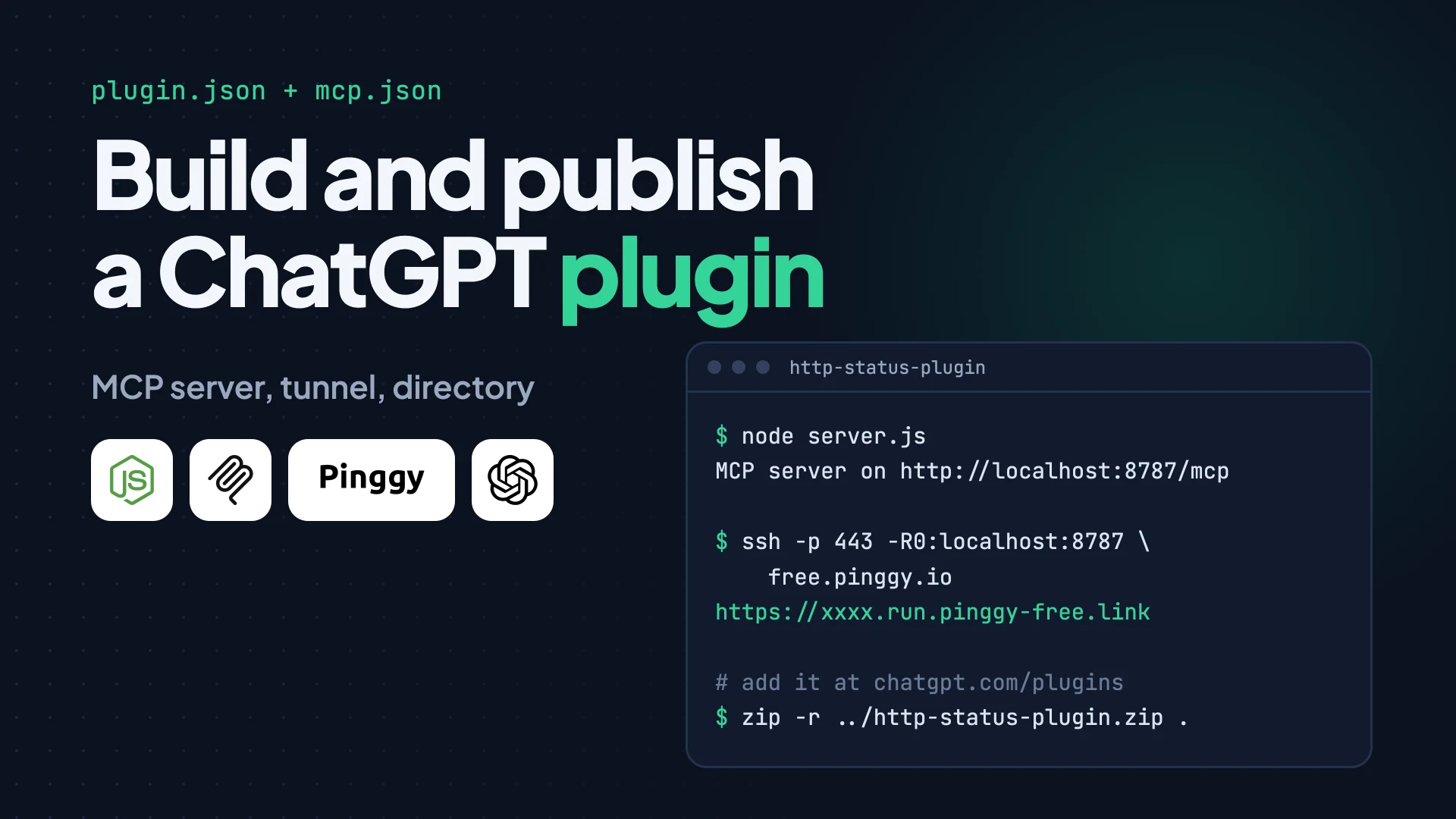
Extending a chatbot with your own tools has always been awkward, because the model lives on someone else’s servers and your code lives on yours. Every plugin system so far has been a different answer to the same question: how does the model call your API safely, and how do people find it?
OpenAI’s latest answer is plugins, again. At DevDay on September 29, 2026, OpenAI relaunched ChatGPT plugins with sidebar panels and automations, and more than 4,000 plugins already exist, as Tech AI Wire reported from Thurrott’s count. This time the core of a plugin is an MCP server, the open Model Context Protocol, so the same server works in ChatGPT, Codex and other MCP clients.
This guide builds a small but real plugin in Node.js, tests it locally, connects it to ChatGPT through a Pinggy tunnel, packages it, and walks through review. Every command and file below was run or validated on October 1, 2026.
Summary
- A ChatGPT plugin is now skills, an MCP server, or both, with optional UI, listed once in a directory shared by ChatGPT and Codex (OpenAI docs).
- The MCP server is a few dozen lines with @modelcontextprotocol/sdk 1.31.0 and zod, served over streamable HTTP at
/mcp. - ChatGPT needs a public HTTPS URL during development. A Pinggy tunnel gives you one with
ssh -p 443 -R0:localhost:8787 free.pinggy.io. - Packaging is a ZIP with
plugin.json(Agent Plugins schema) andmcp.jsonpointing at your deployed server. - Publishing needs a verified identity, domain verification, five positive and three negative test cases, and a video, then you choose when to publish (submission guide).
What a ChatGPT plugin is in 2026
The name has history. The original ChatGPT plugins beta, built on OpenAPI specs, shut down in April 2024 in favour of GPTs. In October 2025 OpenAI launched apps and the Apps SDK, which were MCP servers with optional UI, and opened app submissions on December 17, 2025. The September 2026 relaunch folds that work back under the plugin name: the docs now live at developers.openai.com/plugins, and the SDK is still called the Apps SDK in places.
A plugin today is a package that can contain three things. Skills are folders with a SKILL.md file that give the model instructions for a repeatable workflow. An MCP server exposes tools the model can call, with input and output schemas, authentication and structured results. UI is optional: an MCP tool can return an HTML resource that ChatGPT renders in an iframe, using the open MCP Apps standard. OpenAI’s own advice is to start with the smallest shape that works and add UI only when people need to inspect, compare or edit something.
The worked example here is an MCP-server-only plugin called HTTP Status. It has one tool, lookup_http_status, that explains what a status code such as 429 or 503 means. It is small enough to read in one sitting, needs no authentication, and is genuinely read-only, which matters for review.
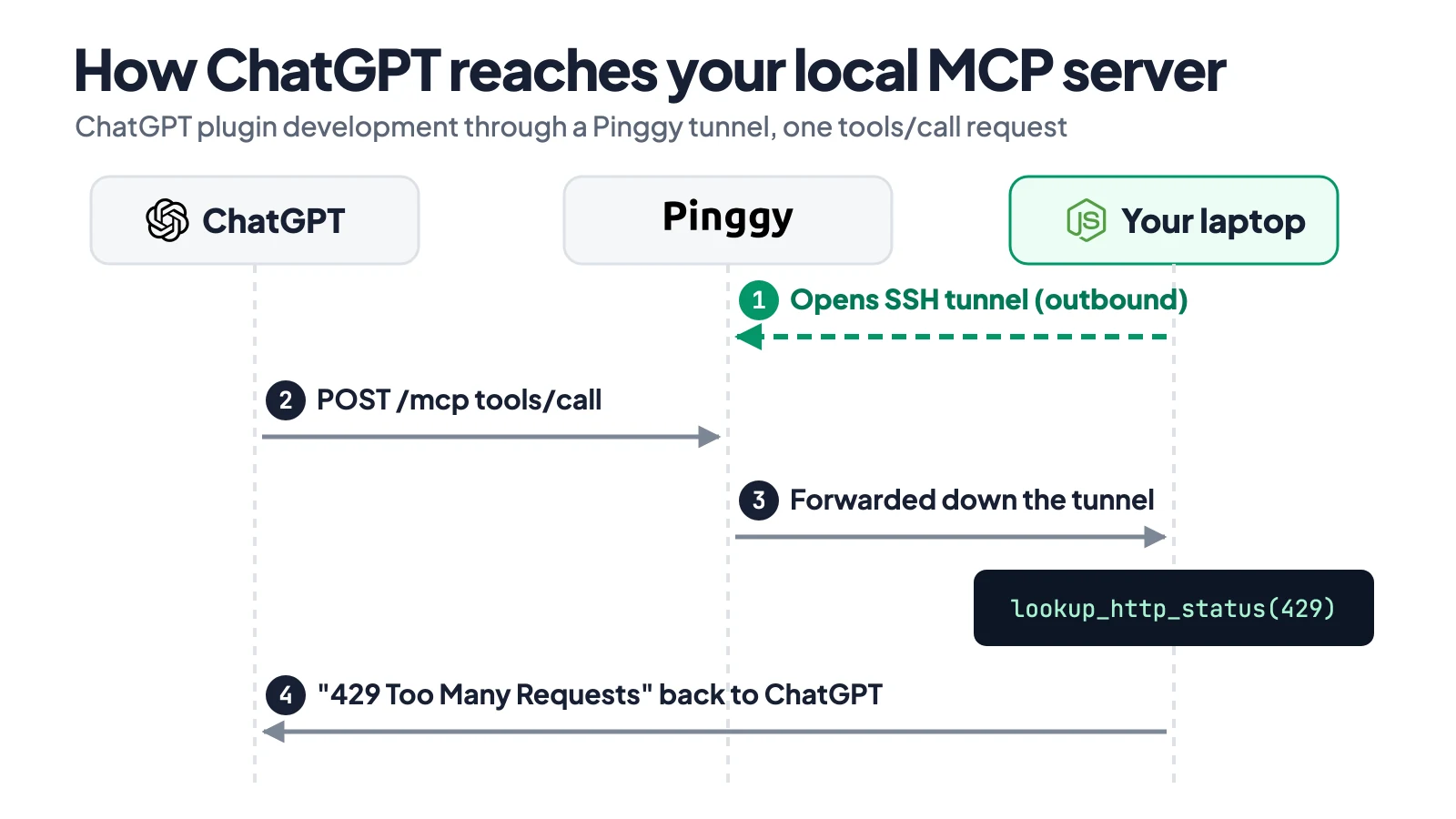
Numbers follow one request in order; the dashed green line is the SSH connection your laptop opens before ChatGPT sends anything.
Prerequisites
You need Node.js 18 or newer (I used Node 25.5.0 with npm 11.8.0), an SSH client, and a ChatGPT account where you can turn on developer mode. OpenAI notes that developer mode availability depends on account and workspace policy. To publish, you also need an OpenAI Platform organization where you can complete individual or business verification.
Step 1: Build the MCP server
Create a project and install the MCP SDK and zod:
mkdir http-status-plugin && cd http-status-plugin
npm init -y && npm pkg set type=module
npm install @modelcontextprotocol/sdk zod
That installed @modelcontextprotocol/sdk 1.31.0 and zod 4.6.5. Save this as server.js:
import { createServer } from "node:http";
import { McpServer } from "@modelcontextprotocol/sdk/server/mcp.js";
import { StreamableHTTPServerTransport } from "@modelcontextprotocol/sdk/server/streamableHttp.js";
import { z } from "zod";

// Reason phrases and meanings from RFC 9110 (6585 for 429)
const STATUS = {
  200: ["OK", "The request succeeded."],
  201: ["Created", "The request succeeded and created a new resource."],
  204: ["No Content", "The request succeeded and there is no body to return."],
  301: ["Moved Permanently", "The resource has a new permanent URL."],
  304: ["Not Modified", "The cached copy is still valid."],
  400: ["Bad Request", "The server cannot process the request because it is malformed."],
  401: ["Unauthorized", "The request lacks valid authentication credentials."],
  403: ["Forbidden", "The server understood the request but refuses to authorize it."],
  404: ["Not Found", "The server found nothing at this URL."],
  429: ["Too Many Requests", "The client sent too many requests in a given time."],
  500: ["Internal Server Error", "The server hit an unexpected condition."],
  502: ["Bad Gateway", "A gateway or proxy got an invalid response from upstream."],
  503: ["Service Unavailable", "The server is temporarily unable to handle the request."],
};

function buildServer() {
  const server = new McpServer({ name: "http-status", version: "1.0.0" });

  server.registerTool(
    "lookup_http_status",
    {
      title: "Look up an HTTP status code",
      description: "Use this when the user asks what an HTTP status code means. Returns the reason phrase and a one-line meaning.",
      inputSchema: { code: z.number().int().min(100).max(599) },
      outputSchema: { code: z.number(), phrase: z.string(), meaning: z.string() },
      annotations: { readOnlyHint: true, destructiveHint: false, openWorldHint: false },
    },
    async ({ code }) => {
      const [phrase, meaning] = STATUS[code] ?? ["Unknown", "This code is not in the lookup table."];
      return {
        content: [{ type: "text", text: `${code} ${phrase}: ${meaning}` }],
        structuredContent: { code, phrase, meaning },
      };
    }
  );
  return server;
}

const PORT = Number(process.env.PORT ?? 8787);

createServer(async (req, res) => {
  const url = new URL(req.url, "http://localhost");
  if (url.pathname !== "/mcp") {
    res.writeHead(url.pathname === "/" ? 200 : 404).end(url.pathname === "/" ? "ok" : "Not Found");
    return;
  }
  // Stateless: a fresh server and transport per request
  const server = buildServer();
  const transport = new StreamableHTTPServerTransport({ sessionIdGenerator: undefined, enableJsonResponse: true });
  res.on("close", () => { transport.close(); server.close(); });
  await server.connect(transport);
  await transport.handleRequest(req, res);
}).listen(PORT, () => console.log(`MCP server on http://localhost:${PORT}/mcp`));
Three details matter for ChatGPT. The tool returns both content (text the model reads) and structuredContent that matches the declared outputSchema. The annotations object sets readOnlyHint, destructiveHint and openWorldHint as explicit booleans, which the plugin guidelines require for every tool. And the server runs in stateless mode with enableJsonResponse, the same pattern OpenAI’s quickstart uses, so each request gets a fresh server and a plain JSON reply.
Step 2: Test it locally
Start the server with node server.js. It prints MCP server on http://localhost:8787/mcp. You can call it with curl, sending the Accept header that streamable HTTP requires:
curl -s -X POST localhost:8787/mcp \
  -H 'Content-Type: application/json' \
  -H 'Accept: application/json, text/event-stream' \
-d '{"jsonrpc":"2.0","id":3,"method":"tools/call","params":{"name":"lookup_http_status","arguments":{"code":429}}}'{"result":{"content":[{"type":"text","text":"429 Too Many Requests: The client sent too many requests in a given time."}],"structuredContent":{"code":429,"phrase":"Too Many Requests","meaning":"The client sent too many requests in a given time."}},"jsonrpc":"2.0","id":3}A tools/list call returns the tool with its JSON Schema and annotations, and passing "code": 42 returns isError: true with Input validation error ... expected number to be >=100, so zod is doing its job. For a visual check, run npx @modelcontextprotocol/inspector@latest, choose Streamable HTTP and connect to http://localhost:8787/mcp.
Step 3: Expose the server with Pinggy
ChatGPT can’t reach localhost, so it needs a public HTTPS URL during development. OpenAI’s docs suggest a tunnel, and Pinggy needs nothing beyond SSH:
ssh -p 443 -R0:localhost:8787 free.pinggy.ioIt prints two addresses, one ending in .free.pinggy.net and one in .run.pinggy-free.link. A free tunnel lasts 60 minutes and gets a new URL each time. Calling the same curl command against https://<your-subdomain>.run.pinggy-free.link/mcp returned the 503 lookup correctly in my test.
There is one catch I hit. Free tunnels show a one-time warning page to clients that send a browser-style User-Agent, and that page came back even for a JSON POST with a Chrome user agent. curl and other API clients go straight through. I couldn’t find documentation of the user agent ChatGPT’s MCP client sends, so if ChatGPT reports a connection error on a free URL, switch to a Pro tunnel, which has no warning page and can keep a persistent subdomain: ssh -p 443 -R0:localhost:8787 <token>@pro.pinggy.io, with the token from the Pinggy dashboard. Our guide to exposing an MCP server with Pinggy covers other clients such as Claude Desktop.
Step 4: Connect it in ChatGPT developer mode
In ChatGPT, open Settings -> Security and login and turn on Developer mode. Then go to chatgpt.com/plugins, select the plus button, enter a name and description, paste your tunnel URL with the /mcp path, and create the connection. ChatGPT lists the tools it discovered, which is a quick check that the schema and annotations came through.
The new plugin appears under your personal plugins. Install it, switch the ChatGPT homepage from Chat to Work, start a Work chat, type @, pick HTTP Status and ask “What does HTTP 429 mean?”. The model should call lookup_http_status once with code: 429. Also try prompts that should not trigger the tool, such as a request for a poem, because those become your negative review cases. After any change to tool names, descriptions or schemas, restart the server and select Refresh on the plugin’s page so ChatGPT picks up the new metadata.
Step 5: Package the plugin
Deploy the server to a public HTTPS host before packaging, since review rejects local or testing endpoints. The package itself is a folder with a plugin.json manifest at the root, an mcp.json that points at the deployed server, and assets. Here is mcp.json:
{
  "$schema": "https://agent-plugins.org/schemas/1.0.0/mcp.schema.json",
  "mcpServers": {
    "http-status": { "type": "streamable-http", "url": "https://mcp.example.com/mcp" }
  }
}
And a trimmed plugin.json. The portable fields follow the Agent Plugins 1.0.0 schema, and OpenAI’s listing and review data sit under extensions.com.openai:
{
  "$schema": "https://agent-plugins.org/schemas/1.0.0/plugin.schema.json",
  "name": "http-status",
  "version": "1.0.0",
  "description": "Explain HTTP status codes in plain language.",
  "author": { "name": "Example Dev", "email": "support@example.com", "url": "https://example.com" },
  "license": "MIT",
  "keywords": ["http", "api", "debugging"],
  "extensions": {
    "com.openai": {
      "interface": {
        "displayName": "HTTP Status",
        "shortDescription": "Explain HTTP status codes",
        "longDescription": "Look up what an HTTP status code means, with its RFC 9110 reason phrase.",
        "developerName": "Example Dev",
        "category": "Developer Tools",
        "capabilities": ["Look up status codes"],
        "websiteURL": "https://example.com",
        "privacyPolicyURL": "https://example.com/privacy",
        "termsOfServiceURL": "https://example.com/terms",
        "defaultPrompt": ["What does HTTP 429 mean?"],
        "composerIcon": "./assets/icon.png",
        "logo": "./assets/logo.png"
      },
      "review": {
        "test_cases": {
          "positive": [
            { "description": "Explain a known code", "prompt": "What does HTTP 503 mean?",
              "tools_triggered": "lookup_http_status",
              "expected_behavior": "Return 503 Service Unavailable with its meaning." }
          ],
          "negative": [
            { "description": "Unrelated request", "prompt": "Write me a poem about the sea." }
          ]
        },
        "demo_recording_url": "https://example.com/demo"
      }
    }
  }
}
Both files validated against the published Agent Plugins JSON Schemas with Ajv. The extensions.com.openai block is checked by OpenAI on upload, so treat that part as tested against the docs, not against the validator. The real submission needs five positive and three negative test cases (this sample shows one of each), working URLs, and real icon files. ZIP the folder contents so plugin.json sits at the archive root:
cd plugin && zip -r ../http-status-plugin.zip .If you would rather not write the manifest by hand, OpenAI’s @plugin-creator skill scaffolds one, though it currently emits the older .codex-plugin/plugin.json layout, which is still supported.
Step 6: Submit for review and publish
Submission happens in the OpenAI Platform at platform.openai.com/plugins. The account needs to be an organization owner or hold the Apps Management Write permission, and the developer identity must be verified, as an individual for your own name or as a business for a company name. Publishing under an unverified name gets the plugin rejected.
The flow has four parts. First, upload the ZIP and fix any metadata findings by uploading a corrected ZIP. Second, connect the MCP server under MCPs: you’ll be asked to serve a plain-text challenge token at https://<your-host>/.well-known/openai-apps-challenge, after which OpenAI scans your tools and reports issues. Third, complete the review details, including test credentials if sign-in is required, the test cases, a video walkthrough and release notes, then submit and accept the policy attestations. Feedback arrives by email, and you can appeal a rejection by replying to it. Fourth, once approved, select Publish plugin when you’re ready.
After publication, changes to the hosted MCP server are scanned and go live automatically when they pass checks. Changes to the manifest, skills or MCP configuration need a new ZIP and another review. The plugin guidelines are worth reading before you start, especially the rules on tool annotations and minimal inputs, because those are where automated checks flag most plugins.
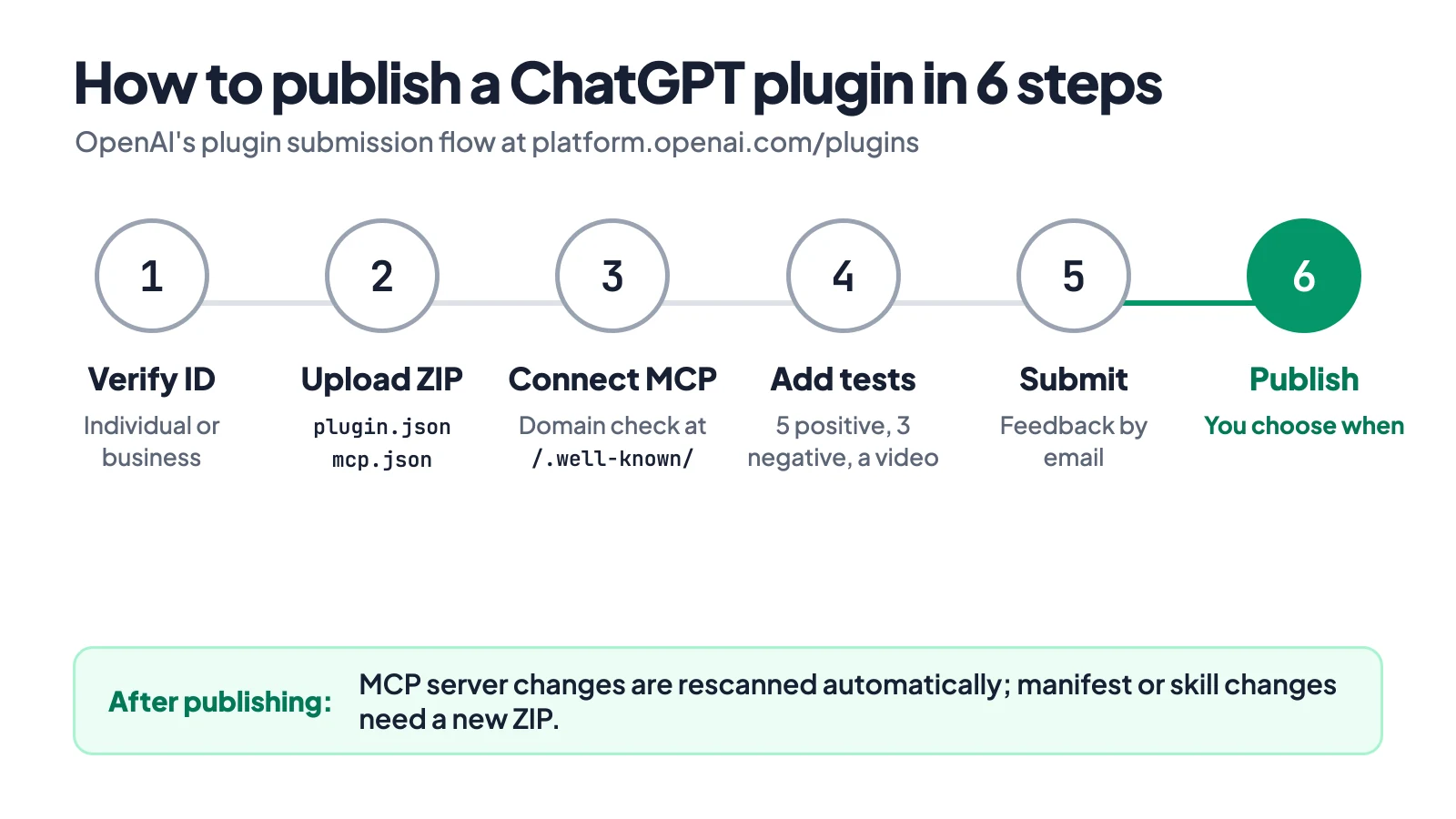
Steps from OpenAI’s plugin submission guide.
Troubleshooting
If ChatGPT can’t connect, check the URL ends in /mcp and test it with curl or MCP Inspector first. A browser-style user agent hitting a free Pinggy URL gets the warning page, so a Pro tunnel removes that variable. If the wrong tool is chosen or arguments are inconsistent, the fix is usually in the tool description and schema, not the code. If tools don’t update, restart the server and press Refresh on the plugin page.
Conclusion
The plugin is mostly an MCP server, and that is the useful part of this relaunch: the code you write for ChatGPT runs unchanged in Codex and in any other MCP client. Start with one read-only tool, test it in developer mode through a tunnel, and only add skills, UI or write actions once your test prompts behave. When it works, deploy the server, write your eight test cases honestly, and submit.