Best Computer Use MCP Servers in 2026: Let AI Agents Control Mac, Windows and Linux
Most software still has no API. Design tools, hardware control panels, the iOS Simulator, old enterprise apps and half the settings screens on your laptop only speak mouse and keyboard, which is exactly where AI agents used to stop being useful.
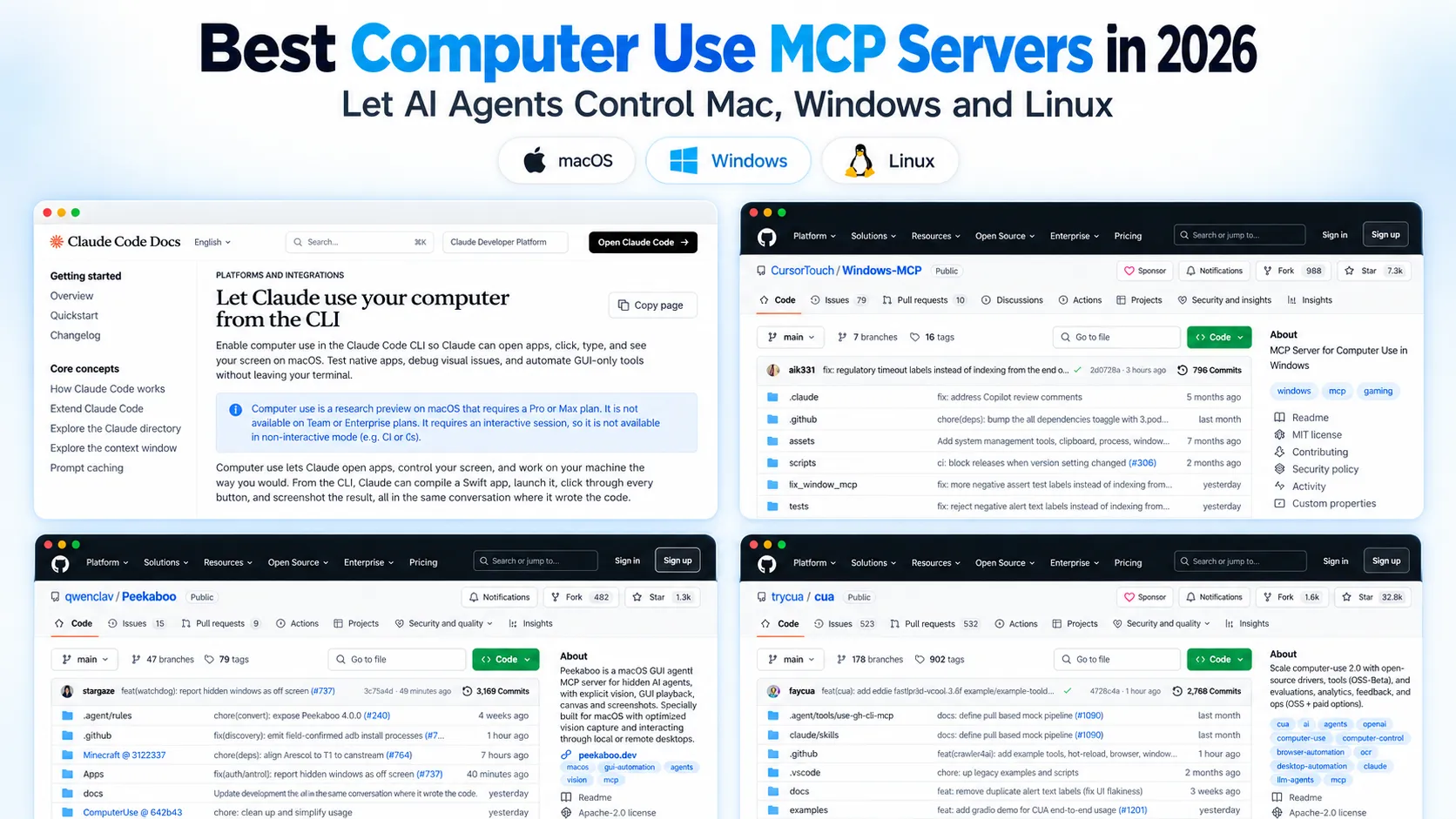
Computer use MCP servers close that gap. They expose screenshots, clicks, typing and window management as tools over the Model Context Protocol, so Claude Code, Codex, Cursor or any other MCP client can drive a real desktop. In 2026 the category grew up fast: Anthropic shipped a built-in computer-use server in Claude Code, OpenAI shipped background computer use in Codex on April 16, 2026, and Windows-MCP says it has passed 2 million users through Claude Desktop Extensions. Below are the servers worth installing, with the tool counts each one reported when I connected to it and the tradeoffs the READMEs skip.
Summary
Already on Claude Code on a Mac? Turn on the built-in
computer-useserver from/mcp. It is a research preview for Pro and Max plans, macOS only, and interactive sessions only. See the Claude Code docs.Best computer use MCP servers in 2026 (GitHub stars, September 24, 2026):
- Cua Driver (~26.2k, MIT) - macOS, Windows and Linux, background input, CLI + MCP + SDKs
- Windows-MCP (~7.2k, MIT) - the default for Windows, accessibility-tree based, works with any LLM
- Peekaboo (~5.2k, MIT) - the deepest macOS toolset, 24 MCP tools
- Open Computer Use (~2.2k, MIT) - open-source take on Codex computer use for macOS, Linux and Windows
- computer-use-linux (~600, MIT) - Wayland-first Linux desktop control in Rust
- computer-use-mcp (~380, MIT) - one
computertool that mirrors Anthropic’s API tool - macOS-MCP (~190, MIT) - lightweight Mac server with built-in HTTP transport and auth
Prefer accessibility trees over pixels. Servers that read the OS accessibility tree (Windows-MCP, Peekaboo, Open Computer Use, Cua Driver) are faster, cheaper in tokens, and far less flaky than clicking screenshot coordinates.
If the job is inside a browser, skip desktop control. Chrome DevTools MCP and Playwright MCP are more reliable for web tasks.
Remote desktops: run an HTTP-capable server such as macOS-MCP or Windows-MCP with a bearer token, expose it with
ssh -p 443 -R0:localhost:8000 free.pinggy.io, and add the HTTPS URL to your MCP client.
What a computer use MCP server actually does
A computer use server is a local process that turns your desktop into MCP tools. The agent calls something like screenshot to see the screen, then click, type_text or press_key, and the server does the OS-level work: the Accessibility API on macOS, UI Automation on Windows, AT-SPI on Linux.
The important split is how the server describes the screen. The first generation, modelled on Anthropic's computer use tool, sends a screenshot and expects the model to return pixel coordinates. That works, but it costs image tokens on every step and breaks when a window moves. Newer servers read the accessibility tree, the same structure screen readers use, and give the model a list of real buttons and fields with stable IDs. Most of the servers below use the tree when the app exposes one and fall back to pixels for canvases, games and poorly labelled Electron apps.
All of them need two OS permissions on macOS, Accessibility (to click and type) and Screen Recording (to see), granted to whichever app launches the server, usually your terminal.
Comparison of the best computer use MCP servers
| Server | Platforms | How it sees | Transport | Best for |
|---|---|---|---|---|
| Claude Code computer-use | macOS (CLI) | Screenshots | Built in | Pro/Max users testing native apps |
| Cua Driver | macOS, Windows, Linux | Accessibility + screenshots | stdio | Cross-platform agents and fleets |
| Windows-MCP | Windows 7 to 11 | UI Automation tree, vision optional | stdio, SSE, HTTP | Anything on Windows |
| Peekaboo | macOS 15+ | Accessibility + screenshots | stdio | Deep Mac automation |
| Open Computer Use | macOS 14+, Linux, Windows | Accessibility | stdio | Codex-style computer use in any client |
| computer-use-linux | Linux (Wayland, X11) | AT-SPI + screenshots | stdio | GNOME, KDE, Hyprland, i3, COSMIC |
| computer-use-mcp | macOS, Windows, Linux | Screenshots | stdio | Anthropic-style tool, zero config |
| macOS-MCP | macOS 12+ | Accessibility tree | stdio, SSE, HTTP | Remote Macs over HTTP |
1. Claude Code’s built-in computer-use server
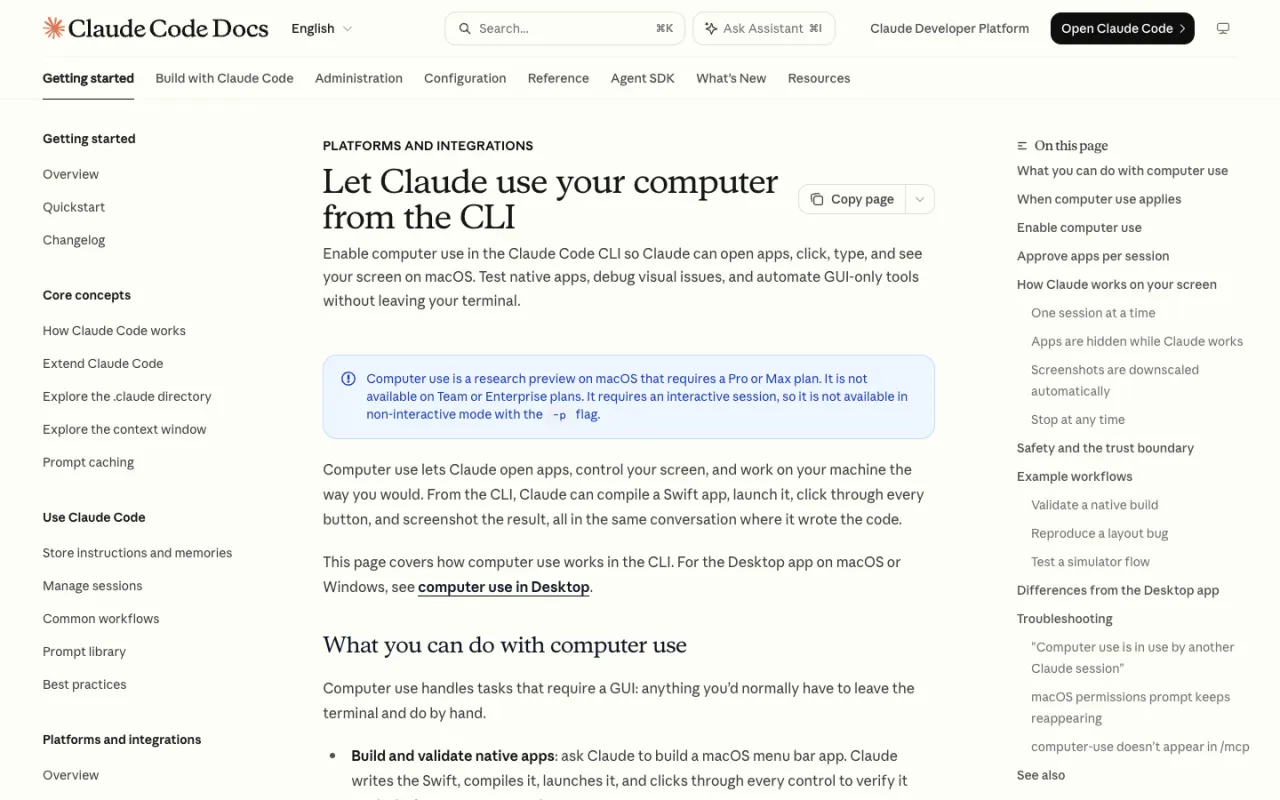
If you already use Claude Code on a Mac, start here. Computer use ships as a built-in MCP server named computer-use that is off by default. Run /mcp in an interactive session, select computer-use, choose Enable, and grant Accessibility and Screen Recording the first time Claude reaches for the screen. The setting persists per project.
The guardrails are the most thoughtful of anything on this list. Claude has to ask before controlling each app in a session, and the prompt flags apps with broad reach: terminals and IDEs are marked “equivalent to shell access”, Finder “can read or write any file”. Browsers and trading platforms get view-only access, terminals and IDEs are click-only. Other apps are hidden while Claude works, your terminal is excluded from screenshots, Esc aborts from anywhere, and only one session can hold the computer at a time.
The limits are real, though. It’s a research preview, macOS only in the CLI (the Claude Desktop app also covers Windows), Pro or Max only (not Team or Enterprise), needs a claude.ai login rather than Bedrock or Vertex, and doesn’t work with claude -p, so it’s out for CI. Claude also tries MCP servers, Bash and Claude in Chrome first, and falls back to the screen only when nothing more precise fits.
2. Cua Driver
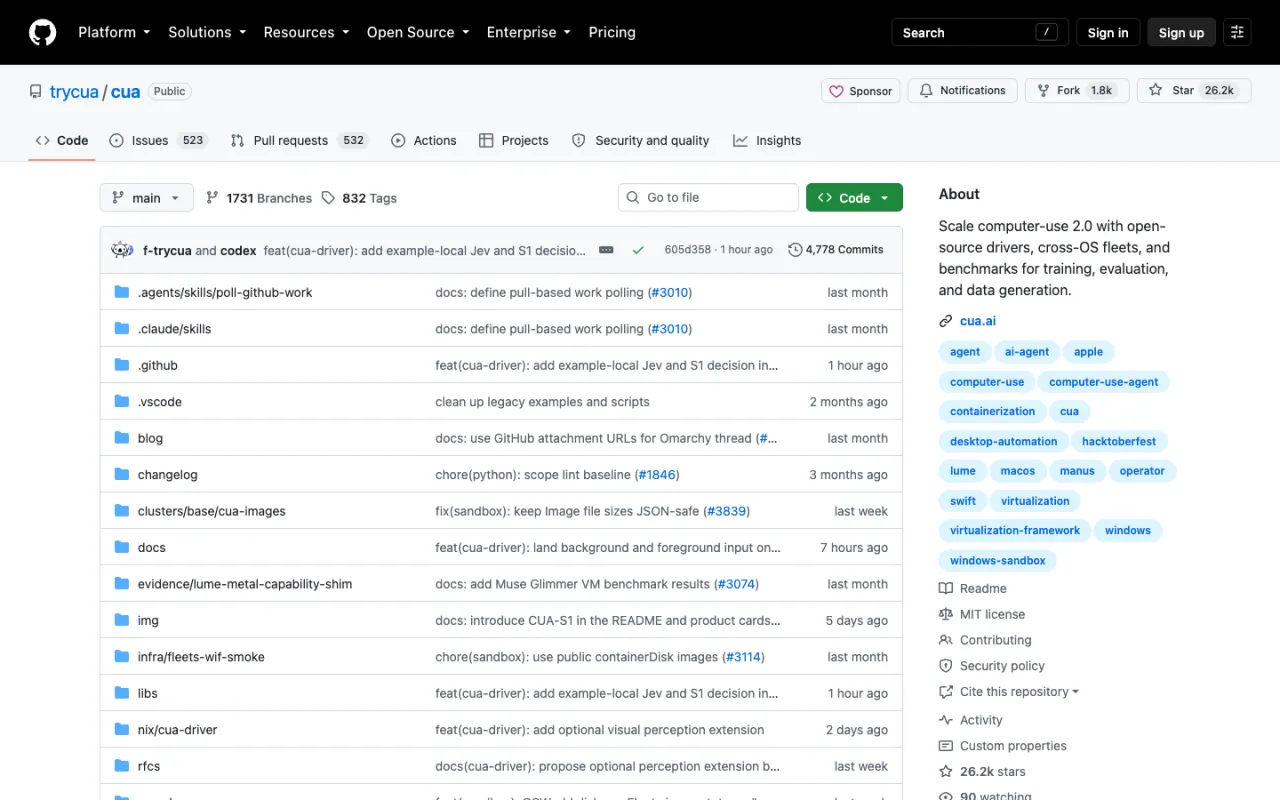
Cua (~26.2k stars, MIT) is the biggest open-source project in computer use, and Cua Driver is the piece that gives an agent native desktop tools on macOS, Windows and Linux through a CLI, MCP or typed SDKs. Its headline feature is background delivery: where the app and platform allow it, the agent works without moving your pointer or stealing focus. Install it with the official script, then register it:
/bin/bash -c "$(curl -fsSL https://cua.ai/driver/install.sh)"
claude mcp add --transport stdio cua-driver -- cua-driver mcp
cua-driver mcp-config --client codex or --client cursor prints the right snippet for other clients. The same repo has Lume for macOS and Linux VMs on Apple Silicon and Cua Fleets for cloud desktops. The tradeoff is scope: it’s a platform, and a one-line npm server is simpler for clicking through one app.
3. Windows-MCP
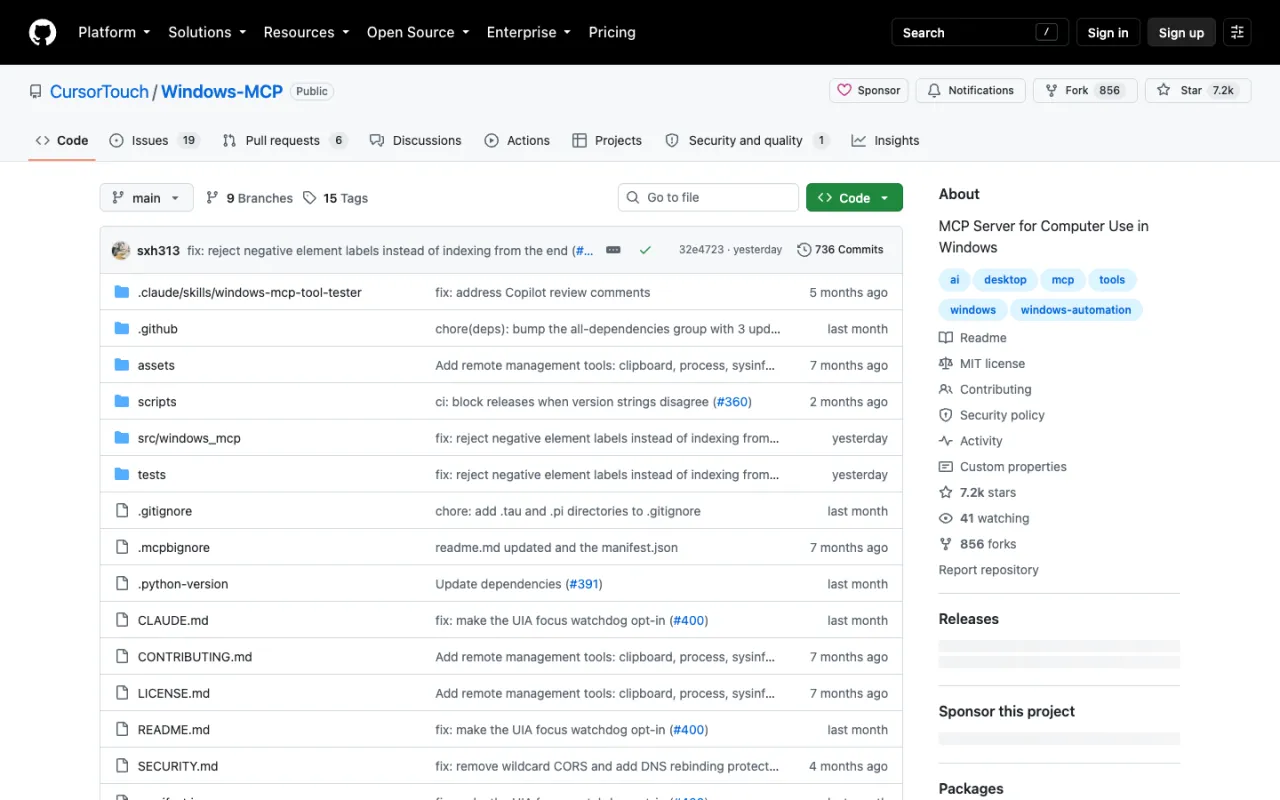
Windows-MCP (~7.2k stars, MIT) is the default choice on Windows, and the most-installed server here: its README reports over 2 million users through Claude Desktop Extensions. It reads the Windows UI Automation tree rather than relying on computer vision, so it works with any LLM, vision or not. The project quotes 0.2 to 0.5 seconds between actions. Install it with uv and add it to Claude Code:
claude mcp add --transport stdio windows-mcp -- uvx windows-mcp serveBeyond Screenshot, Snapshot, Click and Type, it ships Clipboard, Process, FileSystem, Registry and PowerShell, and that last group is the risk. An agent with PowerShell and Registry can do anything you can, so trim it with --exclude-tools "PowerShell,Registry" or allow-list with --tools "Screenshot,Click,Snapshot". It also runs over SSE or streamable HTTP with --auth-key, an IP allowlist, TLS and OAuth 2.0 with PKCE, which makes it the best option for driving a Windows box from somewhere else.
4. Peekaboo
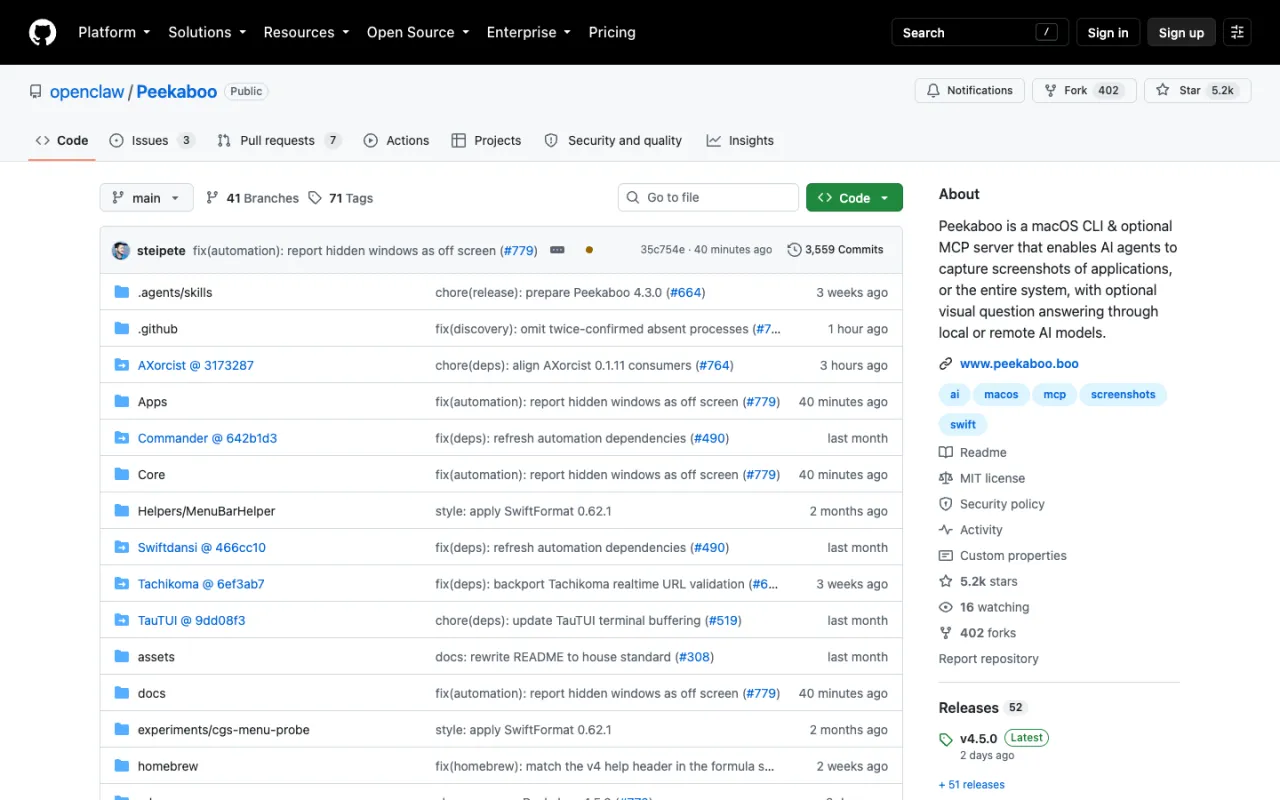
Peekaboo (~5.2k stars, MIT), from Peter Steinberger and now under the OpenClaw org, is the most complete macOS option. It’s a CLI, a menu-bar app and an MCP server over one toolset, and version 4.5.0 reported 24 MCP tools when I connected to it, including see, click, type, press, window, menu, dock, dialog, space, clipboard and set_value. You call see first to get a UI map with element IDs, then act on those IDs.
{
  "mcpServers": {
    "peekaboo": { "command": "npx", "args": ["-y", "@steipete/peekaboo", "mcp"] }
  }
}
It needs macOS 15 or later and Node.js 22 or later. It only speaks stdio today: the HTTP and SSE flags are recognised but, per its own docs, not implemented yet. Remote use is not an option.
5. Open Computer Use
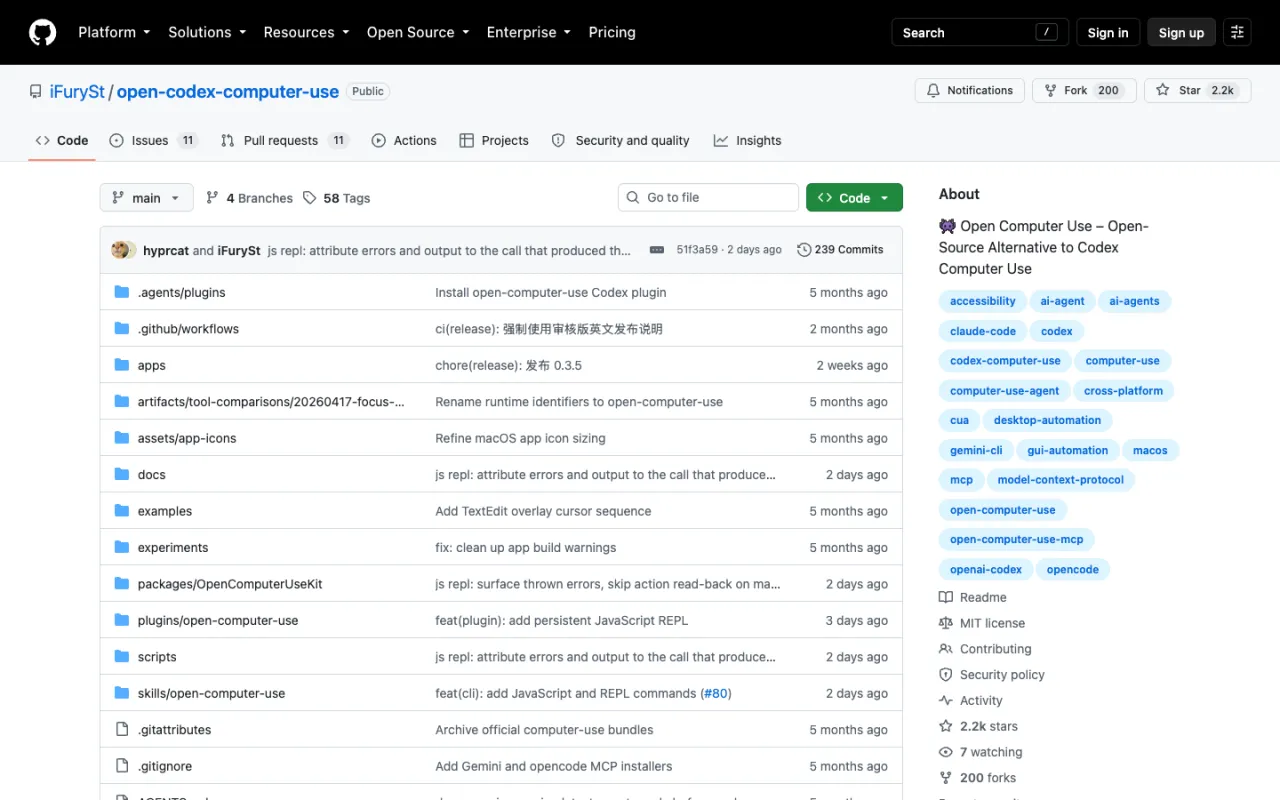
Open Computer Use (~2.2k stars, MIT) exists because OpenAI’s Codex computer use is good and closed. It rebuilds that accessibility-driven, non-intrusive approach as an MCP server for macOS 14+, Linux and Windows. Version 0.3.5 exposed nine tools when I connected: list_apps, get_app_state, click, drag, scroll, type_text, press_key, set_value and perform_secondary_action.
npm i -g open-computer-use
open-computer-use install-claude-mcp   # or install-codex-mcp, install-gemini-mcp, install-opencode-mcp
On macOS, run open-computer-use once first to grant the two permissions. ocu call list_apps runs one tool from the shell to check permissions.
6. computer-use-linux
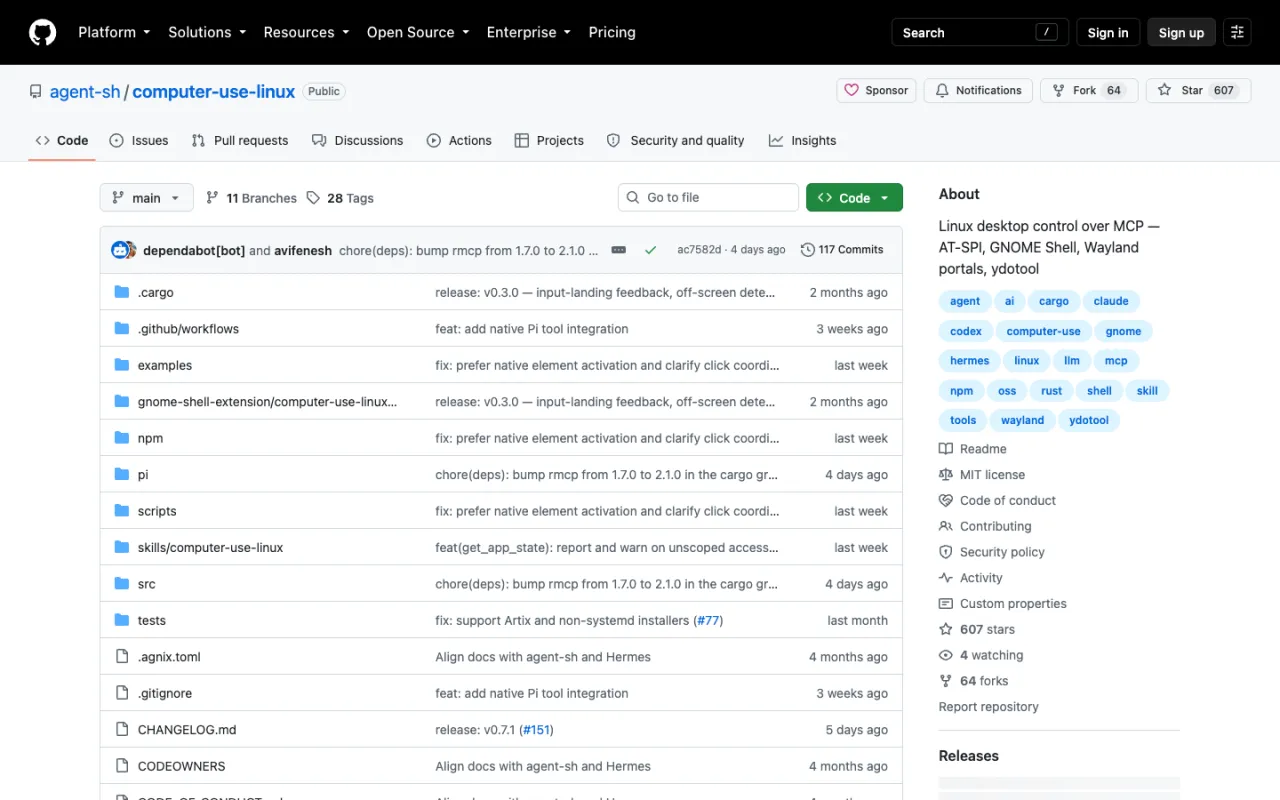
Most servers here are Mac or Windows first. computer-use-linux (~600 stars, MIT) is a Rust server that actually handles Wayland, using the RemoteDesktop and Screenshot portals with ydotool as a fallback. It targets windows on GNOME, KDE/KWin, Hyprland, i3 and COSMIC, and accepts AT-SPI role/name selectors instead of raw coordinates.
npm install -g @agent-sh/computer-use-linux
computer-use-linux doctor | jq .readiness
doctor returns one JSON report of which backend works on your compositor and what is blocking the rest. Expect some setup, since AT-SPI and portals vary by distro.
7. computer-use-mcp
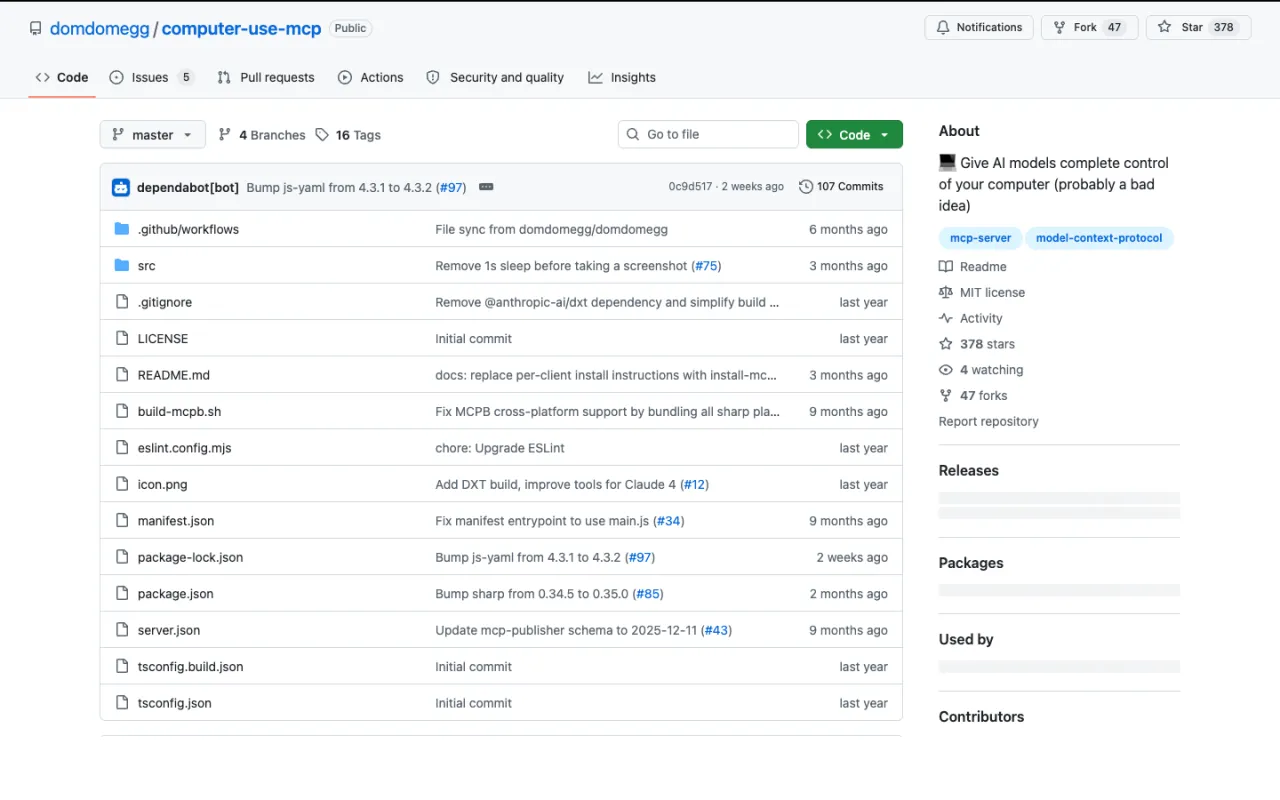
computer-use-mcp (~380 stars, MIT) is the simplest server on the list. Start it with npx -y computer-use-mcp and it exposes exactly one tool, computer, a near copy of Anthropic’s computer use API tool, implemented with nut.js. The author recommends a small resolution such as 720p and the Rango browser extension, so the model navigates the web by keyboard instead of guessing coordinates. The README’s own warning is blunt too: treat it “like giving a hyperactive toddler access to your computer.”
8. macOS-MCP
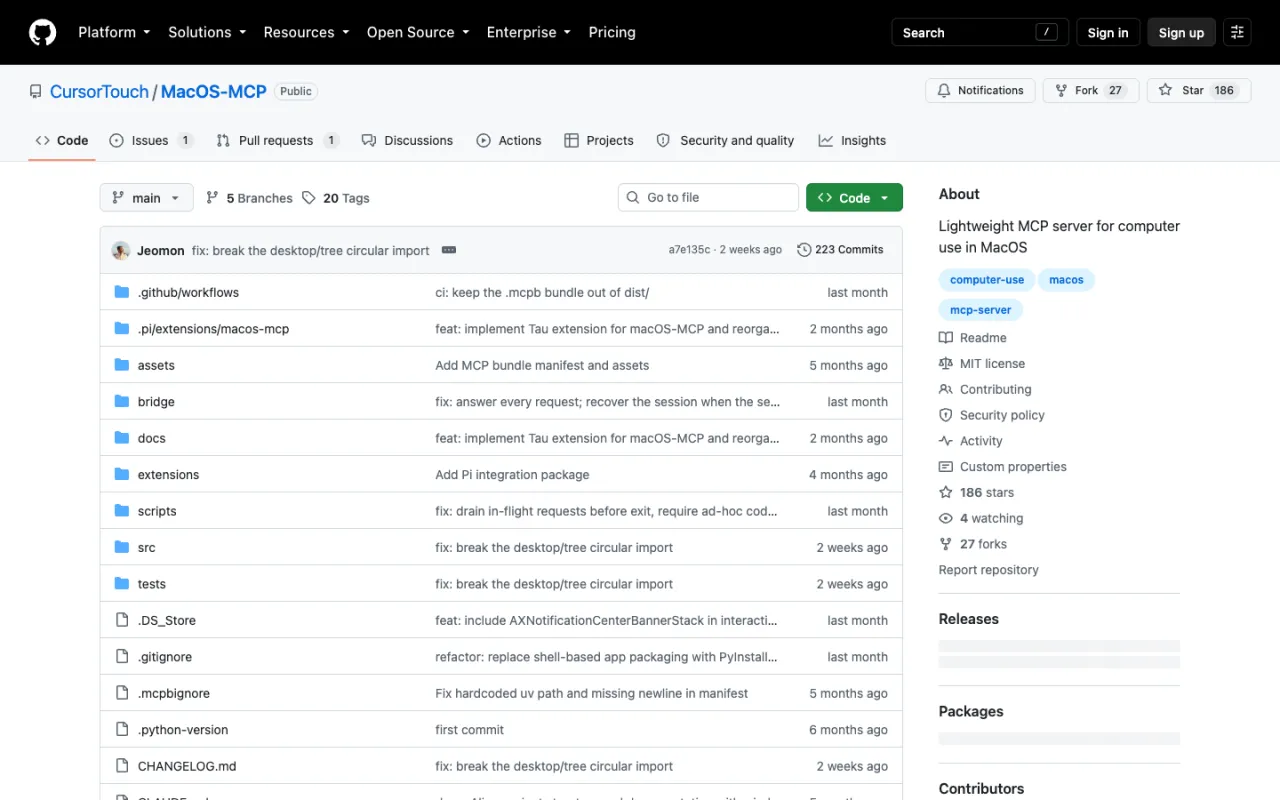
macOS-MCP (~190 stars, MIT) comes from the Windows-MCP team and carries the same design to the Mac: accessibility-tree snapshots, macOS 12+, and 12 tools (Snapshot, Click, Type, Scroll, Move, Shortcut, App, Desktop, Shell, Scrape, Wait, Notification). The README still shows uvx macos-mcp, but the current release needs the serve subcommand: uvx macos-mcp serve. Its real advantage over Peekaboo is transport. It serves streamable HTTP with bearer auth, which is exactly what you need to control a Mac that isn’t the one you’re sitting at.
When the task lives in a browser
If everything the agent needs is inside a web page, a desktop server is the wrong tool. Chrome DevTools MCP (~52.6k stars) exposed 30 tools in my test, including network requests, console messages and Lighthouse audits. Playwright MCP (~37.5k stars) exposed 25 and works from structured accessibility snapshots, so no vision model is needed. Adding it is one line: claude mcp add playwright npx @playwright/mcp@latest. Both are more reliable than steering a browser window by screenshot.
Controlling a remote machine with Pinggy
Stdio servers only work on the machine running the agent. To drive a lab Mac, a test Windows PC or a VM somewhere else, run a server that speaks HTTP and put a tunnel in front of it. Here is the setup I tested with macOS-MCP. Windows-MCP takes the same serve flags.
On the machine you want to control, generate a token and start the server on localhost:
export MCP_KEY=$(openssl rand -hex 32)
uvx macos-mcp serve --transport streamable-http --host 127.0.0.1 --port 8000 --auth-key "$MCP_KEY"
In a second terminal, open a Pinggy tunnel to that port:
ssh -p 443 -R0:localhost:8000 free.pinggy.io
Pinggy prints a public HTTPS URL. On the machine running the agent, register it with the same token:
claude mcp add --transport http remote-mac https://<your-pinggy-url>/mcp --header "Authorization: Bearer <MCP_KEY>"Through the tunnel, a request without the header got 401, and with it tools/list returned all 12 tools. Always keep the token on: this URL controls a whole computer. Free tunnels expire after 60 minutes, and a Pinggy Pro token gives you a persistent URL. If you are writing these configs by hand for several clients, the MCP server config generator builds the JSON for Claude Desktop and Claude Code, including HTTP servers with headers. For more on tunnelling MCP servers in general, see how to expose a local MCP server with Pinggy.
How to choose
Pick by operating system first. Claude Code on a Mac: the built-in server, plus Peekaboo when you need more. Windows: Windows-MCP. Linux: computer-use-linux. All three, or cloud desktops: Cua Driver. A remote machine: macOS-MCP or Windows-MCP over HTTP.
Whichever you choose, disable servers you aren’t using, since every tool definition costs context, and treat anything on screen as untrusted input: a web page or email can carry text written to steer the agent. Use a separate user account or a VM when the task allows it.
Conclusion
Computer use over MCP is finally practical, mostly because the good servers stopped guessing pixels and started reading accessibility trees. Use the built-in server on Claude Code with Pro or Max, Windows-MCP on Windows, Peekaboo for deep Mac work, and Cua Driver across all three. Keep browser work in Playwright or Chrome DevTools MCP, and never expose a desktop-control endpoint without a token in front of it.