# Creating tunnel behind proxy and firewall
> Learn how to create Pinggy tunnels from networks behind HTTP proxies and firewalls. Covers ProxyCommand options for Linux, MacOS, and Windows.
> Source: https://pinggy.io/docs/client_behind_proxy/
# Start a tunnel from a network behind an HTTP proxy
There are plenty of users sitting behind different types of proxies and firewalls. These proxies and firewalls make it very difficult for an SSH client to connect to Pinggy. However, we have found a few tricks to overcome some of these problems.
These tricks are operating system-dependent, as they require the availability of other commands in the system.
## Linux and MacOS
The `ssh` command from OpenSSH comes with a special option called `Proxy-Command` which can be used to use another command to set up the connection with a server. For example, we can connect to our server using the `nc` command like this:
```
ssh -p443 -R0:localhost:4000 -o ProxyCommand="nc %h %p" free.pinggy.io
```
This command is the same as
```
ssh -p443 -R0:localhost:4000 free.pinggy.io
```
The `nc` command also allows connecting through an HTTP proxy with the option `-X` and `-x`. Using the following command, one can connect to our server via a proxy at `192.168.2.2` running on port `3128`.
```
ssh -p443 -R0:localhost:4000 -o ProxyCommand="nc -X connect -x 192.168.2.2:3128 %h %p" free.pinggy.io
```
It might happen that `nc` command does not work for you. Many other tools exist for the same task. Please note, it is absolutely fine to use any other tool, as the traffic going through these tools is encrypted and the tool cannot decrypt it.
The tools `ncat` and `corkscrew` are similar. However, `ncat` has more useful functions. Here goes the same example with `ncat`.
```
ssh -p443 -R0:localhost:4000 -o ProxyCommand="ncat --proxy-type http --proxy 192.168.2.2:3128 %h %p" free.pinggy.io
```
## Start a tunnel behind a firewall that does not allow anything but SSL.
Although SSH uses an encrypted channel, it is not SSL. So, if a firewall does not allow any other protocol than SSL, SSH is not going to pass through the firewall. So, a simple `ssh` command is not going to work. However, Pinggy has solutions for these scenarios.
We support `ssh-over-ssl` tunneling. You can pass the entire `ssh` traffic to the Pinggy server over an SSL tunnel with the help of `ncat` or `openssl` command. Here's how you can do it:
```
ssh -p443 -R0:localhost:4000 -o ProxyCommand="openssl s_client -quiet -connect %h:%p" free.pinggy.io
```
```
ssh -p7878 -R0:localhost:4000 -o ProxyCommand="ncat --ssl %h %p" free.pinggy.io
```
## Start a tunnel from a network behind an HTTP proxy that does not allow not SSL connection
The `ncat` and `openssl` commands can connect to SSL via HTTP proxy. So, these two commands can be used to connect to the Pinggy server in SSH-over-SSL mode via an HTTP proxy. The following command would do that:
```
ssh -p443 -R0:localhost:4000 -o ProxyCommand="openssl s_client -quiet -proxy 192.168.2.2:3128 -connect %h:%p" free.pinggy.io
```
```
ssh -p7878 -R0:localhost:4000 -o ProxyCommand="ncat --proxy-type http --proxy 192.168.2.2:3128 --ssl %h %p" free.pinggy.io
```
## Windows
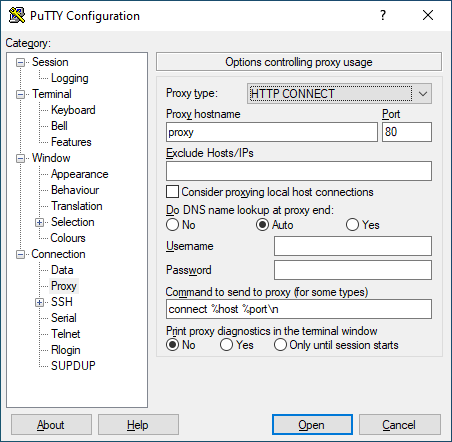
While latest versions of Windows comes with `OpenSSH` client, they do not include other commands. One can install OpenSSL or netcat to solve the problem. One can also use `PuTTy` to connect to Pinggy through a HTTP Proxy.