In this article
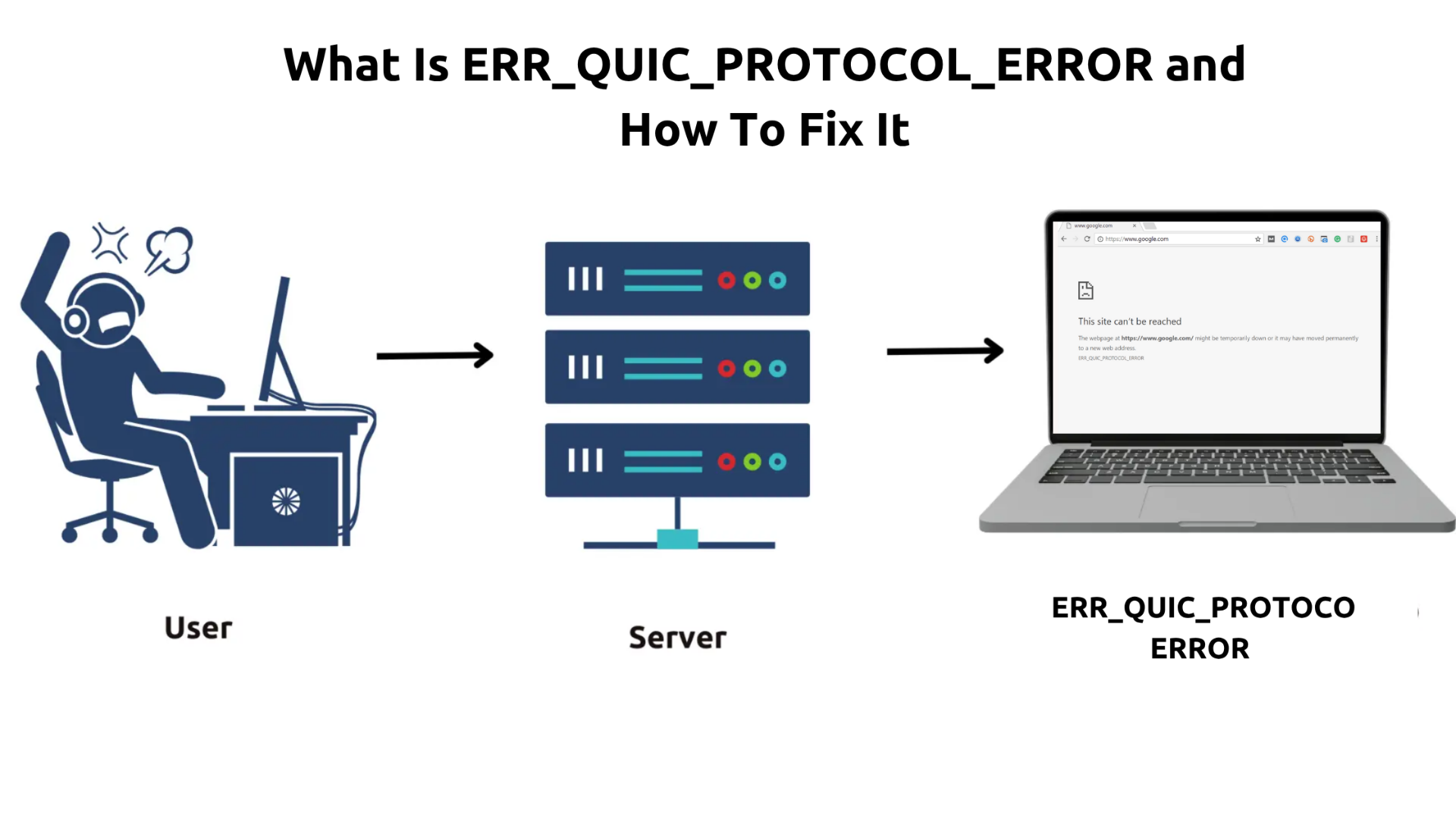
Ever been happily browsing the web when suddenly Chrome throws this cryptic ERR_QUIC_PROTOCOL_ERROR at you? Yeah, it’s one of those “what the heck just happened?” moments that can really kill your flow. This pesky error only shows up in Google Chrome, and it’s basically Chrome’s way of saying “Hey, I can’t talk to this website properly using my fancy new protocol.”
Don’t worry though - you’re definitely not alone in dealing with this. I’ve seen this error pop up more and more as websites start adopting newer technologies, and while it sounds super technical and intimidating, it’s actually pretty straightforward to fix once you know what’s going on under the hood.
Summary
🚀 Quick Fix: Disable QUIC in Chrome’s flags (chrome://flags/) - it works 90% of the time!
What is
ERR_QUIC_PROTOCOL_ERROR? This error occurs in Google Chrome when there’s a problem with the QUIC (Quick UDP Internet Connections) protocol communication between your browser and the website server.- For Website Visitors: It can result from QUIC protocol conflicts, browser extensions interference, proxy configuration issues, or network connection problems.
- For Website Owners: It indicates potential server-side QUIC implementation issues, firewall blocking, or incompatible network configurations.
How to Fix It?
- For Website Visitors:
- Disable QUIC protocol in Chrome flags (
chrome://flags/) - Disable Chrome extensions to identify conflicts
- Check and correct proxy settings
- Clear browser cache and cookies
- Update Chrome to the latest version
- Restart network connection
- Full troubleshooting steps here.
- Disable QUIC protocol in Chrome flags (
- For Website Owners:
- Review server QUIC configuration
- Check firewall and security settings
- Monitor server logs for QUIC-related errors
- Consider disabling QUIC if compatibility issues persist
- Full guide here.
- For Website Visitors:
What is the ERR_QUIC_PROTOCOL_ERROR?
The ERR_QUIC_PROTOCOL_ERROR appears when Chrome fails to establish a stable connection using QUIC, the protocol Google designed to speed up web traffic over UDP. In simple terms, Chrome tries to use a faster connection path, but something in the browser, network, or server setup blocks that negotiation.
This error is usually not a sign that the website is completely down. It more often points to a compatibility issue between Chrome and the route the request is taking. That is why the same site may still open normally in Firefox or Safari, which rely on different connection behavior.
The message often looks like this:
“This site can’t be reached. The webpage at https://example.com/ might be temporarily down or it may have moved permanently to a new web address. ERR_QUIC_PROTOCOL_ERROR”
In practice, that means Chrome could not complete the QUIC handshake and fell back to an error instead of loading the page.
For Website Visitors: Why Does This Error Matter?
Look, I get it - you just want to browse the web without dealing with cryptic error messages, right? But this ERR_QUIC_PROTOCOL_ERROR is more than just Chrome being difficult. It’s actually blocking you from accessing websites that you probably use every day. The really frustrating part is that it often hits the sites you visit most - think Google services, YouTube, or any other major site that’s jumped on the QUIC bandwagon to make things faster.
What’s particularly maddening is that this error can be totally random. One day you’re browsing just fine, the next day Chrome decides it can’t talk to your favorite website anymore. And since QUIC is supposed to make things faster and more reliable, it feels like a cruel joke when it’s the thing preventing you from getting online in the first place.
Common Reasons You See the Error
So why does this happen? Well, there are actually quite a few culprits that can mess with QUIC, and honestly, it’s usually not your fault. Let me walk you through the usual suspects:
1. QUIC Protocol Conflicts
QUIC is kind of a rebel - it uses UDP instead of the usual TCP protocol. Think of TCP as a polite conversation with lots of “did you get that?” back and forth, while QUIC is more like shouting across a crowded room. Some older networks and firewalls don’t know what to do with UDP on port 443, so they just block it. This is especially common in corporate networks.
2. Browser Extension Interference
Extensions can be troublemakers with QUIC. Ad blockers, VPNs, and security extensions often intercept network requests and sometimes block QUIC traffic because it looks “suspicious.” VPN extensions are particularly problematic since they route traffic through their own servers that might not support QUIC properly.
3. Proxy Configuration Issues
Work networks and manual proxy setups often don’t handle QUIC well. Most proxies were designed for HTTP/HTTPS over TCP, so when Chrome tries to push UDP packets through them, they either block it or handle it incorrectly. This is especially common in corporate environments.
4. Network Infrastructure Problems
Sometimes it’s your ISP or network infrastructure that’s the problem. Older equipment doesn’t handle UDP traffic well on port 443, leading to throttling, blocking, or timeouts. Corporate networks with deep packet inspection can also get confused by QUIC’s encrypted UDP packets.
5. Outdated Chrome Version
Google constantly updates both Chrome and QUIC, so version mismatches can cause issues. You might be running an old Chrome version that speaks outdated QUIC, or the website might not support the latest QUIC version yet.
How to Resolve the ERR_QUIC_PROTOCOL_ERROR as a Visitor
Alright, enough theory - let’s fix this thing! I’m going to walk you through the solutions in order of how likely they are to work, starting with the nuclear option that fixes it 90% of the time.
1. Disable the QUIC Protocol in Chrome
This is the big gun, and honestly, it’s probably going to solve your problem right away - this fix works 90% of the time! We’re basically telling Chrome “hey, stop trying to be fancy with QUIC and just use the old reliable method.” Don’t worry - your browsing won’t be noticeably slower, and you’ll actually be able to access websites again.
Here’s how to do it:
Steps:
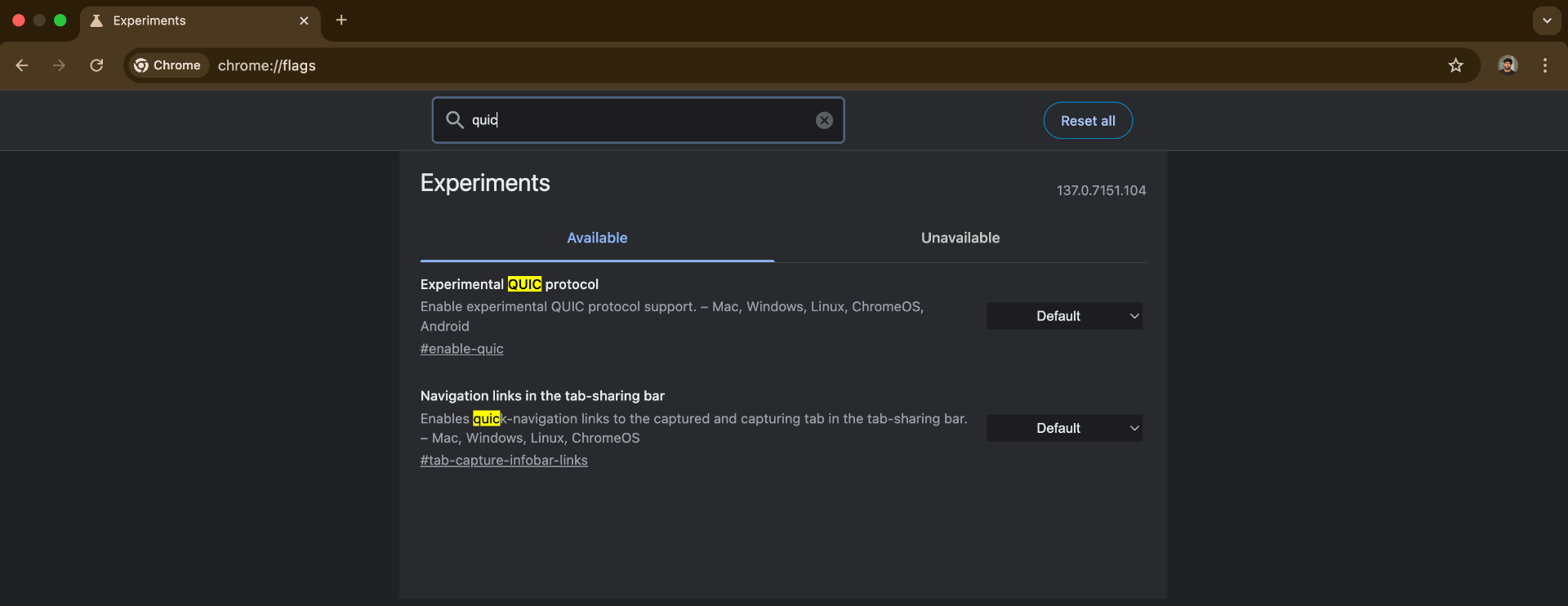
- Open Chrome and type
chrome://flags/in the address bar (yeah, it looks weird, but that’s Chrome’s secret settings page). - Hit Enter and you’ll see a page that looks like it’s meant for developers - don’t panic, you’re in the right place.
- Use the search box at the top to search for “quic” - this will filter out all the other experimental stuff you don’t need to worry about.
- Look for “Experimental QUIC protocol” in the results (it should be the only thing showing up).
- Click the dropdown next to it and change it from “Default” to “Disabled”.
- Chrome will show you a big blue “Relaunch” button at the bottom - click it to restart Chrome with the new settings.
The beauty of this fix is that it’s completely reversible. If you ever want to try QUIC again (maybe after a few Chrome updates), just come back here and set it back to “Default”.
2. Disable Chrome Extensions
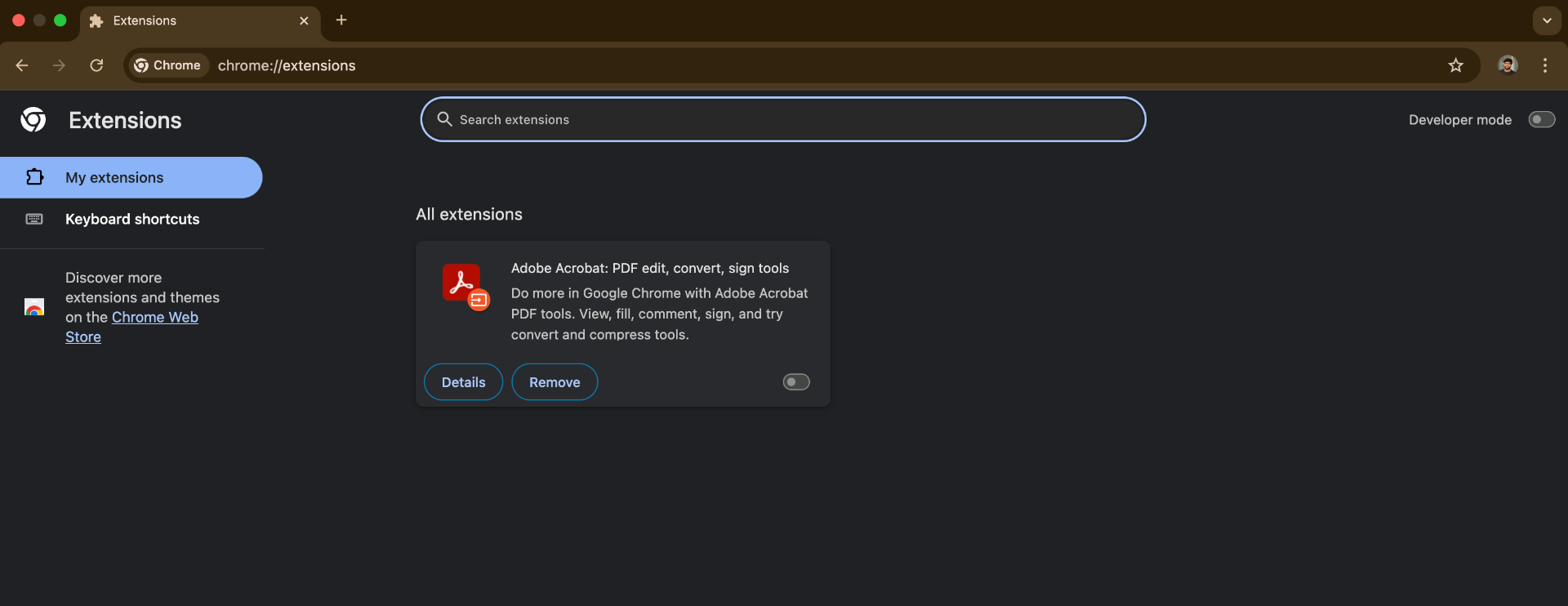
If disabling QUIC does not solve the issue, the next step is to rule out extension conflicts. Some extensions modify requests, filter traffic, or route connections in ways that interfere with QUIC.
Steps:
- Open
chrome://extensions/in Chrome. - Turn off every extension temporarily.
- Close Chrome completely, then reopen it.
- Visit the site again and check whether the error is gone.
- If the site loads, re-enable your extensions one at a time until the problem returns.
- Remove, replace, or update the extension that brings the error back.
VPN tools, ad blockers, and security extensions are the most common offenders, so start there if you want the fastest path to a fix.
3. Check Proxy Settings (Windows)
Time for some Windows detective work! If you’re on a work computer or have ever messed around with proxy settings (maybe to access geo-blocked content), there’s a chance your proxy configuration is messing with QUIC. Even if you don’t remember setting up a proxy, some software installs them without asking nicely.
Steps:
- Hit Windows key + I to open Settings (or just search for “Internet Options” in the Start menu if you’re old school like me).
- Search for “Internet Options” and click on it - this opens the classic Windows internet settings dialog that looks like it’s from 1995 but still controls everything.
- Click on the “Connections” tab at the top.
- Click the “LAN settings” button - this is where the proxy magic happens.
- Look for a checkbox that says “Use a proxy server for your LAN” - if it’s checked and you don’t know why, uncheck it. If you’re at work and this is checked, you might want to ask your IT department before changing it.
- Click “OK” to close the LAN settings, then “Apply” and “OK” to close Internet Options.
- Restart Chrome (or your whole computer if you want to be extra sure).
If you’re on a Mac, the process is similar but you’ll find proxy settings in System Preferences > Network > Advanced > Proxies.
4. Clear Browser Cache and Cookies
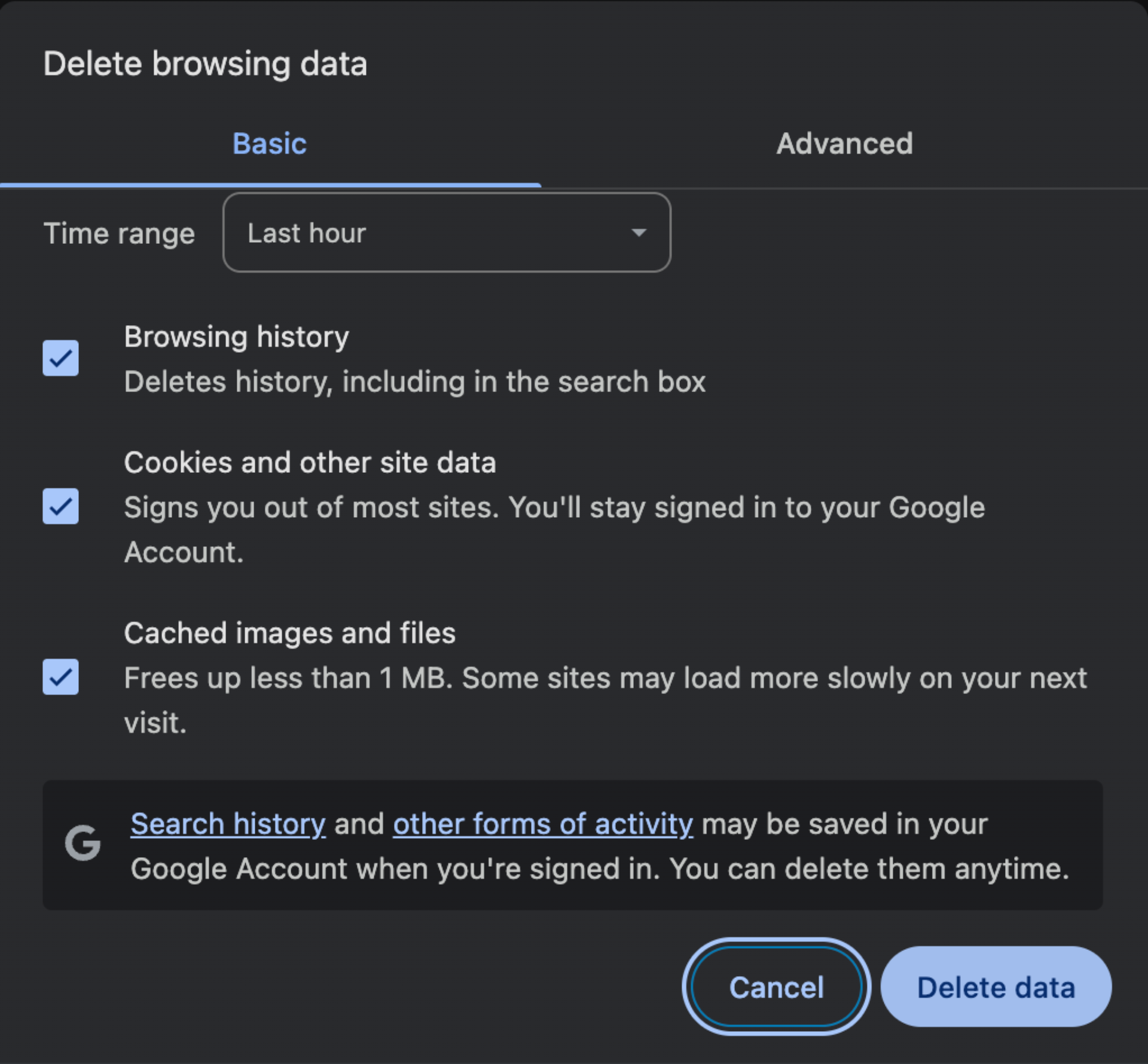
Old cached files and stale cookies can keep Chrome trying the same failed connection path. Clearing them forces the browser to rebuild the session with fresh data.
Steps:
- Press Ctrl+Shift+Delete on Windows or Cmd+Shift+Delete on Mac.
- Set the time range to “All time”.
- Select “Cookies and other site data” and “Cached images and files”.
- Click “Clear data”.
- Restart Chrome and try the site again.
This will sign you out of most sites, but it is one of the most reliable ways to remove corrupted browser state.
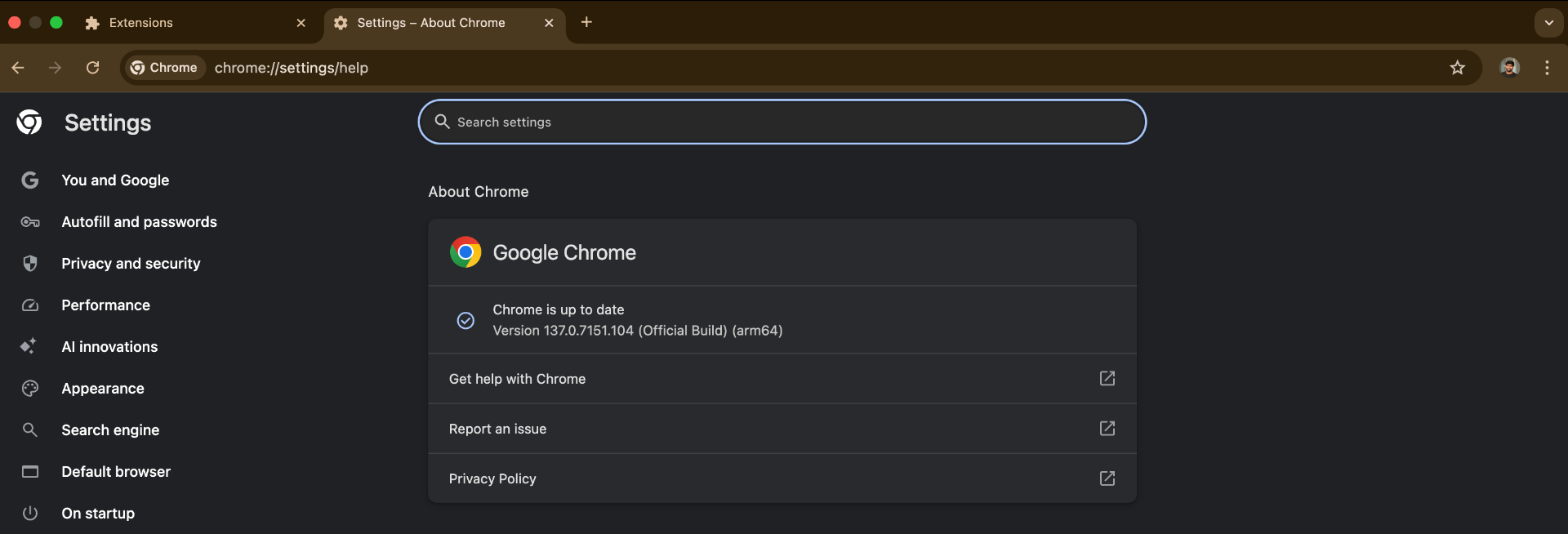
5. Update Chrome Browser
This one’s pretty straightforward, but you’d be surprised how often people forget to update their browser. Google is constantly fixing QUIC-related bugs and improving compatibility, so running an old version of Chrome is like trying to have a conversation in a language you only half-learned.
Steps:
- Click the three-dot menu (⋮) in the top-right corner of Chrome - you know, that little hamburger menu that hides all the good stuff.
- Go to “Help” > “About Google Chrome” (it’s usually at the bottom of the Help menu).
- Chrome will automatically start checking for updates and download them if available. You’ll see a progress bar and everything.
- When it’s done, Chrome will ask you to restart - just click “Relaunch” and you’re good to go.
If Chrome says you’re already up to date, great! If not, let it do its update thing and then try accessing the problematic website again.
6. Restart Your Network Connection
Sometimes the good old “turn it off and on again” approach works wonders for network issues. Your router or modem might have gotten confused about how to handle QUIC traffic, and a fresh start can clear up any weird connection states.
Steps:
- If you’re on Wi-Fi, disconnect from your network (or just turn off Wi-Fi entirely). If you’re using ethernet, unplug the cable.
- Wait about 30 seconds - I know it feels like forever, but give your network equipment time to forget whatever was confusing it.
- Reconnect to your network (or plug the ethernet cable back in).
- For extra credit, you can also restart your router/modem by unplugging it for 30 seconds and plugging it back in.
- Once everything’s back online, try accessing the website again.
This is especially effective if the error started happening suddenly - sometimes network equipment just needs a little nudge to get back on track.
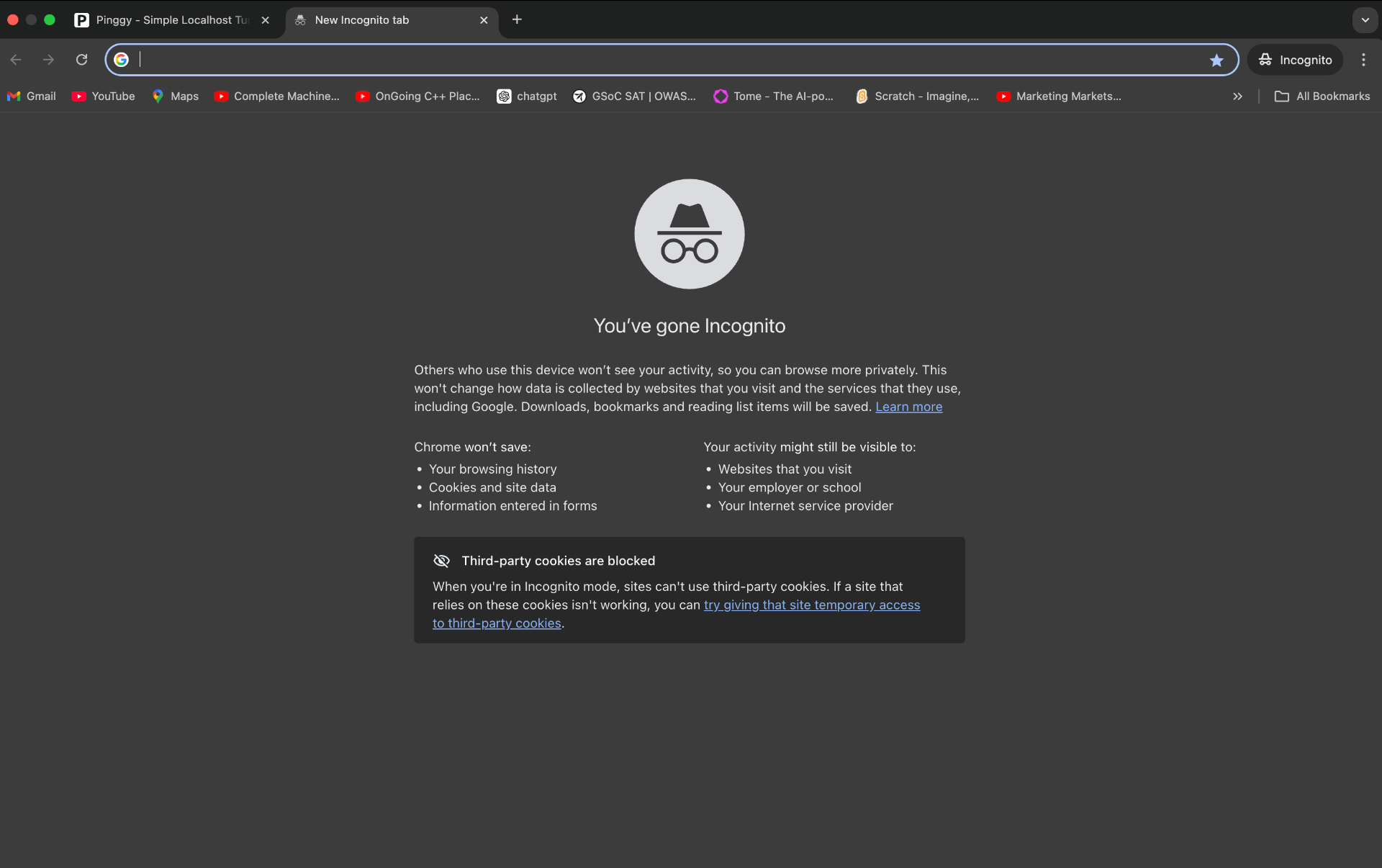
7. Use Incognito Mode
Incognito mode gives you a quick way to test whether the problem is tied to your regular Chrome profile. Because it starts with a cleaner session, it avoids most stored cookies, cached state, and extension activity.
Steps:
- Press Ctrl+Shift+N on Windows or Cmd+Shift+N on Mac.
- Open the affected website in the new Incognito window.
- If the site loads, the issue is likely caused by your normal browser profile, not the website itself.
That makes Incognito mode a useful diagnostic step before you spend time changing deeper settings.
8. Temporarily Disable Antivirus/Firewall
Okay, this one requires a bit of caution, but sometimes your security software is being a little too protective. Some antivirus programs and firewalls see QUIC’s UDP traffic and think “that looks suspicious” and block it. It’s like having an overzealous bouncer who won’t let anyone in because they don’t recognize the dress code.
Steps:
- Temporarily disable your antivirus software’s real-time protection (usually there’s an option to disable it for 10-15 minutes).
- If you’re on Windows, you can also temporarily disable Windows Firewall through the Control Panel.
- Try loading the website while your security software is disabled.
- If it works, you’ve found the culprit! Add Chrome (or the specific website) to your firewall’s exception list.
- Important: Turn your security software back on immediately after testing. Don’t leave your computer unprotected!
Remember, this is just for testing - don’t browse the internet with your security software disabled. If this fixes the problem, the real solution is to configure your security software to allow QUIC traffic, not to leave it disabled.
For Website Owners: Understanding the Problem
Alright, so you’re on the other side of this mess - your visitors are complaining about not being able to access your site, and you’re seeing ERR_QUIC_PROTOCOL_ERROR in their bug reports. This is actually a bigger deal than it might seem at first glance, because it’s not just affecting one or two users - it could be blocking a significant chunk of your Chrome users from accessing your site.
The frustrating thing about this error from a website owner’s perspective is that it often works fine for you (maybe you’re testing on a different network or browser), but your users are getting blocked. And since Chrome has a pretty massive market share, losing Chrome users is not something you can just shrug off. Plus, the users who do encounter this error are likely to bounce immediately - they’re not going to sit around troubleshooting your website.
Why Your Website Shows the Error
So what’s actually going wrong? Well, there are several things that can cause your website to trigger this error for visitors, and unfortunately, most of them are on your end. The good news is that once you know what to look for, they’re usually fixable.
1. Server-Side QUIC Configuration Issues
This is the most common culprit. If QUIC is enabled but misconfigured, it’s like having a fancy door that doesn’t fit the frame. Common issues include:
- QUIC version mismatches between your server and Chrome
- Certificate problems with SSL/TLS configuration for QUIC
- HTTP/2 vs QUIC conflicts during protocol negotiation
- ALPN issues preventing Chrome and your server from agreeing on QUIC
2. Firewall and Network Security Blocking
Many network security systems weren’t designed for UDP on port 443, so they block QUIC traffic. Corporate firewalls with deep packet inspection are particularly problematic - they see QUIC’s encrypted UDP packets as suspicious and block them.
3. CDN or Hosting Provider QUIC Issues
CDNs like Cloudflare or AWS CloudFront sometimes have QUIC implementation issues or push updates that break compatibility. These problems can be regional or intermittent, making them hard to detect in testing.
4. Load Balancer Incompatibility
Many load balancers don’t support UDP load balancing properly, causing QUIC connection failures especially during high traffic periods. Your site might work fine normally but fail during peak times when you need it most.
How to Resolve the ERR_QUIC_PROTOCOL_ERROR as a Website Owner
If visitors are seeing this error on your site, the goal is to confirm whether QUIC is misconfigured, blocked, or failing to fall back cleanly. Start with the server and network layers first, then move outward to CDN, hosting, and monitoring checks.
1. Review Server QUIC Configuration
Start by confirming that your origin server is actually advertising and handling QUIC correctly. A site can serve standard HTTPS without issue and still fail once HTTP/3 is introduced.
Check QUIC implementation:
- Make sure the server version you are running supports QUIC or HTTP/3 in a stable release, not just as an experimental option.
- Verify that the configuration is using the current HTTP/3 path, not an outdated test setup.
- Confirm that TLS certificates and ALPN settings are valid for QUIC traffic as well as regular HTTPS.
Test the setup:
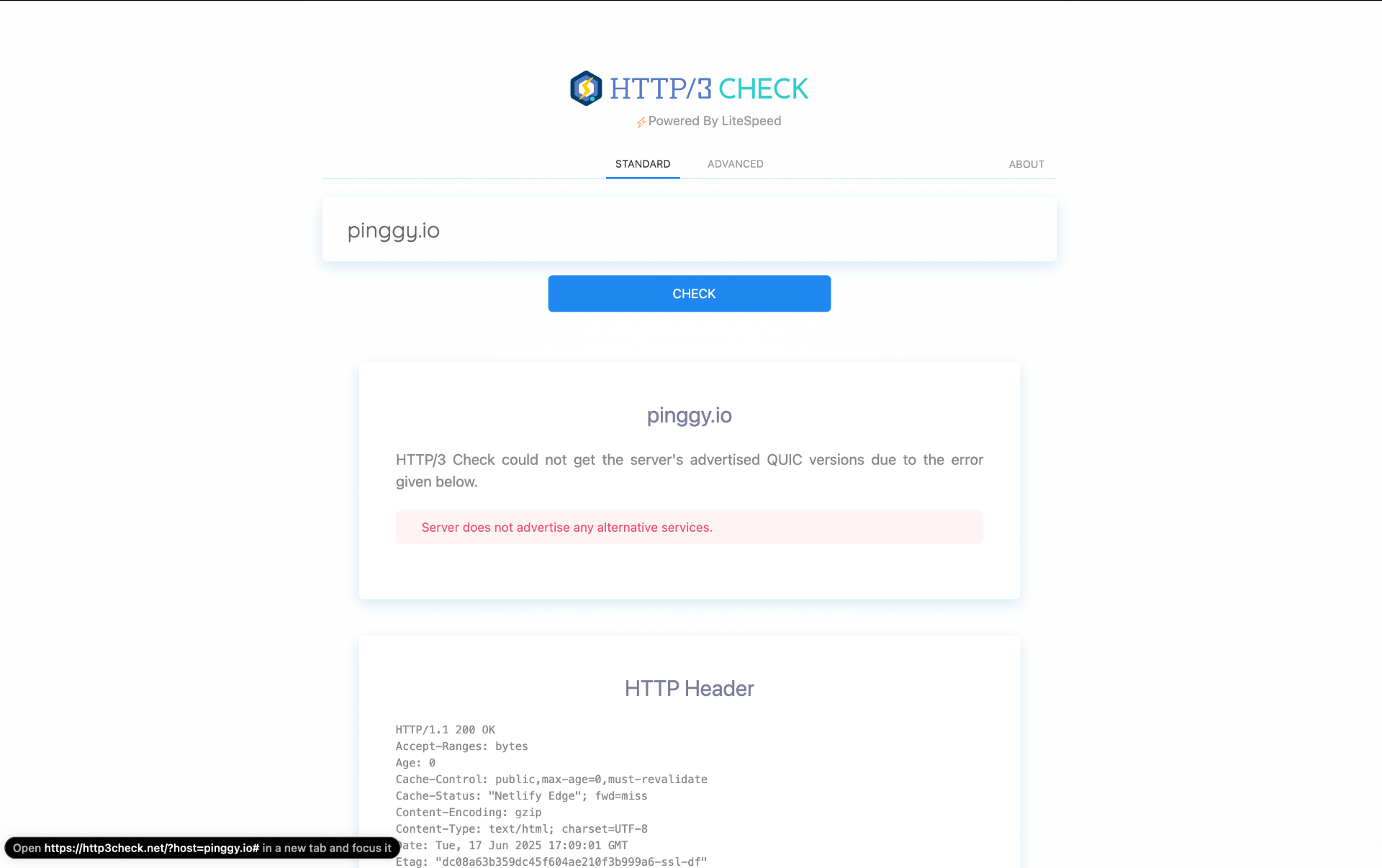
- Use a tool such as HTTP/3 Check to verify that the server advertises QUIC correctly from outside your network.
- Review server logs for handshake failures, protocol negotiation errors, or certificate mismatches.
If possible, test from more than one network. QUIC problems often show up only for certain ISPs, regions, or firewall paths.
2. Analyze Network Infrastructure
Now let’s look at the network path between your server and your users. This is where things can get tricky because you’re dealing with infrastructure that might not be entirely under your control.
Firewall Settings:
- Make sure your firewall allows UDP traffic on port 443. This sounds obvious, but you’d be surprised how many firewalls are configured to only allow TCP on 443.
- If you have deep packet inspection (DPI) enabled, it might be interfering with QUIC’s encrypted UDP packets. Some DPI systems try to decrypt and analyze QUIC traffic and fail spectacularly.
- Check if your firewall has any specific QUIC or HTTP/3 rules. Some newer firewalls have dedicated QUIC handling that might be misconfigured.
Load Balancer Configuration:
- This is a big one - make sure your load balancer actually supports UDP load balancing. Many older load balancers were designed for TCP traffic only.
- QUIC connections can be long-lived and stateful, so your load balancer needs to handle session persistence correctly. If it’s randomly distributing QUIC packets from the same connection to different backend servers, things will break badly.
- Test your load balancer under different traffic conditions. Sometimes UDP load balancing works fine under light load but fails when traffic increases.
3. CDN and Hosting Provider Settings
If you’re using a CDN or managed hosting provider, you’re somewhat dependent on their QUIC implementation. The good news is that most major providers have gotten pretty good at this, but there are still some gotchas to watch out for.
CDN Configuration:
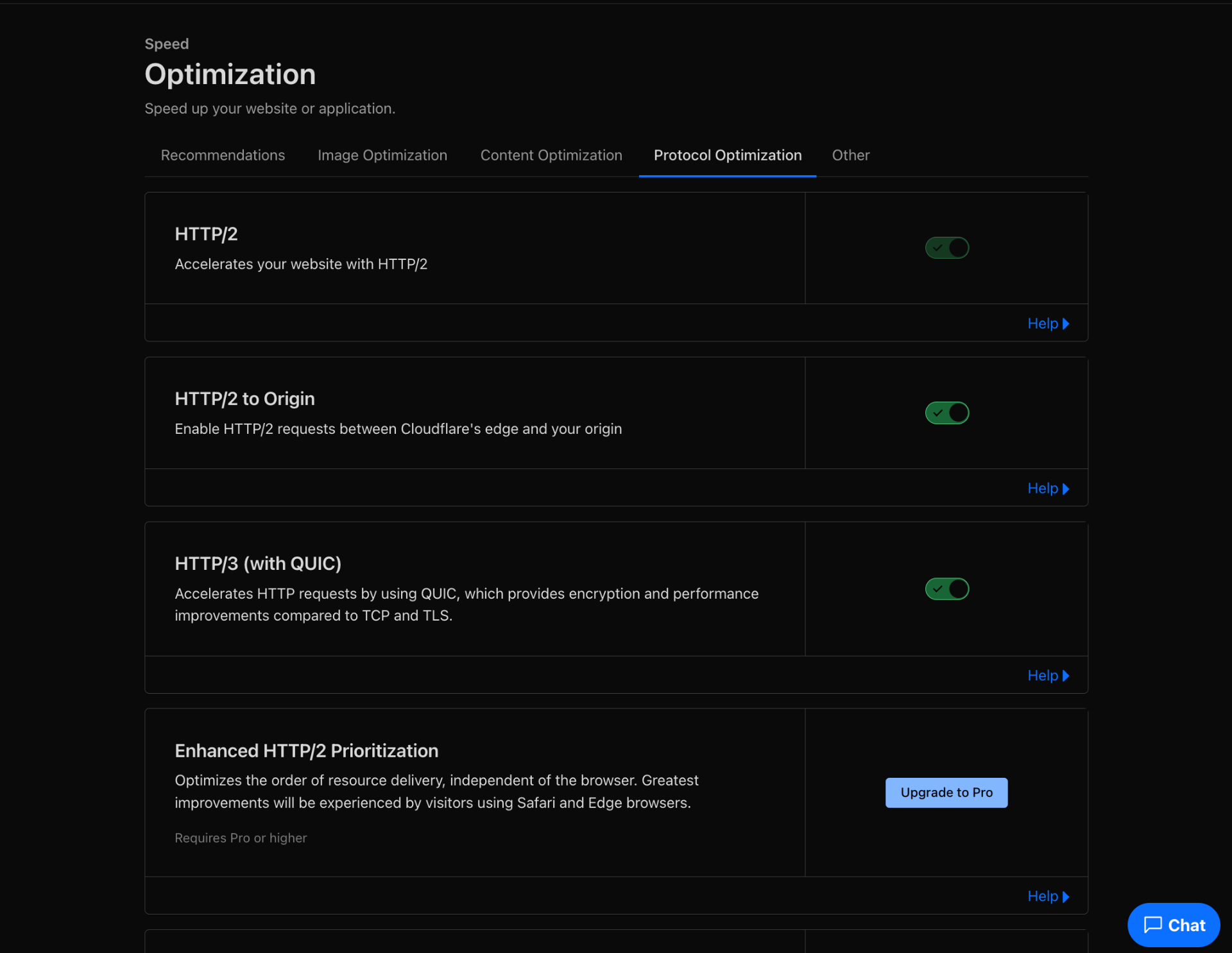
- If you’re using Cloudflare, log into your dashboard and check the HTTP/3 settings. Sometimes these get disabled during maintenance or updates.
- Make sure QUIC isn’t conflicting with other features like bot protection or DDoS mitigation. Some security features can interfere with QUIC connections.
- Check your CDN’s logs and analytics for QUIC-specific errors. Most CDNs provide detailed logs that can help you identify patterns in QUIC failures.
Hosting Provider Support:
- Don’t assume your hosting provider supports QUIC just because they say they do. Ask them specifically about their UDP load balancing capabilities and QUIC configuration.
- Make sure their network infrastructure can handle UDP traffic properly. Some providers have great TCP performance but terrible UDP handling.
- If you’re on a shared hosting plan, QUIC might not be available or might be limited. Consider upgrading to a VPS or dedicated server if QUIC performance is important to you.
4. Implement Monitoring and Logging
You can’t fix what you can’t see, so let’s get some visibility into what’s actually happening with your QUIC connections. This is crucial because QUIC issues can be intermittent and hard to reproduce.
Error Tracking:
- Set up specific monitoring for QUIC connection failures. Don’t just rely on general HTTP error monitoring - QUIC failures often don’t show up as traditional HTTP errors.
- Implement detailed logging for QUIC protocol negotiations, connection attempts, and failures. Most web servers can log this information if you configure them correctly.
- Use Google Analytics or similar tools to track error rates and correlate them with user agent strings, geographic locations, and network conditions.
User Experience Monitoring:
- Pay attention to user reports of connectivity issues, especially if they mention Chrome specifically or if they say the site works in other browsers.
- Monitor your bounce rates and page load times. QUIC connection failures often result in immediate bounces because users can’t access the site at all.
- Set up alerts for unusual spikes in connection failures or drops in Chrome traffic, as these might indicate QUIC-related issues.
5. Consider Fallback Options
Sometimes the best solution is to have a backup plan. QUIC is great when it works, but if it’s causing problems for your users, you need to make sure they can still access your site.
Graceful Degradation:
- Make absolutely sure your website works perfectly when QUIC is disabled. Test this thoroughly - don’t just assume it works.
- Implement proper fallback to HTTP/2 or HTTP/1.1. The fallback should be seamless and automatic, not something users have to figure out themselves.
- Test your website functionality extensively without QUIC. Sometimes sites become dependent on QUIC-specific features without realizing it.
Selective QUIC Deployment:
- Consider enabling QUIC only for specific user segments initially - maybe start with users from certain geographic regions or ISPs where you know it works well.
- Gradually roll out QUIC support while monitoring error rates and user feedback. If you see problems, you can quickly roll back.
- Use feature flags or A/B testing to control QUIC deployment. This gives you fine-grained control over who gets QUIC and who gets traditional HTTP.
6. Performance and Compatibility Testing
Testing is crucial, but you need to test the right things in the right way. QUIC issues can be very specific to certain network conditions or browser configurations.
Cross-Browser Testing:
- Test your website across different browsers and versions, but pay special attention to different versions of Chrome. QUIC implementation changes frequently.
- Make sure non-Chrome browsers (Firefox, Safari, Edge) work properly. They typically don’t use QUIC, so they should work fine, but verify this.
- Don’t forget mobile browsers! Mobile networks can be particularly problematic for QUIC due to carrier-grade NAT and other network infrastructure issues.
Network Condition Testing:
- Test from different network conditions - home broadband, mobile networks, corporate networks, public Wi-Fi, etc. QUIC behavior can vary dramatically across different network types.
- If possible, test from different geographic locations and ISPs. Some ISPs handle UDP traffic better than others.
- Use network simulation tools to test under various conditions like high latency, packet loss, and bandwidth constraints. QUIC is supposed to handle these conditions better than TCP, but implementation bugs can cause issues.
Conclusion
The ERR_QUIC_PROTOCOL_ERROR is frustrating, but it is usually solvable. For visitors, the quickest fix is still disabling QUIC in Chrome’s flags and testing the browser again. For site owners, the priority is to verify server support, check network controls, and make sure HTTP/2 or HTTP/1.1 fallback works reliably.
QUIC can improve performance when everything lines up, but it should never be the only path your users have. If it creates instability, treat it as an optimization to revisit later, not a requirement for basic access.