Building a Retrieval Augmented Generation (RAG) system has traditionally been complex managing vector databases, embeddings, and chunking strategies.
Google's File Search tool in the Gemini API simplifies this by providing a fully managed RAG solution. This tutorial shows you exactly how to install, configure, and use it with complete working code.
Summary
- Install Google GenAI Package: Run
pip install google-genai to install the single package required for Gemini’s File Search API. - Generate Your Gemini API Key: Go to https://aistudio.google.com/api-keys, sign in, and create your free API key.
- Prepare Your Document: Create a sample text file, PDF, DOCX, or any supported format (up to 100 MB) that you want to search.
- Create a File Search Store: Initialize a File Search store with a display name to organize the uploaded documents.
- Upload and Import Files: Add your document to the File Search store with an optional display name and metadata.
- Wait for Import Completion: Track the import operation status to ensure your file is fully processed and indexed.
- Ask Questions About the File: Use natural language queries with the Gemini model and File Search tool to search your content.
- View Citation Metadata: Check grounding metadata to see which document sections contributed to the generated answer.
- Clean Up Resources: Delete the File Search store after use to keep your environment tidy.
Prerequisites: What You Need Before Starting
Before we dive into the code, make sure you have Python 3.8 or higher installed on your system. You’ll also need a Google Gemini API key, which you can get for free from
Google AI Studio . Finally, basic command line knowledge will help you run the Python scripts smoothly.
Step 1: Install the Google GenAI Package
First, install the required package. Open your terminal and run:
This single package provides everything you need to work with Gemini’s File Search API.
Step 2: Get Your Gemini API Key
Visit
https://aistudio.google.com/api-keys and sign in with your Google account. Click “Create API Key” and copy your API key to keep it secure.
Important: Replace "YOUR_API_KEY_HERE" in the code below with your actual API key.
Step 3: Create Your Sample Document
Create a file named sample.txt with some content. For this example, we’ll use information about a book:
I, Claudius is a historical novel by English writer Robert Graves, published in 1934.
Written in the form of an autobiography of the Roman Emperor Claudius, it tells the
history of the Julio-Claudian dynasty and the Roman Empire from Julius Caesar's
assassination in 44 BC to Caligula's assassination in AD 41.

The book is written as a first-person narrative of the life of Roman Emperor Claudius.
Graves portrays Claudius as a sympathetic character rather than the bumbling idiot that
he is often depicted as in history.
Save this file in the same directory where you’ll run your Python script.
Step 4: Complete Working Code
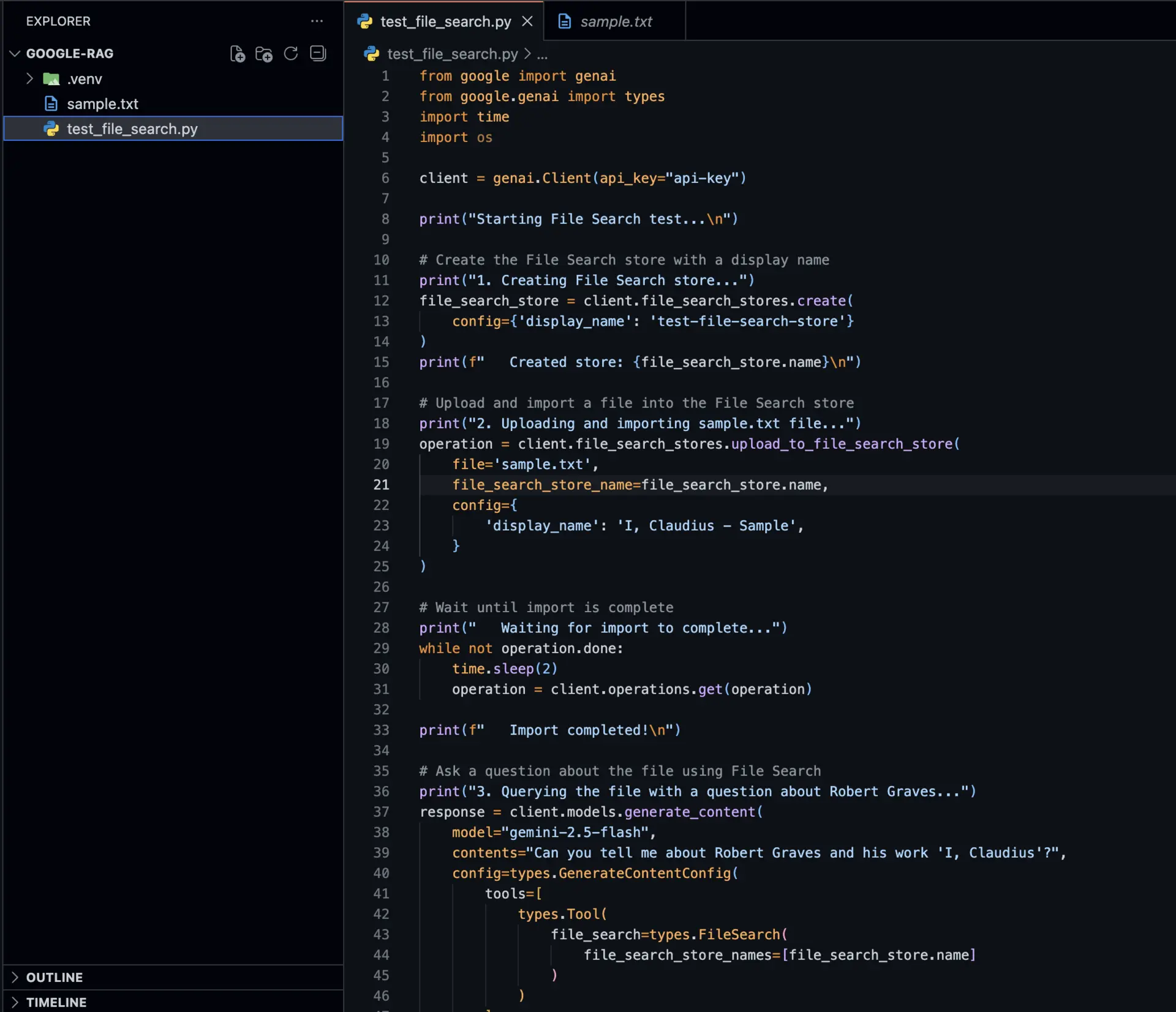
Here’s the complete Python script that demonstrates File Search from start to finish. This code creates a store, uploads a document, queries it, and cleans up afterward.
Create a file named file_search_demo.py:
from google import genai
from google.genai import types
import time
import os

# Initialize the client with your API key
# Replace "YOUR_API_KEY_HERE" with your actual API key from https://aistudio.google.com/api-keys
client = genai.Client(api_key="YOUR_API_KEY_HERE")

print("Starting File Search test...\n")

# Step 1: Create the File Search store with a display name
print("1. Creating File Search store...")
file_search_store = client.file_search_stores.create(
    config={'display_name': 'test-file-search-store'}
)
print(f"   Created store: {file_search_store.name}\n")

# Step 2: Upload and import a file into the File Search store
print("2. Uploading and importing sample.txt file...")
operation = client.file_search_stores.upload_to_file_search_store(
    file='sample.txt',
    file_search_store_name=file_search_store.name,
    config={
        'display_name': 'I, Claudius - Sample',
    }
)

# Step 3: Wait until import is complete
print("   Waiting for import to complete...")
while not operation.done:
    time.sleep(2)
    operation = client.operations.get(operation)

print(f"   Import completed!\n")

# Step 4: Ask a question about the file using File Search
print("3. Querying the file with a question about Robert Graves...")
response = client.models.generate_content(
    model="gemini-2.5-flash",
    contents="Can you tell me about Robert Graves and his work 'I, Claudius'?",
    config=types.GenerateContentConfig(
        tools=[
            types.Tool(
                file_search=types.FileSearch(
                    file_search_store_names=[file_search_store.name]
                )
            )
        ]
    )
)

print("Response from Gemini API:")
print("-" * 50)
print(response.text)
print("-" * 50)

# Step 5: Display citation metadata if available
print("\nCitation metadata:")
if response.candidates and response.candidates[0].grounding_metadata:
    print(response.candidates[0].grounding_metadata)
else:
    print("No grounding metadata available")

# Step 6: Clean up - delete the File Search store
print("\n4. Cleaning up - deleting File Search store...")
client.file_search_stores.delete(
    name=file_search_store.name,
    config={'force': True}
)
print(f"   Deleted store: {file_search_store.name}")

print("\nTest completed successfully!")
[Add screenshot of the code here]
Step 5: Run the Code
- Make sure
sample.txt is in the same directory as your Python script - Replace
"YOUR_API_KEY_HERE" with your actual API key - Run the script:
python file_search_demo.py
Expected Output
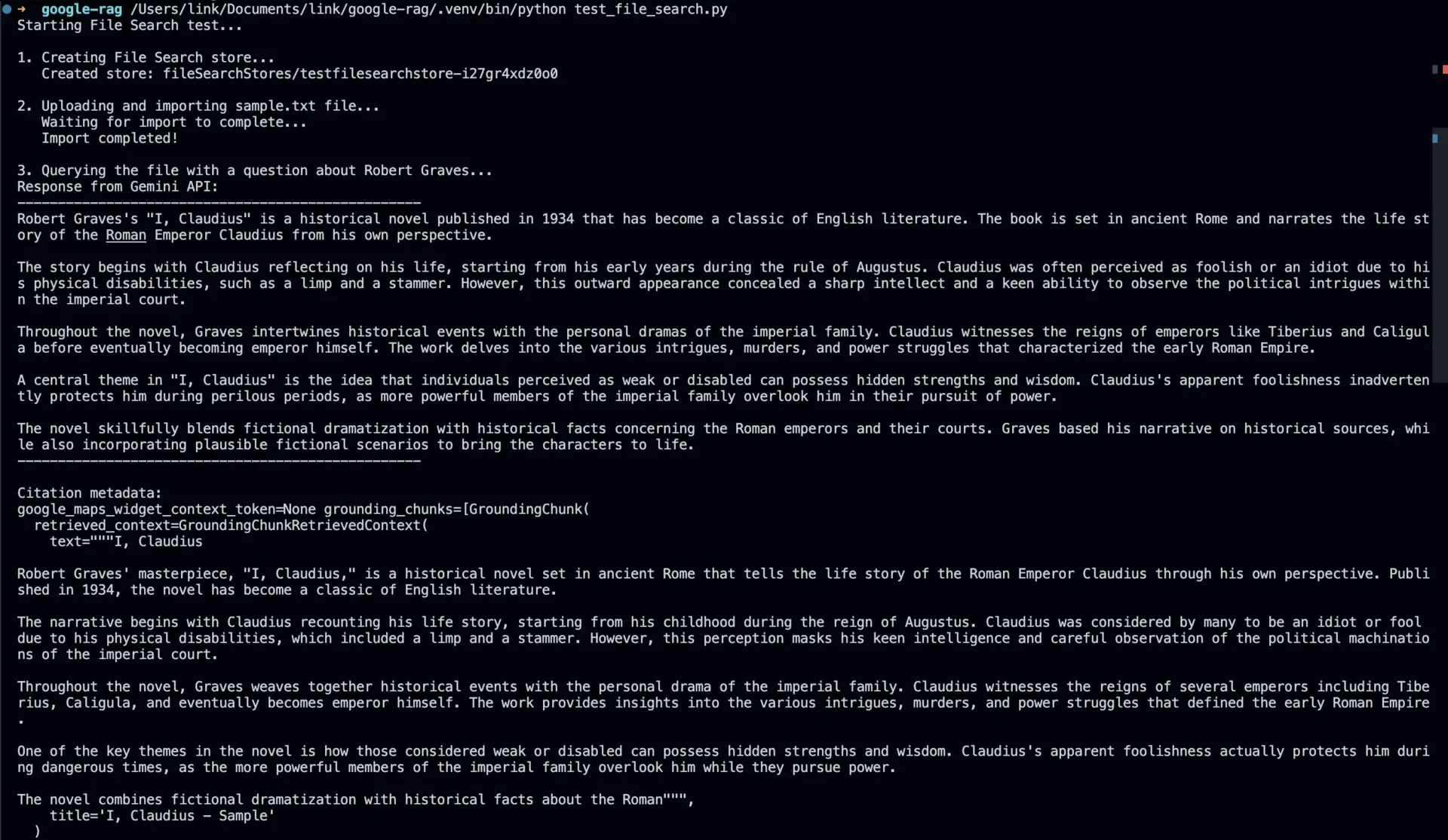
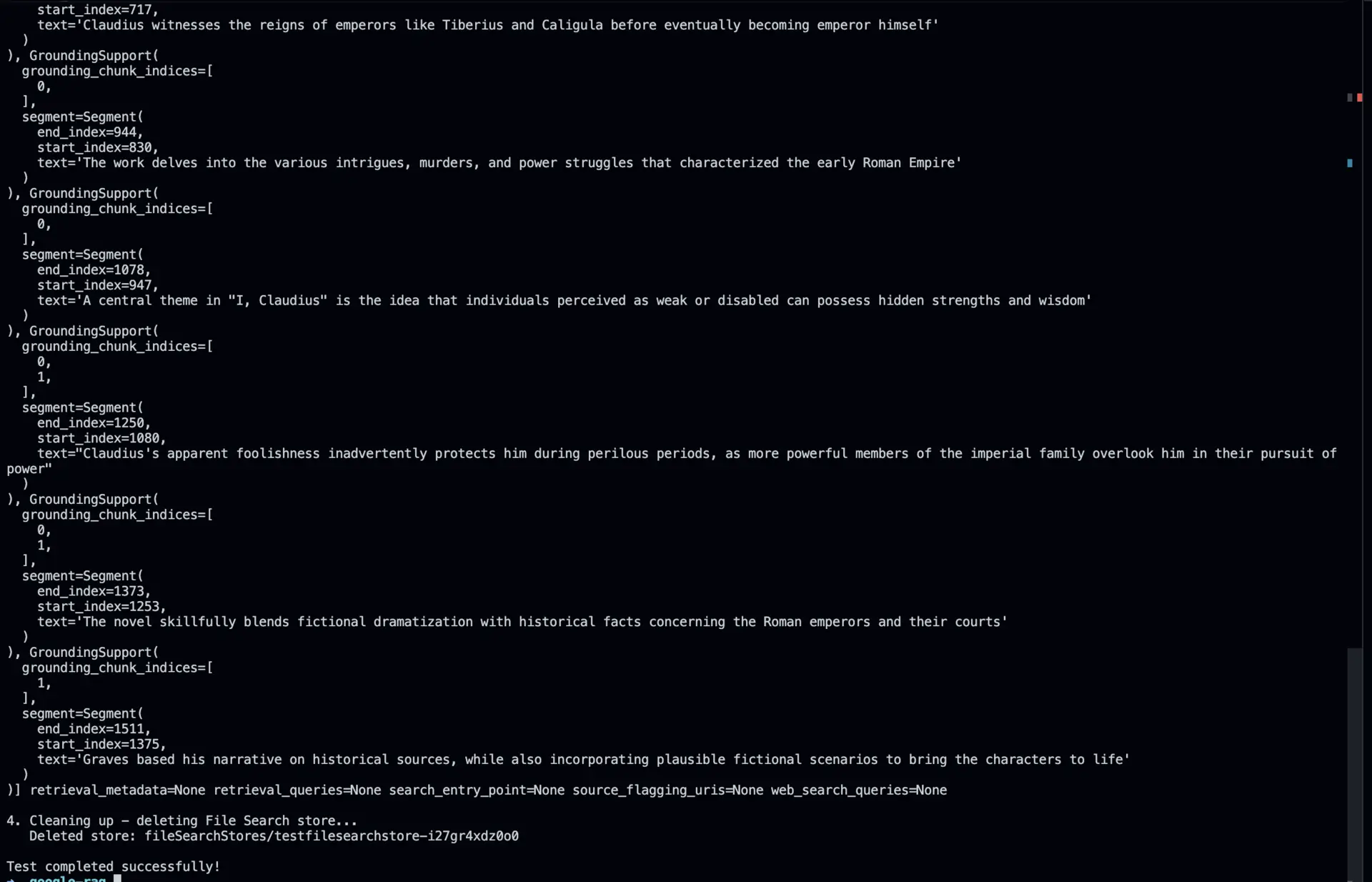
When you run the script, you should see output similar to this:
How It Works Behind the Scenes
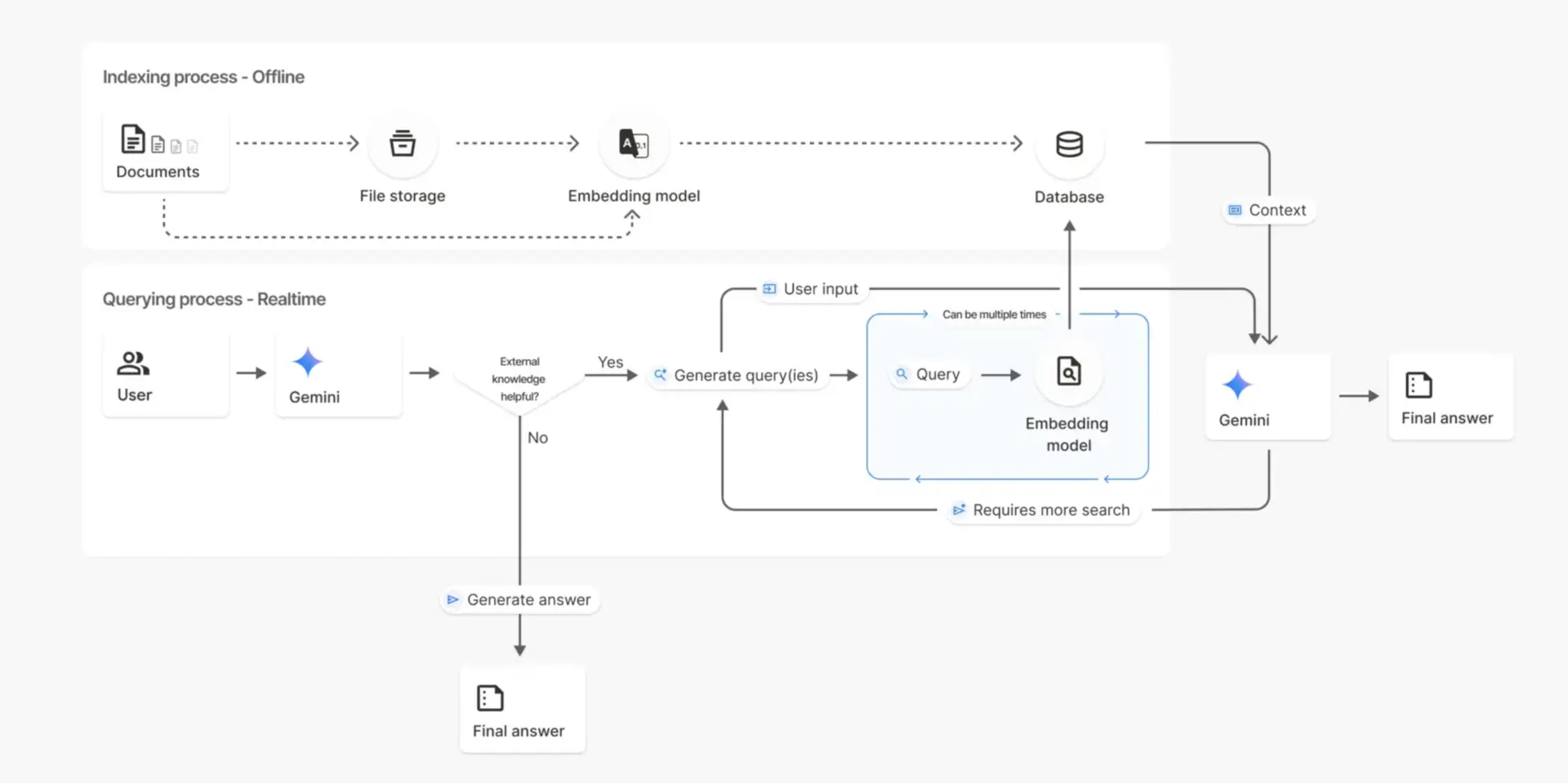
Understanding the process helps you use File Search more effectively. When you upload a file, it’s automatically split into smaller chunks. Each chunk is then converted into vector embeddings that capture semantic meaning, and these embeddings are stored in the File Search Store, which is essentially a managed vector database. When you ask a question, your query is converted to an embedding, and the system finds the most relevant chunks based on similarity. Finally, these retrieved chunks are provided as context to Gemini, which generates a grounded answer based on your actual documents.
File Search supports
a wide range of formats including text files (.txt, .md, .html), documents (.pdf, .doc, .docx), spreadsheets (.csv, .xlsx, .xls), presentations (.pptx), and code files (.py, .js, .java, .cpp, and more). Each file can be up to 100 MB in size, which is sufficient for most use cases.
For more control, you can customize how documents are processed:
Custom Chunking
# Upload with custom chunking configuration
operation = client.file_search_stores.upload_to_file_search_store(
    file_search_store_name=file_search_store.name,
    file='sample.txt',
    config={
        'chunking_config': {
            'white_space_config': {
                'max_tokens_per_chunk': 200,
                'max_overlap_tokens': 20
            }
        }
    }
)
Add metadata to organize and filter your documents:
# Import file with custom metadata
operation = client.file_search_stores.import_file(
    file_search_store_name=file_search_store.name,
    file_name=sample_file.name,
    custom_metadata=[
        {"key": "author", "string_value": "Robert Graves"},
        {"key": "year", "numeric_value": 1934}
    ]
)

# Query with metadata filter
response = client.models.generate_content(
    model="gemini-2.5-flash",
    contents="Tell me about the book 'I, Claudius'",
    config=types.GenerateContentConfig(
        tools=[
            types.Tool(
                file_search=types.FileSearch(
                    file_search_store_names=[file_search_store.name],
                    metadata_filter="author=Robert Graves",
                )
            )
        ]
    )
)
Common Use Cases
File Search is perfect for building customer support systems that search through product documentation, FAQs, and knowledge bases to provide instant, accurate answers. Legal teams can use it to query contracts, case law, and regulations efficiently. Researchers benefit from searching through academic papers and research notes with natural language queries. Developers can build intelligent documentation search tools that understand context, while companies can create internal knowledge management systems by indexing wikis and meeting notes. Educational platforms can create interactive learning experiences where students ask questions about course materials and receive contextually relevant answers.
Complete Code Repository
For the complete working code with the sample text file, visit:
https://github.com/Moksh45/Gemini-Rag-File-Search
Conclusion
Google’s File Search makes RAG accessible to any developer. Instead of spending days setting up vector databases and embedding pipelines, you can have a working RAG system in minutes. This tutorial walked you through the complete process from installing the package and getting your API key to running a full RAG workflow with document upload, querying, and cleanup.
The power of File Search lies in its simplicity. You don’t need to be an expert in embeddings, vector databases, or semantic search. Google handles all the complexity, letting you focus on building great applications. Whether you’re creating a customer support bot, a research tool, or an internal knowledge system, File Search provides the foundation you need.
This is the future of document search simple, powerful, and ready to use. Start with the code in this tutorial, experiment with your own documents, and build something amazing.