In this article

Changing your DNS resolver will not lower your in-game ping. Once a match starts, your client is already talking to the game server by IP, so DNS is out of the path. What DNS does affect: launcher startup, login, matchmaking lookups, voice and chat endpoints, CDN selection for patches, and the occasional region-routing decision via EDNS Client Subnet. A faster, more reliable resolver can make those steps feel snappier and less flaky, which is usually what people are reaching for when they say a “gaming DNS” feels better.
This post lists the resolvers worth testing in 2026, how to actually measure them from your location, and the current setup steps for Windows 11, macOS, Linux, routers, and consoles. DNS (Domain Name System) is the layer that turns names like login.example.com into IPs.
Comparison Table for Best DNS for Gaming
| DNS Provider | DNS Servers | Latency | Reliability | Notes |
|---|---|---|---|---|
| Cloudflare | 1.1.1.1 1.0.0.1 | Very Low | Excellent | Very fast global anycast resolver with strong privacy posture. |
| Google Public DNS | 8.8.8.8 8.8.4.4 | Low | Excellent | Widely supported, stable, and easy fallback for most regions. |
| OpenDNS | 208.67.222.222 208.67.220.220 | Low | Excellent | Strong uptime with optional security and content filtering. |
| Quad9 | 9.9.9.9 149.112.112.112 | Low | Very Good | Security-first resolver with malware/phishing blocking. Added DoQ and DNS over HTTP/3 in March 2026. |
| DNS.Watch | 84.200.69.80 84.200.70.40 | Low | Good | No-logging resolver with DNSSEC and long-term community operation. |
| AdGuard DNS | 94.140.14.14 94.140.15.15 | Low | Excellent | DNS-level ad/tracker blocking with DoH, DoT, and DoQ support. |
| Control D (Free DNS) | 76.76.2.0 76.76.10.0 | Low | Very Good | Newer public option with unfiltered and preset filtered profiles. |
| NextDNS | Custom Config | Very Low | Excellent | Highly customizable DNS filtering with analytics and per-device profiles. |
| Surfshark DNS | 194.169.169.169 | Low | Very Good | Simple privacy-focused resolver with encrypted DNS support. |
| Mullvad Encrypted DNS | dns.mullvad.net (DoH/DoT) | Low | Very Good | Public encrypted DNS with no account required and optional filters. |
| DNS4EU | 86.54.11.100 (unfiltered) 86.54.11.1 (protective) | Low in EU | Good | EU-funded public resolver launched June 2025; five filter variants, GDPR-aligned. |
Summary
- DNS does not lower in-game ping:
- Once you’re in a match, traffic goes to the game server’s IP directly. DNS is not in the loop.
- DNS affects launcher startup, login, matchmaking, voice, and patch CDN lookups - so a faster resolver makes those feel more consistent.
- Resolvers worth testing in 2026:
- Cloudflare (1.1.1.1), plus 1.1.1.2 (malware) and 1.1.1.3 (malware + adult)
- Google Public DNS (8.8.8.8)
- OpenDNS (208.67.222.222)
- Quad9 (9.9.9.9)
- DNS.Watch (84.200.69.80)
- Control D Free DNS (76.76.2.0)
- AdGuard DNS (94.140.14.14)
- NextDNS (custom config)
- Surfshark DNS (194.169.169.169)
- Mullvad Encrypted DNS
- DNS4EU (86.54.11.100) - new EU-operated resolver
- Pick based on measured latency from your location:
- Test 2-3 providers with ping and a DNS benchmark, then keep the fastest stable one.
- Put a different operator in the secondary slot (1.1.1.1 + 9.9.9.9), not the same provider’s backup IP. Cloudflare’s 1.1.1.1 and 1.0.0.1 went down together for 62 minutes in July 2025.
- Setup instructions: Follow how to change DNS settings on Windows 11, macOS, Linux, your router, or a PS5, Xbox, or Switch.
What is DNS, and Why Does It Matter for Gaming?
DNS translates names (login.example.com) into IP addresses (192.0.2.10). Every time a launcher boots, an account service logs in, matchmaking spins up, voice chat connects, or a patch downloads from a CDN, a DNS lookup happens first. After that handshake, the actual game traffic is between your machine and the server IP - DNS is no longer involved.
So what does a slow or flaky resolver actually cost you?
Slower service startup: DNS lookups for launchers, login, and matchmaking add a few hundred milliseconds to a few seconds at the start. A faster resolver shortens that.
Connection hiccups: Resolvers with intermittent outages or stale caches can make logins time out or send your client to a stale endpoint. ISP-default DNS is often the culprit here.
Suboptimal CDN steering: Many game CDNs and matchmakers route by your resolver’s IP (or via EDNS Client Subnet). A nearby, well-peered resolver can land you on a closer download mirror or matchmaking pop. This affects patch speed and login latency, not in-game ping. Worth knowing: some privacy-first resolvers strip ECS on purpose, which occasionally parks you on a worse patch mirror. Quad9 ships a separate ECS-enabled address for exactly this tradeoff (see below).
DNS-layer attacks: Spoofed or poisoned responses can point a launcher at a malicious endpoint. DNSSEC-validating resolvers and encrypted DNS (DoH/DoT/DoQ) close most of that gap.
What DNS will not do: lower the ping you see in-game. That number is fixed by your physical route to the game server. If your in-match ping is bad, look at routing, your ISP, Wi-Fi vs. Ethernet, or the server region - not your DNS.
How to Choose the Best DNS for Gaming
A few things matter more than the rest.
1. Lookup latency from your location
Latency is the round-trip time for a query and response. The cheapest win is picking a resolver with a point-of-presence near you. A resolver that’s great in Frankfurt may be mediocre from Mumbai.
- What it actually helps: faster service handshakes during login, matchmaking, and patch starts.
- Tools to use in 2026:
pingfor a quick check; GRC DNS Benchmark on Windows (still actively maintained), NAMEinator (the maintained namebench successor), ordnsperfon Linux. Google’s original Namebench has been archived since 2010 - skip it.
Steps to Test Latency Using ping:
- Open your terminal or command prompt.
- Type and press Enter.
ping 8.8.8.8 - Observe the output for the time taken (
time=XX ms) to measure the round-trip latency.
Example Output:
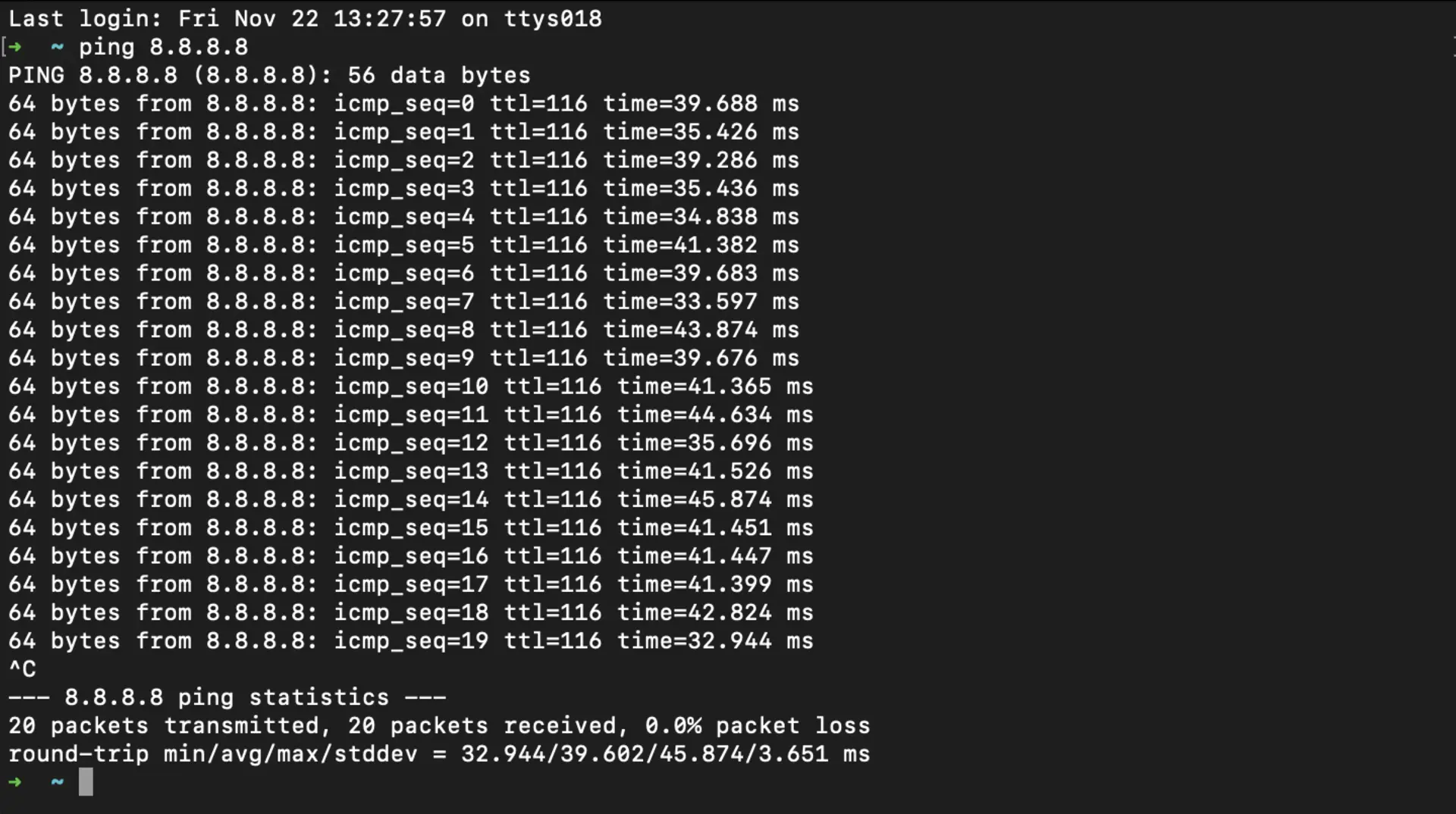
The time=XX ms values indicate the latency. Lower values mean better latency.
Comparing Multiple DNS Servers
Repeat the ping test with other DNS servers like Cloudflare’s 1.1.1.1:
ping 1.1.1.1Tools to Automate Latency Testing
For a fuller benchmark across many resolvers:
- GRC DNS Benchmark: free Windows tool (runs under Wine on Linux/macOS) that tests dozens of resolvers and surfaces cached vs. uncached times.
- NAMEinator: an actively maintained fork of the original namebench, runs on Windows and Linux from the CLI.
- DNS Jumper: portable Windows utility to test and switch DNS servers.
dnsperf(Linux): scripted benchmarking against arbitrary resolvers and query sets.
2. Reliability
Every public resolver goes down eventually, including the fast ones. On 14 July 2025 Cloudflare withdrew the routes for 1.1.1.0/24, 1.0.0.0/24, and 2606:4700:4700::/48 for 62 minutes, from 21:52 to 22:54 UTC. A config change made a month earlier had quietly attached the resolver prefixes to a pre-production service; touching that service pulled 1.1.1.1 off the internet. Not an attack, just a misconfiguration, and most 1.1.1.1 users worldwide lost DNS over UDP, TCP, and DoT for the hour. Cloudflare’s incident writeup is worth reading.
The practical lesson: make your secondary resolver a different operator. Nearly every guide tells you to pair 1.1.1.1 with 1.0.0.1, but that prefix list above is the point - they are the same anycast network behind the same config plane, and they went down together. Pair 1.1.1.1 with 9.9.9.9 or 8.8.8.8 instead. An outage at one provider then costs you a retry instead of a dead launcher.
- What to look for: a published status page, a wide anycast footprint, and a fallback you actually control.
- What to avoid: leaving your ISP’s resolver as the backup. It’s usually the flakiest entry on the list, and it’s what your machine falls back to if you only ever set a primary.
3. Security
Most gamers ignore DNS-layer security, which is fine until a launcher gets pointed at a phishing endpoint. Decent public resolvers cover the basics: encrypted DNS (DoH/DoT/DoQ), DNSSEC validation, and optional blocking of known malicious domains.
One of the key technologies ensuring secure DNS resolution is DNSSEC (Domain Name System Security Extensions). DNSSEC protects gamers by ensuring the authenticity and integrity of DNS data. It prevents attackers from redirecting you to malicious websites through DNS spoofing or man-in-the-middle attacks. DNSSEC uses cryptographic signatures to verify that the DNS responses you receive are legitimate and haven’t been tampered with.
How It Works:
- DNSSEC digitally signs DNS records using public-key cryptography.
- When your device queries a domain, the DNS resolver checks the cryptographic signatures to confirm the data’s authenticity.
- If the signature doesn’t match, the response is rejected, preventing spoofed or harmful DNS responses from affecting your gameplay.
Why It Matters: Prevents DNS spoofing, man-in-the-middle attacks, and other threats that could compromise your connection or gaming accounts.
Top Picks: Quad9 validates DNSSEC and blocks known-malicious domains by default. Cloudflare 1.1.1.2 / 1.1.1.3 add malware (and optionally adult) blocking on the same fast anycast network as 1.1.1.1.
4. Customization Options
Advanced users often prefer DNS services that support custom filtering, allowlists, blocklists, and profile-based settings.
- Why It Matters: Customization lets you block unnecessary distractions or optimize routing for specific games.
- Examples: OpenDNS allows for filtering and advanced controls, making it a great option for families or shared networks.
5. Global Server Coverage
The location of DNS servers can impact their speed and reliability. Opt for a DNS provider with a wide distribution of servers to ensure optimal performance, regardless of your location.
Global coverage is often achieved through a technique called anycasting, where multiple servers share the same IP address, routing users to the nearest or best-performing server automatically. This minimizes latency and improves reliability.
- Why It Matters: Global server coverage reduces the chance of routing delays, especially when gaming on international servers.
- Supported Providers: Cloudflare DNS, Google Public DNS, and Quad9 all utilize anycasting for efficient and fast DNS resolution.
- Tip: Cloudflare DNS is known for its vast global presence, making it an excellent choice for gamers worldwide.
Top DNS Servers for Gaming
Here are the best DNS servers to test for gaming performance in 2026:
1. Cloudflare DNS (1.1.1.1)
- Primary DNS: 1.1.1.1
- Secondary DNS: 1.0.0.1
- Family variants: 1.1.1.2 / 1.0.0.2 (malware blocking), 1.1.1.3 / 1.0.0.3 (malware + adult content)
- Latency: Very low on Cloudflare’s global anycast.
- Reliability: Excellent. Cloudflare publishes status at status.cloudflare.com.
- Features: Encrypted DNS (DoH, DoT), DNSSEC validation, no logging of identifying data.
Why it’s worth trying: Cloudflare DNS consistently lands near the top of global DNS benchmarks and is a sensible default for low-latency lookups. If you want passive protection on a family network, swap 1.1.1.1 for 1.1.1.2 (or 1.1.1.3) - same performance, just with malware/adult filtering bolted on.
2. Google Public DNS (8.8.8.8)
- Primary DNS: 8.8.8.8
- Secondary DNS: 8.8.4.4
- Latency: Low.
- Reliability: Excellent and highly stable.
- Features: Massive global footprint with support for encrypted DNS.
Why it’s great for gaming: Google Public DNS is easy to deploy and usually delivers predictable performance across different regions.
3. OpenDNS (208.67.222.222)
- Primary DNS: 208.67.222.222
- Secondary DNS: 208.67.220.220
- Latency: Low.
- Reliability: Excellent.
- Features: Mature platform with optional phishing and content filtering.
Why it’s great for gaming: OpenDNS is a dependable option if you want stable DNS plus optional safety controls on shared networks.
4. Quad9 DNS (9.9.9.9)
- Primary DNS: 9.9.9.9
- Secondary DNS: 149.112.112.112
- ECS-enabled: 9.9.9.11 / 149.112.112.11 (same blocking, but forwards EDNS Client Subnet)
- Unsecured: 9.9.9.10 / 149.112.112.10 (no malware blocking; still DNSSEC-validating)
- Latency: Low.
- Reliability: Very good.
- Features: Security-focused resolver that blocks known malicious domains. DoH, DoT, and, since 31 March 2026, DNS over QUIC and DNS over HTTP/3 across the whole network.
Why it’s great for gaming: Quad9 DNS is ideal for players who want strong DNS-layer threat blocking without giving up speed. Two things changed in 2026 that are worth knowing.
DoQ landed in March, which saves a round trip on encrypted lookups compared to DoT. And from 15 June 2026, strict DNSSEC validation is active on every Quad9 endpoint, including the one address that previously skipped it. That is a security win with a real edge case attached: a domain with a broken DNSSEC chain now fails to resolve instead of resolving anyway. If a game service stops resolving on Quad9 but works fine on 8.8.8.8, that is the likely explanation, and it is the publisher’s DNS to fix rather than yours.
The other Quad9 detail that matters for gaming is ECS. The default 9.9.9.9 does not forward your subnet to authoritative servers, which is good for privacy and occasionally bad for patch downloads, because some CDNs then steer you off your nearest mirror. If your downloads feel slower on Quad9 than on Cloudflare, try 9.9.9.11 before writing the resolver off.
5. DNS.Watch (84.200.69.80)
- Primary DNS: 84.200.69.80
- Secondary DNS: 84.200.70.40
- Latency: Low.
- Reliability: Good.
- Features: No-logging DNS resolver with DNSSEC support.
Why it’s great for gaming: DNS.Watch is a privacy-friendly alternative for players who prefer simple, open public resolvers.
6. Control D Free DNS (76.76.2.0)
- Primary DNS: 76.76.2.0
- Secondary DNS: 76.76.10.0
- Latency: Low.
- Reliability: Very good.
- Features: Free anycast resolver with optional preset filtering profiles (malware, ads, social, family).
Why it’s great for gaming: Control D Free DNS is a strong newer option in this 2026 update. You can keep an unfiltered profile for game compatibility or switch to security-focused profiles when needed.
7. AdGuard DNS (94.140.14.14)
- Primary DNS: 94.140.14.14
- Secondary DNS: 94.140.15.15
- Latency: Low.
- Reliability: Excellent.
- Features: DNS-level ad/tracker blocking with DoH, DoT, and DoQ support.
Why it’s great for gaming: AdGuard DNS can reduce unwanted ad and tracking lookups, but if a game launcher breaks, switch to its non-filtering endpoints.
8. NextDNS (Custom Configuration)
- Primary DNS: Custom endpoint generated at nextdns.io
- Secondary DNS: Depends on your configuration
- Latency: Very low.
- Reliability: Excellent.
- Features: Granular policy control, analytics, and encrypted DNS. Free tier includes up to 300,000 queries per month.
Why it’s great for gaming: NextDNS is ideal for advanced users who want per-device tuning, detailed logging choices, and allowlists to avoid game service conflicts.
9. Surfshark DNS (194.169.169.169)
- Primary DNS: 194.169.169.169
- Secondary DNS: 2a09:a707:169:: (IPv6)
- Latency: Low.
- Reliability: Very good.
- Features: Free privacy-focused DNS with DoH/DoT/DoQ support.
Why it’s great for gaming: Surfshark DNS is a simple drop-in option for players who want privacy and encrypted DNS without complex setup.
10. Mullvad Encrypted DNS (DoH/DoT)
- Primary endpoint: dns.mullvad.net
- Filtered options: adblock, base, extended, family, all
- Latency: Low.
- Reliability: Very good.
- Features: Public encrypted DNS service with no account required.
Why it’s worth trying: Mullvad Encrypted DNS is useful when you want encrypted DNS transport by default and optional filtering profiles.
11. DNS4EU (86.54.11.100)
- Unfiltered: 86.54.11.100
- Protective (malware blocking): 86.54.11.1
- Protective + ad blocking: 86.54.11.13
- Protective + child protection: 86.54.11.12
- DoH endpoint:
https://unfiltered.joindns4.eu/dns-query - Latency: Low for users in Europe; less competitive outside the EU.
- Reliability: Good. Operated by a consortium led by Whalebone, funded by the EU Commission; launched June 2025.
- Features: GDPR-aligned operation, five filter variants, IPv4/IPv6, DoH/DoT.
Why it’s worth trying: DNS4EU is the newest meaningful entrant in the public resolver space. For EU-based players who’d rather keep DNS traffic on European infrastructure, it’s a credible alternative to Cloudflare and Google. Outside the EU it’s usually slower than the global anycast resolvers, so test before committing.
Select the Best DNS Server Based on Latency
To ensure optimal performance, you should choose a DNS provider based on the latency from your location. Lower latency means faster DNS resolution, which can significantly enhance your gaming experience.
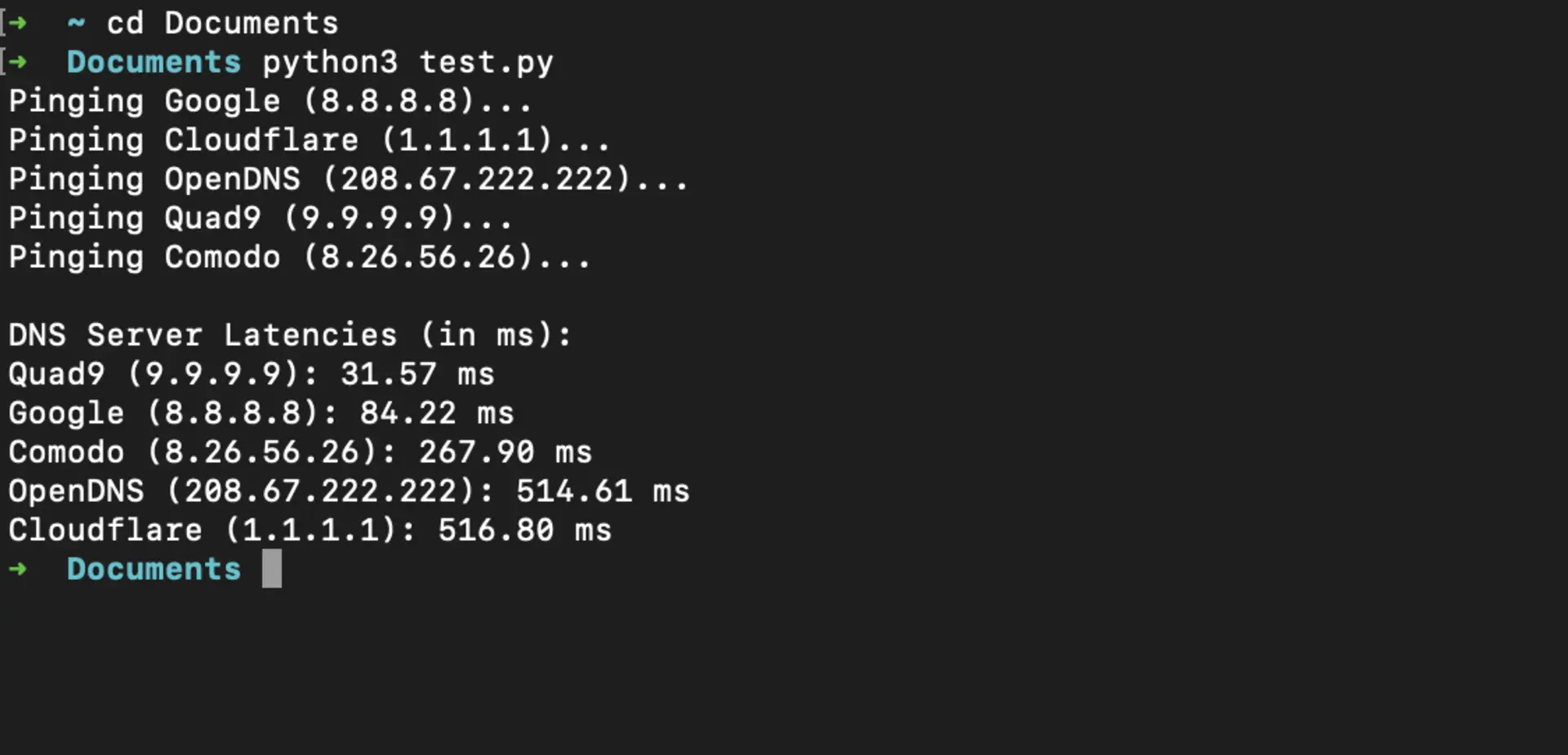
You can use this DNS Latency Checker script to test and identify the best-performing DNS servers for your location. The script measures the average latency for popular DNS providers, helping you make an informed decision.
Here’s an example of the result output after running the script:
How to Change Your DNS for Gaming
Changing your DNS is easy and can be done in just a few steps:
Windows 11 (23H2 / 24H2 / 25H2):
- Open Settings > Network & internet.
- Click your active connection (Wi-Fi or Ethernet), then click the adapter to open its properties.
- Under DNS server assignment, click Edit.
- Switch from Automatic (DHCP) to Manual, toggle IPv4 on, and enter your preferred and alternate DNS addresses. Optionally set DNS over HTTPS to On (automatic template) for encrypted DNS.
- Click Save. (The old Control Panel > Network and Sharing Center path still works, but Microsoft is steering everything through Settings now.)
The DNS over HTTPS dropdown only lights up for resolvers Windows already knows, and out of the box that list is just Cloudflare, Google, and Quad9. Check what yours has with
Get-DnsClientDohServerAddress. For AdGuard, Control D, NextDNS, or DNS4EU you have to register the template yourself first, from an admin PowerShell prompt:Add-DnsClientDohServerAddress -ServerAddress '94.140.14.14' -DohTemplate 'https://dns.adguard-dns.com/dns-query' -AllowFallbackToUdp $False -AutoUpgrade $TrueUse
-AllowFallbackToUdp $Trueif you would rather a DoH failure drop back to plaintext than break name resolution outright.macOS (Sequoia 15 / Tahoe 26):
- Open System Settings (not the old System Preferences) > Network. Apple jumped straight from macOS 15 to macOS 26 with Tahoe, so there is no 16 through 25 to look for; the steps below are the same on both releases.
- Select your active service (Wi-Fi or Ethernet), then click Details….
- Choose DNS in the sidebar.
- Click + under DNS Servers and enter each address. Remove the greyed-out DHCP-pushed addresses if you want yours to take precedence.
- Click OK. macOS applies the change immediately; flush the cache with
sudo dscacheutil -flushcache; sudo killall -HUP mDNSResponderif you want it to take effect for already-resolved names.
Ubuntu Linux (GNOME):
- Open Settings > Network.
- Click the gear icon next to your active Wi-Fi or wired connection.
- Go to the IPv4 (or IPv6) tab.
- Turn Automatic off for DNS, then enter your DNS server addresses in the DNS field (comma-separated).
- Click Apply and toggle the connection off/on to pick up the change. On systemd-resolved systems,
resolvectl statuswill confirm the active resolver.
Router (whole-home):
- Log in to your router’s admin page (commonly
192.168.1.1or192.168.0.1). - Find DNS settings under WAN, Internet, or DHCP (the location varies by vendor).
- Enter your chosen DNS addresses, save, and reboot if the router prompts you.
- Heads up: some ISP-supplied routers ignore your DNS overrides or transparently redirect port 53. If your changes don’t seem to take effect, test with
dig @1.1.1.1 example.comfrom a client and compare todig example.com.
- Log in to your router’s admin page (commonly
Consoles (PS5, Xbox Series X|S, Switch):
- PS5: Settings > Network > Settings > Set Up Internet Connection. Highlight your saved network, press the Options button, then Advanced Settings > DNS Settings > Manual, and fill in primary and secondary.
- Xbox Series X|S: press the Xbox button, then Profile & system > Settings > General > Network settings > Advanced settings > DNS settings > Manual.
- Nintendo Switch / Switch 2: System Settings > Internet > Internet Settings, pick your network, then Change Settings > DNS Settings > Manual.
Three things to know before you bother:
- No console supports encrypted DNS. Not DoH, not DoT, not DoQ. Whatever you type in goes out as plaintext UDP on port 53, so your ISP still sees every lookup. If encrypted DNS on the console matters to you, the only way to get it is to set it on the router instead.
- Filtering resolvers break console services more often than they break PCs. Ad-blocking profiles have a habit of eating telemetry and CDN hostnames that a launcher treats as mandatory. Start on an unfiltered profile, and if the store hangs or a patch download stalls, that is the first thing to undo.
- DNS is not your NAT type. Changing DNS will not open ports, fix a Strict or Type 3 NAT, or improve peer-to-peer matchmaking. That is UPnP, port forwarding, or your ISP’s CGNAT, and it is a separate problem from the one on this page.
Conclusion
Switching DNS will not lower your in-game ping. It makes launchers boot faster, logins less flaky, and patches grab from a closer mirror, which is what “gaming DNS” tweaks are really solving for. Cloudflare (1.1.1.1), Google (8.8.8.8), and Quad9 (9.9.9.9) are the safe 2026 defaults. Benchmark two or three from your own connection, put two different operators in the primary and secondary slots, and move on.