ZeroClaw: A Lightweight Open Source Alternative to OpenClaw
Updated on Mar 3, 2026 · 13 mins read
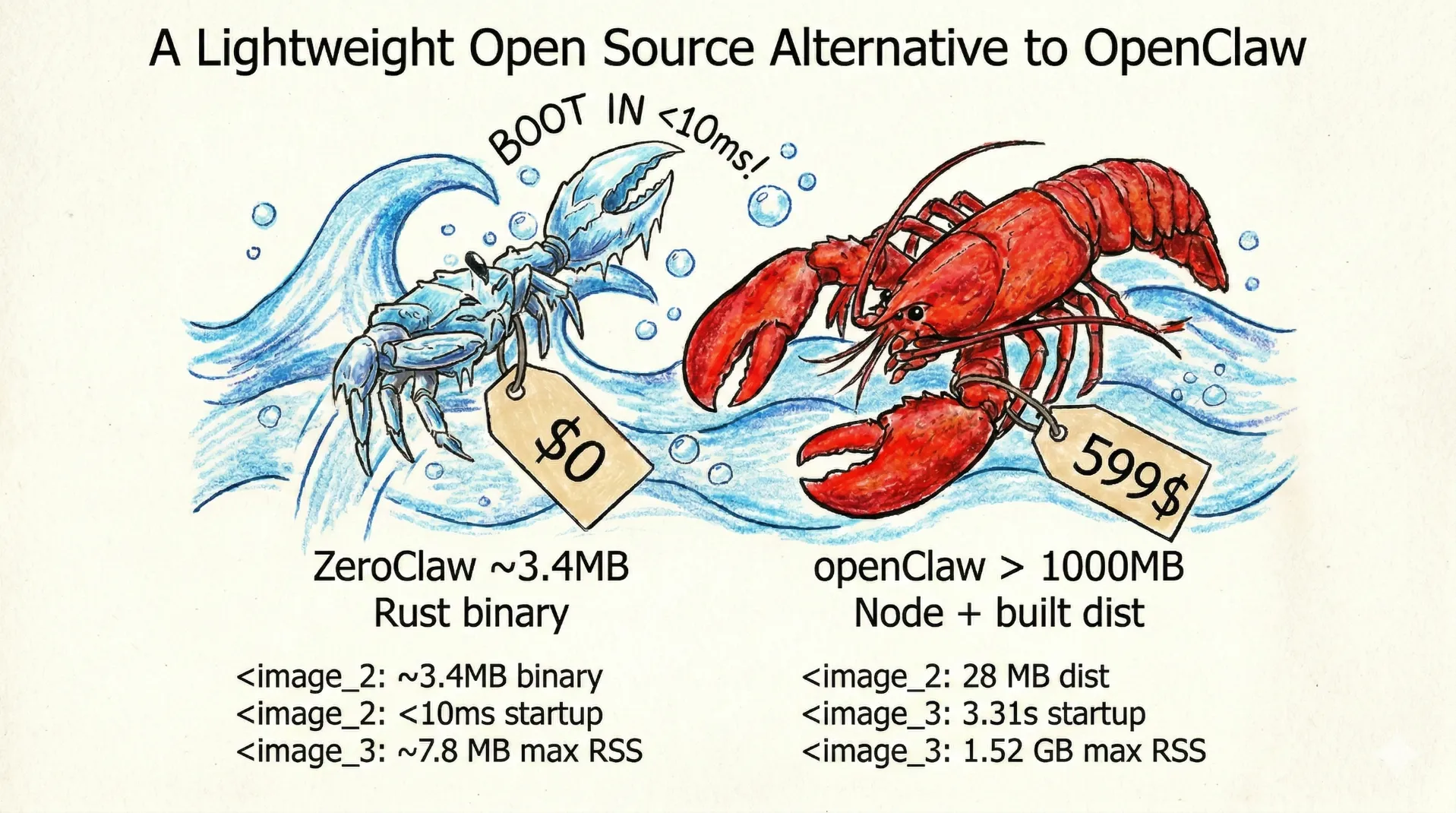
ZeroClaw is a blazing-fast, ultra-lightweight AI agent framework built entirely in Rust. While OpenClaw has taken the developer world by storm with over 100,000 GitHub stars, it comes with a hefty resource footprint over 1 GB of RAM and a TypeScript runtime. ZeroClaw delivers the same core capabilities (multi-channel messaging, persistent memory, tool execution, and proactive AI) in an ~8.8 MB binary that uses less than 5 MB of RAM.
If you’ve been looking for a self-hosted AI agent that can run comfortably on a Raspberry Pi, an old laptop, or a $5 VPS, ZeroClaw is the answer.
Summary
- Install ZeroClaw:
brew install zeroclaw - Build from source (alternative):
git clone https://github.com/zeroclaw-labs/zeroclaw.git cd zeroclaw ./bootstrap.sh - Create a Discord bot and configure the token
- Configure provider and Discord via the onboarding wizard
- Start the channel server:
zeroclaw channel start
Resources:
Why ZeroClaw Over OpenClaw?
OpenClaw is a fantastic project it proved that a self-hosted AI agent with persistent memory, proactive communication, and multi-channel support is not only possible but practical. However, its TypeScript foundation means you need Node.js v22+, over 1 GB of RAM, and startup times that can stretch into minutes on low-end hardware.
ZeroClaw takes the same vision and rebuilds it from scratch in Rust. The result is dramatic:
| Metric | ZeroClaw | OpenClaw |
|---|---|---|
| Language | Rust | TypeScript |
| RAM Usage | <5 MB | >1 GB |
| Startup (0.8 GHz) | <10 ms | >500 ms |
| Binary Size | ~8.8 MB | ~28 MB + Node.js |
| Architecture | ARM, x86, RISC-V | x86, ARM (via Node.js) |
| Dependencies | Single binary, zero runtime | Node.js + npm packages |
ZeroClaw uses 99% less memory than OpenClaw. That’s not a typo it’s the difference between needing a dedicated server and running on hardware you already own.
What is ZeroClaw?
ZeroClaw is an open-source runtime framework for agentic workflows infrastructure that abstracts models, tools, memory, and execution so agents can be built once and run anywhere. It ships as a single Rust binary with no external runtime dependencies.
Key Features:
- Lean Runtime: Operates within a few-megabyte memory envelope on release builds
- Multi-Provider Support: Works with Anthropic, OpenAI, Google Gemini, OpenRouter, and any OpenAI-compatible API
- Multi-Channel Messaging: Talk to your agent via CLI, Discord, and more
- Persistent Memory: SQLite-backed memory with vector search for semantic recall
- Research Phase: Gathers information through tools before generating responses
- Secure by Default: Pairing-based authentication, sandboxing, explicit allowlists, and workspace scoping
- Trait-Driven Architecture: Swap any component (provider, channel, tool, memory) without touching others
- Cross-Platform: Runs on ARM, x86, and RISC-V
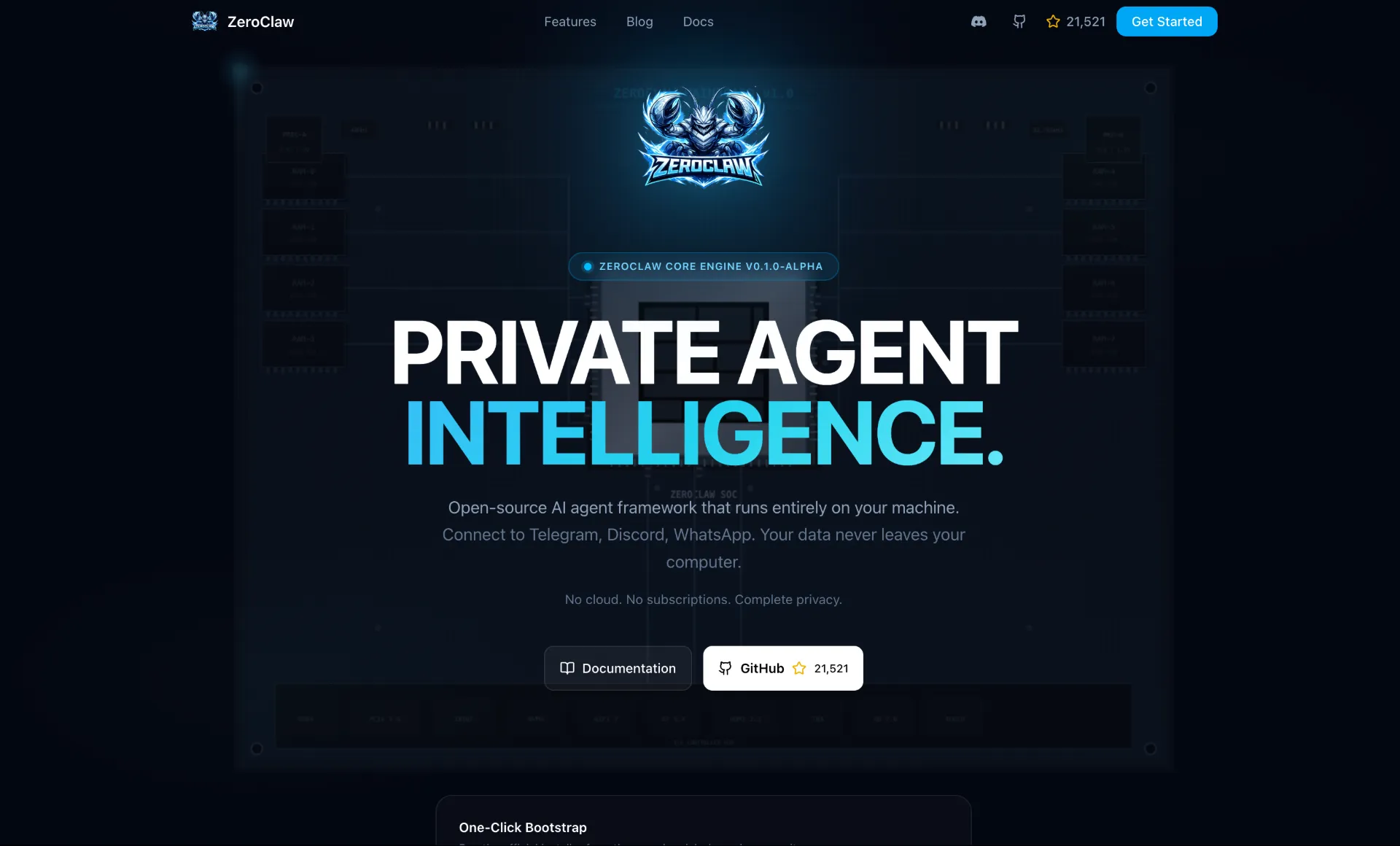
The project has already gathered over 21,000 GitHub stars and is dual-licensed under MIT and Apache 2.0.
Prerequisites
Before getting started, make sure you have the following:
For Homebrew install (easiest):
- macOS or Linux with Homebrew installed
For building from source:
- Rust toolchain (stable or nightly)
- ~2 GB RAM and ~6 GB disk space for compilation
- Git
An LLM API key: ZeroClaw supports Anthropic Claude, OpenAI, Google Gemini, OpenRouter, GitHub Copilot, and more. Have your API key ready.
A Discord account: For the Discord bot integration covered in this guide.
Step 1: Install ZeroClaw
ZeroClaw offers three installation methods. Pick whichever suits your setup best.
Option A: Homebrew (Recommended)
The fastest way to get started on macOS or Linux:
brew install zeroclaw
Verify the installation:
zeroclaw --version
Option B: Build from Source
Building from source gives you the latest features and lets you customize the build:
git clone https://github.com/zeroclaw-labs/zeroclaw.git
cd zeroclaw
./bootstrap.sh
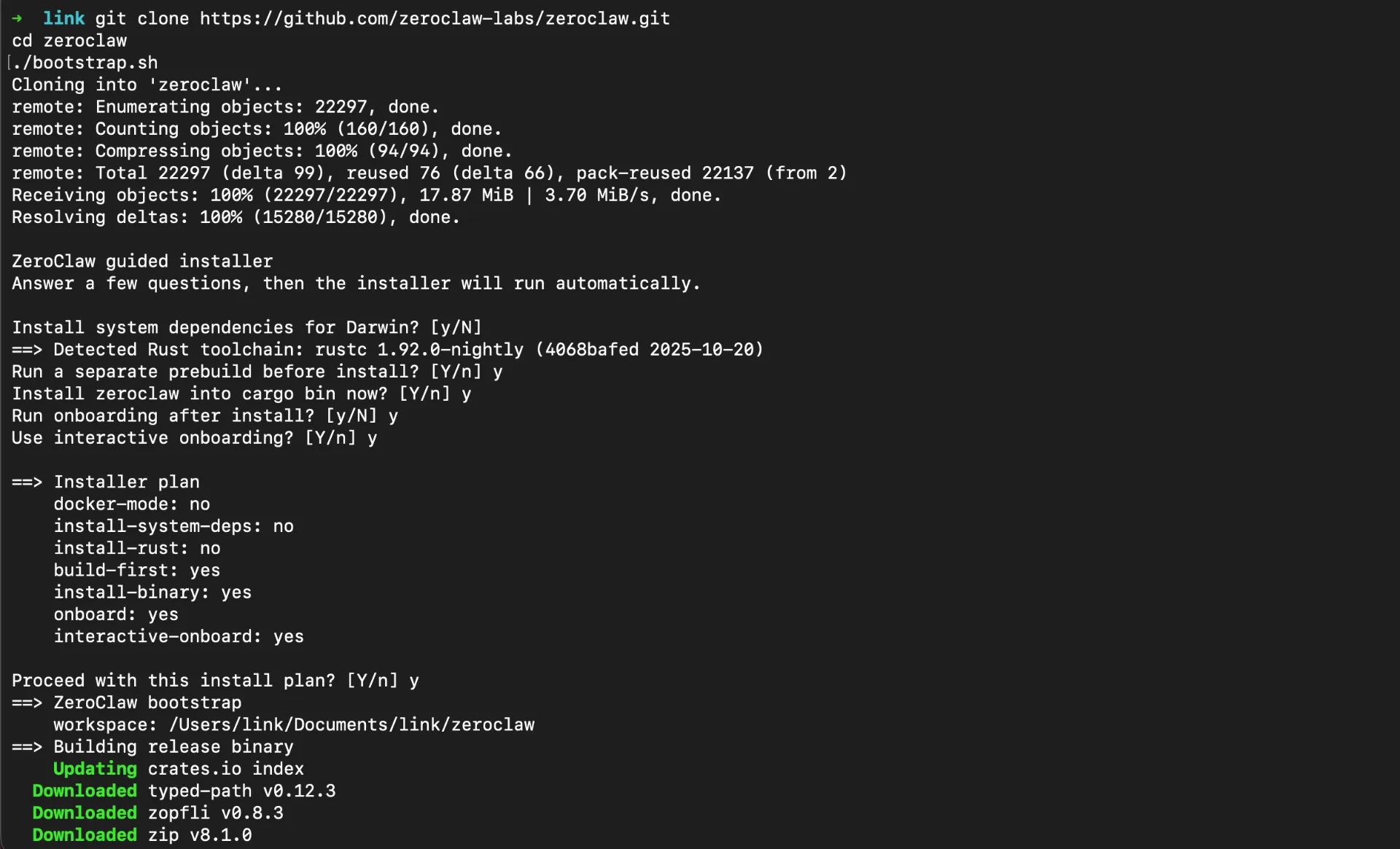
The bootstrap script is an interactive guided installer. It will ask a few questions, then run automatically:
ZeroClaw guided installer
Answer a few questions, then the installer will run automatically.

Install system dependencies for Darwin? [y/N] y
==> Detected Rust toolchain: rustc 1.92.0-nightly
Run a separate prebuild before install? [Y/n] y
Install zeroclaw into cargo bin now? [Y/n] y
Run onboarding after install? [y/N] y
Use interactive onboarding? [Y/n] y
You’ll then see an installer plan summary:
==> Installer plan
    docker-mode: no
    install-system-deps: yes
    install-rust: no
    build-first: yes
    install-binary: yes
    onboard: yes
    interactive-onboard: yes

Proceed with this install plan? [Y/n] y
Confirm with y and the build will begin. On a modern machine, compilation takes about 5–6 minutes. Once complete, the binary is installed to your cargo bin path:
Finished `release` profile [optimized] target(s) in 6m 08s
==> Installing zeroclaw to cargo bin
  Installing /Users/you/.cargo/bin/zeroclaw
  Installed package `zeroclaw v0.1.7`
If your machine has limited resources, use the prebuilt option:
./bootstrap.sh --prefer-prebuilt
Step 2: Create a Discord Bot
Before running the onboarding wizard, you’ll need to create a Discord bot. This process is the same as setting up any Discord bot if you’ve done it for OpenClaw, you already know the drill.
Create the Application
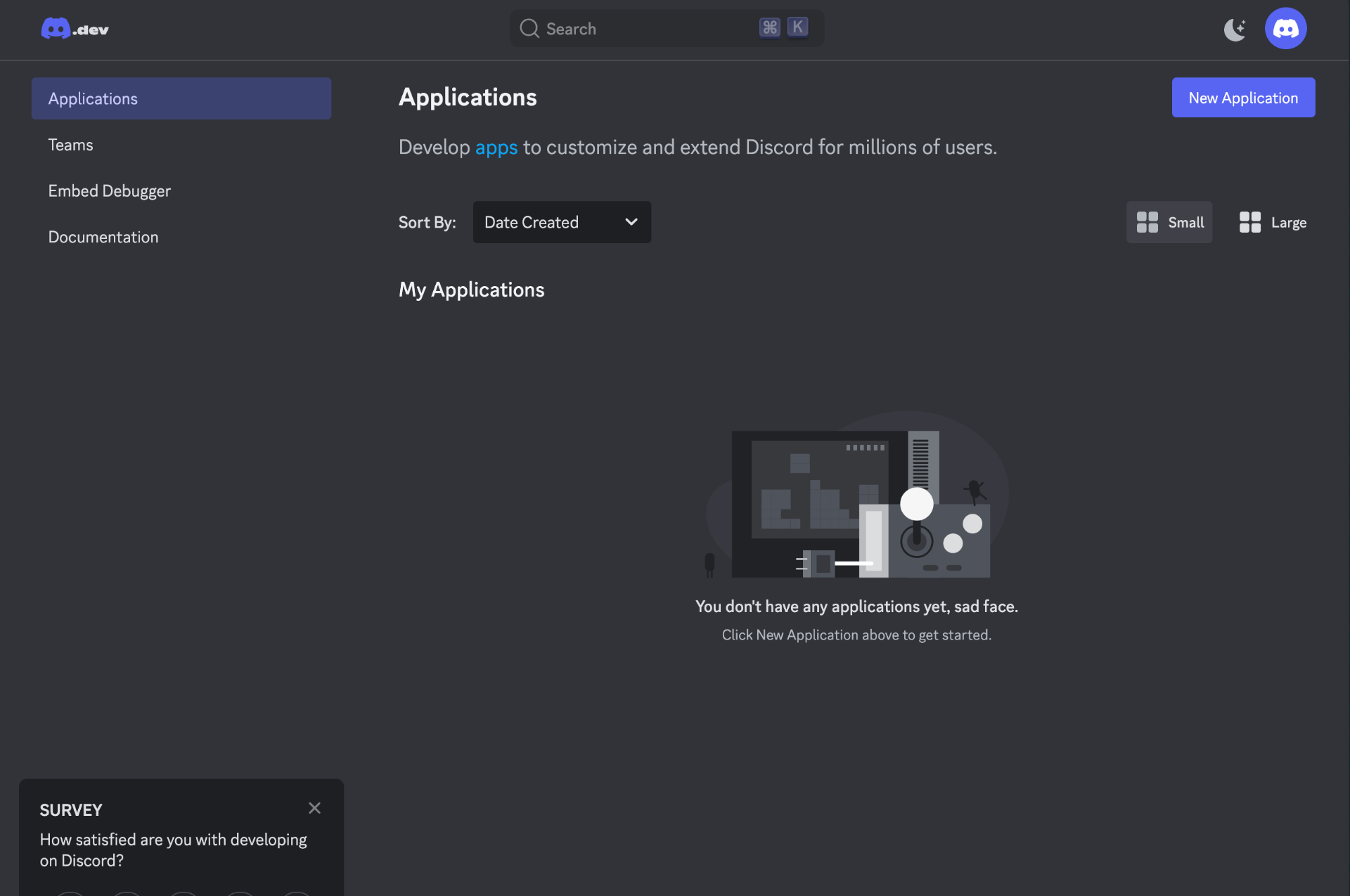
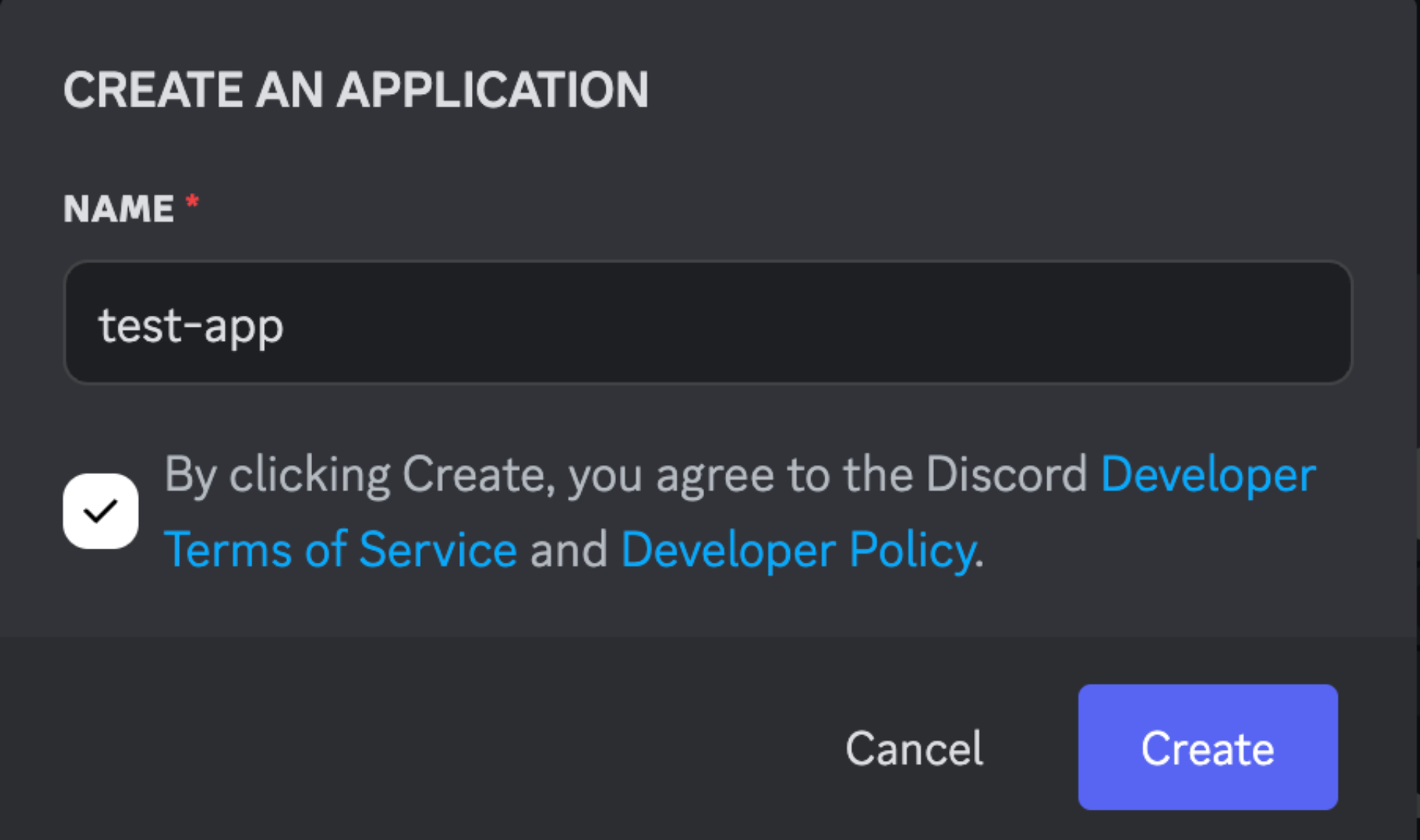
- Go to the Discord Developer Portal
- Click New Application and give it a name (e.g., “ZeroClaw Bot”)
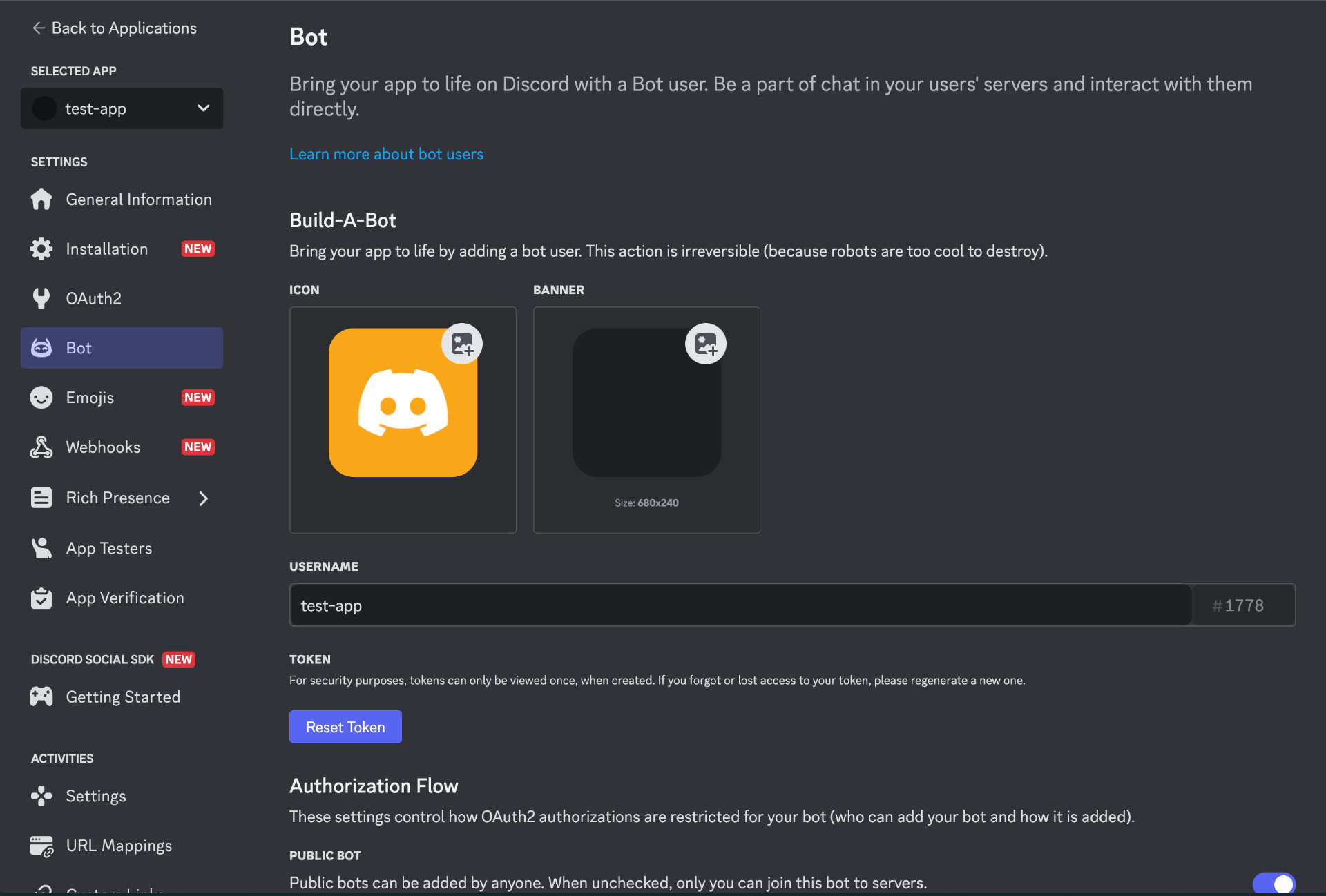
- Navigate to Bot in the left sidebar
- Click Add Bot and confirm with “Yes, do it!”
Copy the Bot Token
Under the Bot settings, click Reset Token and copy the generated token. Store this securely you’ll paste it into the ZeroClaw onboarding wizard in the next step.
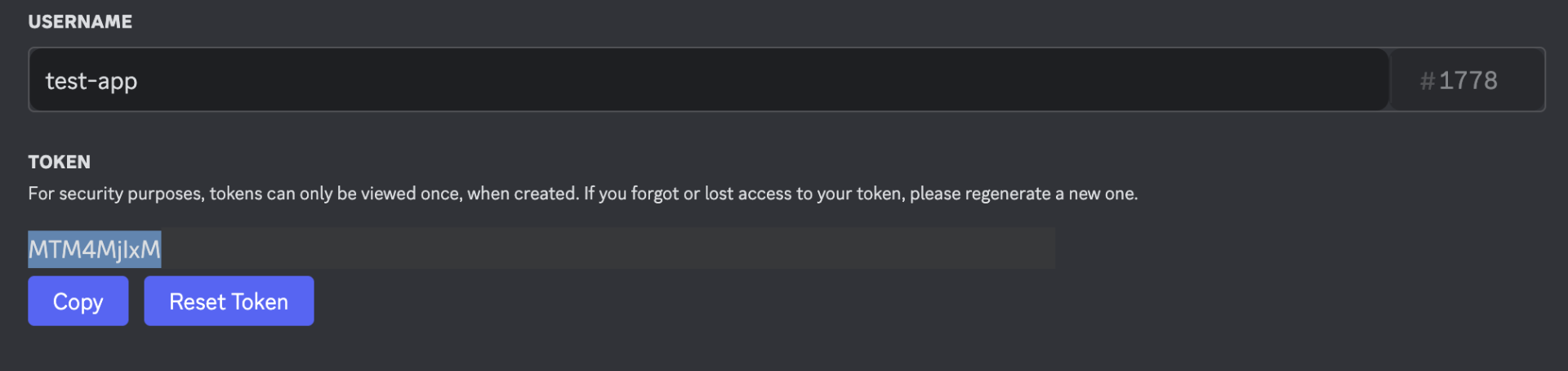
Important: Never share your bot token publicly. Anyone with this token can control your bot.
Enable Required Intents
Still in the Bot settings, scroll down to Privileged Gateway Intents and enable:
- Message Content Intent (Essential): Required for ZeroClaw to read message text. Without it, you’ll get “Invalid Session” errors and the Discord channel will keep restarting in a loop.
- Server Members Intent (Recommended): Enables member/user lookups and allowlist matching.
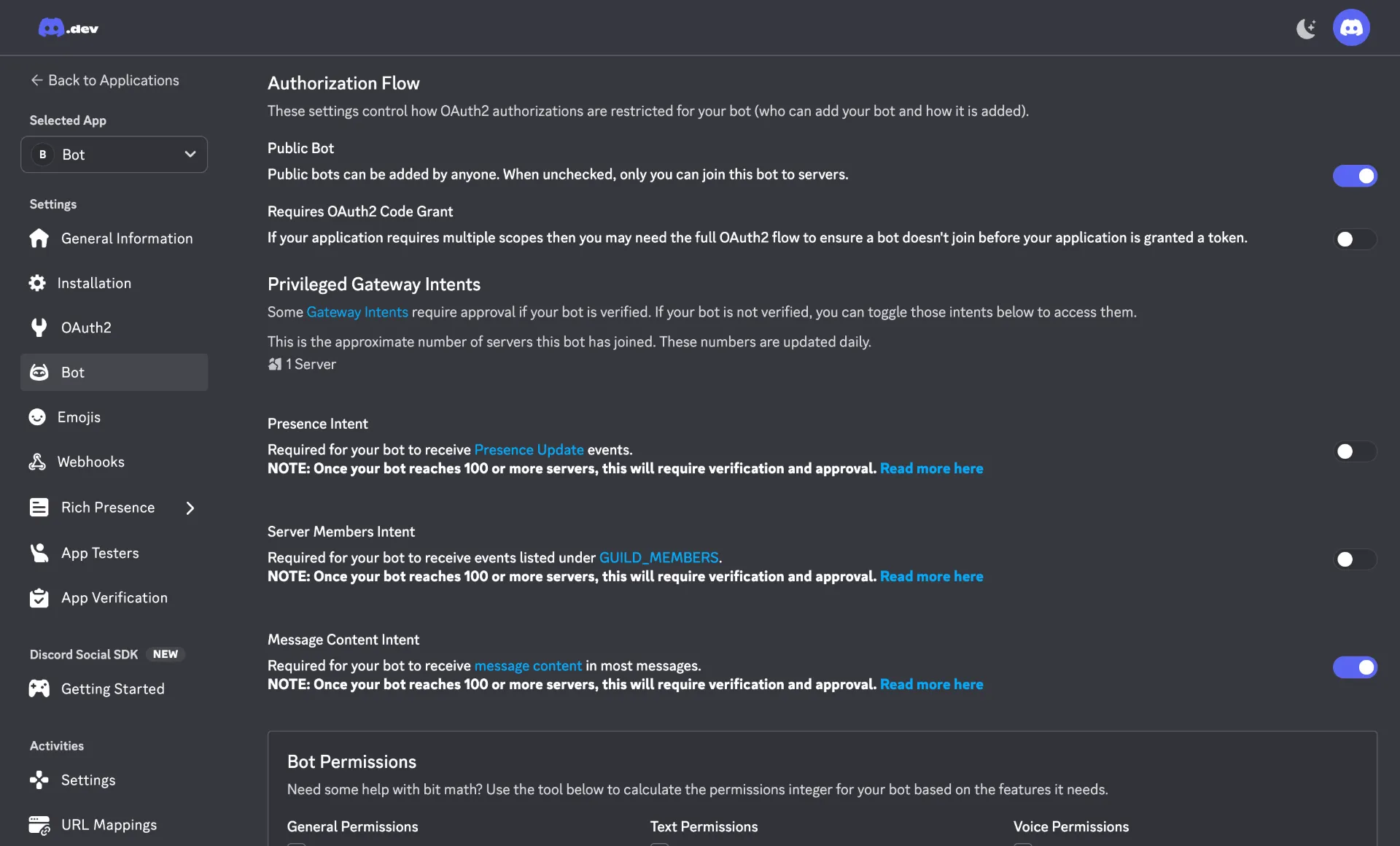
Critical: If you skip enabling the Message Content Intent, ZeroClaw’s Discord channel will repeatedly connect and immediately disconnect with
Invalid Session (op 9)errors. This is the most common setup issue.
Set the OAuth2 Redirect URL
Before generating the invite link, navigate to OAuth2 > General and add the following redirect URL:
https://discord.com/api/oauth2/authorize
Click Save Changes.
Generate the Invite URL
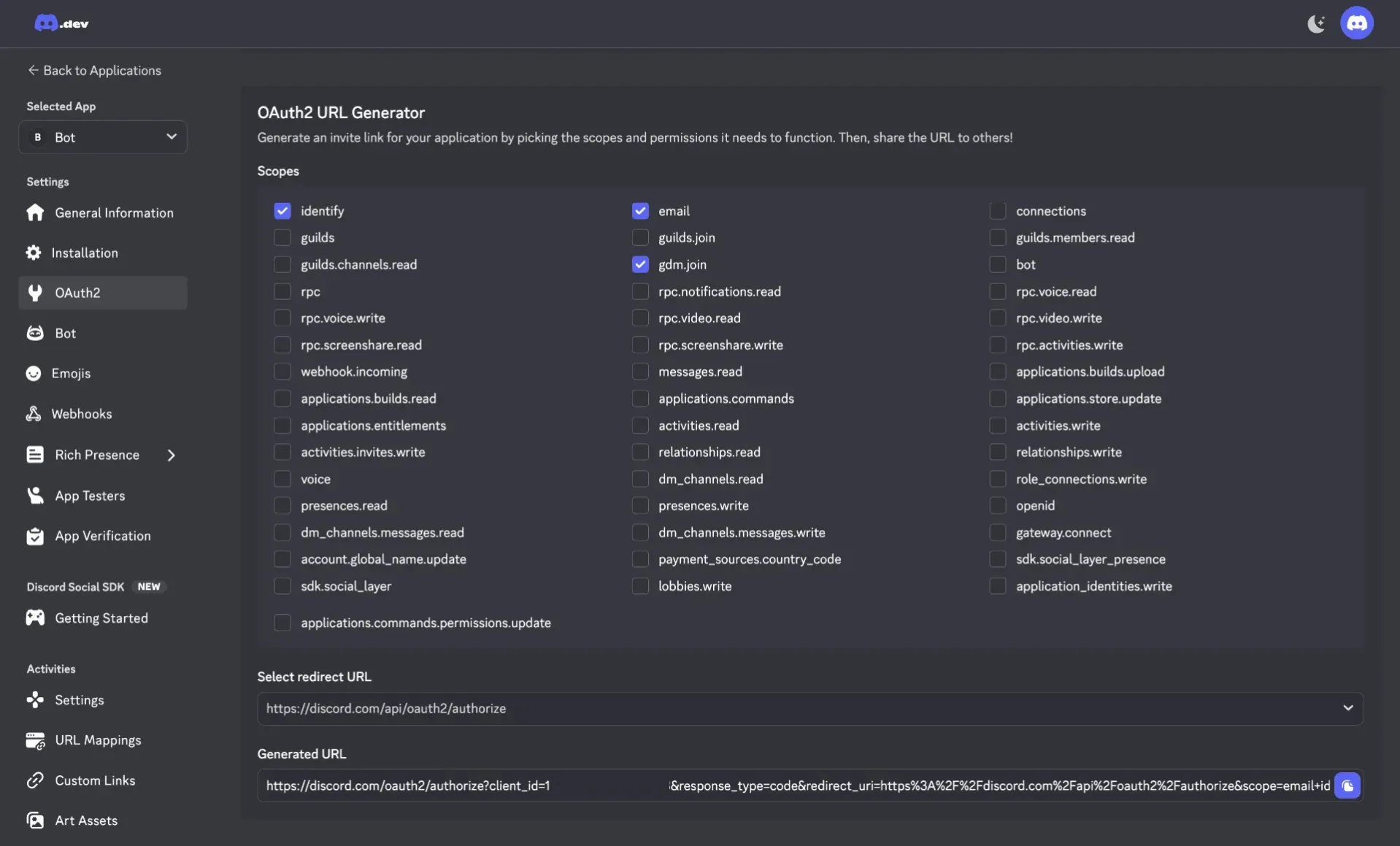
Navigate to OAuth2 > URL Generator and select:
Scopes:
botapplications.commands(for slash commands)
Bot Permissions (baseline):
- View Channels
- Send Messages
- Read Message History
- Embed Links
- Attach Files
- Add Reactions (optional but recommended)
- Use External Emojis/Stickers (optional)
Avoid selecting Administrator unless you’re debugging.
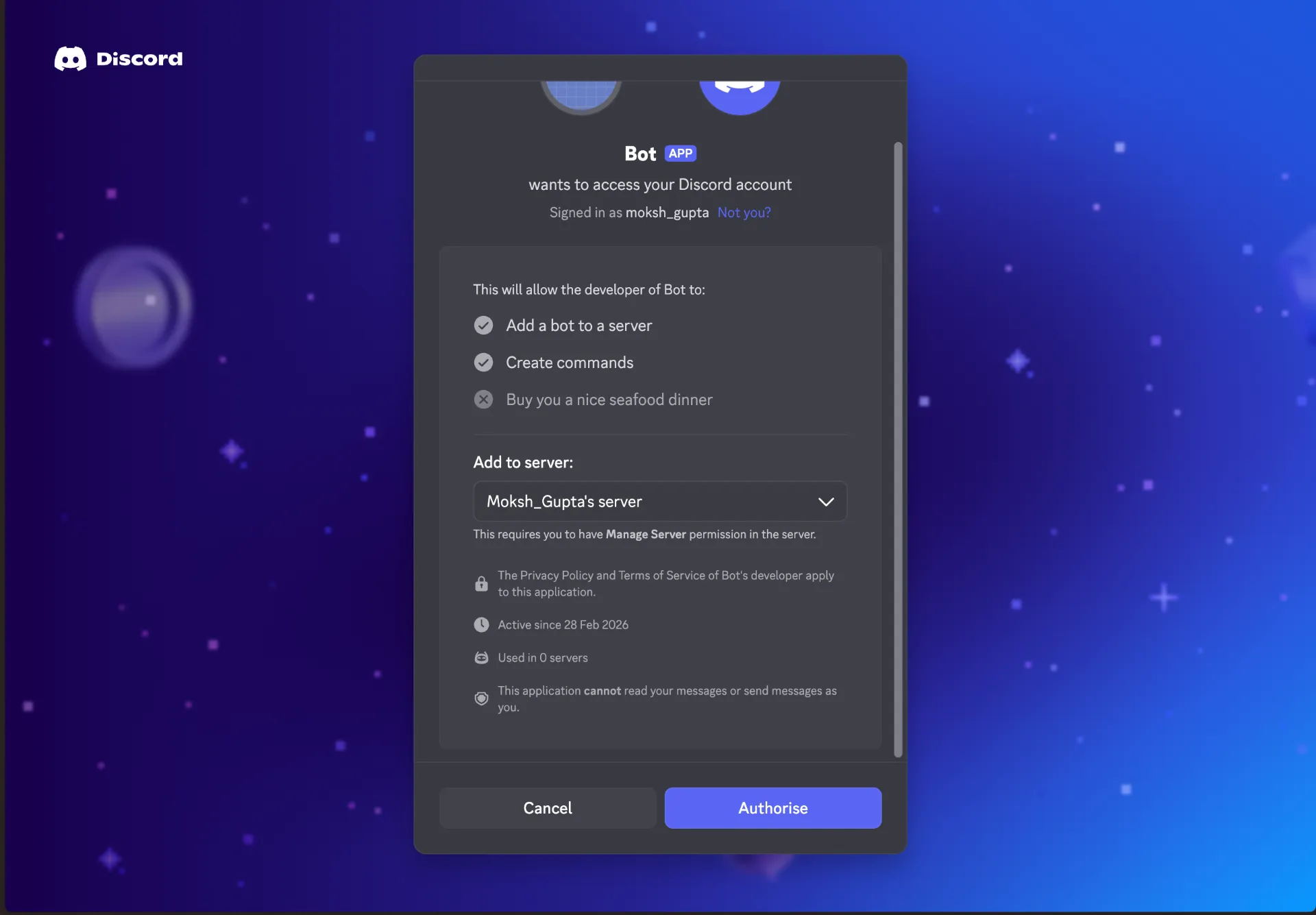
Copy the generated URL and open it in your browser to invite the bot to your Discord server. You’ll see an authorization page where you select the server and click Authorise.
Step 3: Run the Onboarding Wizard
After installation (or automatically after bootstrap), ZeroClaw launches an interactive onboarding wizard. If it didn’t run automatically, start it manually:
zeroclaw onboard
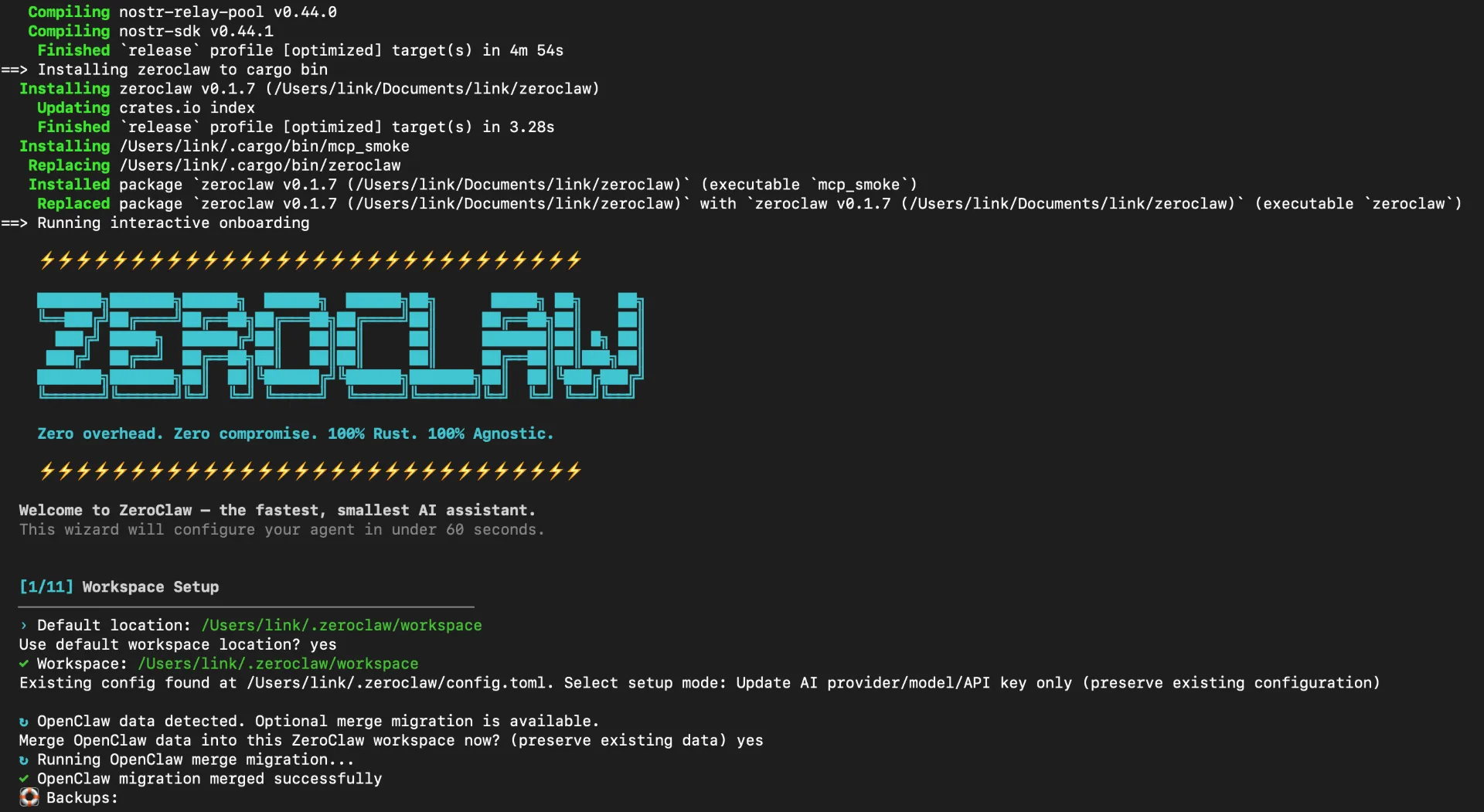
The wizard walks you through 11 configuration steps in under 60 seconds. Here’s what each step looks like:
[1/11] Workspace Setup
ZeroClaw creates a workspace directory at ~/.zeroclaw/workspace by default. This is where sessions, memory, state, cron jobs, and skills are stored.
[1/11] Workspace Setup
──────────────────────────────────────────────────
› Default location: /Users/you/.zeroclaw/workspace
Use default workspace location? yes
✓ Workspace: /Users/you/.zeroclaw/workspace
After setup, the workspace layout looks like this:
/Users/you/.zeroclaw/workspace/
├── sessions/
├── memory/
├── state/
├── cron/
├── skills/
├── IDENTITY.md
├── AGENTS.md
├── HEARTBEAT.md
├── SOUL.md
├── USER.md
├── TOOLS.md
└── BOOTSTRAP.md
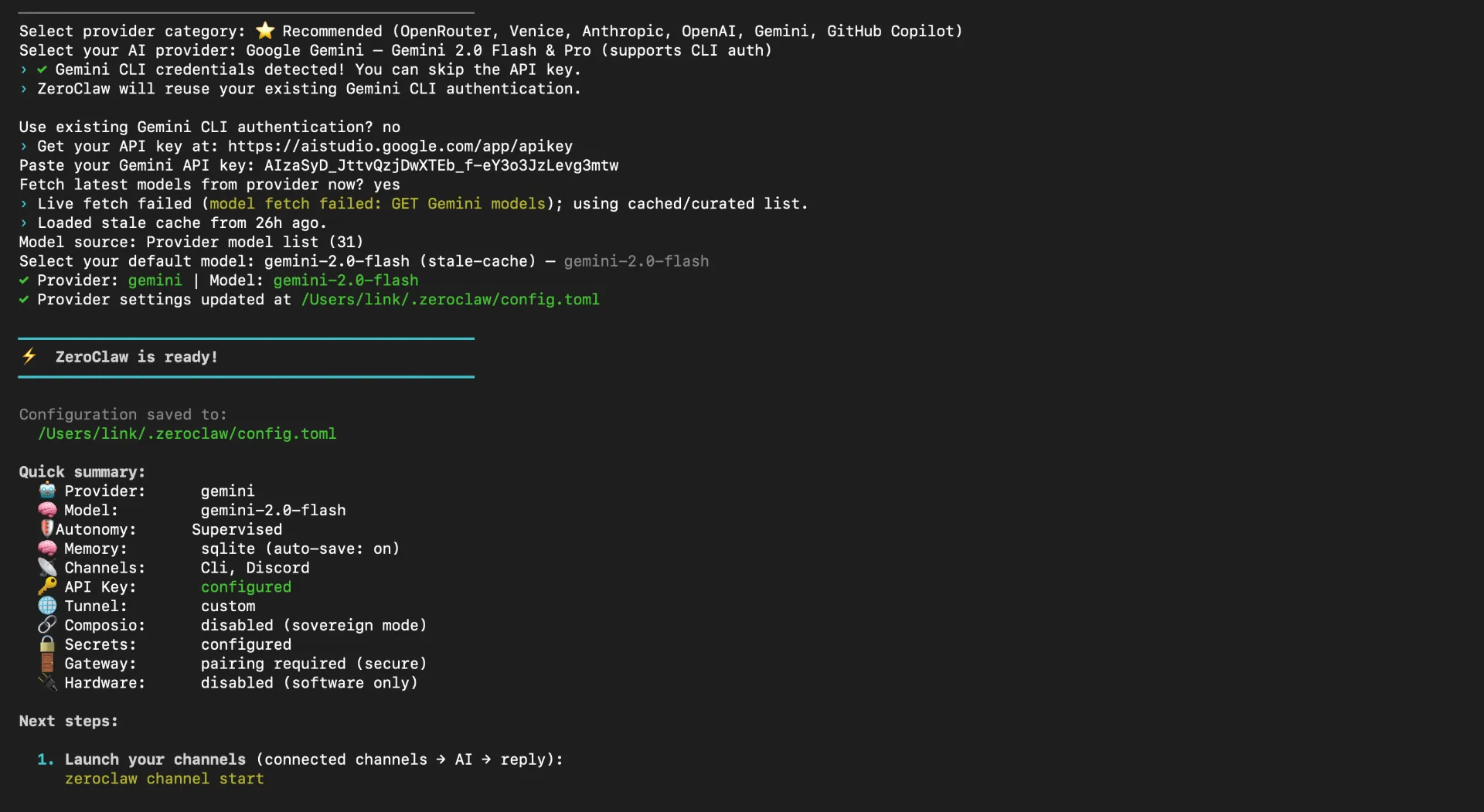
[2/11] AI Provider & API Key
Select your preferred AI provider. ZeroClaw supports a wide range of providers:
- Recommended: OpenRouter, Venice, Anthropic, OpenAI, Gemini, GitHub Copilot
- Local models: Ollama, LM Studio, and any OpenAI-compatible endpoint
For this guide, we’ll use Google Gemini as an example:
[2/11] AI Provider & API Key
──────────────────────────────────────────────────
Select provider category: ⭐ Recommended (OpenRouter, Venice, Anthropic, OpenAI, Gemini, GitHub Copilot)
Select your AI provider: Google Gemini Gemini 2.0 Flash & Pro (supports CLI auth)
Paste your Gemini API key: YOUR_API_KEY_HERE
Select your default model: gemini-2.0-flash
✓ Provider: gemini | Model: gemini-2.0-flash
Tip: If you have existing Gemini CLI credentials, ZeroClaw can automatically detect and reuse them you can skip entering the API key manually.
[3/11] Channels Connect Discord
This is where you connect messaging platforms. CLI is always available by default. Select Discord to add it:
[3/11] Channels (How You Talk to ZeroClaw)
──────────────────────────────────────────────────
› Channels let you talk to ZeroClaw from anywhere.
› CLI is always available. Connect more channels now.

Connect a channel (or Done to continue): Discord connect your bot
The wizard will prompt you for the bot token you copied in Step 2:
Discord Setup talk to ZeroClaw from Discord
› 1. Go to https://discord.com/developers/applications
› 2. Create a New Application → Bot → Copy token
› 3. Enable MESSAGE CONTENT intent under Bot settings
› 4. Invite bot to your server with messages permission

Bot token: YOUR_DISCORD_BOT_TOKEN
✅ Connected as yourBotName
Next, configure the allowed Discord user IDs:
Server (guild) ID (optional, Enter to skip):
Allowed Discord user IDs (comma-separated, recommended: your own ID, '*' for all): YOUR_USER_ID
Tip: Set your specific user ID instead of
*(wildcard) for production use. Using*allows anyone to message your bot. You can enter your guild ID for server-specific access control.
Select Done to finish channel configuration:
Connect a channel (or Done to continue): Done finish setup
✓ Channels: Cli, Discord
[4/11] Tunnel (Optional)
ZeroClaw’s onboarding wizard lets you configure a tunnel to expose your gateway to the internet. You can skip this if you only use CLI or local channels. To expose your agent publicly using Pinggy, select Custom as the tunnel provider:
[4/11] Tunnel (Expose to Internet)
──────────────────────────────────────────────────
› A tunnel exposes your gateway to the internet securely.
› Skip this if you only use CLI or local channels.

Select tunnel provider: Custom — bring your own (bore, frp, ssh, etc.)
Start command: ssh -T -p 443 -R 0:localhost:{port} -o StrictHostKeyChecking=accept-new free.pinggy.io
✓ Tunnel: Custom
You can also configure the tunnel directly in ~/.zeroclaw/config.toml after onboarding:
Free Pinggy tunnel:
[tunnel]
provider = "custom"

[tunnel.custom]
start_command = "ssh -T -p 443 -R 0:localhost:{port} -o StrictHostKeyChecking=accept-new free.pinggy.io"
url_pattern = ".pinggy.link"
With a Pinggy Pro token (for persistent subdomains):
[tunnel.custom]
start_command = "ssh -T -p 443 -R 0:localhost:{port} -o StrictHostKeyChecking=accept-new YOUR_TOKEN@pro.pinggy.io"
url_pattern = ".pinggy.link"
With a specific region (e.g., Australia):
[tunnel.custom]
start_command = "ssh -T -p 443 -R 0:localhost:{port} -o StrictHostKeyChecking=accept-new au.free.pinggy.io"
url_pattern = ".pinggy.link"
ZeroClaw’s custom tunnel reads stdout for a URL containing url_pattern, which works with Pinggy’s output out of the box.
[5/11] Tool Mode & Security
Choose Sovereign (local only) for maximum privacy. This means you manage all API keys locally and no data is sent to third-party orchestrators.
[5/11] Tool Mode & Security
──────────────────────────────────────────────────
Select tool mode: Sovereign (local only) you manage API keys, full privacy (default)
✓ Tool mode: Sovereign (local only) full privacy, you own every key

Enable encrypted secret storage? yes
✓ Secrets: encrypted keys encrypted with local key file
[6/11–11/11] Remaining Configuration
The remaining steps cover:
- Web & Internet Tools [6/11]: Enable/disable web search, page fetch, and HTTP request tools
- Hardware [7/11]: Enable physical device access (LEDs, sensors, motors) or keep it software-only
- Memory [8/11]: Select SQLite with Vector Search (recommended) for hybrid semantic search
- Identity Backend [9/11]: Choose OpenClaw-style markdown workspace identity files
- Project Context [10/11]: Set your name, timezone, agent name, and communication style
- Workspace Files [11/11]: Auto-generated identity and configuration files
After completing all steps, you’ll see the final summary:
━━━━━━━━━━━━━━━━━━━━━━━━━━━━━━━━━━━━━━━━━━━━━━━━━━
⚡  ZeroClaw is ready!
━━━━━━━━━━━━━━━━━━━━━━━━━━━━━━━━━━━━━━━━━━━━━━━━━━

Configuration saved to:
  /Users/you/.zeroclaw/config.toml

Quick summary:
  🤖 Provider:      gemini
  🧠 Model:         gemini-2.0-flash
  🛡️ Autonomy:      Supervised
  🧠 Memory:        sqlite (auto-save: on)
  📡 Channels:      Cli, Discord
  🔑 API Key:       configured
  🔗 Composio:      disabled (sovereign mode)
  🔒 Secrets:       configured
  🚪 Gateway:       pairing required (secure)
  🔌 Hardware:      disabled (software only)
Your configuration is saved to ~/.zeroclaw/config.toml.
Step 4: Start the Channel Server
With everything configured, launch ZeroClaw’s channel server:
zeroclaw channel start
You’ll see output confirming the server is running:
🦀 ZeroClaw Channel Server
  🤖 Model:    gemini-2.0-flash
  🧠 Memory:   sqlite (auto-save: on)
  📡 Channels: discord

  Listening for messages... (Ctrl+C to stop)

  🚦 In-flight message limit: 8
Once the Discord channel connects successfully, you’ll see:
INFO zeroclaw::channels::discord: Discord: connecting to gateway...
INFO zeroclaw::channels::discord: Discord: connected and identified
Alternative: Launch the Gateway Dashboard
If you prefer a web-based interface:
zeroclaw gateway
This starts the dashboard at http://localhost:3000/. The dashboard lets you monitor sessions, view memory, and configure settings through a browser.
Quick CLI Chat
For a quick test without Discord:
# Single message
zeroclaw agent -m "Hello, ZeroClaw!"

# Interactive mode
zeroclaw agent
Step 5: Test Discord Integration
With the channel server running:
- Open Discord and navigate to your server
- Mention your bot in any channel:
@YourBotName Hello Zero Claw - The bot should process the message and respond
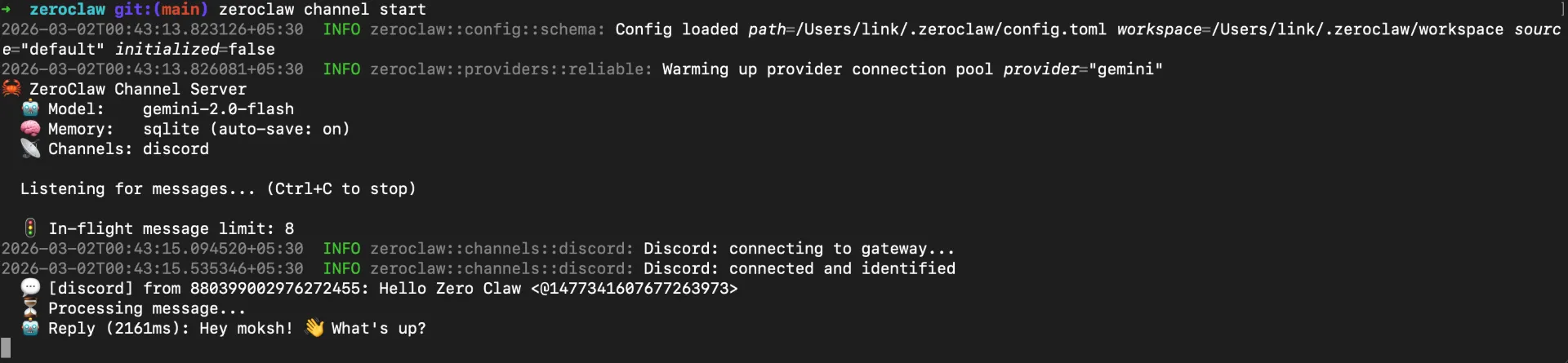
You’ll see the interaction in the terminal logs:
💬 [discord] from 880399002976272455: Hello Zero Claw <@1477341607677263973>
⏳ Processing message...
🤖 Reply (2161ms): Hey moksh! 👋 What's up?
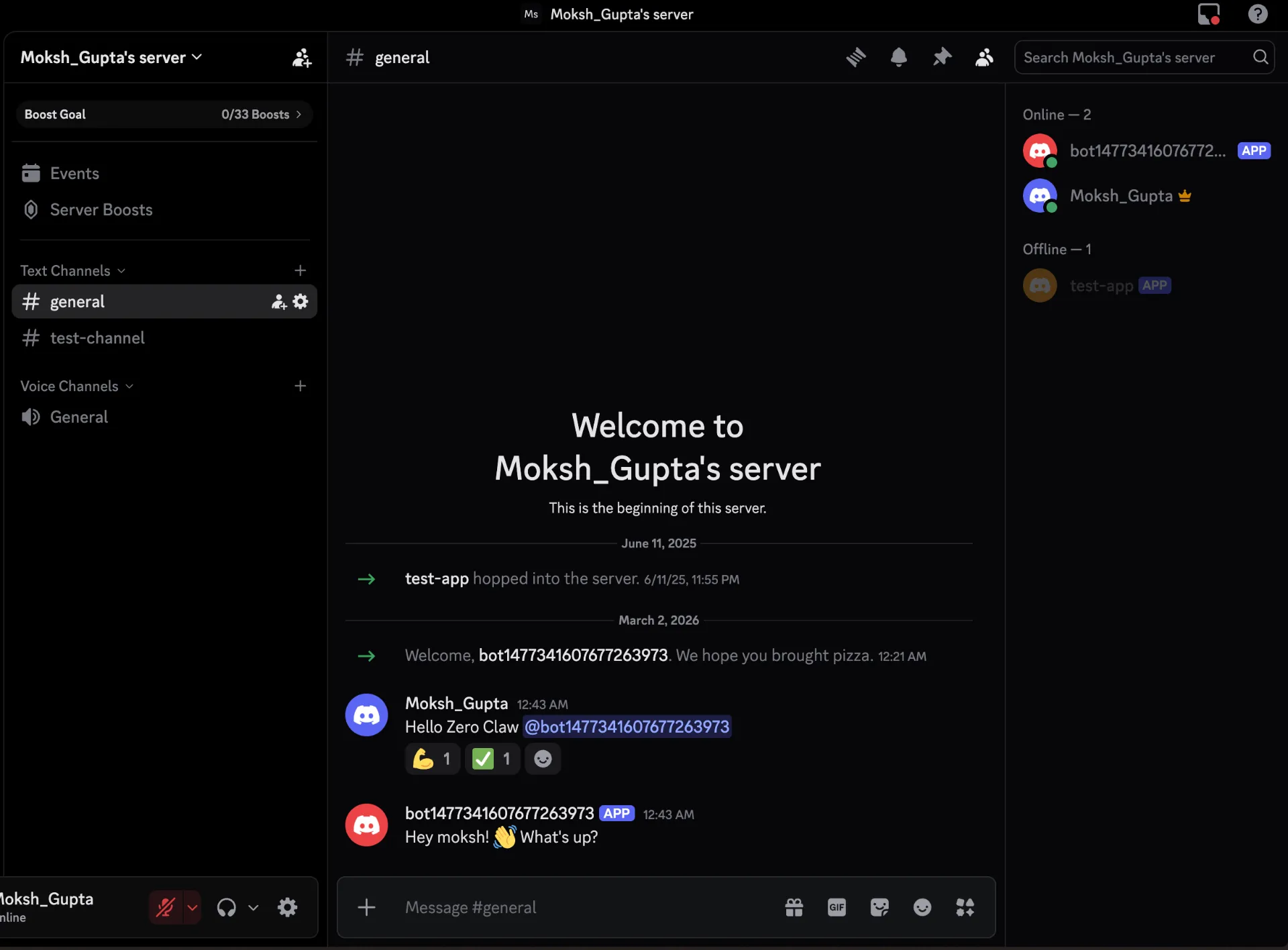
And on the Discord side, you’ll see the bot reply in your channel:
For DMs, if you’re using the default pairing policy, ZeroClaw will prompt you to approve a pairing code:
zeroclaw pairing approve discord <code>
Troubleshooting
Discord Channel Keeps Restarting in a Loop
If you see Invalid Session (op 9) errors and the Discord channel keeps reconnecting, enable Message Content Intent and Server Members Intent in the
Discord Developer Portal under Bot > Privileged Gateway Intents. Restart the channel server after.
API Key Expired
If you get API key expired. Please renew the API key. errors, update it via CLI:
zeroclaw config set api_key "YOUR_NEW_API_KEY"
zeroclaw channel start
Bot Connects but Doesn’t Reply
- Verify Message Content Intent is enabled
- Confirm bot has Send Messages and Read Message History permissions
- Check if
require_mentionis set and you’re @mentioning the bot
Manual Discord Configuration
If you need to edit Discord settings after onboarding, open ~/.zeroclaw/config.toml:
[channels.discord]
enabled = true
token = "YOUR_DISCORD_BOT_TOKEN"

[channels.discord.dm]
enabled = true
policy = "pairing"

[channels.discord.guilds.YOUR_GUILD_ID]
users = ["YOUR_USER_ID"]
require_mention = true
Check Status
zeroclaw status
ZeroClaw vs OpenClaw: When to Use Which?
Both projects serve the same goal a private, self-hosted AI assistant but they target different use cases:
Choose ZeroClaw if:
- You’re running on resource-constrained hardware (Raspberry Pi, old laptop, cheap VPS)
- You want a single binary with no runtime dependencies
- You prefer Rust’s performance and memory safety guarantees
- You need cross-architecture support (ARM, x86, RISC-V)
Choose OpenClaw if:
- You want the most mature ecosystem with the largest community (100K+ stars)
- You need WhatsApp, Telegram, Slack, Signal, or iMessage support today
- You prefer TypeScript and want to extend with JavaScript tools
- Resource usage is not a concern
Both projects are actively developed and open source. ZeroClaw is rapidly catching up on features while maintaining its tiny footprint.
What You Can Do with ZeroClaw
Once your ZeroClaw agent is running with Discord, you have a powerful personal AI assistant:
Chat from Anywhere: Message your AI through Discord DMs or server channels, from your phone, tablet, or any device.
Persistent Memory: ZeroClaw remembers your conversations, preferences, and context using SQLite with vector search. Ask about something from weeks ago and it recalls the details.
Research Mode: ZeroClaw’s unique research phase gathers information through tools before responding, giving you more accurate and grounded answers.
Encrypted Secrets: API keys and tokens are encrypted with a local key file, protecting against accidental leaks.
Custom Skills: Drop skill files into the ~/.zeroclaw/workspace/skills/ directory to extend your agent’s capabilities.
Conclusion
ZeroClaw proves that a full-featured AI agent doesn’t need to be a resource hog. By rebuilding the core ideas behind OpenClaw in Rust, the ZeroClaw team has created an agent framework that runs on practically anything from a Raspberry Pi to a full server while using a fraction of the memory and starting in milliseconds.
Whether you’re a developer looking for a lightweight alternative to OpenClaw, a tinkerer who wants an AI agent on a Pi, or someone who simply values privacy and efficiency, ZeroClaw is worth a serious look.