How to Self-Host Any LLM – Step by Step Guide
Updated on Apr 22, 2026 · 9 min read
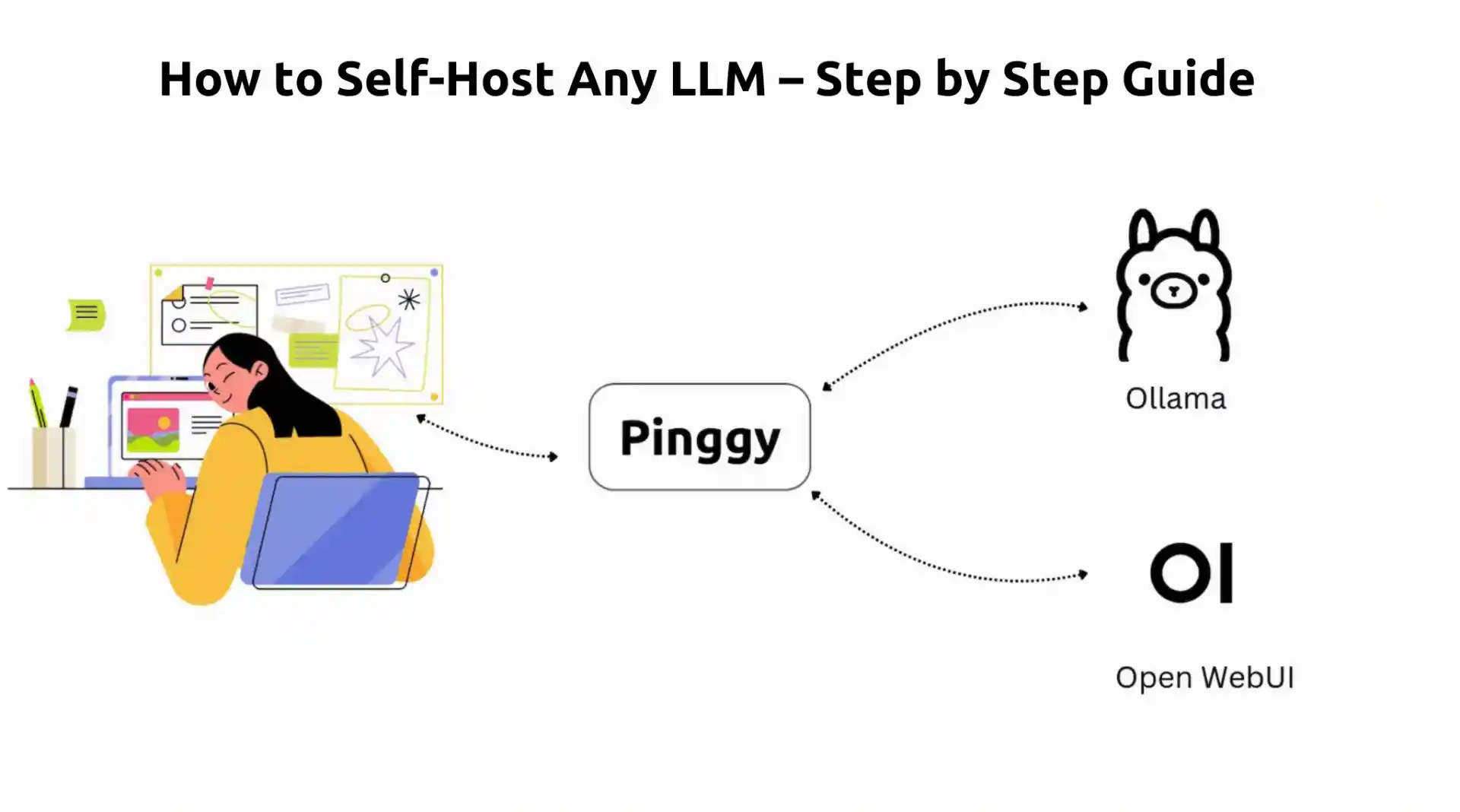
Self-hosting LLMs is no longer just for infra teams. With tools like Ollama and Open WebUI, you can run capable models on your own machine, keep conversations private, and avoid unpredictable API bills. For developers, founders, and small teams, this setup gives you more control without adding much operational complexity.
In this guide, you will build a local AI stack using Ollama + Open WebUI on Docker. By the end, you will have a ChatGPT-style interface running on your system, with an optional secure way to share it outside your local network.
Summary
Install Docker
- Get Docker Desktop from docker.com
- Ensure Docker is running before proceeding (green whale icon in system tray)
- Verify installation:
docker --version
Run Ollama in Docker
docker run -d -v ollama:/root/.ollama -p 11434:11434 --name ollama ollama/ollama- What this does: Creates persistent storage, exposes API on port
11434 - Verify: Check with
docker psto see “ollama” container running
- What this does: Creates persistent storage, exposes API on port
Download an LLM Model
# Pull a model into the Ollama container docker exec -it ollama ollama pull llama3.2:3b # Or try a more capable model docker exec -it ollama ollama pull llama3.1:8b- Model sizes: 3B (~2GB), 8B (~4.7GB), 70B (~40GB)
Getting a Chat interface using Open WebUI
docker run -d -p 3000:8080 --add-host=host.docker.internal:host-gateway -v open-webui:/app/backend/data --name open-webui --restart always ghcr.io/open-webui/open-webui:mainAccess Your Self-Hosted LLM
- Open
http://localhost:3000in your browser - First time: Create admin account (username/password of your choice)
- Model selection: Choose from dropdown in top-right corner
- Open
Why Self-Host Your LLMs?
Complete Control and Privacy
When you self-host a language model, prompts and responses stay under your control. This is valuable for teams working with private code, internal docs, customer data, or compliance-sensitive workflows. Instead of depending on third-party defaults, you decide how data is stored, who can access it, and how long it is retained.
Cost Effectiveness at Scale
Cloud API pricing is convenient early on, but it can become expensive once usage scales across teammates, automations, and production workloads. Self-hosting replaces per-token billing with fixed infrastructure costs, which makes budgeting much easier. If your usage is steady and high, local hosting can quickly become the cheaper long-term option.
Customization and Flexibility
A self-hosted stack is also easier to customize. You can test multiple models, switch based on task type (coding, summarization, extraction), and integrate directly with internal tools and pipelines. This flexibility is hard to match when you are limited to one external API provider and its roadmap.
Prerequisites and System Requirements
Hardware Considerations
Hardware needs depend heavily on model size. Smaller models such as Llama 3.2 3B work on modest machines, while larger models demand far more RAM/VRAM and storage bandwidth. The practical approach is to start with a lightweight model, validate your workflow, then scale to larger models only when you need better quality.
A dedicated GPU improves response speed significantly, but it is optional for getting started. Ollama can run on CPU-only systems and will use available acceleration when present. If you are new to self-hosting, begin with what you already have and benchmark real performance before investing in upgrades.
Software Prerequisites
You only need Docker and a terminal. We will run both Ollama and Open WebUI as containers, so your host system stays clean and dependencies remain isolated. This also makes updates, restarts, and troubleshooting much easier later.
Step 1: Setting Up Docker
Installing Docker Desktop
Docker Desktop provides the easiest way to run containerized applications on your local machine. Visit docker.com and download Docker Desktop for your operating system. The installation file is typically 400-500MB and requires administrator privileges to install.
System Requirements:
- Windows: Windows 10 64-bit Pro, Enterprise, or Education (Build 19041 or higher), or Windows 11
- macOS: macOS 10.15 or newer (Intel or Apple Silicon)
- Linux: 64-bit kernel and KVM virtualization support
The installation process is straightforward – just follow the installer prompts and restart your computer if prompted. On Windows, you may need to enable WSL 2 (Windows Subsystem for Linux) if it’s not already enabled. The installer will guide you through this process.
After installation, launch Docker Desktop and wait for it to fully start up. The initial startup can take 2-3 minutes as Docker initializes its services. You’ll know it’s ready when the Docker icon in your system tray shows a green status with “Docker Desktop is running” tooltip.
Configuring Docker Resources
Before proceeding, allocate enough resources to Docker. Open Docker Desktop settings and go to the Resources section. For LLM workloads, a good starting point is:
- Memory: At least 8GB (12GB+ for larger models)
- CPU: 4+ cores for better performance
- Disk Space: 50GB+ for models and container images
Confirming Docker is Running
Before proceeding, verify that Docker is working correctly by opening a terminal and running docker --version. You should see version information like “Docker version 24.0.x”. Also run docker info to confirm the Docker daemon is running properly. If Docker Desktop is running but you’re getting “command not found” errors, try restarting your terminal or logging out and back in to refresh your environment variables.
Step 2: Running Ollama in Docker
Setting Up the Ollama Container
Instead of installing Ollama directly on your system, we’ll run it inside a Docker container. This approach keeps everything isolated and makes management much easier. The official Ollama Docker image is approximately 1.5GB and handles all the complexity of running language models.
Run the following command to start the Ollama container:
docker run -d -v ollama:/root/.ollama -p 11434:11434 --name ollama ollama/ollama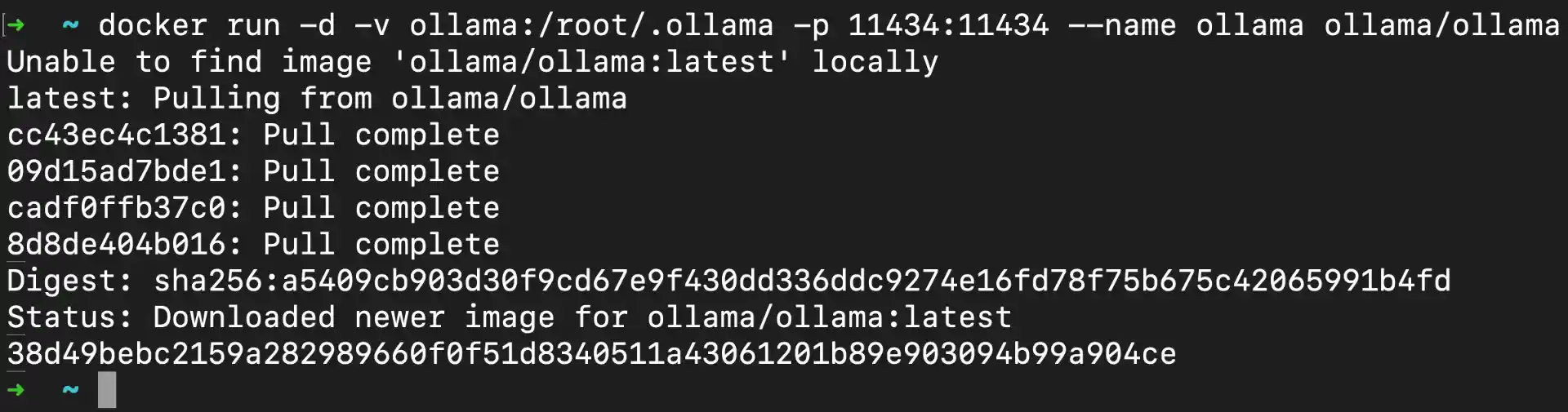
Command Breakdown:
-d: Runs container in detached mode (background)-v ollama:/root/.ollama: Creates named volume “ollama” for persistent model storage-p 11434:11434: Maps host port 11434 to container port 11434 (Ollama API)--name ollama: Assigns container name “ollama” for easy referenceollama/ollama: Official Ollama Docker image from Docker Hub
What happens during startup:
- Docker downloads the Ollama image (first time only, ~1.5GB)
- Container starts and initializes Ollama service (~30-60 seconds)
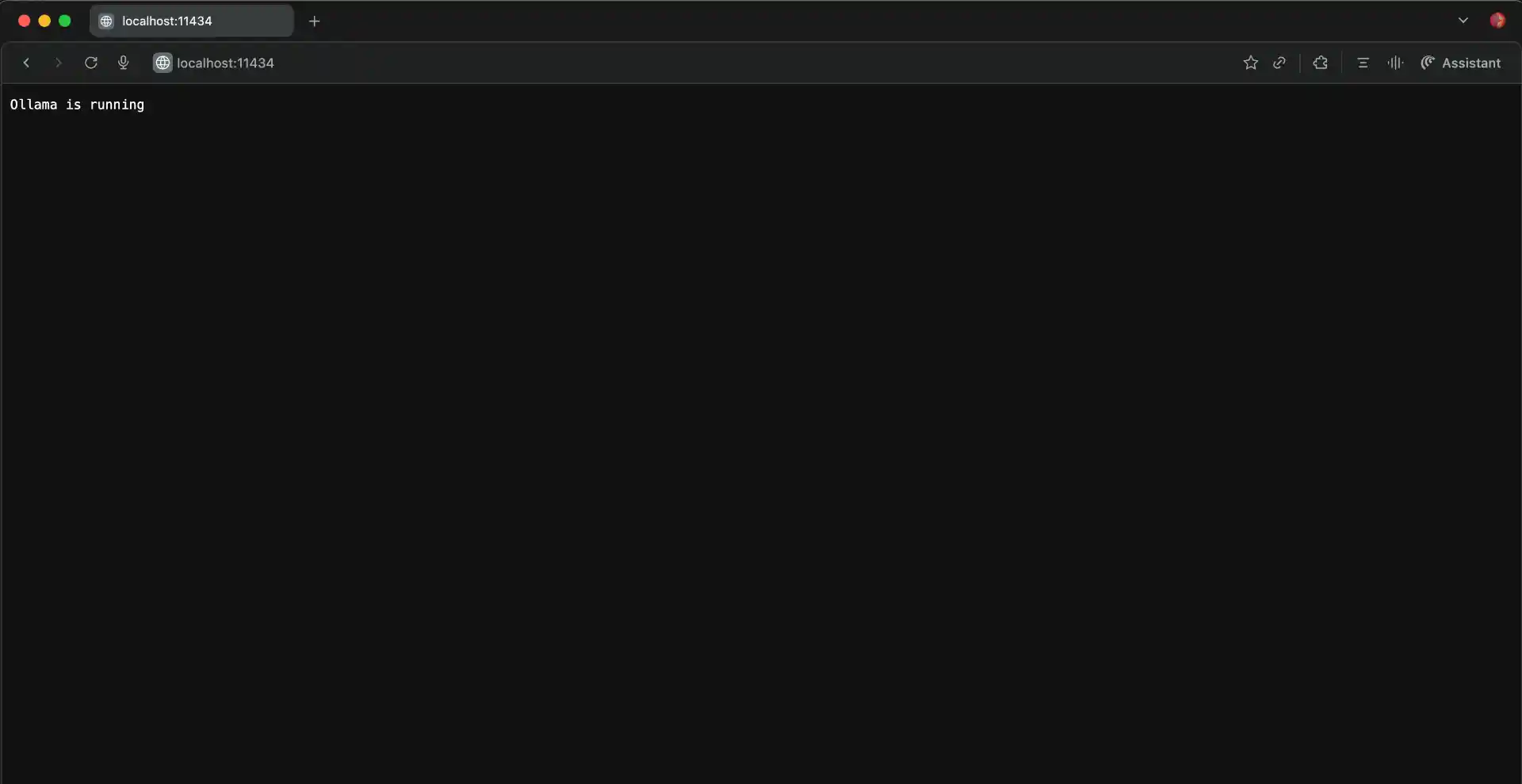
- API becomes available on
http://localhost:11434 - Volume is created for persistent model storage
Verifying the Ollama Container
You can check that the Ollama container is running properly by using docker ps to see active containers. You should see output similar to:
CONTAINER ID   IMAGE           COMMAND               STATUS          PORTS                      NAMES
abc123def456   ollama/ollama   "/bin/ollama serve"   Up 2 minutes    0.0.0.0:11434->11434/tcp   ollama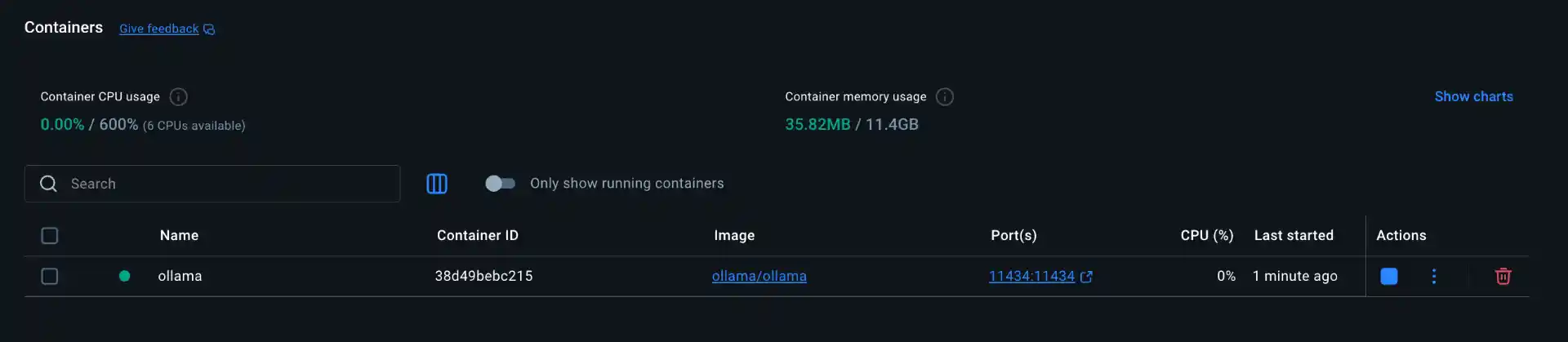
Additional verification commands:
docker logs ollama: View container startup logscurl http://localhost:11434/api/tags: Test API connectivity (should return empty model list initially)docker exec -it ollama ollama --version: Check Ollama version inside container
Step 3: Downloading Your First LLM Model
Choosing the Right Model
Ollama supports dozens of popular open-source models, each with different capabilities and resource requirements. Here’s a breakdown of popular models and their specifications:
Recommended Starting Models:
- Llama 3.2 3B (~2GB): Great for beginners, handles basic tasks, runs on 8GB RAM systems
- Llama 3.1 8B (~4.7GB): Better performance, good for most tasks, needs 12GB+ RAM
- Mistral 7B (~4.1GB): Excellent reasoning, multilingual support
- CodeLlama 7B (~3.8GB): Specialized for programming tasks
Downloading Models into the Container
Because Ollama is running in a container, you will interact with it using docker exec. This runs Ollama commands directly inside the live container.
Note: You can explore the full list of available models here: Ollama Model Library
Download your first model:
docker exec -it ollama ollama pull llama3.2:3b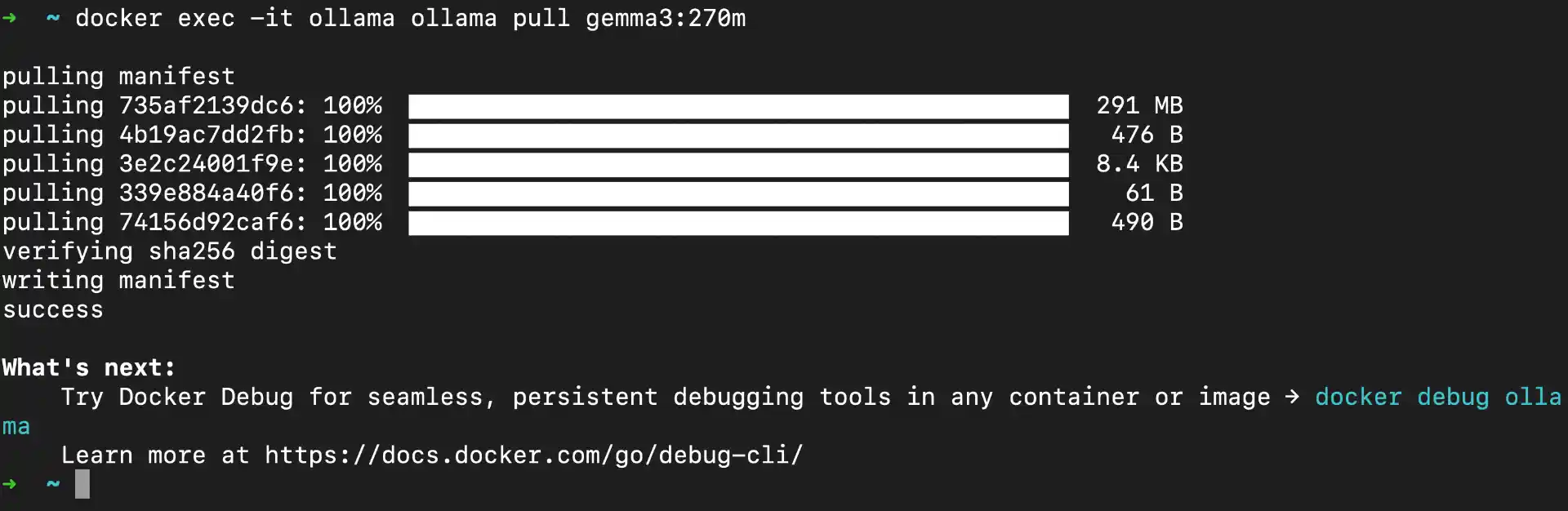
If you want a lighter model for quick local testing, you can also try:
docker exec -it ollama ollama pull gemma3:270mWhat happens during download:
- Ollama contacts the model registry and starts fetching model layers
- Downloads model files in chunks (shows progress bar)
- Verifies file integrity and extracts model
- Model becomes available immediately after download
Step 4: Setting Up Open WebUI with Docker
Understanding Open WebUI
Open WebUI provides a modern, ChatGPT-like interface for interacting with your containerized models. Instead of using command-line interactions, you get a clean web interface with features like conversation history, model switching, document uploads, and even image generation capabilities with compatible models. It’s designed to work seamlessly with Ollama and provides a much more user-friendly experience.
Since both Ollama and Open WebUI run in separate Docker containers, they communicate through Docker’s internal networking. This containerized approach keeps everything organized and makes it easy to manage, update, or troubleshoot each component independently.
Running the Open WebUI Container
Setting up Open WebUI requires just one Docker command, but it’s a bit lengthy due to all the configuration options. The Open WebUI image is approximately 1.2GB and includes a complete web application with chat interface, user management, and model integration.
docker run -d -p 3000:8080 --add-host=host.docker.internal:host-gateway -v open-webui:/app/backend/data --name open-webui --restart always ghcr.io/open-webui/open-webui:main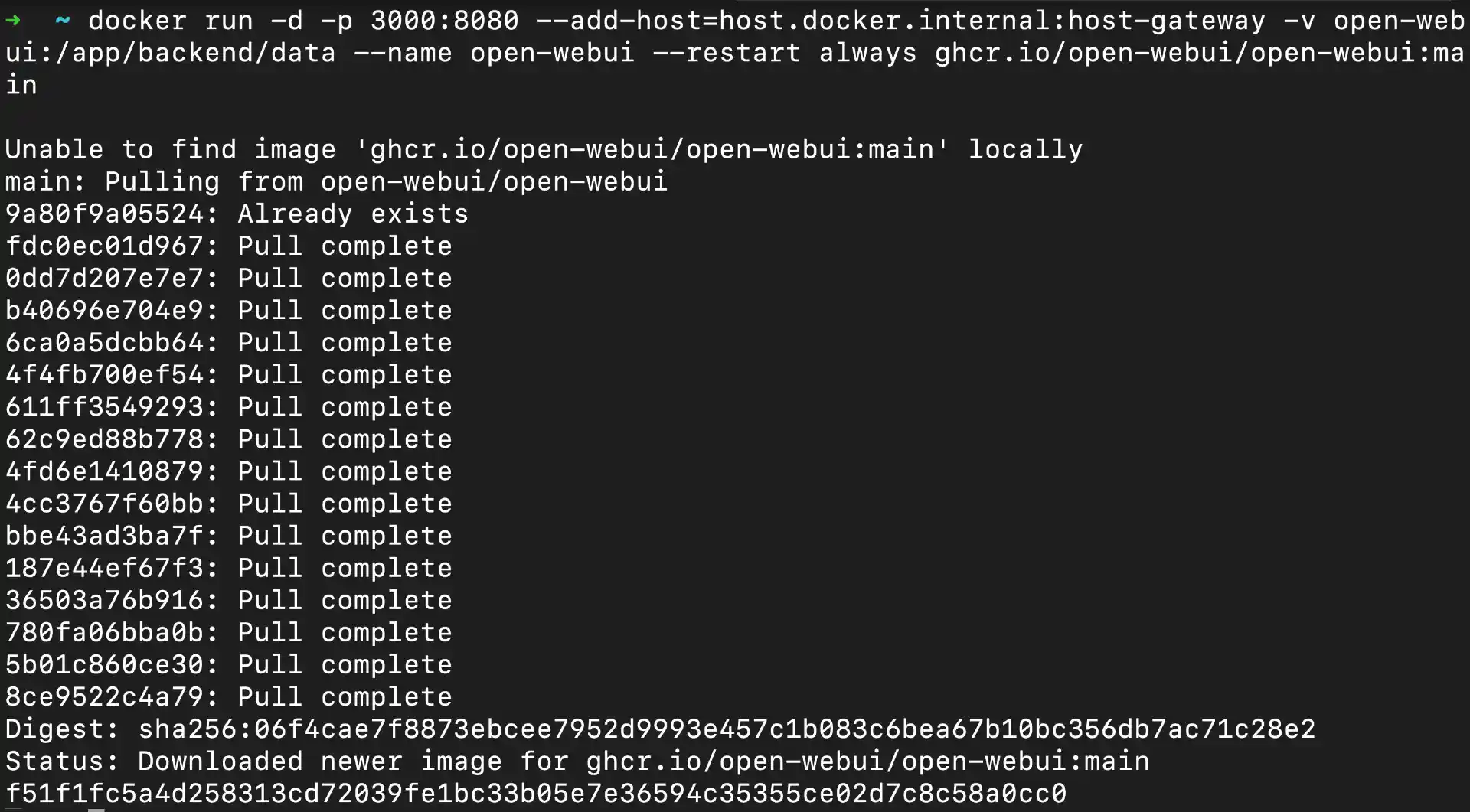
Detailed Command Breakdown:
-d: Run container in detached mode (background)-p 3000:8080: Map host port 3000 to container port 8080 (web interface)--add-host=host.docker.internal:host-gateway: Enable container to reach host services (Ollama)-v open-webui:/app/backend/data: Persistent storage for user data, chat history, settings--name open-webui: Container name for easy reference--restart always: Auto-restart container on system rebootghcr.io/open-webui/open-webui:main: Official Open WebUI image from GitHub Container Registry
Container startup process:
- Docker downloads Open WebUI image (first time only, ~1.2GB)
- Container initializes web server and database (~30-45 seconds)
- Web interface becomes available at
http://localhost:3000 - Automatic connection attempt to Ollama API on port 11434
Verification steps:
# Check container status
docker ps

# View startup logs
docker logs open-webui

# Test web interface accessibility
curl http://localhost:3000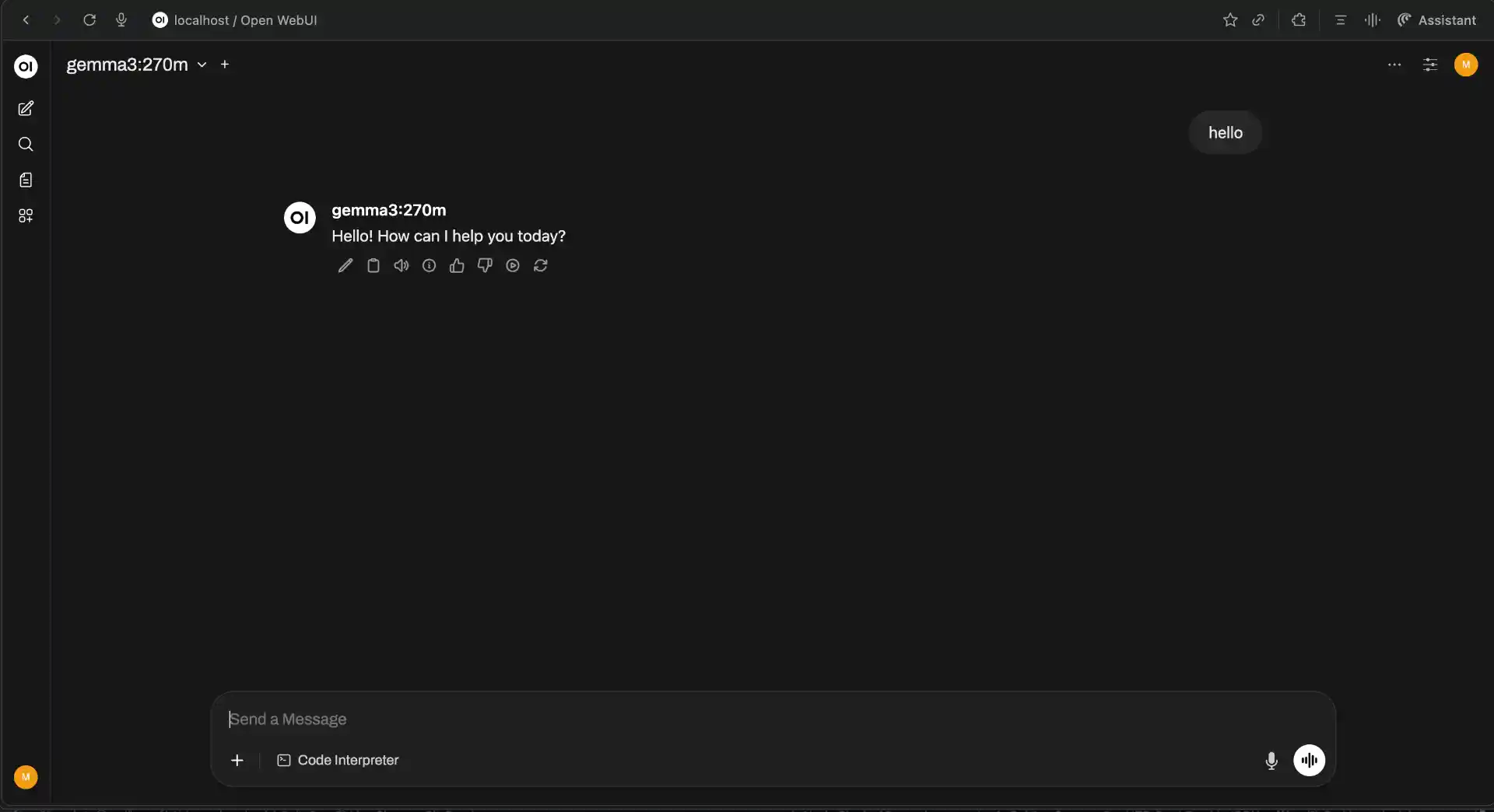
Accessing Your Web Interface
Once the Docker container is running, open your web browser and navigate to http://localhost:3000. You should see the Open WebUI login screen with a clean, modern interface.
First-time setup process:
- Create Admin Account: Enter your desired username and password (this stays local)
- Email (Optional): You can skip this field for local installations
- Account Creation: Click “Create Account” - you’ll be the admin user
- Automatic Login: You’ll be redirected to the main chat interface
Initial configuration checklist:
- Model Detection: Open WebUI automatically scans for Ollama models on
localhost:11434 - Model Selection: Available models appear in dropdown (top-right corner)
- Connection Status: Green indicator shows successful Ollama connection
- Interface Language: Default is English, but supports multiple languages
If models don’t appear:
- Wait 30-60 seconds for initial connection
- Check both containers are running:
docker ps - Verify Ollama API:
curl http://localhost:11434/api/tags - Restart Open WebUI container:
docker restart open-webui
Sharing Your Setup Outside Your Network
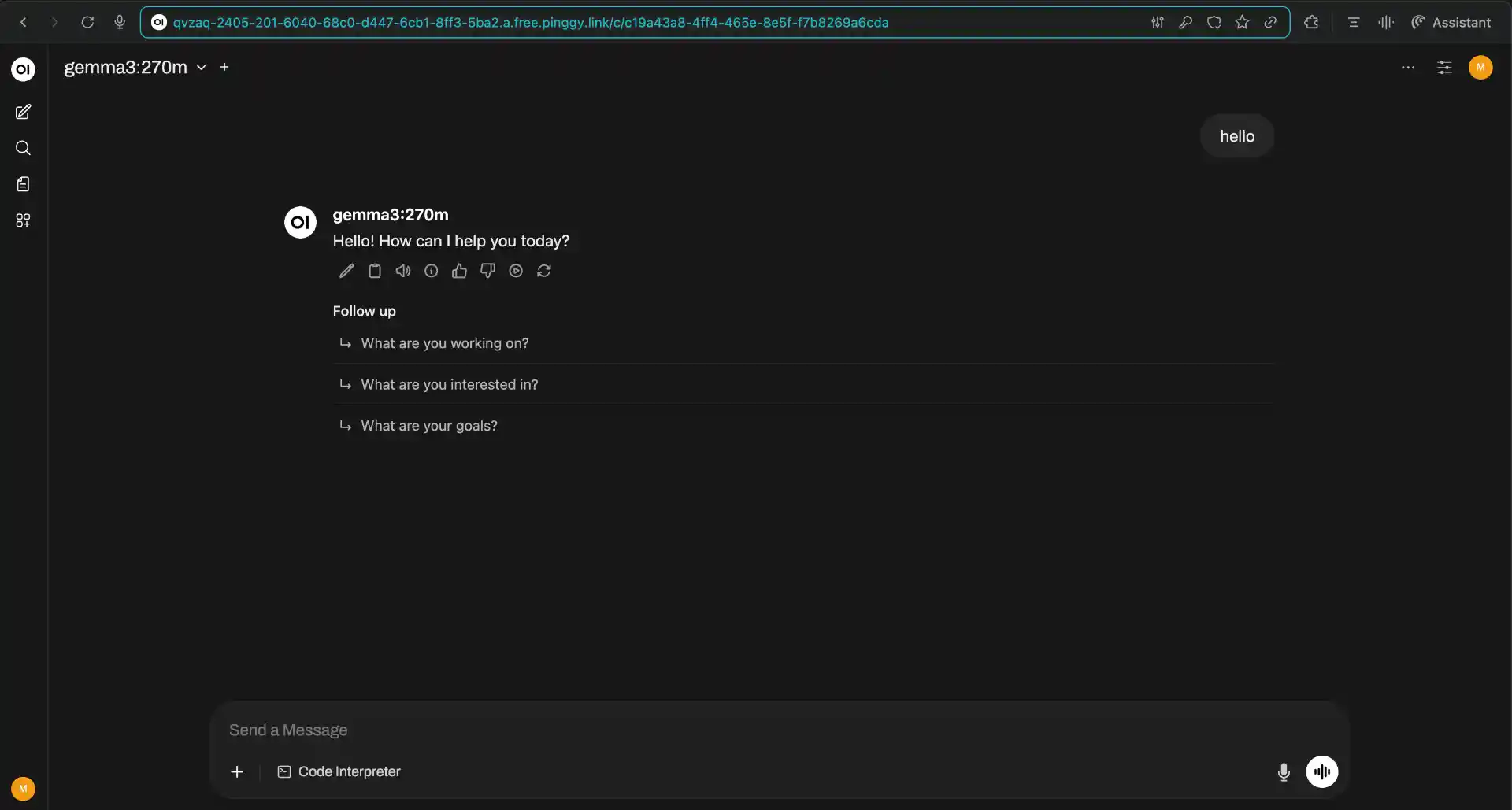
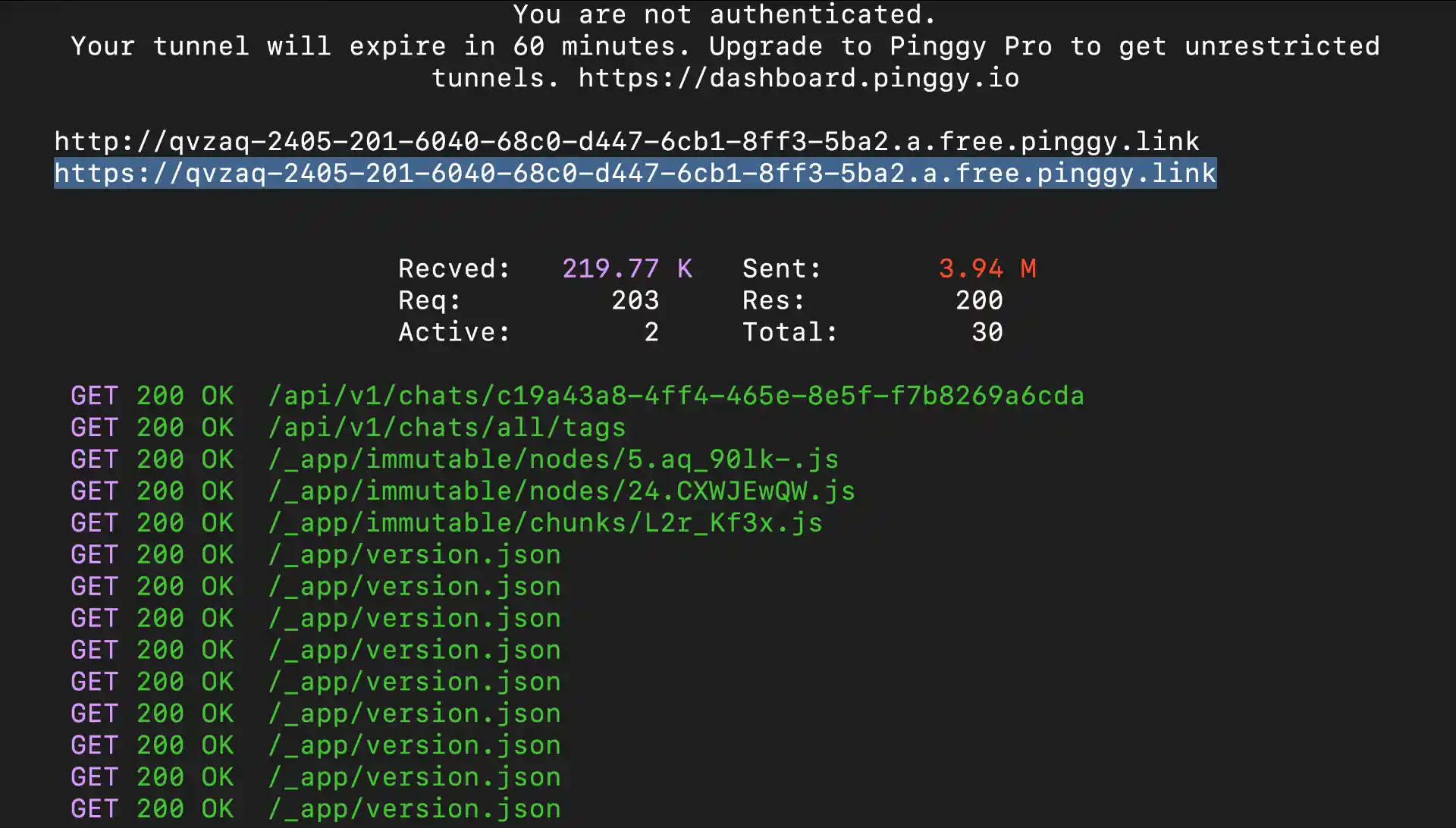
Sometimes you need to demo your setup, collaborate with a remote teammate, or access your local UI while traveling. Pinggy is a quick way to expose Open WebUI securely without touching router/NAT settings.
Run this command to share your Open WebUI interface:
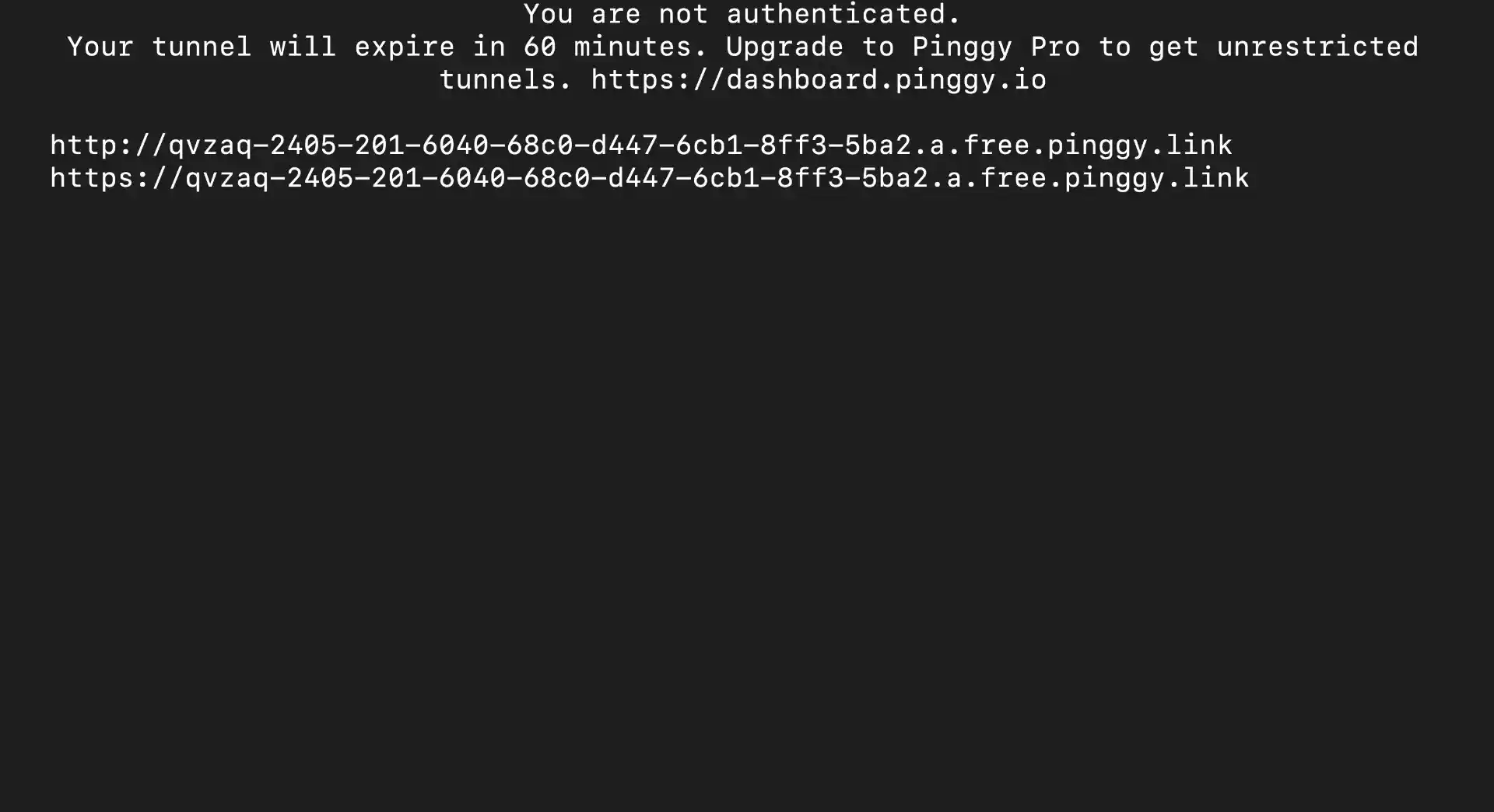
ssh -p 443 -R0:localhost:3000 free.pinggy.io
Pinggy will generate a public HTTPS URL like https://abc123.pinggy.link that you can share with others. The connection is encrypted and secure, and you can terminate the tunnel anytime by stopping the command.
Conclusion
You now have a practical self-hosted AI setup: Ollama for local inference and Open WebUI for a clean chat interface. It is private, repeatable, and cost-predictable, which makes it a strong base for both personal and team workflows.
From here, you can improve quality by trying larger models, improve speed with GPU tuning, and integrate Ollama endpoints into internal tools or apps. The biggest advantage is ownership: you control your models, your data path, and your operating costs as your usage grows.